
Job detail
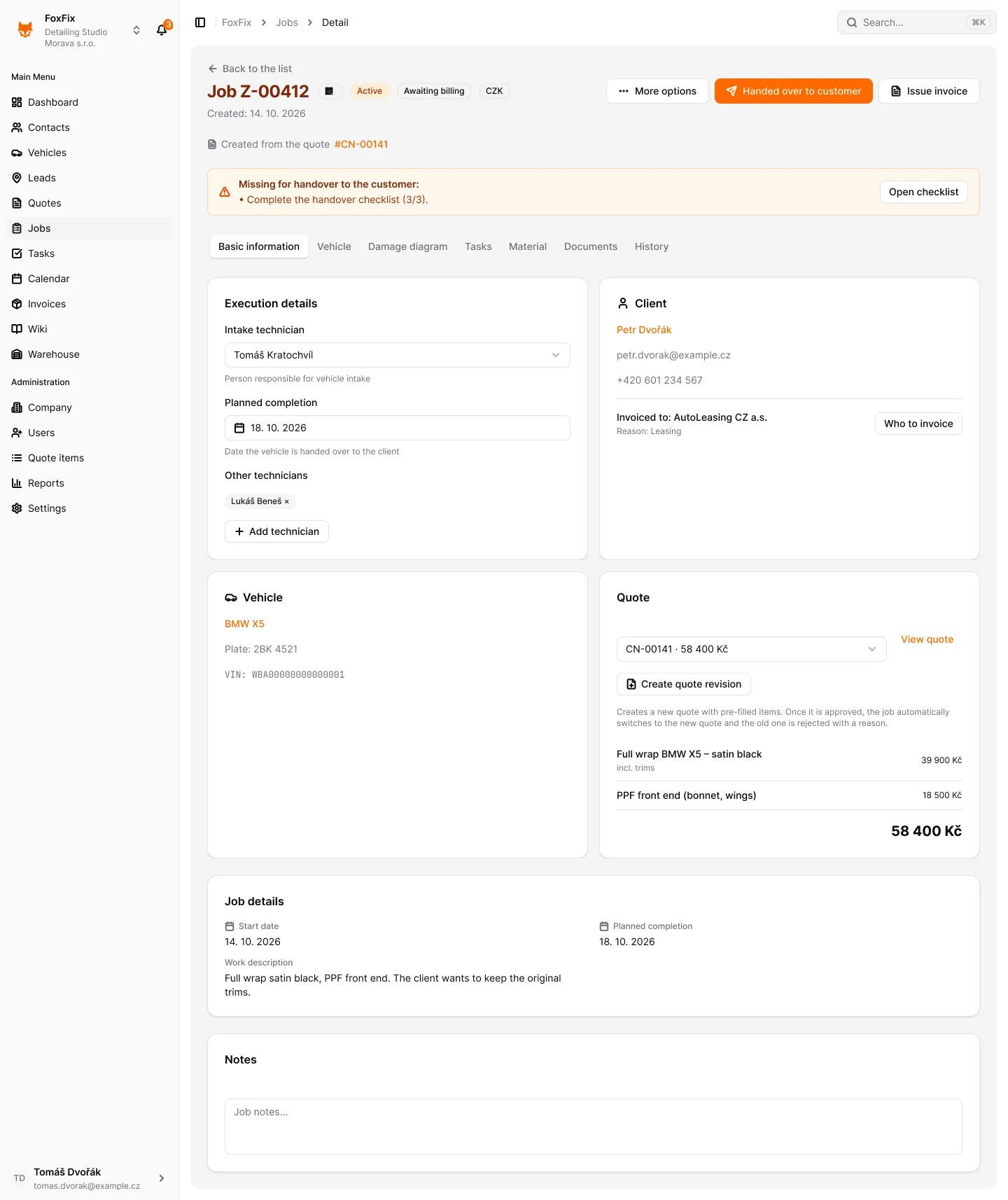
The job detail is where you run a job from taking in the vehicle and the work in the workshop through to handover and invoicing. Open it by clicking a row in the Jobs list, or by scanning the job QR code.
 (opens the full-size image in a new tab)
Header
- Job Z-… with a QR code icon next to it, which opens the job QR code.
- Below the title, badges: job status, payment status (e.g. Awaiting billing, Paid, Paid in cash), the job's currency (inherited from the quote) and the creation date.
- If the job has an invoice, an Open invoice FV-… button with the invoice status and a PDF button to download the invoice.
- The line Created from quote #CN-… — a link to the quote the job was created from.
- On the right, the More options button and the action panel.
More options
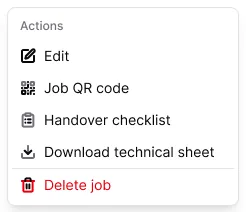
The More options menu contains:
- Edit — the job edit form, see Editing a job.
- Job QR code.
- Intake checklist (for a job in the Approved status) or Handover checklist (for an active job) — only for jobs with a vehicle.
- Download technical sheet — only for jobs with a vehicle.
- Delete job — only Administrator and Manager.
 (opens the full-size image in a new tab)
Action panel: what to do next
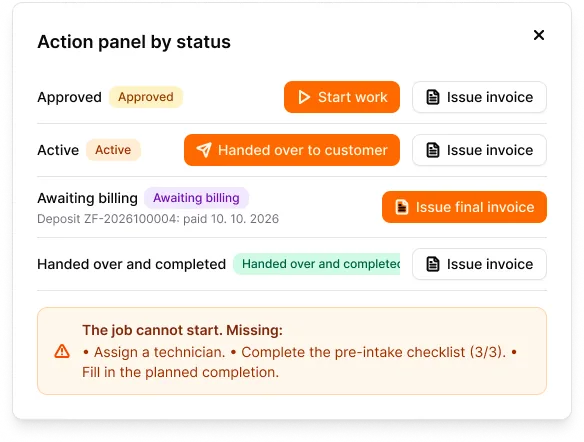
At the top right is the main button, which changes with the job status:
| Job status | Main button | Secondary button |
|---|---|---|
| Approved | Start work | Issue invoice |
| Active | Handed over to customer | Issue invoice |
| Awaiting billing | Issue invoice (with a deposit, Issue final invoice) | — |
| Handed over and completed | — | Issue invoice, if the invoice is missing |
 (opens the full-size image in a new tab)
When something is missing, the button is greyed out. Hover over it to see the “Missing:” list; the same list also appears in the orange bar above the tabs (“The job cannot start. Missing:” or “Missing for handover to the customer:”). For jobs with a vehicle, the bar has an Open checklist button.
The secondary Issue invoice button (in the Approved, Active and Handed over and completed statuses) is visible to an Administrator, Manager and Salesperson, and only while the job has no invoice. In the Awaiting billing status, Issue invoice is the main button. For a job paid in cash without an invoice (Paid in cash), the button is not shown.
Start work
You can start work once the job has:
- an assigned technician (“Assign a technician.”),
- a planned completion date filled in (“Fill in the planned completion date.”),
- for a job with a vehicle, a completed intake checklist (“Complete the pre-intake checklist (3/3).”) — see Vehicle intake and handover.
After you click Start work:
- The app checks and reserves the material in the warehouse.
- For a job with a vehicle, a vehicle intake report (PDF) is generated into the job documents. A job without a vehicle has no report and starts straight away.
- The job moves to the Active status.
- For a job with a vehicle, the technical sheet is generated and the Technical sheet preview window opens (“The technical sheet has been saved to the job documents.”). Close it with Done.
Material is short in stock
If the job is short of material that purchasing has not delivered yet, the Material is short in stock window opens. At that point only an Administrator or Manager can start the job; other roles cannot. They must fill in the Reason for starting without material and confirm with Start anyway; the reason is recorded in the job history.
Handed over to customer
This button closes the job with the Handed over and completed status. For a job with a vehicle, you first need to go through the handover checklist. The whole procedure, including handover without a paid invoice, is described in Vehicle intake and handover.
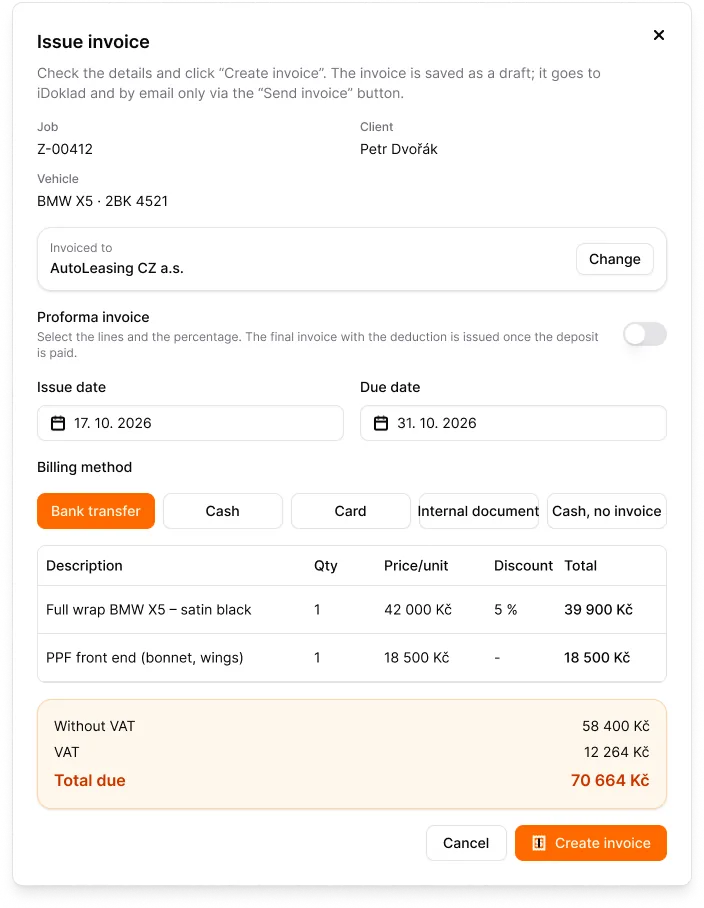
Issuing an invoice
Issue invoice opens a window where you check the customer, the issue and due dates, the lines and the totals. You can choose:
- a proforma invoice (the Proforma invoice switch, deposit percentage and selection of lines),
- the Billing method — Bank transfer, Cash, Card, Internal document (e.g. a warranty claim at your own cost) or Cash, no invoice (paid in cash without an invoice).
Once you confirm, the invoice is saved as a draft and its detail opens; it only goes to accounting and to the client by email when you click Send invoice. Issuing an invoice (other than a proforma) moves the job to the Active status, where it stays until the vehicle is handed over. If the job already has an invoice, the app simply opens it. For details see Invoices and the Invoicing and payment procedure.
 (opens the full-size image in a new tab)
Job QR code
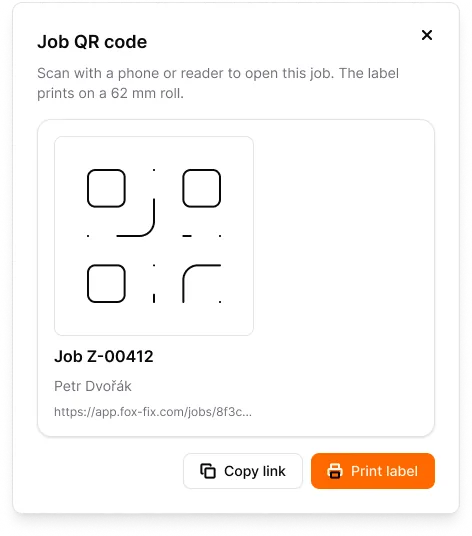
The QR icon next to the job number (or More options → Job QR code) opens a window with the QR code. Scan it with a phone or a reader and this job opens directly.
- Copy link — copies the job's address.
- Print label — prepares a QR code label for a label printer with a 62 mm roll. You can stick the label on the keys or inside the car, for example.
 (opens the full-size image in a new tab)
Technical sheet
The technical sheet (job card) is the workshop's working document: the job number and QR code, customer, vehicle, services and material, vehicle condition, terms and conditions, and space for signatures. It is created automatically on Start work and saved to the job documents. You can download it at any time via More options → Download technical sheet.
The technical sheet never shows prices, so you can safely hand it to the workshop.
Basic information tab
Execution details
- Intake technician — who is responsible for taking in the vehicle.
- Planned completion — the date the car is handed back to the client. Changes are saved immediately.
- Other technicians — add colleagues with Add technician and remove them with the cross next to their name. Technician changes are recorded in the history.
Client and who to bill
The Client card shows the name, email and phone number. Below them is who gets invoiced — by default “Billed to the client”.
If you are invoicing another party (leasing, company car, re-invoicing):
- Click Who to bill.
- Select a linked company, or search for a contact or company in the Another party field.
- Enter a Reason (e.g. “Leasing”) and confirm with Use this party.
The job's client stays the same; only the invoice recipient changes. To switch back to the client, choose Invoice the client.
Vehicle
Make and model (a link to the vehicle card), licence plate and VIN. If the VIN is missing, click + Add VIN.
Quote and revisions
The Quote card shows the job's quote with its items and total amount. Open it with the View quote link.
- Choosing a quote — you can switch the job to another approved quote of the same client. For a job in progress the app asks you to confirm; the job status and completed checklists are kept.
- Create quote revision — when the client wants a price change or extra services during the work. A new quote is created in the Draft status with the items of the current quote and opens for editing. The original quote applies until you approve the revision; once it is approved, the job switches to the revision automatically and the old quote is rejected. More in Quote detail.
- A revision in progress is marked by an amber Quote revision in progress box with an Open revision button. You can create another revision once this one has been approved or rejected.
- Once the invoice has been issued, the quote is locked (“Quote locked: the invoice has been issued”). Changes to an issued invoice are made directly in your accounting (iDoklad).
Job details and notes
The Job details card summarises the Start date, Planned and Actual completion and the Work description. Write internal notes in the Notes card (“Job notes…”) — they save automatically.
Vehicle tab
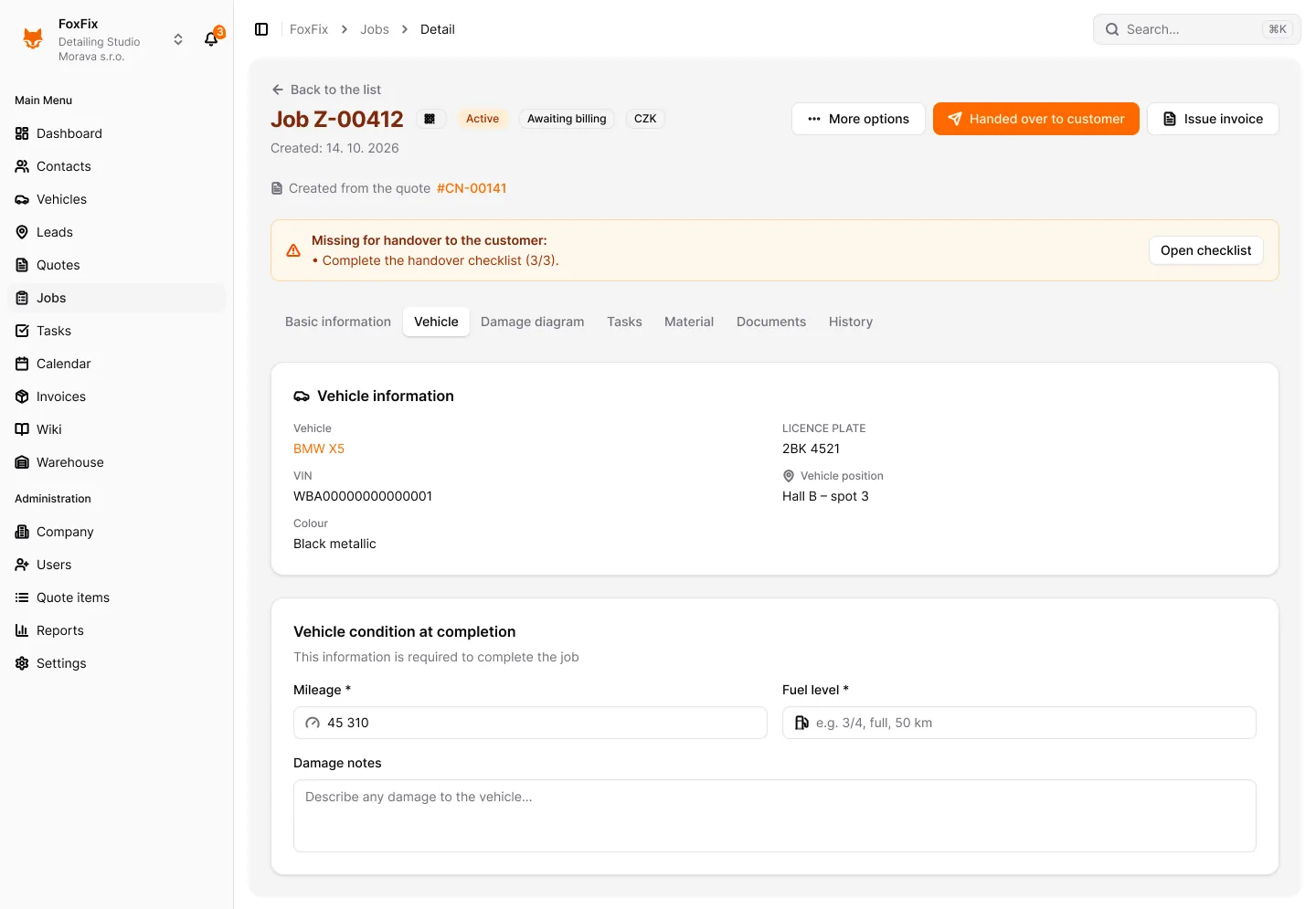
This tab is only shown for jobs with a vehicle. The Vehicle information card shows the vehicle, licence plate, VIN, vehicle position and colour.
For an active job, below it is the Vehicle condition at completion card: Mileage *, Fuel level * (“e.g. 3/4, full, 50 km”) and Damage notes. This information is carried over to the handover report.
 (opens the full-size image in a new tab)
Damage diagram tab
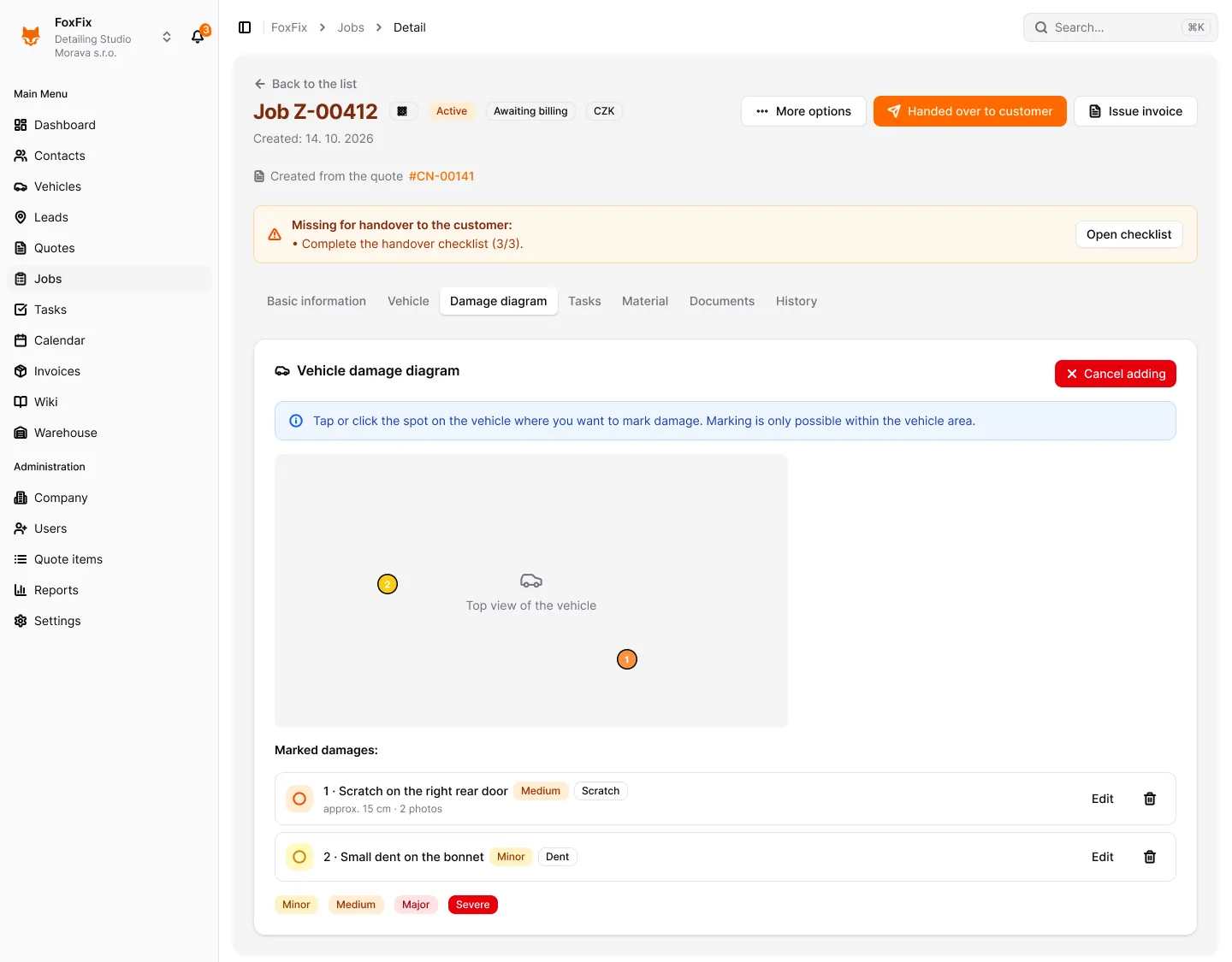
The vehicle diagram (top view) shows numbered damage points. The colour of a point matches its severity: Minor, Moderate, Major, Critical.
How to add damage:
- Click Add damage. A hint appears: “Tap or click the spot on the vehicle…”.
- Click the spot on the vehicle.
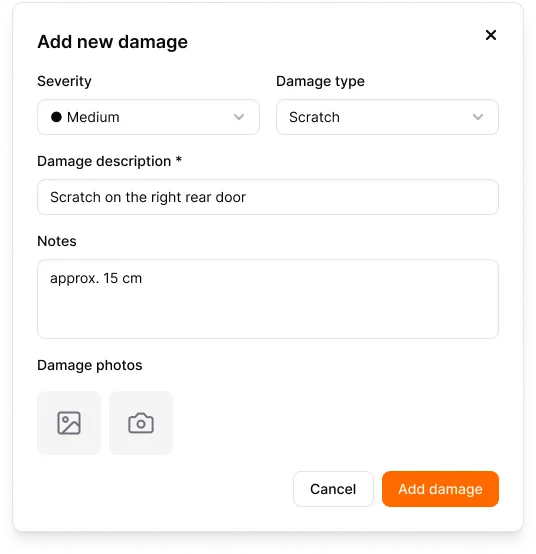
- In the Add new damage window, choose the Severity and Damage type (Scratch, Dent, Rust, Crack, Missing part, Other), fill in the Damage description * and, if needed, Notes, and add Damage photos from the camera or gallery.
- Confirm with Add damage.
Below the diagram is the Marked damage list with Edit buttons and a bin icon. To stop adding, click Cancel adding. For a completed job the diagram is read-only.
 (opens the full-size image in a new tab)
 (opens the full-size image in a new tab)
Tasks tab
Tasks linked to the job, for example “Order parts”.
- Add task — opens the New task window: Task title *, Description, Assignee, Priority (Low, Medium, High, Urgent) and Due date and time. You are the person who assigned it.
- Tick the box to complete a task, use the drop-down on the right to change its status (Pending, In progress, Completed), and use the bin icon to delete it.
- Click a task to open its detail with sub-tasks; from there you can Edit it or open the Full detail.
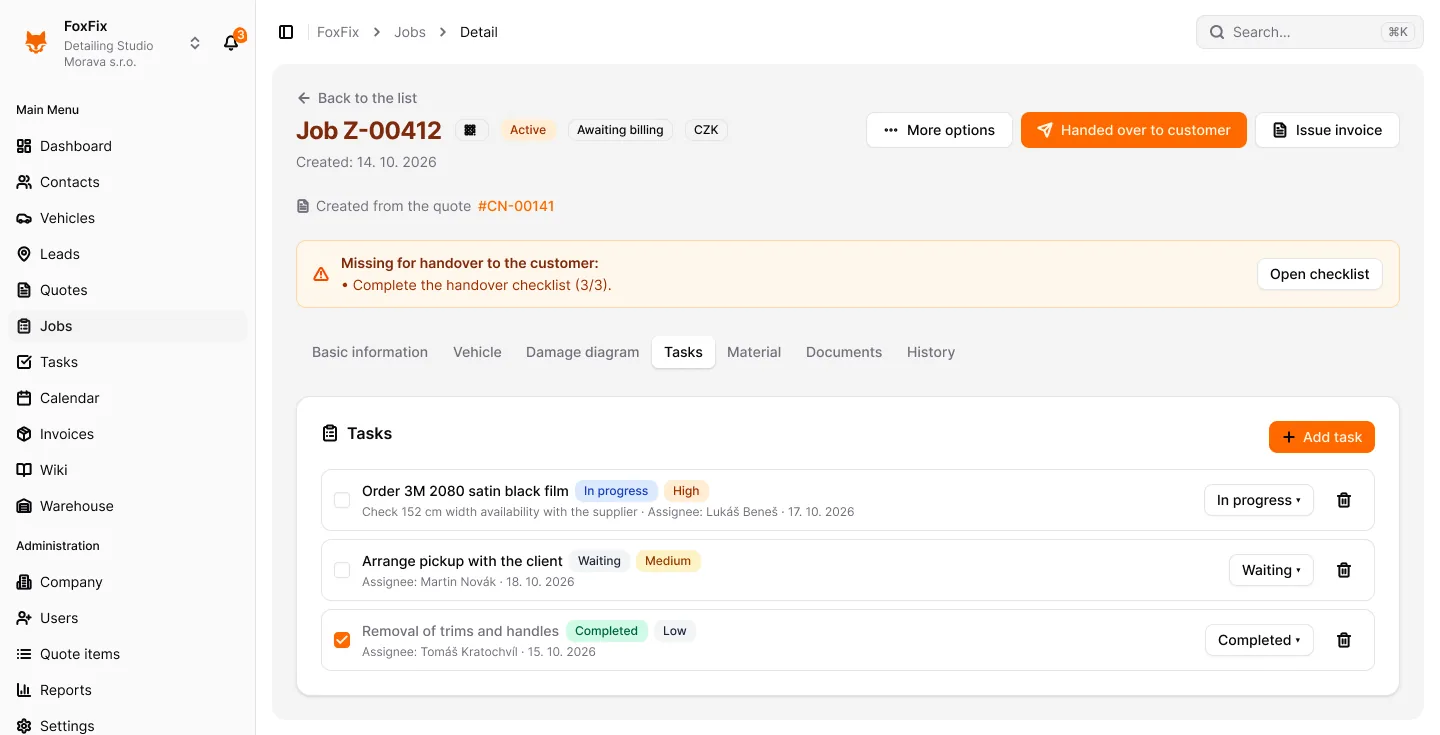 (opens the full-size image in a new tab)
More in Tasks.
Material tab
This tab shows what material from the warehouse the job needs, how much of it is reserved and how much was actually used.
When material is reserved
Material is reserved as soon as the job is created and checked again on Start work. Whatever is short in stock is passed to purchasing as a shortage and reserved automatically once the goods arrive. If you cancel or complete the job, reservations that have not been issued are released.
Job costs
The Job costs card is shown to an Administrator, Manager and Salesperson. It shows:
- Material — the cost of issued material at the average purchase cost,
- Subcontracts — costs from received invoices assigned to the job (with links to the individual invoices),
- Revenue excl. VAT and Margin before labour.
Labour cost is not calculated yet. Subcontracts in a foreign currency are not included in the total, and the margin is then not shown.
Material: norm vs. actual
The table compares the plan with the actual figures for each material:
| Column | Meaning |
|---|---|
| Material | The stock card. A … short badge means a shortage in stock; estimated norm means the norm was estimated. |
| Norm | How much material the job needs according to the quote items. |
| Reserved, Issued, Returned, Waste | Material movements for the job. |
| Actual | Actual consumption. |
| Deviation | Difference between actual and norm. |
| Cost | Material cost (only for roles that can see prices). |
Above the table there may be a red bar “N materials are short in stock. The shortage is passed to purchasing and reserved automatically on receipt.” or a warning that some items have no stock card.
Buttons above the table:
- Reserve again — tries again to reserve the missing material (for example after goods have been received).
- Additional issue — material beyond the norm (for example after an installation error). Choose the Material, Quantity and Reason (Norm too low, Installation error / rework, Material defect, Vehicle condition or damage, Extra work for the customer, Preparation error, Other) and click Save. The request goes to the warehouse queue; if the material is not in stock, it is recorded as a shortage for purchasing.
- Return to stock — unused material. Metres go back onto the roll they were issued from.
- Waste — issued material that ended up as waste (reason: Trim, Application error, Material defect, Roll remnant below threshold, Other). Stock levels do not change; the waste is deducted from actual consumption. For a material defect, administrators and managers get a notification to consider a warranty claim with the supplier.
Below the table is the Material movements card with issues, returns and waste; for goods sold by the metre, with a link to the specific roll. How the warehouse picks and issues material is described in Issuing material to a job.
Documents tab
The job's documents and photos are split into sections:
- From the quote #CN-… — the PDF of the approved quote.
- Arrival photos — photos from the intake checklist and ones uploaded by hand.
- Handover photos — photos from the handover checklist.
- Other documents — the vehicle intake and handover reports, the technical sheet and other files.
- From the invoice #FV-… — the invoice's documents, if there are any.
The photo and other document sections have Upload (you can select several files at once) and Download all (the whole section as a ZIP) buttons. Each file has a preview (eye icon), download and delete. Files and photos uploaded by hand can be deleted by an Administrator and a Manager. A Technician does not see quote and invoice PDFs in the documents. Click a photo to open it full screen and browse with the arrows (or by swiping).
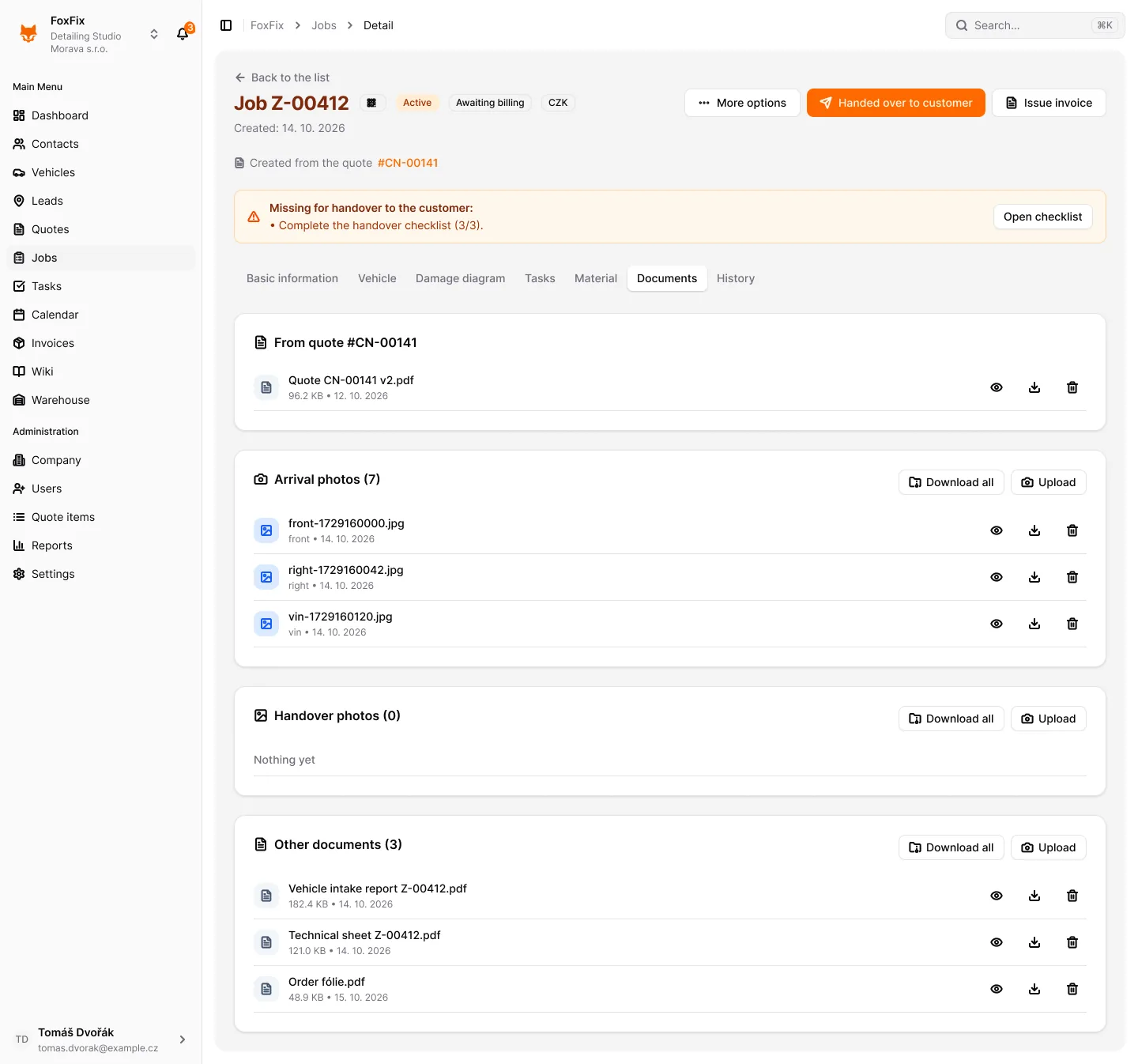 (opens the full-size image in a new tab)
History tab
History shows every event on the job — changes of status, technicians and billing party, confirmations of handover without payment, starts despite a material shortage and more — with the author and time. Below it is the Documents overview with all of the job's files; automatically created ones have an Auto badge.
On a phone
On a phone the header and buttons are stacked, and More options and the main button are full width. Scroll the tabs sideways; cards are in a single column. Checklists open full screen — see Vehicle intake and handover.