
Invoice detail, sending and payment
In the invoice detail you check the invoice, send it to the client and to iDoklad, follow whether it has been paid and download its PDF. Open the detail by clicking a row in the Invoices list, or from the job detail.
 (opens the full-size image in a new tab)
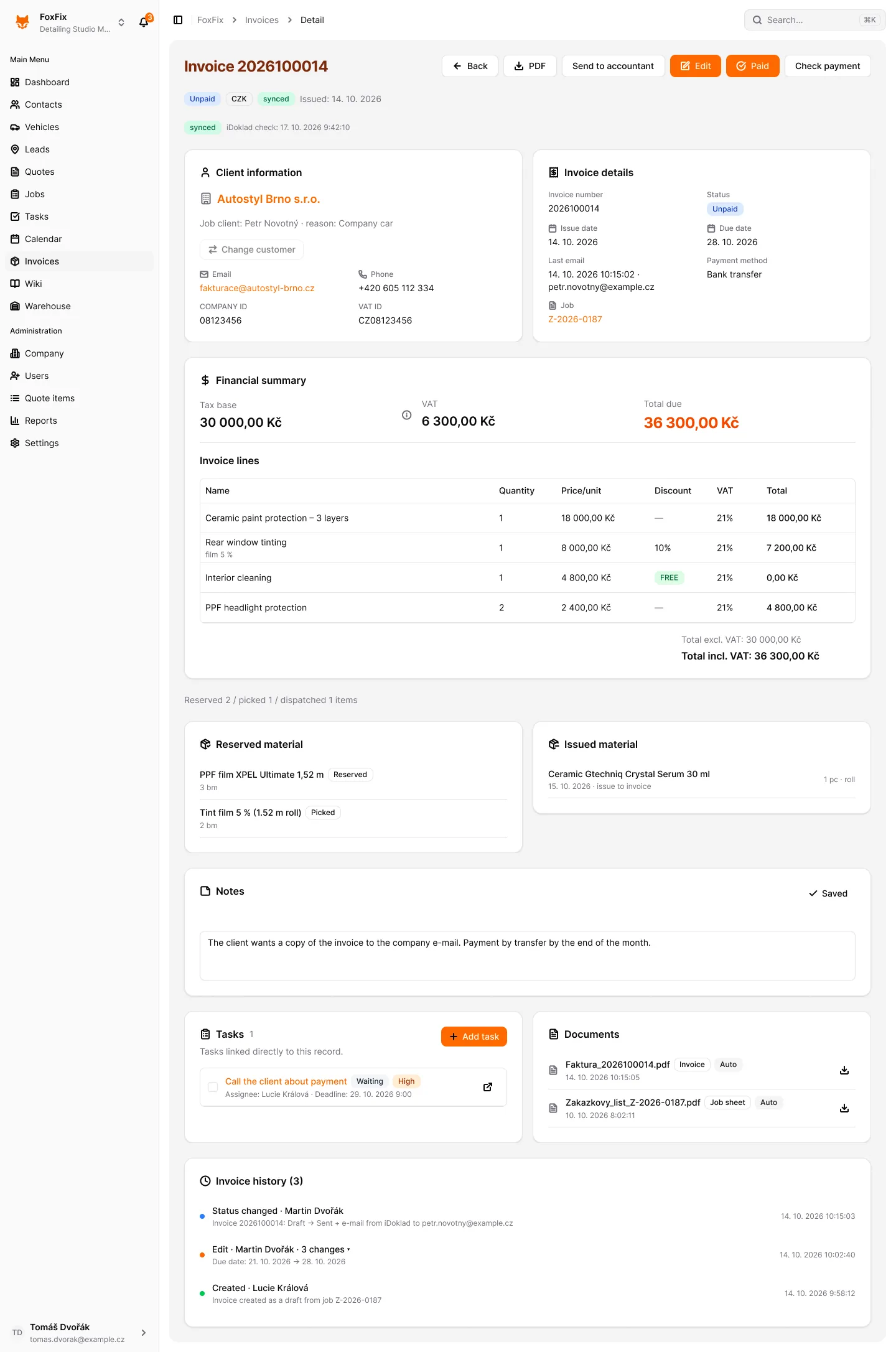
What you will find on the page
Header – the title (Invoice, Proforma invoice or Internal document) with the number, and below it labels: the payment status, Proforma, the currency (CZK / EUR), for an internal document its reason, and the iDoklad label – a green synced (the invoice is in iDoklad) or a red error (the last transfer failed; the error text “iDoklad: …” is then shown in red below the header). The action buttons are on the right – more on them below.
Below the header of an invoice in iDoklad there is a line “iDoklad check: …” with the time the payment status was last verified.
Client information – the customer on the invoice (the name links to the contact), Email, Phone, Company ID, VAT ID. If you are invoicing a party other than the job's client, you also see a Job client: row with the reason. The Change customer button opens the Who to invoice window – only for a draft that is not yet in iDoklad.
Invoice details – Invoice number, Status, Issue date, Due date (in red once overdue), Payment date (for a paid invoice), Last email (when and to whom iDoklad sent the invoice), Payment method and a link to the Job.
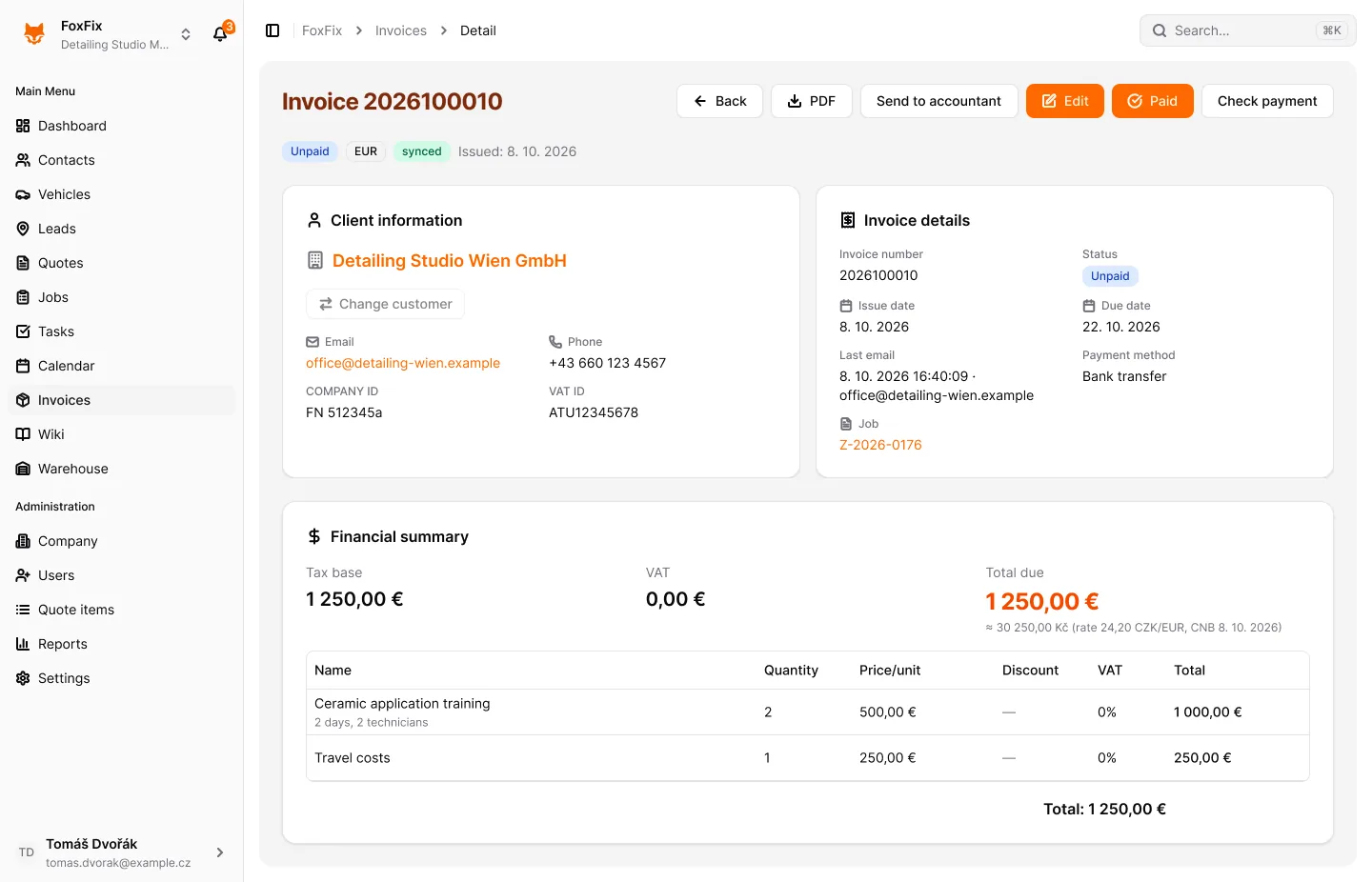
Financial summary – Tax base, VAT and, in large type, Total due. For an invoice in euros, an approximate conversion to CZK with the exchange rate used (CNB or company rate) is shown below the amount.
Invoice lines – Name (with any item note), Quantity, Price/unit, Discount (a 100% discount is shown as a green FREE), VAT and Total. At the bottom are the Total excl. VAT and Total incl. VAT totals. If all lines have 0% VAT, there is only a Total.
These follow:
- Reserved material and Dispatched material – only when something was reserved for or issued against the invoice from Inventory.
- Notes – internal notes on the invoice (“Notes on the invoice…”). They save themselves; you see the status next to the field (Saving… / Saved).
- Tasks – tasks linked to the invoice, for example a reminder to the client. Add a new one with the Add task button (see Tasks).
- Invoice history – who created, sent or changed the invoice and when; for edits you can expand exactly what changed.
- Documents – generated PDFs to download.
Header buttons
| Button | When you see it | What it does |
|---|---|---|
| always | Downloads the PDF. For an invoice in iDoklad, the official PDF from iDoklad; for a draft or an internal document, a preview generated in FoxFix. | |
| Edit | according to the editing rules | Opens invoice editing – see What can be edited. |
| Send invoice | for a draft and for an invoice whose sending failed | Sends the invoice to iDoklad and by email to the client. |
| Paid | for a sent or overdue invoice that is not yet paid | Marks the invoice as paid by hand. |
| Check payment | for an invoice in iDoklad | Verifies the payment status in iDoklad. |
| Send to accountant | for an issued invoice in iDoklad, Administrator and Manager only | Sends the invoice from iDoklad to the accountant again. |
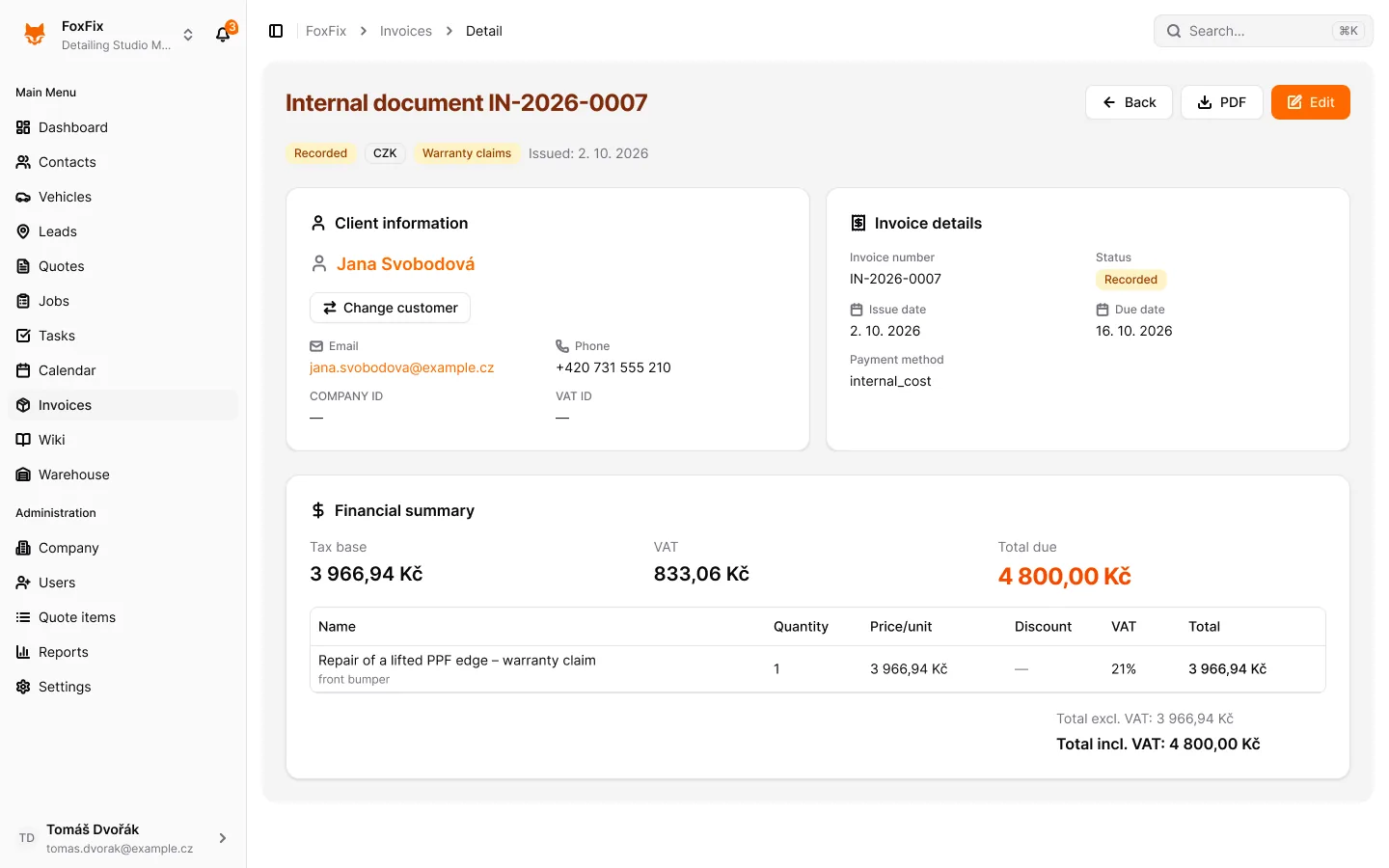
For an internal document, sending, marking payment, checking payment and the iDoklad label are not shown – the document is for your own records only.
Sending the invoice
With the 5 November 2026 update
In companies with the update switched on, Send invoice opens the message preview after the invoice is issued in iDoklad: the recipients from the settings below, the subject and text in the customer's language and the official iDoklad PDF attached. You can edit the text; FoxFix (not iDoklad) then sends the message and the sent version is saved to the invoice history. There is no confirmation question – the Send button in the preview is the confirmation.
- In the detail of a draft, click Send invoice. Below the button you see a warning if something is wrong with the recipients.
- Confirm the question “Synchronise to iDoklad and send the invoice to: …?” – it contains the exact list of addresses.
- FoxFix creates the invoice in iDoklad and iDoklad sends it by email. On success you will see “Invoice synchronised and sent to …”, the status changes to Unpaid, the synced label appears and Last email is filled in.
Who the invoice goes to is set by an administrator in Settings → iDoklad under Sending invoices: the email of the contact on the invoice (when Send the invoice to the customer is on) and Additional recipients (copy). iDoklad supports at most 5 recipients.
Warnings below the button:
- “The contact has no email and no other recipients are set, so there is nowhere to send the invoice.” – add an email to the customer's contact.
- “The contact has no email — it will go to the copies only.” – the invoice is sent, but the customer will not receive it.
- “iDoklad supports at most 5 recipients; it will not be sent to: …” – the listed addresses are left out.
When sending fails
The invoice shows a red error label and the error text from iDoklad. The invoice is not considered sent and the Send invoice button remains available. Fix the cause (for example a missing email or due date) and send it again. If the invoice already reached iDoklad and only the email failed, sending again just updates it in iDoklad – no second invoice is created.
Checking and marking payment
Payment status is loaded from iDoklad automatically:
- in the background every 15 minutes,
- when you open the invoice detail (at most once a minute),
- when you open the invoice list (at most once every 3 minutes),
- with the Synchronise payments button on the Invoices page.
If you want to check one invoice right away, click Check payment. FoxFix shows you the result, for example “Payment status: Paid”.
Marking an invoice as paid by hand
Mark an invoice paid in cash or by card, or a payment iDoklad has not matched, by hand:
- Click the green Paid button.
- Confirm the question “Mark the invoice as paid?”.
The invoice gets the Paid label and the detail shows the Payment date. If the company has automatic synchronisation with iDoklad switched on, the change is carried over there too.
How the amount is calculated
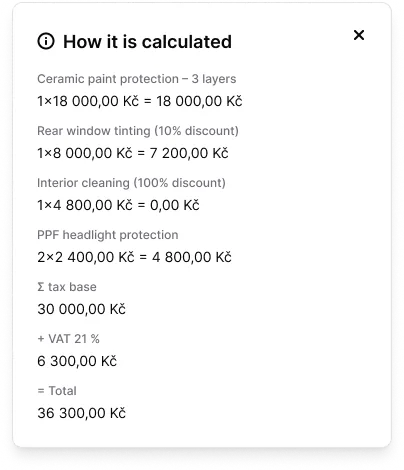
Next to the Tax base there is an ⓘ icon. Click it to open the How it is calculated window: you see each line (quantity × price, any discount), their sum Σ tax base, the VAT added and the resulting = Total.
 (opens the full-size image in a new tab)
A discount on a line reduces its base; VAT is calculated from the base after the discount. If something does not add up, compare the lines with the quote or the job.
Proforma invoice in the detail
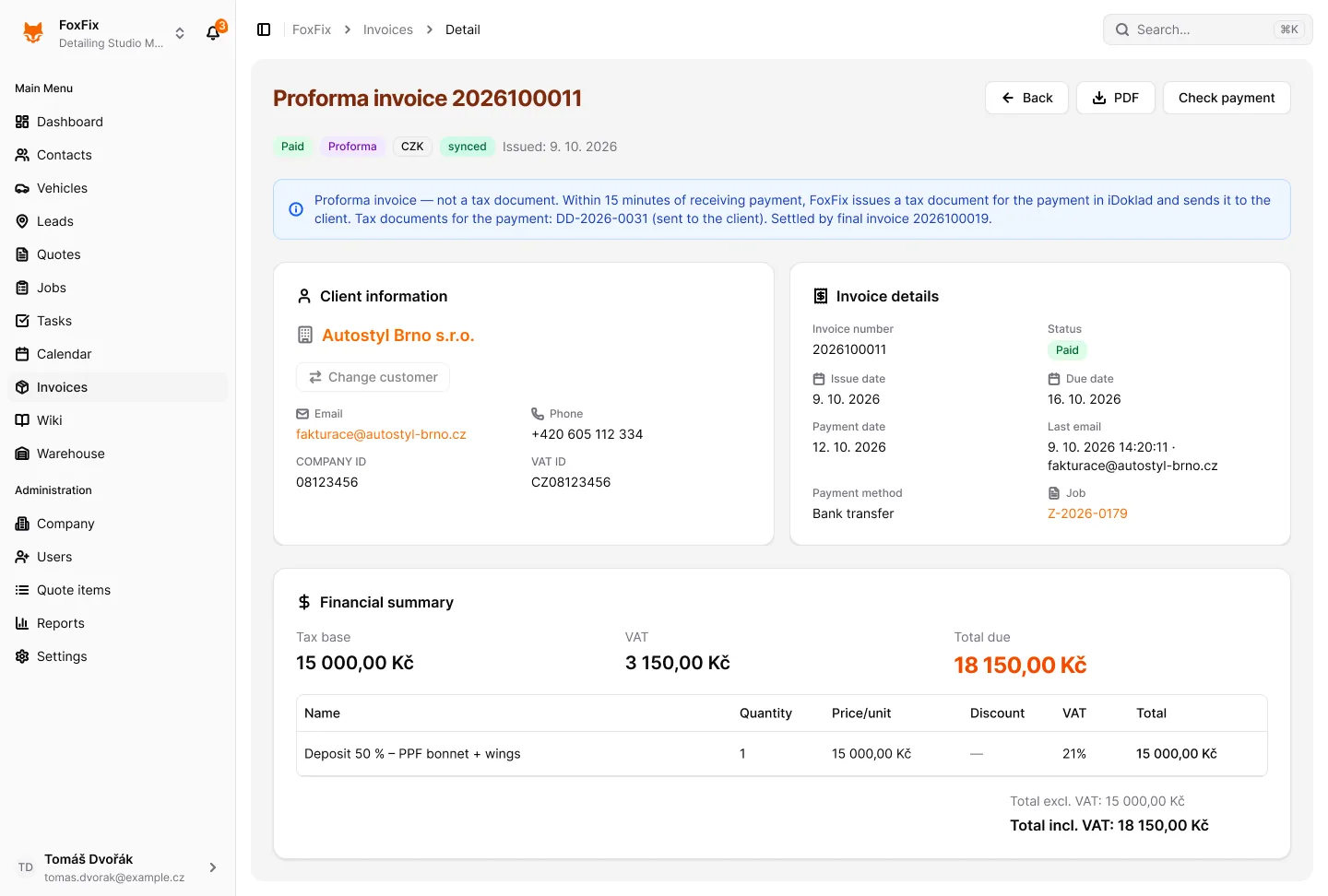
A proforma invoice has a purple Proforma label and a blue bar “Proforma invoice — not a tax document. After the payment is received, FoxFix issues a tax document for the received payment in iDoklad within 15 minutes and sends it to the client.” Once paid, the bar adds the numbers of the tax documents and, once the final invoice is issued, also the link “Settled by the final invoice …”.
 (opens the full-size image in a new tab)
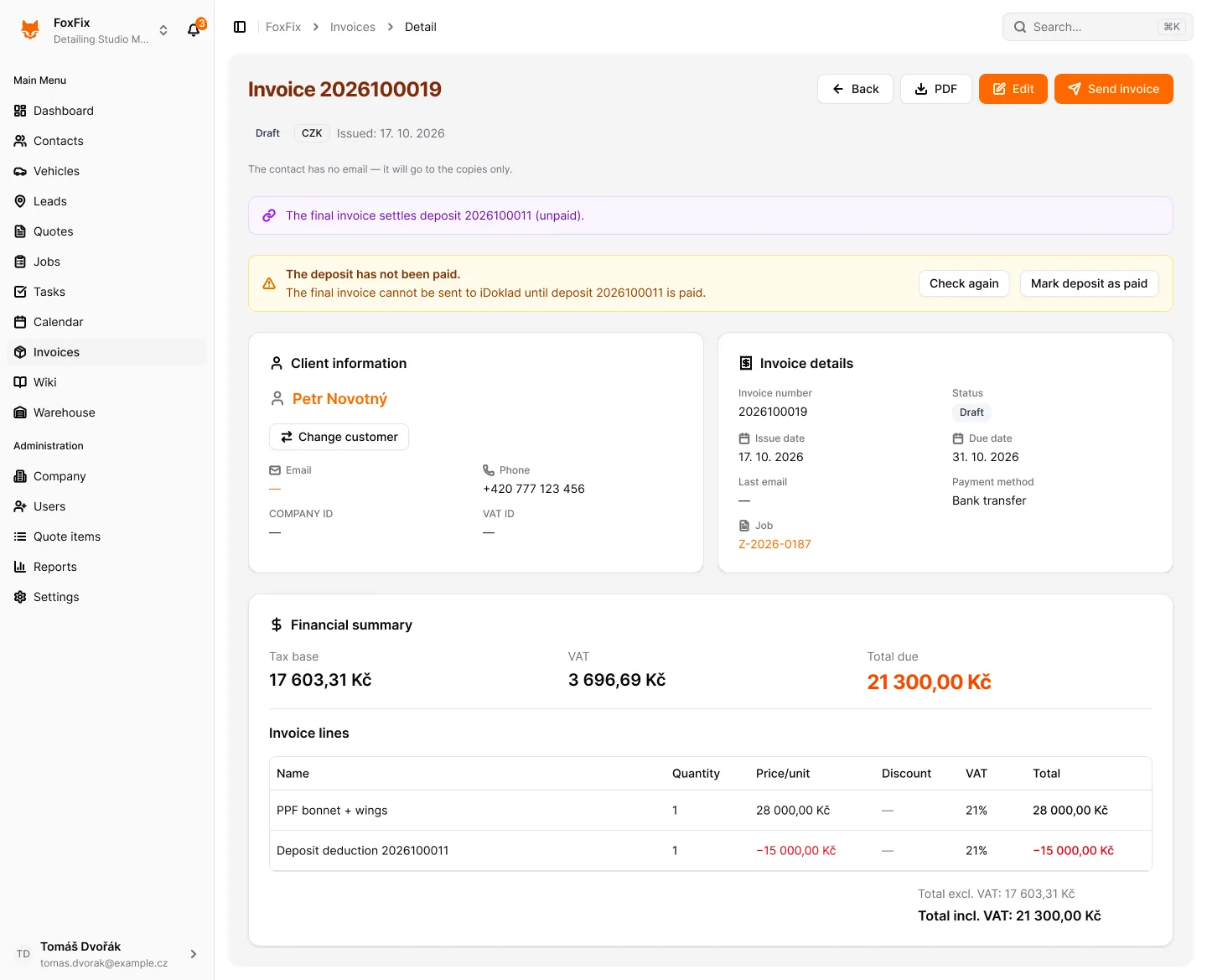
The final invoice, in turn, has a purple bar “The final invoice settles the deposit … (paid)” with a link to the proforma.
When the deposit is not paid yet
The final invoice cannot be sent to iDoklad until the deposit is paid. When you try to send it, a yellow bar appears in the detail with a message (for example “Deposit … is not paid in iDoklad. Wait for the payment to be matched, or mark it as paid.”) and two buttons:
- Check again – checks the deposit status in iDoklad again. If it is paid, you will see “The deposit is paid — you can send the final invoice again.”.
- Mark deposit as paid (Administrator and Manager only) – after the confirmation “Deposit … will be marked as fully paid in iDoklad. Continue?” it marks the deposit as paid directly in iDoklad. Use it only when you know the money really has arrived.
Then click Send invoice again.
 (opens the full-size image in a new tab)
Invoice in euros and with reverse charge
An invoice in euros has an EUR label in the header, the amounts are in euros and below Total due there is a conversion to CZK. For a foreign customer with a VAT ID, all lines have 0% VAT and there is only a Total at the bottom. How such an invoice is created is described in the chapter EUR currency and reverse charge.
 (opens the full-size image in a new tab)
Internal document in the detail
An internal document has a yellow label in the header with the reason (Warranty claim, At our expense or Internal) and the Recorded status. Hover over the label to see the explanation “Internal document — it does not go to the client, iDoklad or the accountant”. Only PDF and possibly Edit are available.
 (opens the full-size image in a new tab)
Send to accountant
When management edits an invoice that has already been issued, FoxFix automatically sends the edited invoice to the accountant after saving. If that fails (you will see a warning), use the Send to accountant button in the detail – the invoice is sent from iDoklad again. On success, “Invoice sent to the accountant (…).” appears.
You set the accountant's address in Settings → iDoklad, in the Accountant email field. If it is empty, the accountant set in iDoklad is used.
Invoice PDF
The PDF button downloads:
- for an invoice in iDoklad, the official PDF from iDoklad,
- for a draft or an internal document, a preview generated in FoxFix.
If the vehicle on the invoice has neither a licence plate nor a VIN, FoxFix asks before creating the preview (“The vehicle has no identification”). You can Continue, or add the details to the vehicle first. For an invoice in iDoklad the PDF downloads without asking.
Received invoices from suppliers
You upload supplier invoices on the Invoices page, on the Received invoices tab, with the Upload invoice button. How it works is described in Invoices – Received invoices and in detail in Receiving from an invoice.
Tips and common problems
- The Edit button is missing. Only an Administrator or a Manager can edit an issued invoice. Edit an issued proforma invoice and a final invoice with a deposit deduction in iDoklad.
- The PDF won't download. An issued invoice that did not reach iDoklad has no final PDF. Send it again with the Send invoice button.
- The invoice is paid, but it still says Unpaid. Click Check payment. If iDoklad has not matched the payment, mark it by hand with the Paid button.