
Creating and editing a quote
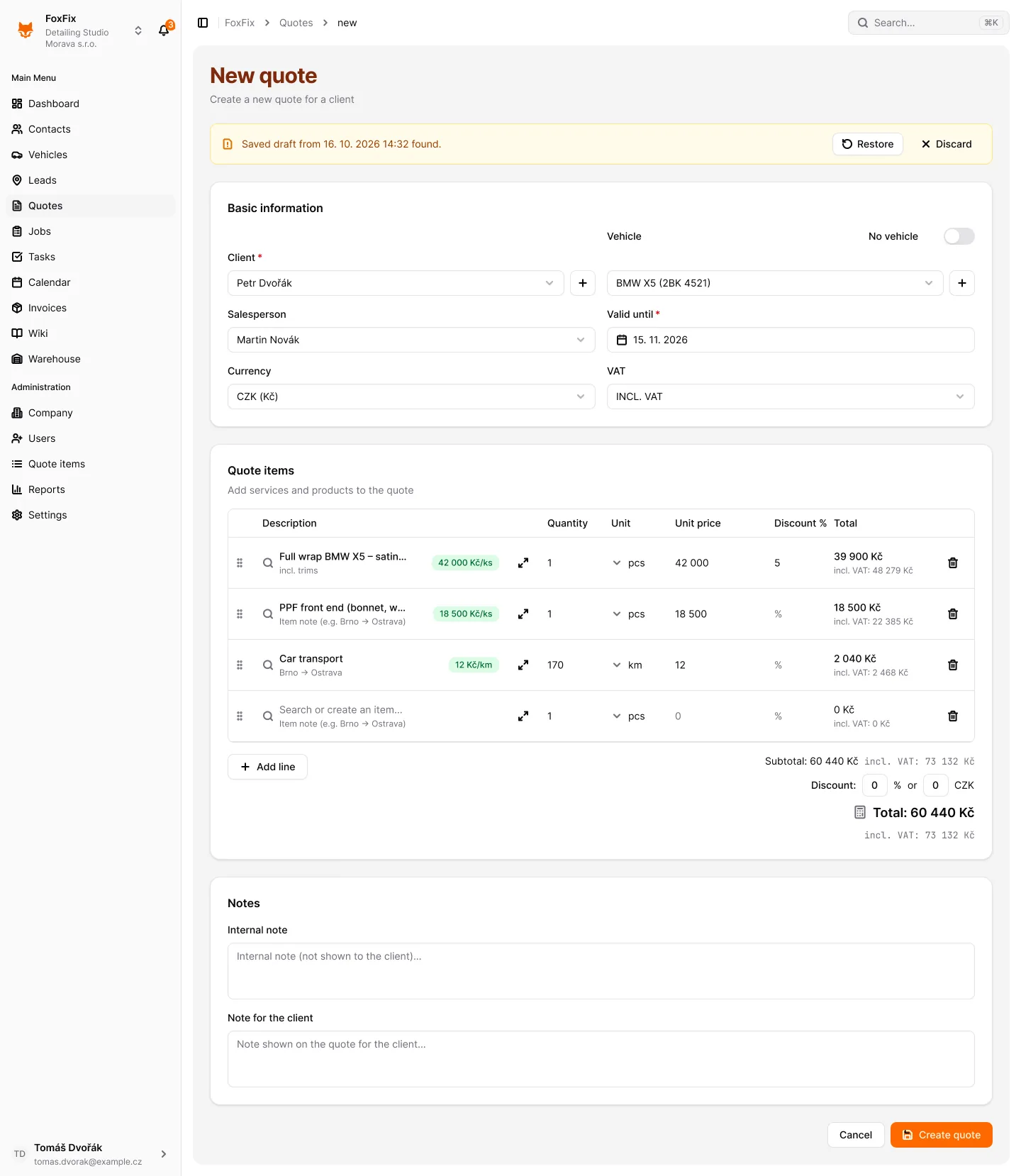
The New quote form is where you put a quote together for a client: you choose the client and vehicle, add services and products from the price list, and set discounts and notes. The same form opens when you edit an existing quote (Edit quote).
Best started from a lead
If the quote follows up an enquiry, create it in the lead detail with the Create quote button. The client is filled in for you and, once the quote is saved, the lead moves to the Quote sent stage on its own. The whole process is described in the guide New job from an enquiry.
 (opens the full-size image in a new tab)
How to create a new quote
- On the Quotes page, click New quote. The New quote form opens.
- Fill in the Basic information card (see below).
- Add services and products in the Quote items card.
- Optionally add Notes.
- Click Create quote.
The quote gets a number (e.g. CN-00142), is saved with the Draft status and its detail opens. From there you prepare it to be sent to the client.
The form checks for a minimum of details. Without them the quote will not save and you will see “Please select a client”, “Please select a vehicle” or “Please add at least one item”.
Basic information
| Field | What to fill in |
|---|---|
| Client * | Choose a contact. You can search by name, company, email, phone or company ID. Create a new client with the + button next to the field. |
| Vehicle * | Choose the client's vehicle. The field becomes available only once a client is chosen (until then it says “Select a contact first”). Create a new vehicle with the + button. |
| No vehicle | A switch at the top right of the Vehicle field — see Quote without a vehicle. |
| Salesperson | Who is handling the quote. The signed-in user is filled in. |
| Valid until * | The date until which the quote is valid. The default is today + 30 days. |
| Currency | CZK (Kč) or EUR (€). Your company's currency is preselected. |
| VAT | With VAT or Without VAT. |
When you change the client, the selected vehicle is cleared — a vehicle always belongs to a specific client.
Client price tier
If the client has a price tier with a discount set on their contact record, the quote's overall discount is filled in automatically when you choose them. You will see the message “Price tier … applied automatically.” You can overwrite the discount by hand at any time. When you edit a quote that has already been saved, the price tier is not applied again.
Currency and VAT
- Currency — switching the currency does not convert the prices of rows you have already added; adjust them yourself. Items you pick from the price list after switching are loaded with the price in the new currency. If a price-list item has no euro price, it is calculated at the exchange rate set for your company. It is therefore best to choose the currency before you start adding items.
- VAT — in Without VAT mode, prices including VAT are hidden from the quote, its PDF and the follow-up invoice, and items have 0% VAT. Useful, for example, for business clients abroad.
Quote without a vehicle
Use the No vehicle switch to sell a service or goods that are not related to a particular car (for example selling car-care products or a training course). A job created from such a quote has no vehicle, no intake or handover checklist and no intake or handover report.
If your company has the Vehicles module switched off, the switch is not shown and all quotes are automatically without a vehicle.
Quote items
Each row of the table is one item. On a computer you see these columns:
| Column | Meaning |
|---|---|
| Description | The name of the price-list item or your own text. Below it is a field for a note on the item. |
| Quantity | The number of units, at least 1. |
| Unit | The unit: pcs, h, m, bm (running metre), m2, m3, kg, l, km, day, month. |
| Unit price | The price excluding VAT in the quote currency. |
| Discount % | The discount on this row (0–100 %). |
| Total | Quantity × price after discount. Below the amount is the price incl. VAT (not shown in Without VAT mode). |
The bin icon at the end of a row removes the row (the last row cannot be removed). The Add item button adds an empty row. On a computer you can reorder rows by dragging the handle on the left — they are printed on the PDF in this order too.
How to add an item from the price list
- Click into the “Search or create an item...” field in the row.
- Type what you are looking for, for example “bmw 5”, “full wrap” or
“tesla ppf”.
- If the quote has a vehicle selected, items for that make and model are offered at the top (the For … … group), with Rest of the price list below.
- For items linked to inventory you can see availability: In stock, On the way (possibly with a date) or To order.
- Click the item. Its name, price in the quote currency, unit and link to inventory are filled in.
If you pick an item that is already on the quote, the app only increases its quantity (the message “The item is already in the quote — quantity increased.”). If you want it on a separate row, write a note on the row first.
Items priced per quote
Some price-list items have no fixed price — instead of a price they show a grey price on quote label. Type the price of such an item straight into the row's Unit price field. Until the price is greater than 0, the quote will not save (““…” is priced per quote — enter a price above 0.”).
Browsing the whole catalogue
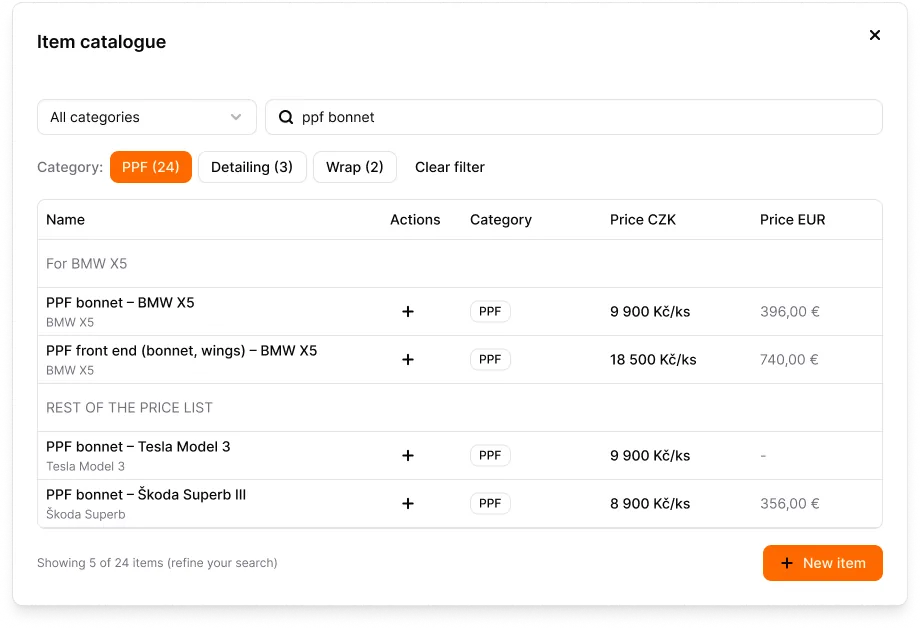
The arrows icon next to the item field (Browse items) opens the Item catalogue window. You can filter it by Category, search, and narrow the results while searching by clicking a category. Each item shows its Price CZK and Price EUR (or price on quote). Click a row to insert the item into the quote.
 (opens the full-size image in a new tab)
When you can't find an item in the price list
Type a name into the item field (at least 2 characters). These options appear below the results:
- Use “…” as a free line — the text is inserted into the quote as a row with no link to the price list. You must type the unit price by hand; without a price above 0 the quote will not save. A free line is not linked to inventory, so the system creates no reservation or purchase request for it. For material, therefore, pick items from the price list.
- Propose “…” for the price list — for the Technician and Salesperson roles. The Propose a price-list item window opens (see below).
- Create new item: "…" — only for an Administrator and a Manager. It creates the item in the price list straight away (see below).
Proposing an item for the price list
Price-list items are created by a manager, so that duplicates do not pile up in the price list. If you are neither an administrator nor a manager:
- Choose Propose “…” for the price list (or the New item button in the Item catalogue window).
- In the Propose a price-list item window, check the Name, choose the Unit and, if you like, add the Price excl. VAT (CZK) and a Note for the manager.
- If the price list already contains an item with the same name, the window shows it with a Use button — pick that one instead. If it really is a different item, change the name or click Send proposal anyway.
- Click Send proposal. “Proposal sent for approval” appears.
On the quote, the item stays a free line for now. A manager approves or rejects the proposal on the Item proposals page.
A new item straight from the quote (managers)
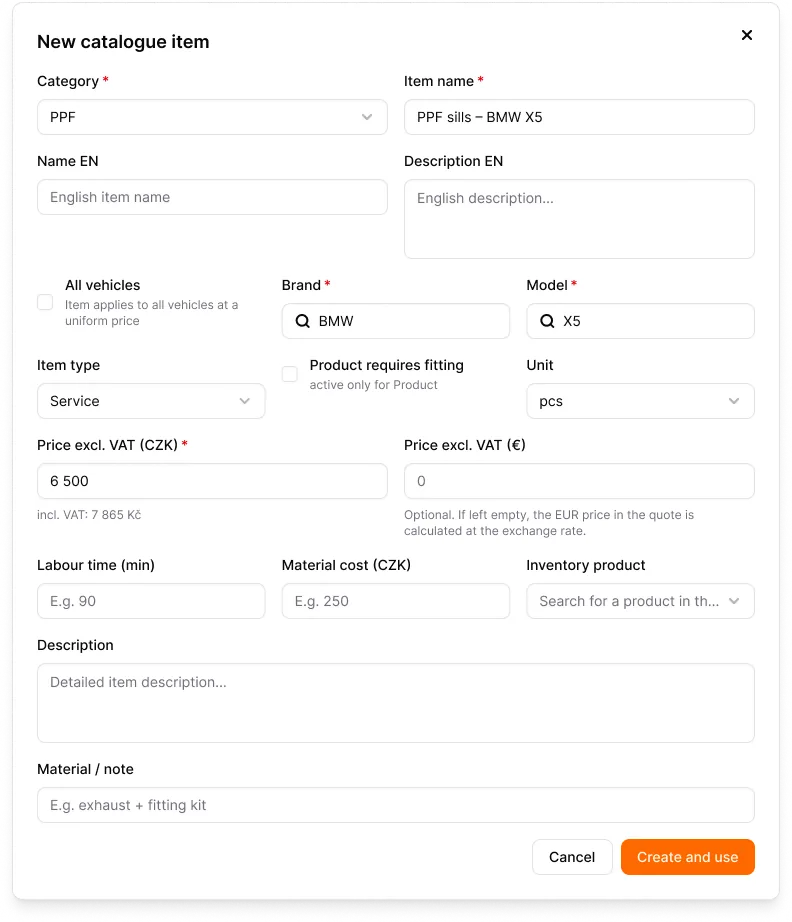
- Click the orange Create new item: "…" button — or New item in the Item catalogue window.
- The New catalogue item window opens. Fill in at least the Category, Item name, vehicle (Brand and Model, or tick All vehicles) and Price excl. VAT (CZK).
- Click Create and use. The item is saved to the price list and inserted into the quote straight away.
 (opens the full-size image in a new tab)
The app will not create an item with the same name as one already in the price list (““…” is already in the price list — pick it instead.”). All the fields are explained in the chapter Quote items.
Item note
Under the name of each item there is a field “Item note (e.g. Brno → Ostrava)”. The note is printed on the quote under the item name. Useful for extra detail, for example “including trims” or a delivery route.
Cost centre, standard time and Worker
With the 5 November 2026 update
In companies with the update switched on, a price-list item shows a Cost centre … label (PPF, Detailing, Mechanics…) and Standard time … min below it. Both are taken from the price list when you pick the item and stay on the quote even if the price list changes later. They are not printed on the client PDF.
A service item also has a Choose a worker button:
- Click Choose a worker. A list of the people who work in the item's cost centre opens — first those whose main cost centre it is (main cost centre), then those who are also allowed to work there (also allowed).
- Tick one or more people. The button then shows “Selected: …”.
- Clear selection removes the choice.
The list only contains active people who can work in the cost centre today (they have started, have not left, and have an active login — a user without a licence set counts as office — or work with their personal QR code only). If the list is empty, check the employee card in Settings › Employees (main cost centre and “may also work in”). If you see “The line's cost centre is not in Settings › Cost centres…”, the price-list cost centre has no matching cost centre in the app.
The salesperson proposes the worker in the quote and the technician at vehicle intake; the cost centre manager assigns workers only in their own cost centre. The chosen people move with the item to the job. The client never sees their names on the PDF.
On the quote detail and on the job detail (in the list of quote items) the chosen worker shows below the item as “Worker: …”, read-only. Change it by editing the quote; for a job, through a quote revision.
Recommended items (Don't forget to add)
For some price-list items your company has recommended extras set up (for example adhesive with a film, or fitting with a sale). When you add such an item to the quote, a Don't forget to add card appears below the item table. The app adds nothing on its own — you decide on each recommendation:
- Add — the item is inserted into the quote (into an empty row or a new row).
- Reject — pick a reason from the list (for Other reason… write your own) and confirm with Reject. The decision and the reason are saved with the quote. Back returns you without rejecting.
Each recommendation shows which item it belongs to (“for …”), its price and possibly a once per job or Upsell tip label. The recommended items of each price-list item are in its detail.
Discounts and totals
Below the item table you will find:
- Subtotal — the sum of all rows after row discounts.
- Discount — the quote's overall discount. Enter it either as a percentage or as a fixed amount in CZK or €; the other field is calculated automatically. When a discount is applied, a red discount row is shown.
- Total — the final price excluding VAT, with the price incl. VAT below it.
All amounts are recalculated on every change.
With the 5 November 2026 update
The order of calculation is fixed: line discount first, then the overall discount, then VAT. When you save, the overall discount is spread over the items in proportion to their price after the line discount (a rounding difference of a cent goes to the largest item), so margin, commissions and sales by cost centre match to the cent. Each item stores the quote's VAT rate when saved; VAT is then calculated separately for each rate.
Discount limit on goods
When selling goods, the stock card may have a maximum allowed discount. When the quote is saved, the app adds up the row discount, the quote's overall discount and any manually lowered prices and compares them with this limit.
- A Technician or Salesperson cannot save a quote with a discount above the limit — they see the message “The …% discount on “…” is above the card's …% limit. Only a manager can exceed it.”
- An Administrator or Manager can save it, but must give a reason in the Discount over the stock card limit window and confirm with Save with reason. The reason is written to the quote history.
The limit applies only to rows with goods, not to services.
Notes
- Internal note — only your colleagues see it in the app; it is not printed on the quote for the client.
- Note for the client — printed on the quote PDF.
An unfinished quote is not lost
The new quote form is continuously saved as a draft in your browser. When you leave the page and come back, you will see a yellow bar at the top “Saved draft from … found.” with the Restore (brings back what you had typed) and Discard buttons.
How to edit a quote
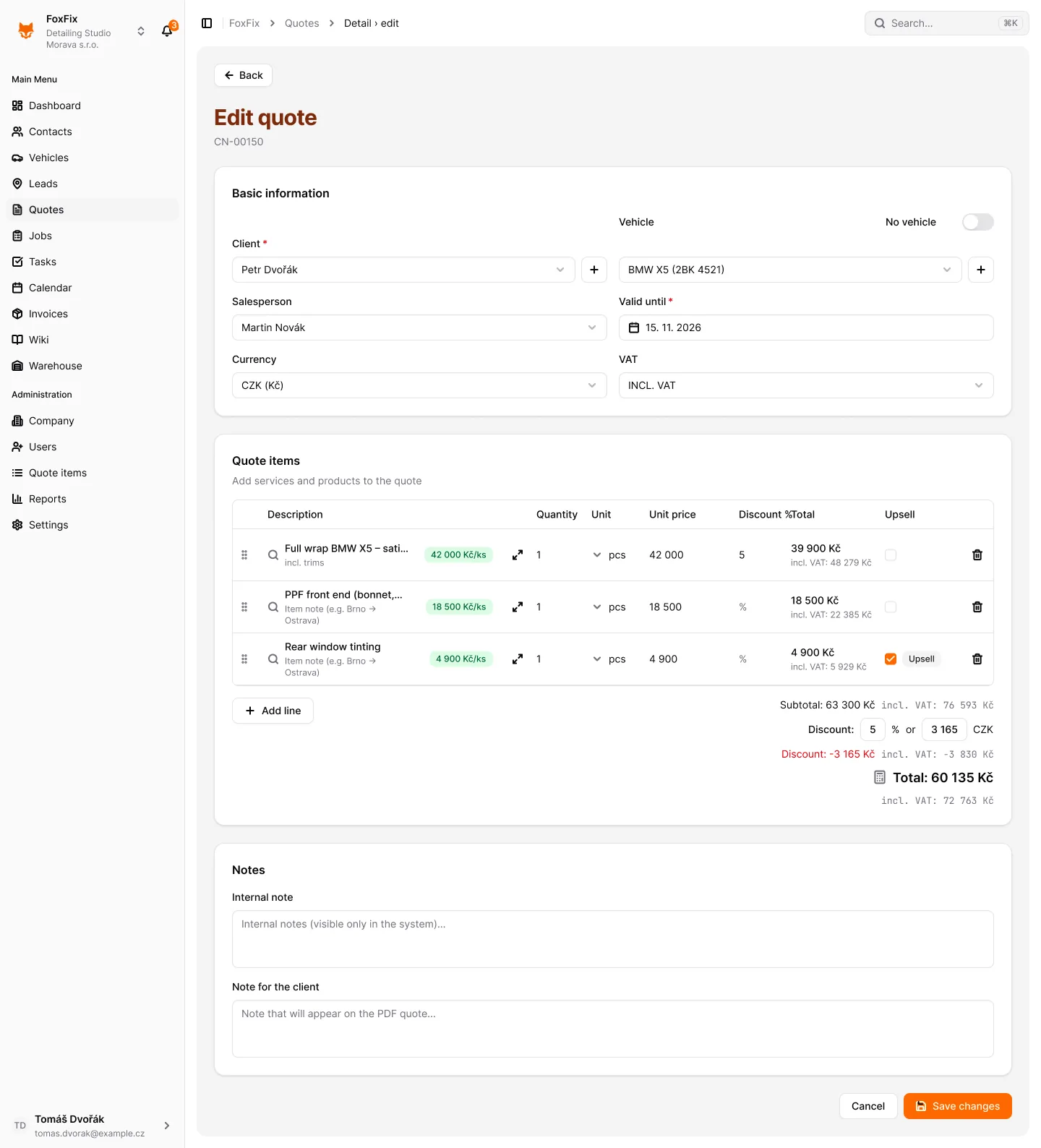
- In the quote detail, click Edit (or in the list choose Edit in the ⋯ menu).
- The Edit quote form opens with the same fields as for a new quote.
- Make your changes and click Save changes.
 (opens the full-size image in a new tab)
What happens after saving:
- A quote with the Draft, Sent, Approved or Rejected status switches to Ready to send (“Quote saved. Status changed to Ready to send.”). A sent, approved or rejected quote therefore has to go through sending and approval again.
- If you changed anything, a new PDF version is generated (you will find it in the detail under PDF versions).
- If a job has already been created from the quote, the changes are carried over to it. Removing the vehicle affects this job too — the form warns you about it.
A quote cannot be edited if:
- it has the Job created status (“This quote cannot be edited”),
- an invoice has already been issued for it — make changes directly in the accounting system (iDoklad) instead.
Upsell on a quote revision
When you edit a quote revision, an Upsell column is added. Newly added rows are marked as upsell automatically, and the label shows who added the item (“Added by: …”). You can also mark an upsell by hand by ticking the box. Upsell items by salesperson are then shown in Reports in the Upsell (quote revisions) overview.
Replacing a rejected quote
If the client wants a completely different option, use Replace with a new quote in the lead detail. The original quote is marked as rejected and a new form opens with a yellow bar “This quote replaces #…”. Once saved, the history records which quote the new one replaced.
Suggestion from the AI assistant
If your company uses the AI assistant, it can pre-fill the new quote form for you — the client, items with prices from the price list, and notes. The suggestion is only a pre-filled form: always check it before you click Create quote.
On a mobile
On a phone the fields are stacked and each item is a separate card with the Quantity, Unit, Unit price and Discount % fields. Rows cannot be reordered by dragging on a mobile.