
Price levels
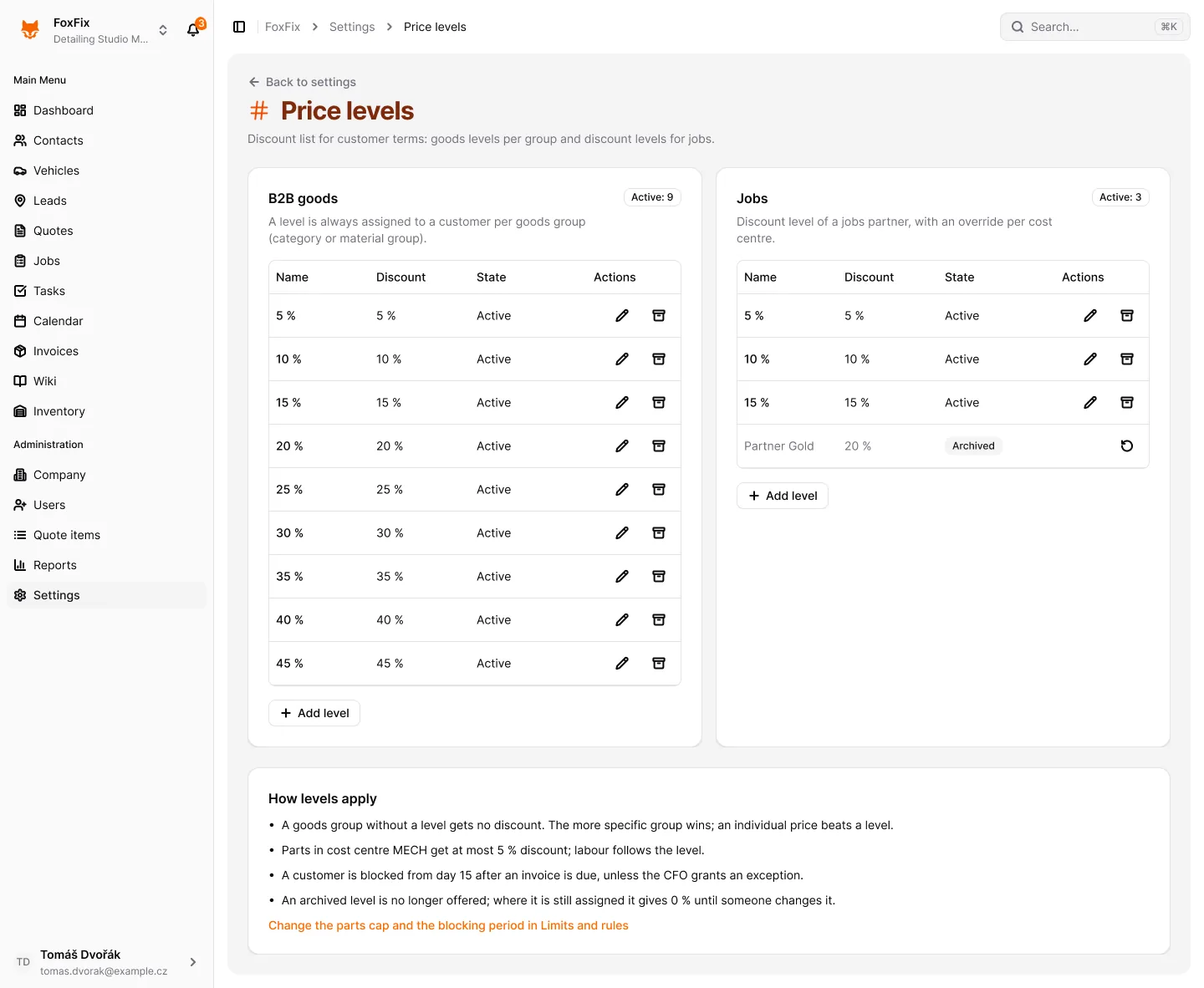
On the Price levels page your company keeps the list of discounts that you then choose from in a contact's customer terms. The list has two parts:
- B2B goods – levels a customer always gets per goods group (a stock category or a material group). The default template is 9 levels from 5 to 45 % in steps of 5 %.
- Jobs – discount levels of a jobs partner. The default template is 5, 10 and 15 %.
 (opens the full-size image in a new tab)
Who can see it
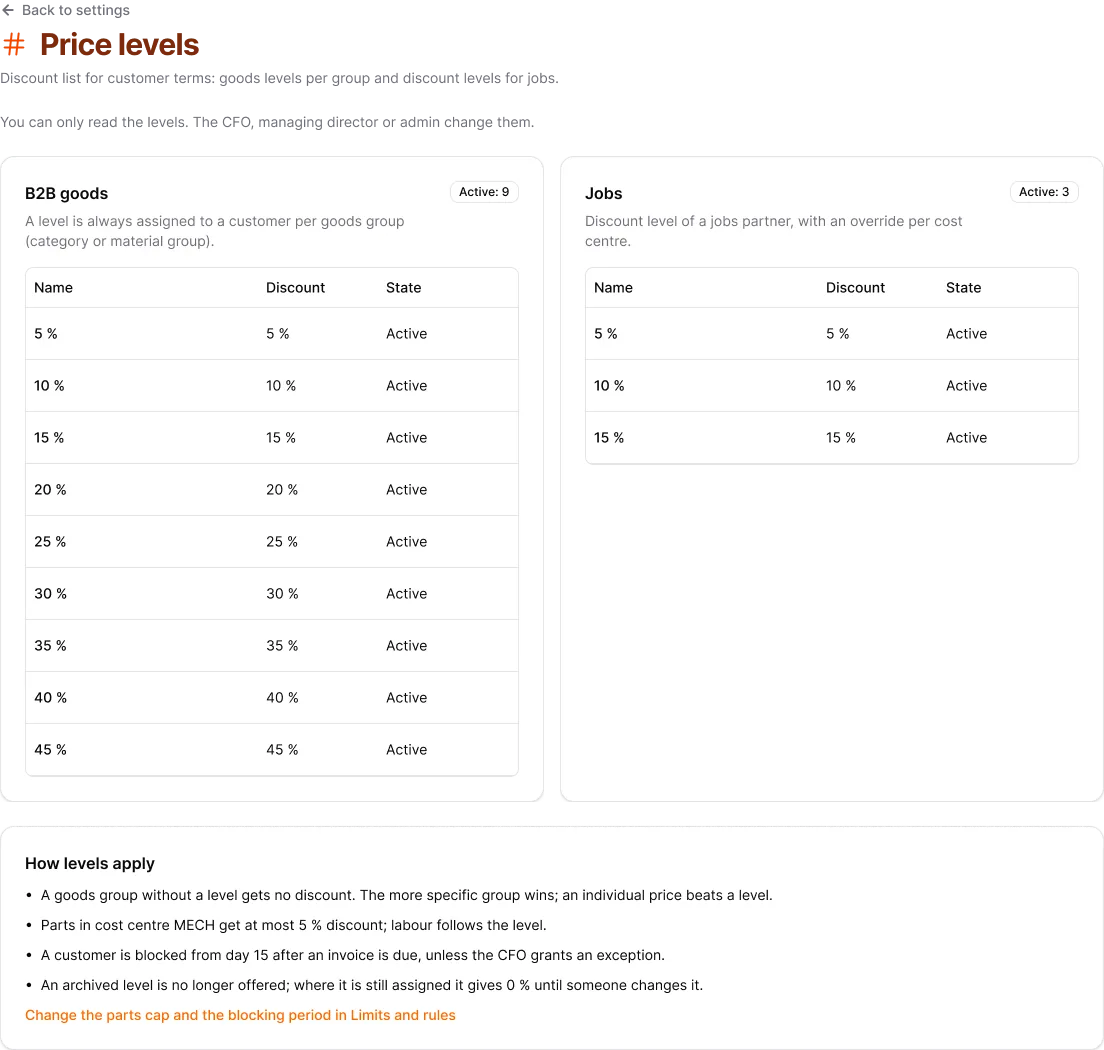
- Admin, Managing director and CFO – add, edit, archive and restore levels and add them from the template.
- Branch manager, Service salesperson, B2B salesperson, Technician and Back office – only read the list (they need it for customer terms).
- Other roles – do not see the Price levels row in Settings.
The list can be changed by anyone who has the right to configure for the whole company in the "Settings (general)" row of Settings → Roles and permissions.
 (opens the full-size image in a new tab)
Open the page in Settings → Price levels. It is part of the November 2026 update and appears once your company has it switched on.
Adding levels from the template
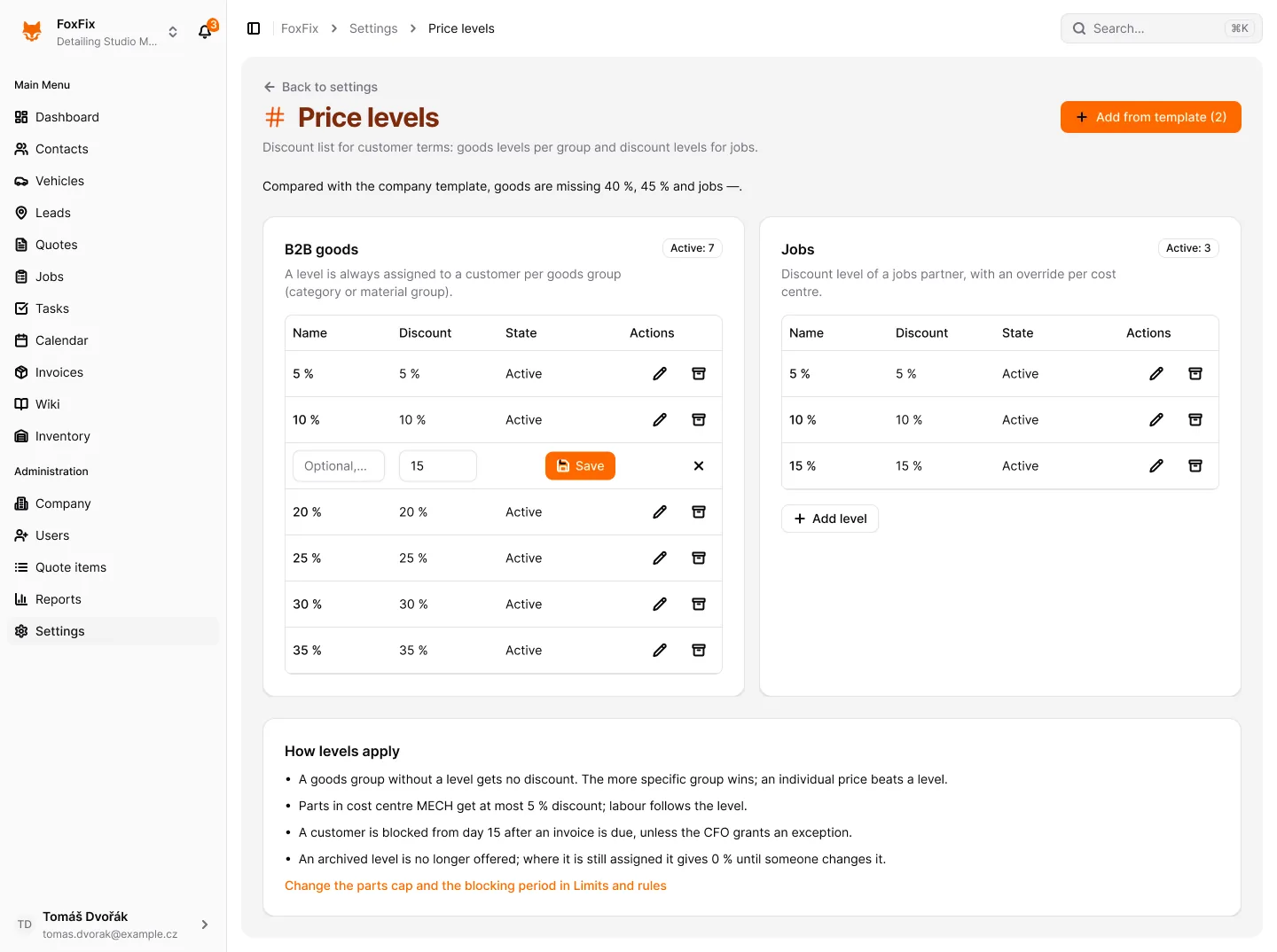
The template percentages are a company setting (Limits and rules), not fixed numbers in the app. When a template percentage is missing from the list, a sentence at the top says what is missing and the Add from template button appears. It creates only the missing levels and does not change the ones you already have.
Adding or editing a level
- In B2B goods or Jobs, click Add level.
- Fill in the Discount as a percentage (0 to 100) and, if you like, a Name. Without a name the level is called by its percentage, for example "15 %".
- Click Save.
The pencil icon edits a level. A saved level cannot switch between goods and jobs. You cannot have two active levels with the same percentage in one part.
 (opens the full-size image in a new tab)
Archiving and restoring
A level is never deleted. The archive icon archives it – it is no longer offered in customer terms. Where it is still assigned it gives 0 % until someone changes it; FoxFix never falls back to a discount from a more general level. The arrow icon restores an archived level.
How levels apply
- A goods group without a level gets no discount.
- The more specific group wins: a material group level beats a category level, a subcategory beats its parent category.
- A customer's individual price beats a level.
- A price never drops below the card's maximum-discount price.
- Parts in the Mechanics cost centre get at most 5 % discount (default setting); labour follows the level.
- A customer is blocked from day 15 after the due date of an invoice (default setting), unless the CFO grants an exception.
Change the parts cap, the cost centre it applies to and the blocking period in Limits and rules. Every change to the list is written to the settings history (who, when, what).