
Document appearance
On the Document appearance page you set how the PDFs you send to customers and print for the workshop look: the quote, the vehicle intake and handover reports, the job card and the invoice. Whatever you leave empty is supplied by FoxFix – you only change what you want different.
Who sees it
- Managing director, CFO and Administrator – change the appearance of the whole company.
- Other roles – see the page but cannot change anything.
Permissions follow the roles in Settings → Roles and permissions (the row “Company – company details, logo, document series”).
Open the page in Settings → Document appearance. It is part of the November 2026 update and appears once your company has it switched on. Until then all documents look exactly as before.
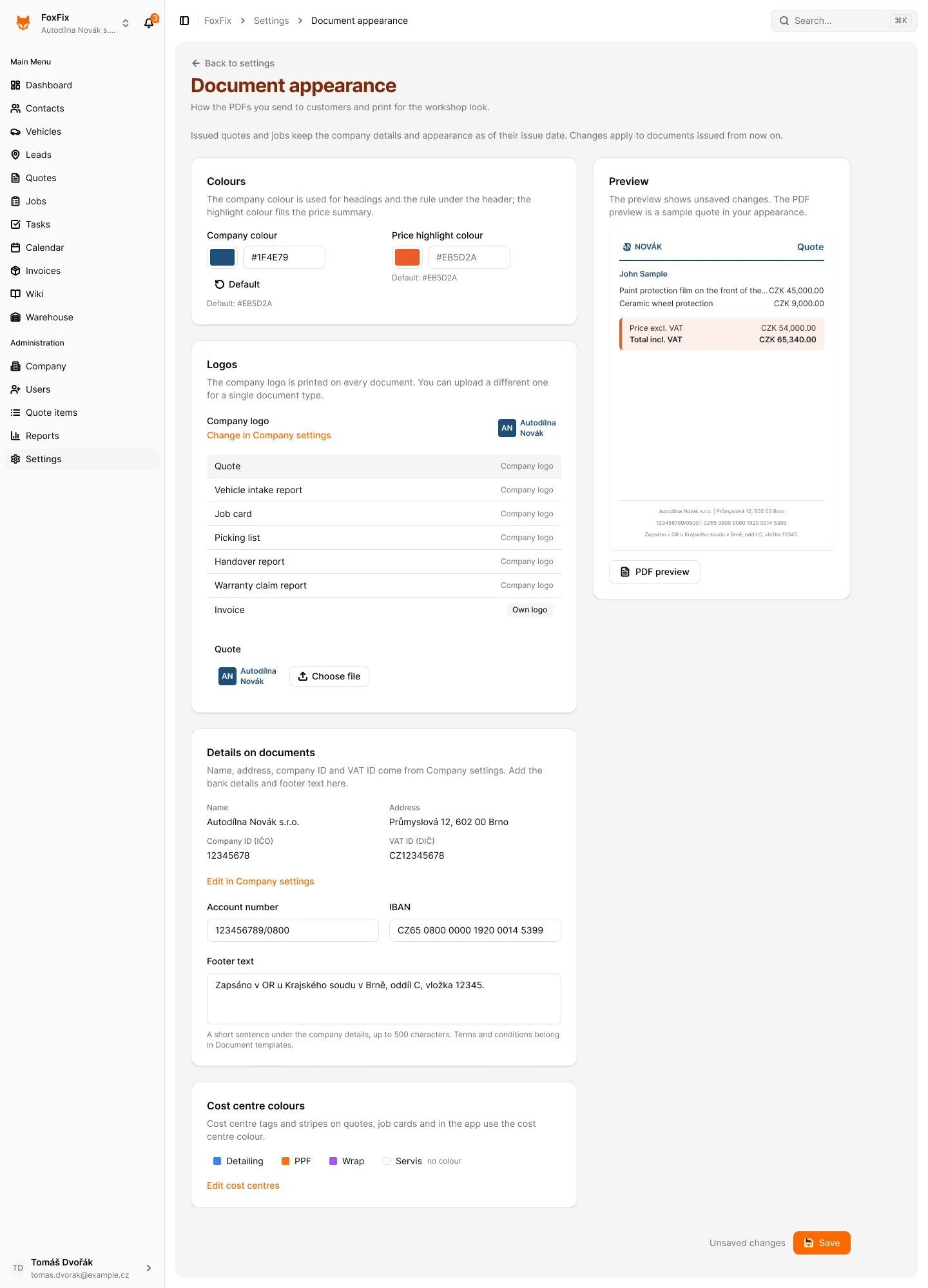 (opens the full-size image in a new tab)
Colours
- Company colour – headings, the document title in the header and the rule under the header.
- Price highlight colour – the fill and edge of the price summary with the large Total incl. VAT amount.
Pick the colour in the colour box or type it as #RRGGBB. Default
returns the FoxFix colour (#EB5D2A).
Logos
Every document carries the company logo from Settings → Company settings – on the left of the header and in the footer. A company without a logo gets documents without one; no other logo is ever printed.
For a single document type (for example the job card or the picking list) you can upload an own logo:
- Click the document in the list.
- Click Choose file and upload an image (JPEG, PNG or WebP, 5 MB at most).
- Save the page.
Use the company logo switches the document back to the company logo. The uploaded file is not deleted – documents issued earlier may use it.
Details on documents
You edit the name, address, company ID and VAT ID in Company settings; here you see them for checking. In addition you fill in:
- Account number and IBAN – printed in the document footer. The IBAN is checked when you save.
- Footer text – a short sentence under the company details (500 characters at most). Terms and declarations belong in Document templates.
Location colours
Location tags and stripes use the colour of their location. You only see them here; change them in Settings → Locations.
Preview
On the right is a simplified preview of a document that also shows unsaved changes. PDF preview creates a real PDF of a sample quote in your appearance – nothing is saved or sent.
Issued documents do not change
A quote stores the company details and appearance when you issue it (ready to send, sent, approved), a job when it is created. If you change the address, logo or colours later, documents already issued keep printing with the old details. An edited quote that you save again gets today's date and with it today's details. Documents issued before the update was switched on print with the current details.
Frequently asked questions
Why did the colour change not show on an older quote? The quote is issued and keeps its appearance as of its issue date. The change applies to documents issued from now on.
Can I have a different logo only on the job card? Yes – choose Job card in the list and upload its own logo.