
Manage assortment
The assortment is a tree of groups above your product cards: assortment › subgroup, for example Films › Paint protection film or Mechanics › Radar detectors. Each group carries a card template: what the product cards in it inherit (unit, tracking, sales, VAT, minimum…). Purchasing manages the cards themselves in the Catalogue; here you set up the groups and what they pass on.
Who can see it
- Admin, Managing director and CFO – create, rename, move, hide and delete groups and change their template.
- Branch manager – can only view the tree and the templates.
- Other roles – do not see the page.
Changing the assortment requires the right to configure the row “Assortment · warehouses and bins” for the whole company in Settings → Roles and permissions.
Open the page in Warehouse on the Assortment tab. It is part of the November 2026 update and appears once your company has it switched on. Until then the same place shows the Categories tab as it is today (see Catalogue, variants and categories).
 (opens the full-size image in a new tab)
The tree
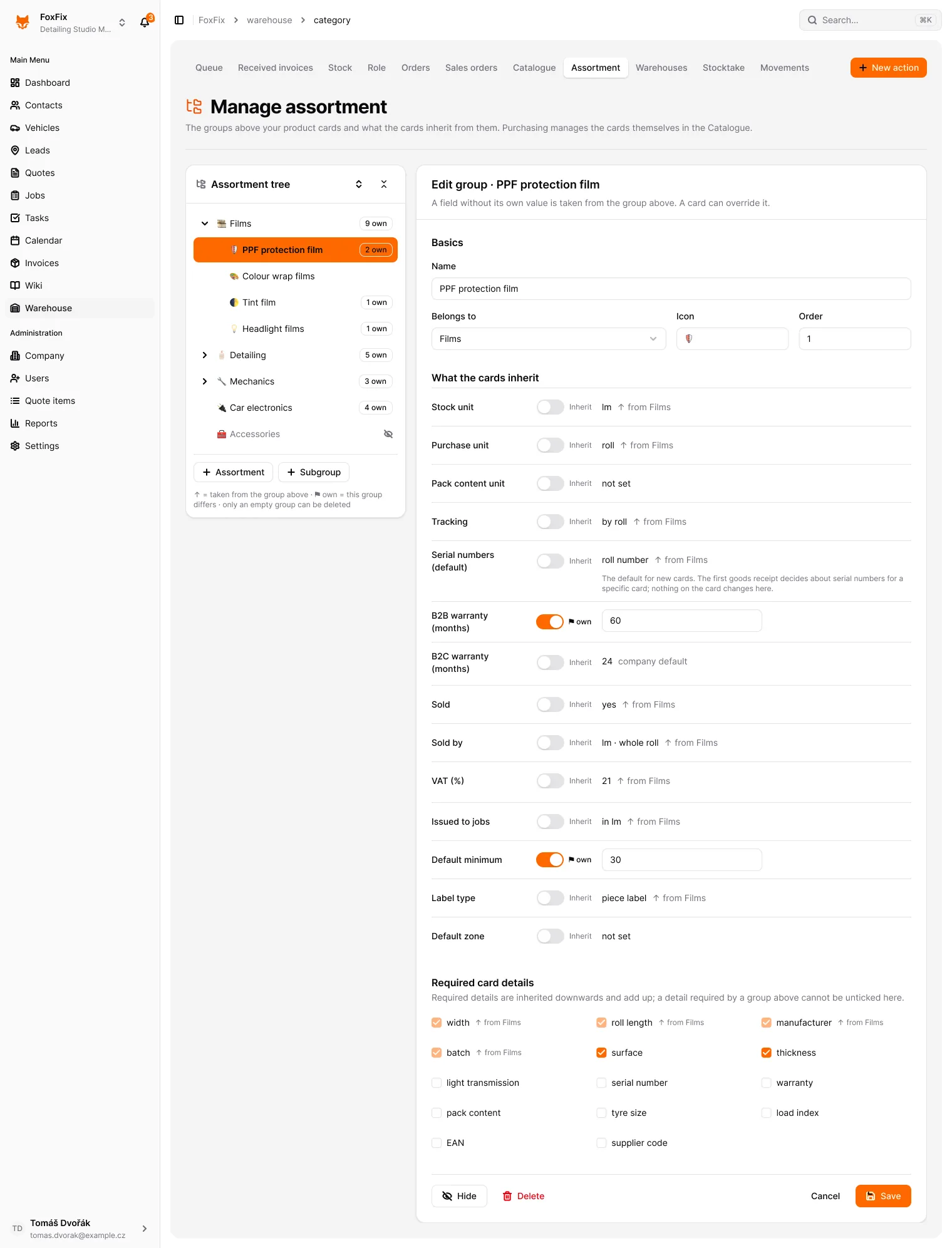
The assortment tree is on the left. Click the arrow (or select a group and press →) to expand its subgroups; click a name to select the group and open it for editing on the right.
- Expand all / Collapse all – the two icons in the tree header.
- A group with its own settings shows a tag such as “2 own” – how many template fields differ from the group above.
- A crossed-out eye marks a hidden group (itself or with its parent).
- The tree works from the keyboard too: up and down arrows, right expands, left collapses or jumps to the parent group, Home and End go to the first and last group, Enter selects.
Below the tree are + Assortment (a new top-level group) and + Subgroup (under the selected group).
What the cards inherit
Editing a group has three parts: Basics (name, where the group belongs, icon and order), What the cards inherit and Required card details.
Each template field has an Inherit / ⚑ own switch:
- Inherit – the group does not set the field and takes it from the group above. The value shows where it comes from: “↑ from Films”. When no group sets the field, the company default applies (for the warranty, from Settings → Limits and rules) or not set.
- ⚑ own – the group differs. Choose or type the value right next to it. Switching to own pre-fills the inherited value, so you only adjust it.
The most specific group always wins: if Films is sold by the linear metre and the whole roll and the subgroup Headlight films has its own “sold by lm”, cards in Headlight films inherit lm only.
| Field | Meaning |
|---|---|
| Stock unit | the unit the goods are kept in (lm, pcs, l…) |
| Purchase unit | what you buy in (roll, pack); the card sets the conversion |
| Pack content unit | e.g. ml for chemicals (1 pc = 750 ml) |
| Tracking | by roll · by piece · quantity only |
| Serial numbers (default) | the default for new cards: ask at first receipt · required · not tracked · roll number |
| B2B / B2C warranty | warranty length in months |
| Sold | yes · no · jobs only |
| Sold by | lm · whole roll · pcs (several can be ticked) |
| VAT | the rate in percent |
| Issued to jobs | yes · in lm · as consumable · no (asset, e.g. tools) |
| Default minimum | the minimum for new stock |
| Label type | piece label · generic product label |
| Default zone | where the goods are stored in the warehouse |
Units come from the system list of units (lm, pcs, l, ml…). The template does not yet limit the choice to the units your company has switched on in Units.
Serial numbers
The template only carries the default for new cards. The first goods receipt decides about serial numbers for a specific card, and changing the template never overwrites existing cards.
A product card can override any field. When editing the card, the field then shows ⚑ own instead of ↑ from group.
Required details
A group decides which details a card must have – for films the width, roll length, manufacturer and batch, for protection films also the surface and thickness, for car electronics the serial number and warranty, for chemicals the pack content.
Required details are inherited downwards and add up: a subgroup has all the details of the groups above it and can add more. A detail inherited from a parent group is ticked, greyed out and cannot be unticked; next to it you see where it comes from.
Saving
Save becomes active only once something has changed. Cancel returns the form to the saved state. Every change is written to the history (who, when, which group and which fields).
Hide and delete
- Hide – the group (with its subgroups) is marked as hidden in the tree. The cards in it stay and keep working. The group pickers used when creating and editing a card still offer it for now; they will stop offering it once the new card form ships. Show undoes the hiding.
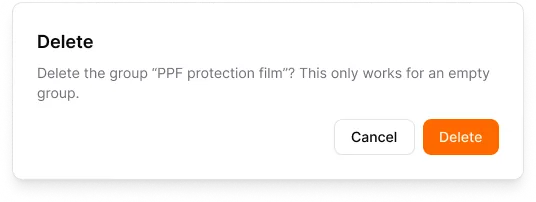
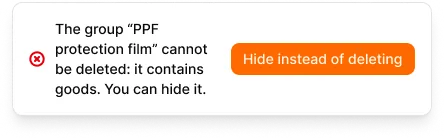
- Delete works only for an empty group: no subgroups and no goods. If the group is not empty, FoxFix says why (“it has subgroups”, “it contains goods”) and offers Hide instead of deleting. Move the goods to another group in the Catalogue first, or just hide the group.
 (opens the full-size image in a new tab)
 (opens the full-size image in a new tab)
Moving a group
In Basics, change Belongs to. A group cannot be moved under itself or under one of its own subgroups – those groups are not offered. After the move the group inherits from its new place in the tree.