
Integrations
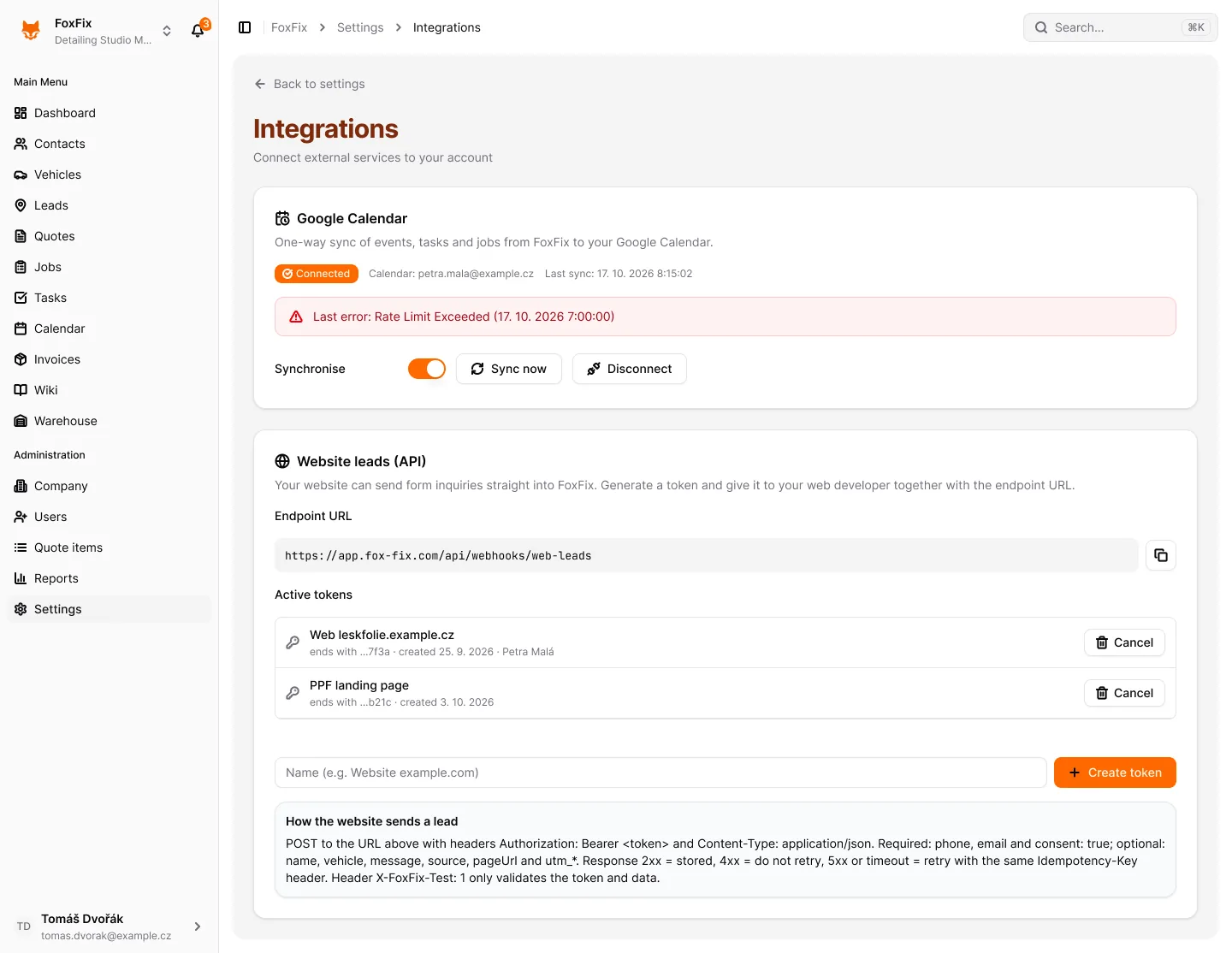
On the Integrations page you connect FoxFix to other services. Every user can connect their own Google Calendar here. An administrator or manager creates tokens for website leads here, so that enquiries from the forms on your website arrive in FoxFix as leads, and API keys for connecting your own systems via the FoxFix API.
Who can see this
Every user except the Warehouse clerk role sees the Google Calendar card – the connection is personal and affects only your account. The Website leads (API) and FoxFix API cards are visible to and managed by the Administrator and Manager only; other roles do not see them.
Open the page via Settings → Integrations (the Integrations section).
 (opens the full-size image in a new tab)
Google Calendar
Synchronisation is one-way: events, tasks and jobs from FoxFix are written to your Google Calendar. Changes made in Google Calendar do not come back to FoxFix.
How to connect Google Calendar
- In the Google Calendar card, click Connect Google Calendar.
- Sign in to your Google account and allow FoxFix to access your calendar.
- Back in FoxFix, you see the message “Google Calendar connected” and the Connected label. Next to it are the calendar name and the time of the last synchronisation (Last sync).
Controls after connecting
- Synchronise – the switch turns ongoing synchronisation on and off. When it is off, the label shows Off and the connection remains.
- Sync now – starts a synchronisation straight away (“Sync started”).
- Disconnect – after you confirm “Disconnect Google Calendar from your account?”, removes the connection.
If synchronisation fails, you see the last error in a red box.
Connection did not work?
If you see “Google did not grant permission for ongoing sync” or “The connection expired or was interrupted”, try connecting again and allow all the requested permissions in the Google window. The message “Google Calendar is not set up on the server yet” means you need to contact FoxFix support.
Website leads (API)
A form on your website can send enquiries straight into FoxFix. A submitted enquiry is saved as a new lead and distributed according to lead auto-assignment. If the same customer already has an open lead that has been worked on in the last 30 days, no new lead is created – the enquiry is appended to the notes of the existing one, starting with “Nová poptávka z webu …” (new website enquiry). To connect the form, your web developer needs two things: the endpoint URL and a token.
How to create a token for your website
- In the Website leads (API) card, copy the Endpoint URL with the button next to the field.
- In the “Name (e.g. Website …)” field, type which website the token is for – you will recognise it by this name in the list later.
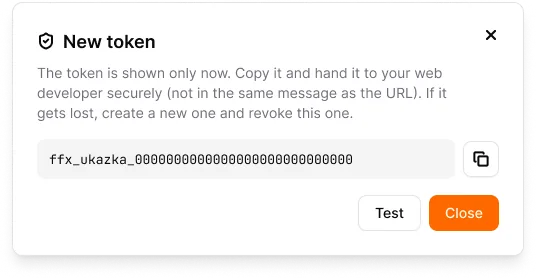
- Click Create token. The New token dialog opens.
- Copy the token with the button next to it.
- Optionally, click Test. The message “Token works (test mode, nothing was stored)” confirms that everything is in order.
- Close the dialog with the Close button.
- Give your web developer the endpoint URL and the token.
 (opens the full-size image in a new tab)
The token is shown only once
Once the dialog is closed, you cannot see the token again. Pass it on securely and not in the same message as the endpoint URL. If the token gets lost, create a new one and revoke the old one.
List of active tokens
Under Active tokens you see each token's name, its last four characters (“ends with …”), the date it was created and who created it. Until you have a token, the page shows “No token yet. The endpoint accepts no leads for your company.”
How to revoke a token
- Click Revoke next to the token.
- Confirm the question. The website using the token stops delivering leads within a minute.
Always revoke a token when your web developer changes or when you suspect the token has reached someone unauthorised.
For web developers
Below the token list is a How the website sends a lead box with a technical description. In short:
- The website sends a POST request to the endpoint URL with the headers
Authorization: Bearer <token>andContent-Type: application/json. - Required fields are
phone,emailandconsent: true(the customer's consent). Optional:name,vehicle,message,source,pageUrland theutm_*tags. - A 2xx response means stored; do not retry a 4xx; on a 5xx or a timeout,
send again with the same
Idempotency-Keyheader. - The
X-FoxFix-Test: 1header only validates the token and the data and stores nothing.
FoxFix API
The FoxFix API card is for fully connecting your own systems – creating and updating leads, notes, tasks and board columns. An administrator or manager issues an API key to a specific user. The API is part of the Business plan and above. The procedure and technical description are in the FoxFix API chapter.