
Vehicle detail
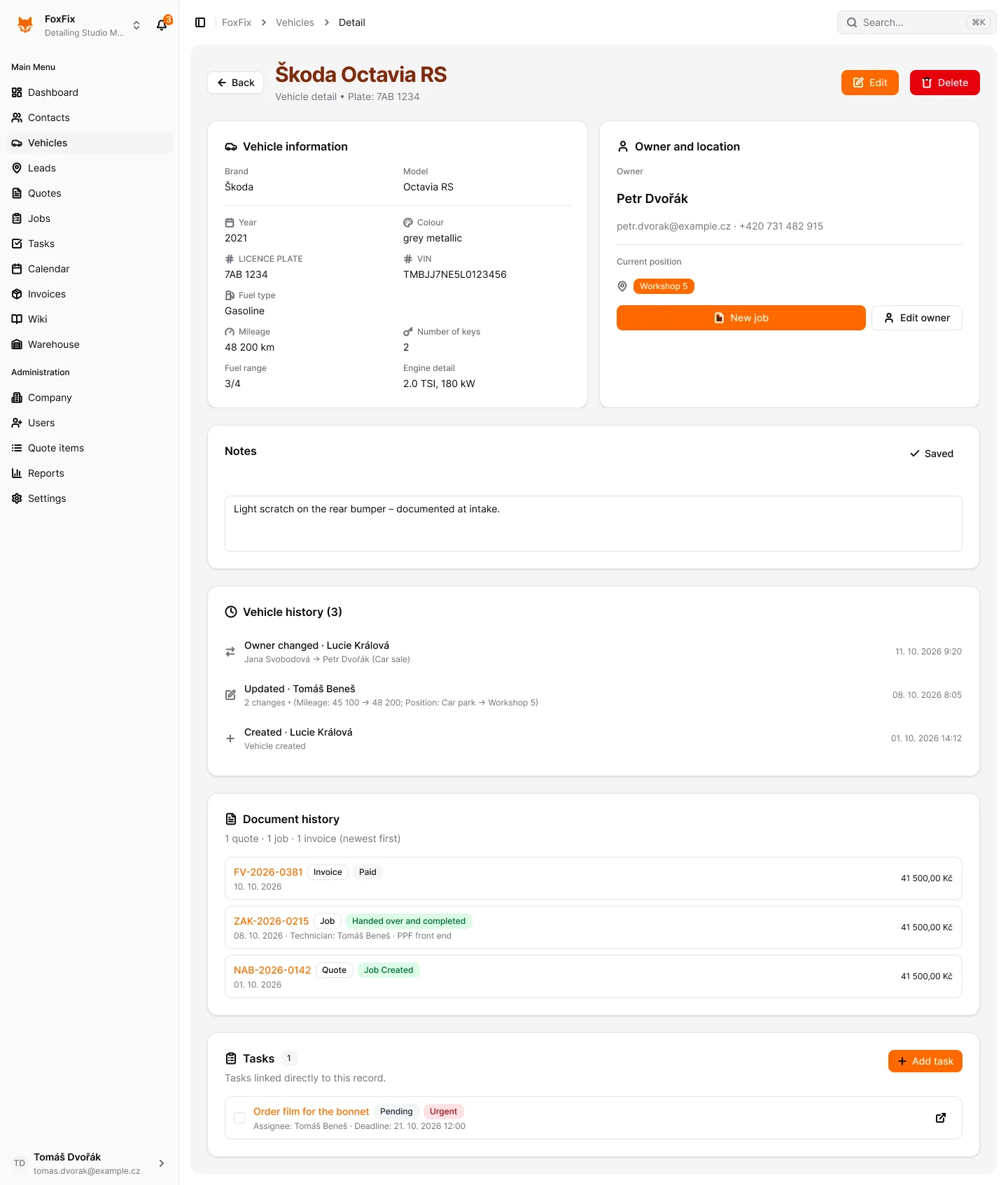
The vehicle detail shows the car's technical data, its owner and current position, and its complete history – the quotes, jobs and invoices related to the car. This is also where you change the owner and create a new job.
Open the detail by clicking a row in the vehicle list or with the Details button next to the vehicle in a contact's detail.
 (opens the full-size image in a new tab)
What you will find on the page
- Header – brand and model, licence plate, and the Back, Edit and Delete buttons.
- Vehicle information – brand, model, year of manufacture, colour, licence plate, VIN, fuel type, mileage, number of keys, fuel range and engine detail. Empty fields are not shown.
- Owner and location – the owner with email and phone number, the Current position, and the New job and Edit owner buttons.
- Notes – free text about the car.
- Vehicle history – changes to details, the owner and other events, with the author and time.
- Document history – quotes, jobs and invoices for the car.
- Tasks – tasks linked to the vehicle.
How to create a job for a vehicle
Click New job in the Owner and location card. The new job form opens with the vehicle pre-filled. The procedure is described in Jobs.
How to change the owner
Use this when the car has been bought by a new owner or is being transferred to a company.
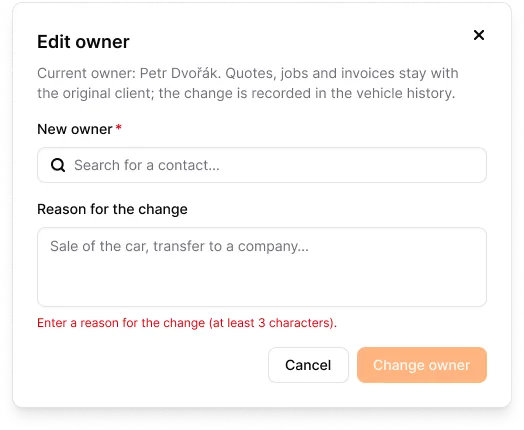
- In the Owner and location card, click Edit owner.
- In the New owner field, search for the contact (“Search for a contact…”).
- In the Reason for the change field, write why the owner is changing (“Sale of the car, transfer to a company…”). The reason must be at least 3 characters long.
- Click Change owner. The message “Vehicle owner changed” appears.
 (opens the full-size image in a new tab)
What happens when the owner changes
Existing quotes, jobs and invoices stay with the original client – only the car's owner changes from now on. The change and its reason are recorded in the Vehicle history (“Owner changed: Jane Smith → John Brown. Reason: Sale of the car”).
Notes
Use the Notes card for things like damage found at intake or customer requests (“Notes about the vehicle…”). The text saves itself as soon as you stop typing or click outside the field. At the top right you see Saving…, Saved, or, if something goes wrong, Saving failed with a Try again button.
Vehicle history
Records of the vehicle's creation, edits (for example a change of mileage or position), owner changes and other events. For an Updated record, click “N changes” to see the old and new values.
Document history
An overview of all quotes, jobs and invoices (including proforma invoices) for the vehicle, newest first. For each document you see the number, status and date, for a job also the technician and description, and the amount on the right. Click the number to open the document. At the top there is a summary, for example “2 quotes · 1 job · 1 invoice (newest first)”.
Vehicle tasks
- In the Tasks card, click Add task.
- Fill in the Title and, if needed, Details, User, Priority, Deadline and Attachment.
- Click Create task.
Tick the box to complete a task; open it with the icon on the right. More in Tasks.
How to edit a vehicle
- In the header, click Edit.
- Change the Owner, Brand and Model, Year of manufacture, Licence plate, VIN, Colour, Fuel type, Mileage, Number of keys, Fuel range, Position or Engine detail.
- Click Save changes. You return to the vehicle detail.
Owner, brand, model and position are required.
Change the owner with Edit owner
The Owner field in the edit form is mainly for correcting typos. When the car is actually sold, use Edit owner in the detail – the reason for the change is recorded in the history too.
Deleting a vehicle
Only an administrator and a manager can see the Delete button in the detail header. A vehicle can also be deleted from the ⋯ menu in the vehicle list. After you confirm (“Are you sure you want to delete this vehicle? This cannot be undone.”), the vehicle is permanently deleted.
Deleting cannot be undone
Do not delete a vehicle that has quotes, jobs or invoices – you would lose the overview of its history. If the customer has sold the car, change the owner.
Tips and common problems
- “Vehicle not found” – the vehicle has been deleted. Go back with Back to the vehicle list.
- “Could not load the document history” – reload the page.