
Quotes
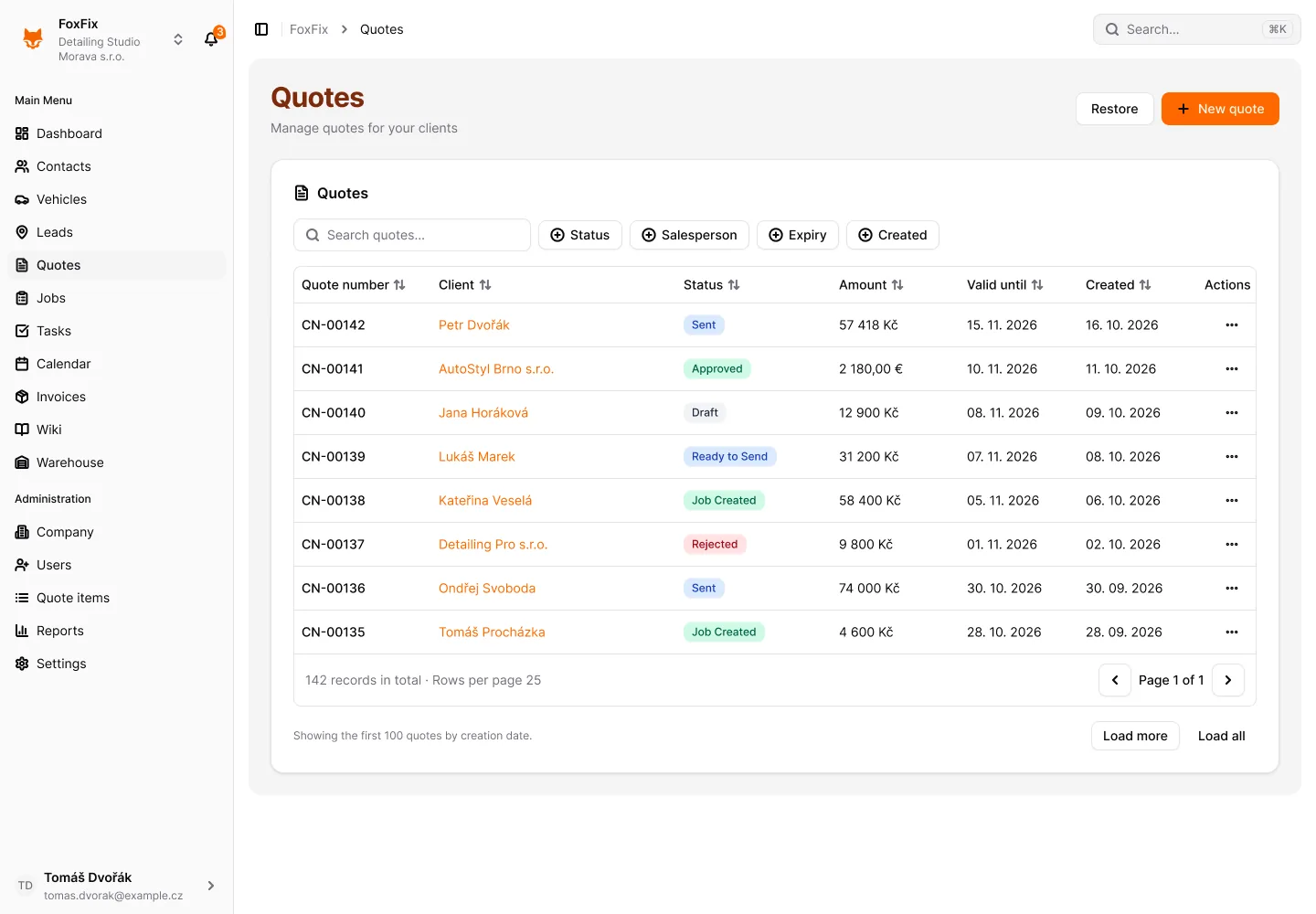
The Quotes page is an overview of every quote your company has prepared for clients. It shows their status, amount and validity, lets you filter them quickly and move them to the next step with a single click. Open it from the Price Quotes item in the left-hand menu.
Who can see it
The Quotes module is part of every plan. If an administrator has switched it off for your company, you will see the message “Module not enabled” instead of the page — it can be switched on in Settings → Company. Only the Administrator and Manager roles can delete quotes.
 (opens the full-size image in a new tab)
What you will find on the page
There are two buttons in the top right-hand corner:
- Refresh — reloads the list (useful when a colleague has just changed a quote).
- New quote — opens the new quote form, see Creating and editing a quote.
The table has these columns:
| Column | Meaning |
|---|---|
| Quote number | A sequential number such as CN-00142. It is assigned automatically when the quote is saved. |
| Client | The contact the quote belongs to. Click the name to open their record. |
| Status | A coloured status label. Click it to change the status (see below). |
| Amount | The quote's total price excluding VAT in the quote currency (CZK or €). |
| Valid until | The date until which the quote is valid. Hidden on smaller screens. |
| Created | The date the quote was created. Hidden on smaller screens. |
| Actions | The ⋯ menu with View, Edit and Delete. |
Click a row to open the quote detail. The newest quotes are at the top.
Quote statuses
Every quote goes through a fixed sequence of statuses. The status determines what you can do with the quote next.
| Status | What it means | Next step |
|---|---|---|
| Draft | A quote in progress; the client has not seen it yet. | Ready to send |
| Ready to send | The content is finished and ready to be sent. | Send to client |
| Sent | The client has received the quote and is deciding. | Approve or Reject |
| Approved | The client has agreed to the price. | Create job |
| Rejected | The client turned the quote down; the reason is stored with the quote. | Ready to send again |
| Job created | The final status — the quote has become a job or an invoice. The quote can no longer be edited. | — |
Editing sends the quote back to the start of approval
When you edit and save a quote, it switches to Ready to send — even if it was already Sent, Approved or Rejected. That way the client always approves exactly the version the job is then created from.
How to change the status quickly from the list
- In the quote's row, click the label in the Status column.
- A small window opens with the steps allowed from the current status (for example, for Sent the Approve and Reject buttons).
- Click the step you want. The label changes straight away.
The label cannot be clicked for Job created — it is a final status.
Send quotes and convert them to jobs from the detail
A quick change from the list only switches the label. With Send to client in the quote detail you also see a PDF preview and a version of it is saved. Always create a job with the Create job button in the quote detail — only then is a real job created, with its items and purchase requests for material.
How to reject a quote
- For a quote with the Sent status, click the Status label and choose Reject (the same button is also in the quote detail).
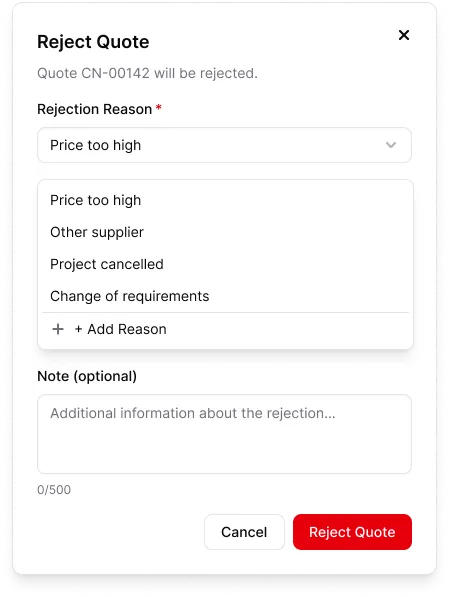
- The Reject quote window opens. Choose a Rejection reason — it is required.
- If no suitable reason is listed, choose + Add reason, type the new reason into the “New rejection reason...” field and click Save. Only an Administrator and a Manager can add reasons. With the November 2026 update, whoever may change Settings (general) for the whole company (by default CFO, Managing director and Admin).
- Optionally add a Note (“Additional information about the rejection...”, up to 500 characters).
- Confirm with the Reject quote button. “Quote rejected” appears.
 (opens the full-size image in a new tab)
The reason, the note, the name of the person who rejected the quote and the time are shown in the quote detail and are used in reports.
Search and filters
- Search — type a quote number or a client's name into the “Search quotes…” field. The table filters as you type.
- Status — shows only the selected statuses (you can tick several).
- Salesperson — quotes of particular colleagues; the Unassigned option shows quotes without a salesperson.
- Validity and Created — a date range. You can pick a quick option (Today, Last 7 days, This week, Last week, Last 30 days, This month) or enter From and To.
- Reset — clears all filters at once.
Click a column header to sort the table; click again to reverse the order. Filters and sorting are stored in the page address, so you can send the link to a colleague and they will see the same selection.
Paging and loading
Below the table you can see the total number of records, the Rows per page option (25, 50, 100 or 250 rows) and the page controls. With a large number of quotes the list loads gradually — the Load more button adds the next batch and Load all fetches the rest. As soon as you start searching, filtering or sorting, the app fetches the quotes it needs on its own.
How to delete a quote
- In the quote's row, open the ⋯ menu and choose Delete.
- Confirm the question “Are you sure you want to delete this quote?”.
Deleting a quote also removes its documents (saved PDF versions). It cannot be undone. The option is only available to an Administrator and a Manager.
On a mobile
On a phone you see cards instead of the table: quote number, client, status label, validity and amount. Tap a card to open the detail. Search and filters work the same way.
Tips and common problems
- I can't see a quote a colleague has just saved. Click Refresh.
- Why is the Status label grey and not clickable? The quote has the Job created status and no longer changes.
- The message “An error occurred while loading quotes.” Check your connection and click Refresh. After a connection drop the list refreshes on its own.