
Roles and permissions
The Roles and permissions page shows who may do what in FoxFix. Rows are areas of the app (Contacts, Jobs, Warehouse …), columns are roles. FoxFix supplies 12 default roles; your company adjusts them and can add its own. You set which role a person has in User management.
Who can see it
- All users – see the matrix.
- Admin, Managing director and CFO – load the default roles, edit roles and create new ones. Nobody edits a role above their own: the CFO cannot edit the Managing director and Admin roles, the managing director cannot edit the Admin role.
- The permissions of the Admin role cannot be changed, so the company cannot lock itself out.
Open the page in Settings → Roles and permissions. It is part of the November 2026 update and appears once your company has it switched on.
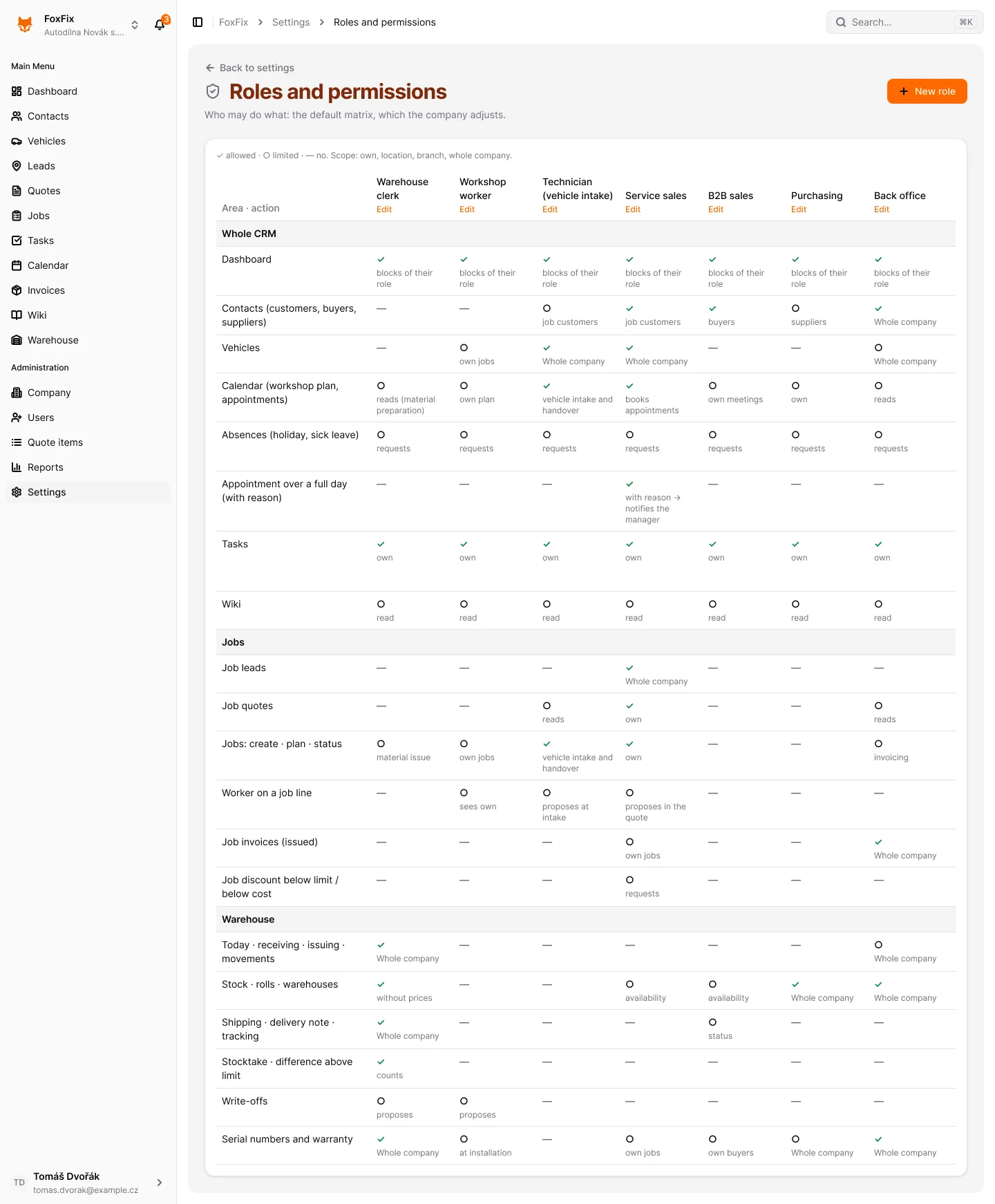 (opens the full-size image in a new tab)
How to read the matrix
Each cell has a mark and a short note below it:
| Mark | What it means |
|---|---|
| ✓ | Allowed – the role works in the area. |
| ○ | Limited – only the part named in the note below the mark (e.g. reads, requests, own jobs). |
| — | No – the role does not see the area. |
The scope says what the role works on: own (its own records), location, branch or whole company. Areas are grouped into Whole CRM, Jobs, Warehouse, Purchasing, B2B goods sales, Money, Catalogue and settings and Mobile.
Default roles
| Role | For whom |
|---|---|
| Warehouse clerk | Receiving, issuing, movements and shipping; no prices. |
| Workshop worker | Works on cars in the workshop, sees their own jobs. |
| Technician (vehicle intake) | Vehicle intake and handover: condition, photos, report. |
| Service sales | Leads, quotes and jobs for cars; sees their own. |
| B2B sales | Leads, quotes and orders for goods; sees their own. |
| Purchasing | Purchase orders, product cards, purchase prices. |
| Back office | Invoices, payments, warranty claims. |
| Location manager | Sees and approves only their own location. |
| Branch manager | Full access in their branch, does not pay. |
| CFO | Full access to everything, approves above the limit. |
| Managing director | Full access to everything, approves the CFO's documents. |
| Admin | Manages the company, users and settings. |
A user can have several roles; their permissions add up.
Loading the default roles
Until the company has saved roles, the page shows the default recommendation and a Load default roles button at the top. Clicking it saves the default roles so they can be edited. Without saved roles you cannot assign roles in User management either.
Editing a role
- Click Edit below the role name in the column header.
- Change the Name or Description, or switch off Active (an inactive role cannot be newly assigned).
- Under Permissions, for each area and action (Read, Edit, Propose, Approve, Pay, Configure, Wages and rates) choose the scope: —, Own, Location, Branch or Whole company.
- Click Save.
New role
- Click New role.
- Fill in the Name. In Start from role you can pick an existing role – its permissions are filled in.
- Adjust the permissions as when editing a role and click Save.
A custom role has the note Custom in its column header.