
Turning a quote into a job
This guide takes you along the path from a quote to a created job: preparing the quote, sending it to the client, approval and creating the job itself. Use it when the client has agreed the price and you are about to start work — the job is the record of the work actually being done, and only from it is the vehicle handed over and invoiced.
Before you start
- Modules: Quotes and Jobs. Material reservations and purchase requests work only with the Inventory module (plan Profi and higher).
- Role: every user except the Warehouse clerk role can approve quotes and create jobs. Only an Administrator or Manager can start a job that is short of material.
A job is created only from an approved quote. You will see the Create job button only on a quote in the Approved status — this is how the system makes sure work is done only at a price the client has seen and agreed. The quote therefore has to go through the statuses Draft → Ready to send → Sent → Approved.
How to read the quote status
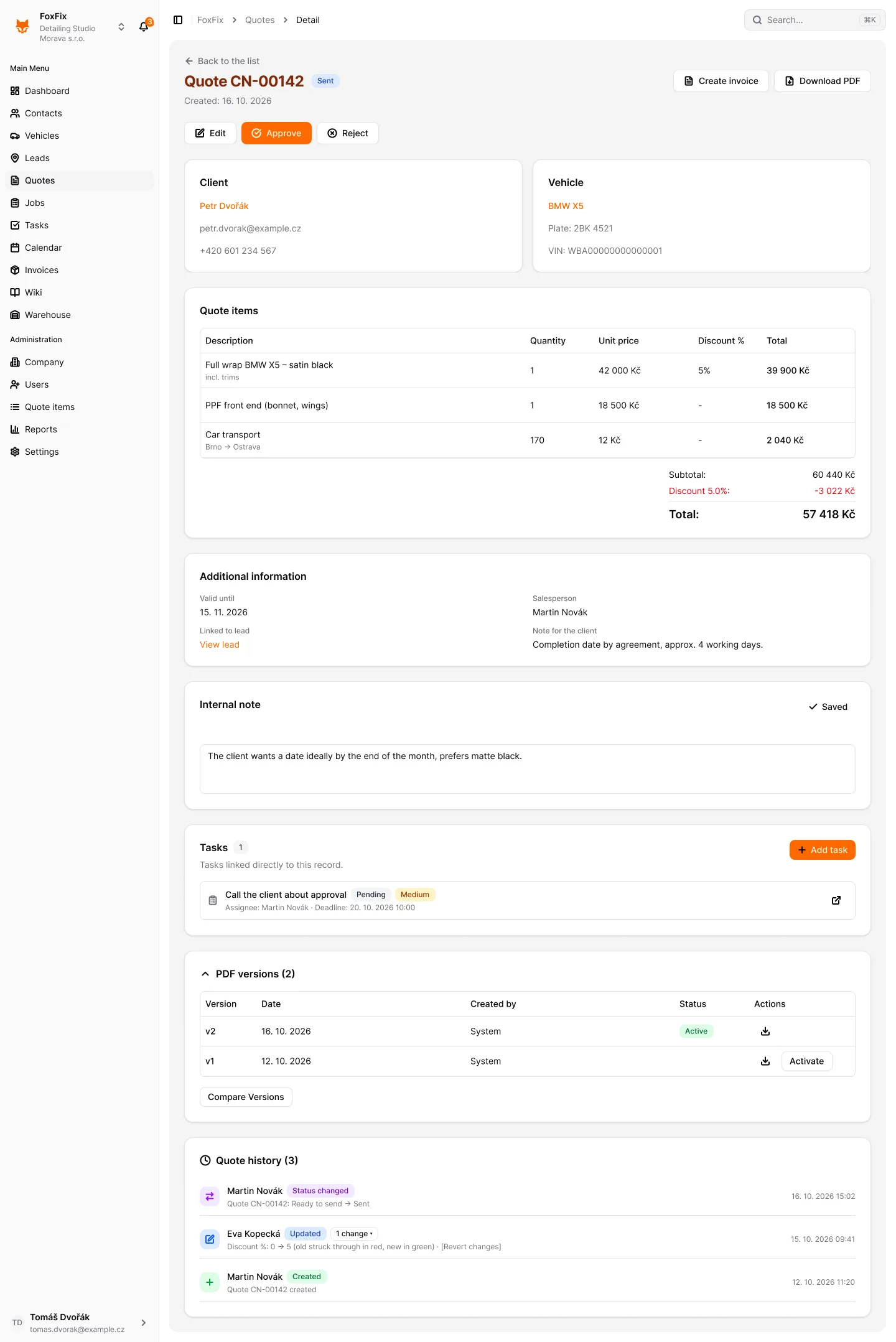
You see the status as a coloured badge next to the heading in the quote detail. Each status offers different buttons:
| Status | What it means | Main button |
|---|---|---|
| Draft | A quote in progress; the client has not seen it. | Prepare to send |
| Ready to send | The content is finished and waiting to be sent. | Send to client |
| Sent | The client has received the quote and is deciding. | Approve / Reject |
| Approved | The client has agreed the price. | Create job |
| Rejected | The client rejected the quote (with a reason). | after editing, Ready to send again |
| Job created | Final status — the quote has been converted and cannot be edited. | View job #… |
 (opens the full-size image in a new tab)
Step 1 — Prepare the quote for sending
- Open the quote detail (the Price Quotes menu → click the quote).
- Check the items, prices and discounts. If you need to change something, click Edit and save.
- Click Prepare to send. The status changes to Ready to send and the system saves a PDF version of the quote (you will find it at the bottom in the PDF Versions section).
Tip: For items linked to Inventory, the quote and its PDF show availability: In stock 12 pcs, On the way 5 m (by 12/09/2026) or To order. From the quote the client already knows what lead time to expect.
Step 2 — Send the quote to the client
- In the Ready to send status, click Send to client.
- The PDF preview opens ("Check the PDF before sending it to the client") — exactly what the client will see.
- Confirm with Confirm sending. The status changes to Sent and the PDF is saved as another version.
- FoxFix does not send the quote by email. Download it with the Download PDF button and send it to the client yourself.
Step 3 — Record the client's decision
As soon as the client gets back to you, return to the quote detail (status Sent):
- The client agrees → Approve. You will see "Quote approved" and the status moves to Approved.
- The client has declined → Reject. In the Reject quote window, select the Rejection reason (add your own with + Add reason) and optionally add a Note. You will then see the reasons in the quote detail and in reports.
Every saved edit returns the quote to Ready to send
When you edit and save a quote (Edit), the status returns to Ready to send — you will see "Quote saved. Status changed to Ready to send." This applies to a sent, approved or rejected quote too. The client therefore has to see and agree a changed price again.
Step 4 — Create the job
- On a quote in the Approved status, click Create job.
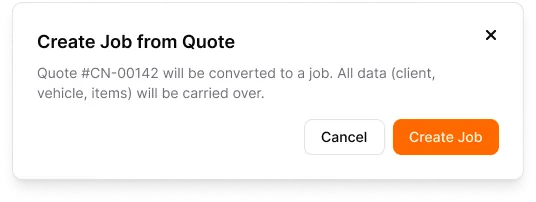
- Confirm the Create a job from the quote window ("Quote #… will be converted to a job. All data (client, vehicle, items) will be carried over.") with the Create job button.
- The detail of the new job opens and you will see "Job created successfully".
 (opens the full-size image in a new tab)
What happens during the conversion:
- The job gets a sequential number and the Approved status.
- The quote's client, vehicle, items and currency are carried over. The Start date is today, the Work description is put together from the item names and the Job type is Standard. The person who created the job is prefilled as the technician.
- You will find the PDF version of the approved quote among the job's documents.
- The quote moves to the Job created status: its detail shows the bar "This quote has been converted to a job." with the View job #… button.
You cannot create a second job from the same quote — the system reports "A job … already exists for this quote."
Always create the job from the quote detail
In the quote list you can quickly change the status on a row, and Create job is one of the options. However, this quick option only switches the status badge — it does not create a job. So always create the job with the Create job button in the quote detail.
What happens to material in the warehouse
If the quote contains items linked to Inventory, the job reserves the material as soon as it is created:
- For each stock item it calculates the quantity needed and reserves it from the free stock of the main warehouse. Reserved material appears in Inventory on the Queue tab, where the warehouse clerk picks it.
- Whatever is missing is recorded as a shortage and passed to purchasing. You will see a summary, for example "N items reserved in the warehouse — N items missing — recorded as shortage and passed to purchasing." Purchase requests are created for the missing material ("Created N purchase requests from the approved quote"). You will find them in Inventory → Orders on the Purchase requests card — see Ordering from a supplier.
- As soon as the missing goods arrive and are received, they are reserved for the job automatically.
Two situations the system warns you about separately:
- Items requiring a deposit — material with Requires deposit set is not ordered automatically. The request gets the Awaiting deposit badge and you will see "N items are waiting for a deposit — order after the deposit decision".
- Items not linked to Inventory — "N items are not linked to inventory — no purchase was created for them". For labour and services this is fine.
How to continue with the job
 (opens the full-size image in a new tab)
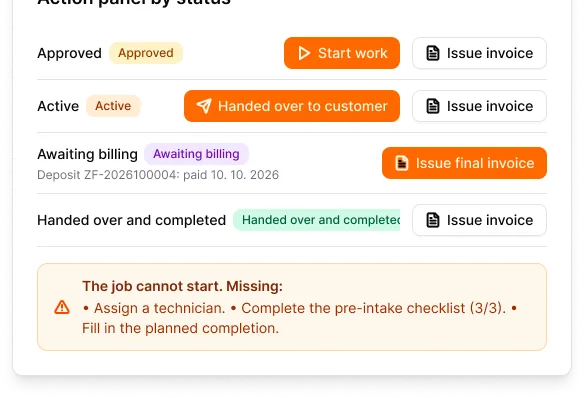
- Start work — can be pressed once the job has a technician assigned, Planned completion filled in and (for jobs with a vehicle) the intake checklist done. Hover over the greyed-out button to see what is missing.
- If the job is short of material, the Material is short in stock window opens. Only an Administrator or Manager can start the job anyway, with the Start anyway button and a filled-in Reason for starting without material, which is written to the history. Others will see "Only a manager (admin or manager) can start it."
- Handed over to customer — once the work and the handover checklist are finished, see Handing the vehicle over to the customer.
- Issue invoice — at any time from approval until the job has an invoice (for the Administrator, Manager and Salesperson). Issuing a regular (not proforma) invoice switches a job that has not yet been handed over to the Active status, see Invoicing and payment.
Tip: Need to change the price on a job that is already under way (extra work, a different film)? In the job detail, on the Quote card, click Create quote revision. A new quote is created as a draft, goes through sending and approval, and once approved the job switches to it automatically (the old one is rejected). You can have only one revision in progress at a time, and once an invoice has been issued you can no longer create a revision.
Result: the job is in the Approved status, the material is reserved and the quote is closed in the Job created status.
Frequently asked questions
Can I invoice straight from the quote without a job? The Administrator can — the quote detail has a Create invoice button. The system asks "Create an invoice directly from the quote?" and warns that the invoice will be created without a job — if you need a record of the work actually done, create a job first and invoice from it. This shortcut also moves the quote to the Job created status.
Why can't I see the Create job button? The quote is not in the Approved status. Take it through Prepare to send → Send to client → Approve.
The client changed their mind after rejecting — what now? Edit the rejected quote with the Edit button; saving returns it to the Ready to send status and you can send and approve it again.