
Subscription
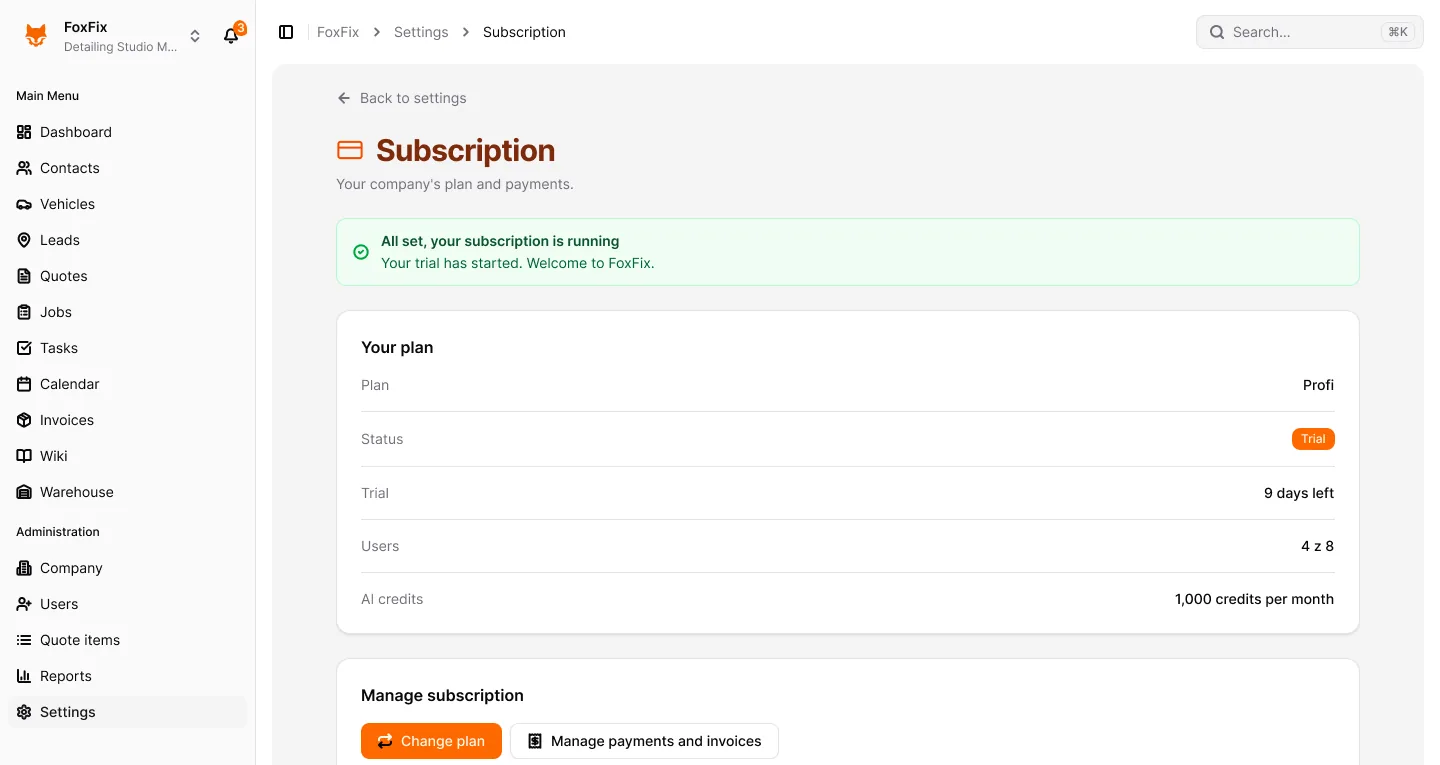
The Subscription page shows which plan your company has, what state it is in, how many of the plan's user seats are taken and how many AI credits you have each month. The administrator changes the plan here, completes the payment and manages the payment card and subscription invoices.
Who can see this
The page is visible to the Administrator and Manager. Only the Administrator can change the plan and pay – a manager sees “Only a company administrator can manage the subscription.” in the Manage subscription card.
With the November 2026 update (once your company has it switched on) the FoxFix subscription row in Settings → Roles and permissions decides: whoever may at least read it sees the page, and whoever may configure it for the whole company changes the plan and pays – by default CFO, Managing director and Admin. A branch manager holds the subscription right only for their branch; the subscription belongs to the whole company, so they do not change it. The payment gateway on the server decides the same way.
Open the page via Settings → Subscription.
 (opens the full-size image in a new tab)
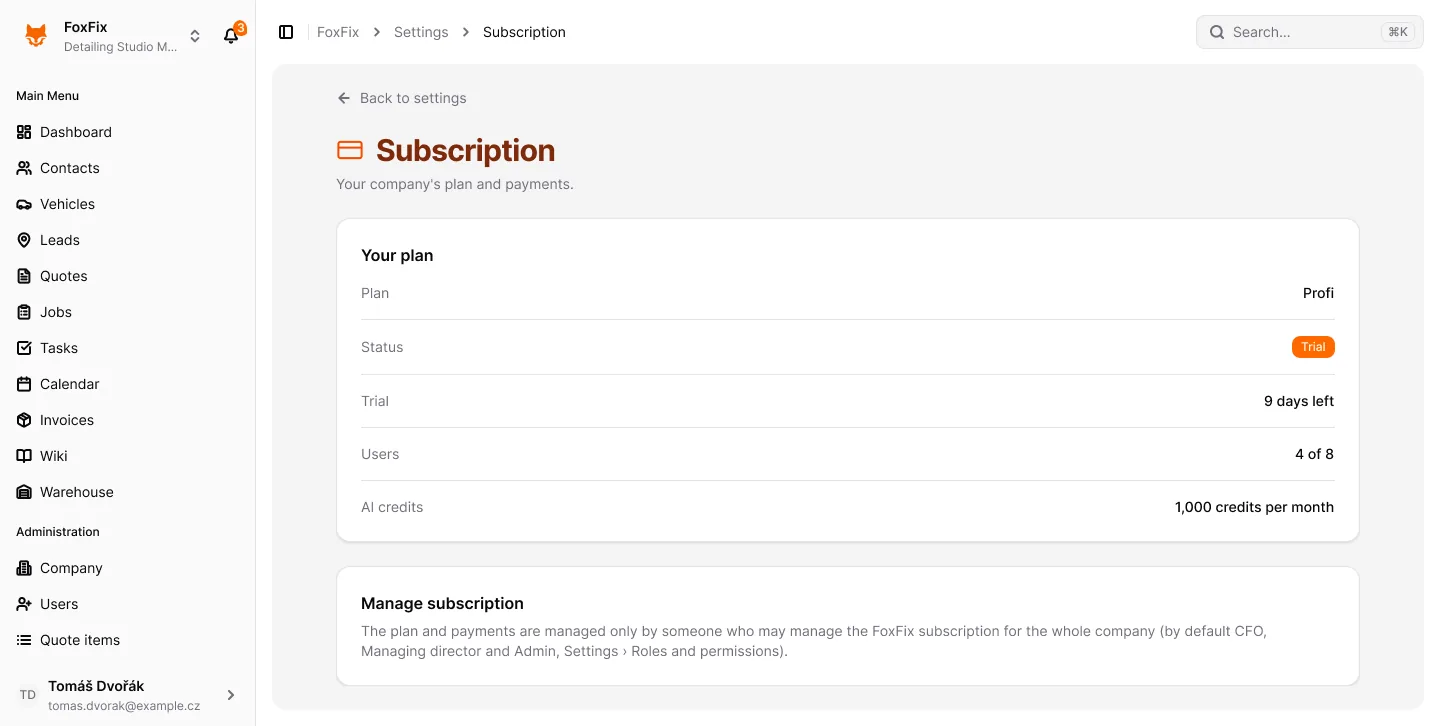
With the November 2026 update a role that may only read the subscription sees the Your plan card and, in the Manage subscription card, only a note about who manages the plan and payments:
 (opens the full-size image in a new tab)
The Your plan card
| Row | What it shows |
|---|---|
| Plan | Start, Profi, Business, or Multi-site or VIP Unlimited — free. |
| Status | Active, Trial, Payment due or Inactive (see below). |
| Trial | How many days of the trial period are left. Shown only during the trial. |
| Users | Seats taken out of the plan's limit, for example “4 of 8”. Both active members and pending invitations count. |
| AI credits | The monthly allowance for the AI assistant according to your plan. |
Subscription statuses
| Status | What it means | Does the app work? |
|---|---|---|
| Trial | The first 14 days after sign-up. You enter your payment card straight away; it is charged only once the trial period ends. | Yes |
| Active | The subscription is paid. | Yes |
| Payment due | The payment could not be taken. A grace period is running (usually 7 days), during which you can fix the card. | Yes |
| Inactive | The trial ended without payment, the grace period has expired, the subscription was cancelled, or the first payment was not completed. | No – see When the subscription is inactive |
Plans
| Plan | Users included | What it offers |
|---|---|---|
| Start | 3 | Leads, quotes and jobs, finally in order. No Inventory module. |
| Profi | 8 | Adds inventory, iDoklad and reports to jobs. |
| Business | 20 | More people, more companies, and your website plugged in. |
You see the current prices right when you choose a plan. Prices exclude VAT; the currency depends on the country where the company is registered (Czech companies pay in CZK, all others in euros). With yearly billing you get 2 months free.
The Multi-site and VIP Unlimited plans are arranged individually and managed by FoxFix – a company on one of these plans sees no buttons on the page, only a note that FoxFix manages its subscription.
How to change the plan
- In the Manage subscription card, click Change plan.
- If the subscription is already running, the Stripe payment portal opens, where you change the plan.
- If the subscription is not running yet, the plan picker opens:
- At the top, choose Monthly or Yearly (2 months free).
- Click the Start, Profi or Business plan card. The selected card has an orange border and a tick.
- Click Continue to payment. The app takes you to the Stripe payment page.
- When you return from Stripe, Confirming your payment briefly appears at the top, followed by All set, your subscription is running.
Payment confirmation is delayed
If you see Payment not confirmed yet, refresh the page in a minute. Confirmation from Stripe can be delayed. If the status does not change, write to FoxFix support – the address is in the message itself.
How to manage your payment card and invoices
- In the Manage subscription card, click Manage payments and invoices.
- The secure Stripe portal opens. There you can change your payment card and download invoices for your FoxFix subscription.
The button appears once the company has been through the payment page for the first time.
How to complete an unfinished payment
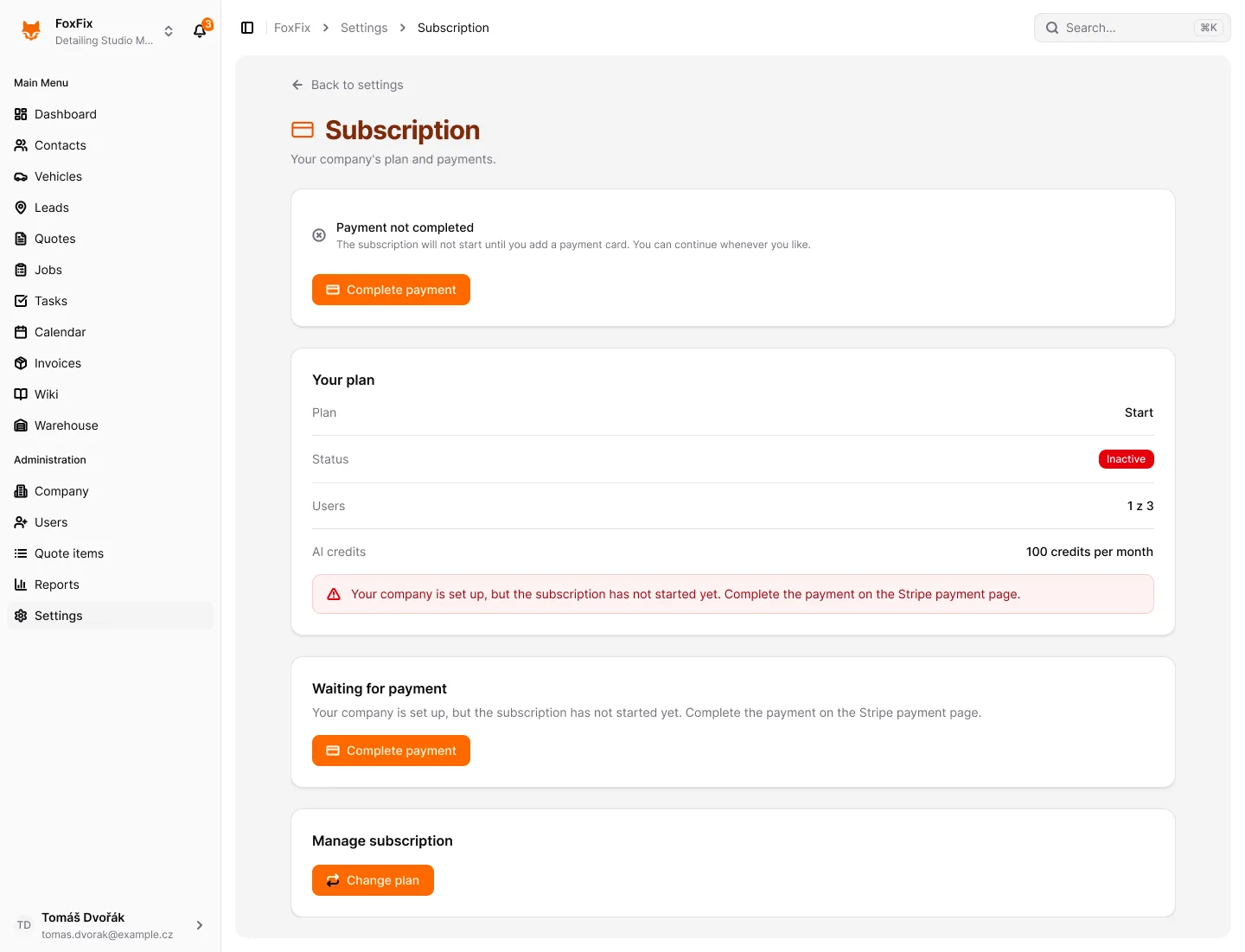
If during sign-up you left the payment page before entering a card, the company is created but the subscription has not started. The page then shows the Waiting for payment card.
- Click Complete payment.
- Enter your payment card on the Stripe payment page.
- When you return, you see All set, your subscription is running.
 (opens the full-size image in a new tab)
Other members of the company see a note that the administrator will complete the payment instead of the button.
When the subscription is inactive
When the subscription is Inactive, a notice with the reason covers every page of the app, for example Your trial has ended or Subscription payment failed.
- Your data stays stored. Once the subscription is renewed, you will find everything as you left it.
- The administrator clicks Renew subscription. This opens the Subscription page, which is the only page that stays available. There, depending on the situation, they choose Complete payment, Change plan or Manage payments and invoices.
- Other users see a prompt to contact the company's administrator. If they are also members of another company, they can switch to it.
- You can request a data export by emailing FoxFix support – the address is in the notice itself.