
Message preview before sending
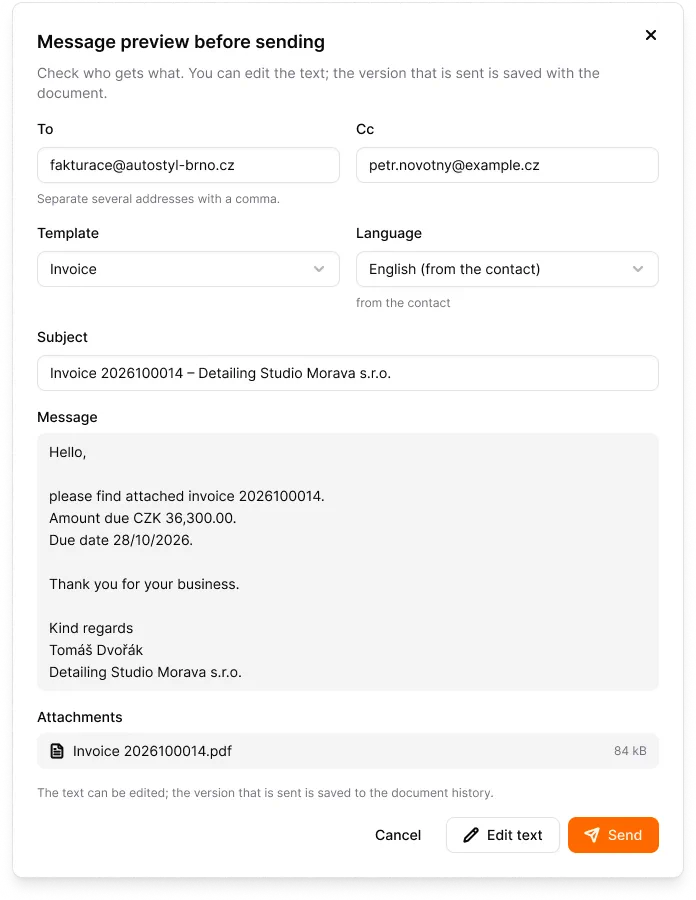
Before FoxFix sends a customer an e-mail with a document, it shows you a message preview. You see who the message goes to, the subject, the whole text, the attachment and the language. You can edit the text and only then send the message. The version that is sent is saved to the document history, so you can always come back to it.
Who sees this
The message preview is part of the 5 November 2026 update and works only in companies where it is switched on. A message about a document is sent by whoever may edit the document: a quote by its author or the person it is assigned to, and management; an invoice by back office, a branch manager in their own branch, and management.
Where the preview opens
- Quote – in the quote detail, the Send by e-mail button next to Download PDF. The quote PDF is attached.
- Invoice and proforma invoice – the Send invoice button in the detail of a draft. FoxFix first issues the invoice in iDoklad, then opens the preview. The official invoice PDF from iDoklad is attached.
What the preview shows
| Part | What it means |
|---|---|
| To | The contact's e-mail from the document. For an invoice, the recipients from Settings → iDoklad (the customer and the extra recipients). You can change or add addresses; separate several addresses with a comma. |
| Cc | Further addresses that get a copy. |
| Template | The text the message is put together from. Each document type has a default template (Quote, Invoice, Proforma invoice). |
| Language | From the contact's language; when the contact has none, from the company's default language. Messages are available in Czech, English and German. You can change the language by hand. |
| Subject and message | Filled in from the template: document number, amount, validity or due date, your name and the company name. A line with no value (for example a quote without a validity date) is left out. |
| Attachments | The document PDF with its size. While it is being prepared, the Send button waits. |
 (opens the full-size image in a new tab)
Editing the text
- Click Edit text. Both the subject and the message can be rewritten.
- When you are done, click Done – you see the preview again.
- The message is sent exactly as you see it: FoxFix adds or removes nothing.
If you change the template or the language after editing, the text is filled in again and your edits are discarded. The window warns you about this.
Sending
Click Send. The FoxFix server sends the message:
- the sender is your company's name, and the customer's reply comes to your e-mail,
- the message goes only to valid addresses and only with PDFs from your company's documents,
- after sending you see "Message sent: …" and the window closes.
For an invoice, the status changes to Unpaid after sending and Last email is filled in, just as before.
The sent version in the history
The document history gets an entry "E-mail sent (recipients): subject". The Show the sent message link opens an exact copy: to, Cc, subject, language, attachments and the whole text.
Limits
An administrator sets them in Settings → Limits and rules, group Outgoing messages:
- Maximum recipients per message – To and Cc together (default 10),
- Maximum messages per user per hour (default 30),
- Maximum characters in the subject (default 250) and in the message text (default 20,000),
- Maximum attachments per message (default 5) and maximum total attachment size (default 10 MB, at most 25 MB).
All defaults are proposals and the company can change them.
Tips and common problems
- "Enter at least one recipient." – the contact has no e-mail. Add an address in the To field, or save it with the contact.
- "You have sent too many messages in the last hour." – wait until the next hour or ask an administrator for a higher limit.
- "The attachment could not be prepared." – the PDF was not created (for an invoice, iDoklad did not return it). Close the window and try again.
- When sending fails, nothing is saved to the history and you can send the message again – the customer will not get it twice.
- "This message is already being sent or has already been sent…" – the same send has already run (for example a double click or a retry after a dropped connection). Check the document history; to send another message, open the preview again.