
New lead and editing
You create a lead by hand for enquiries that came in by phone, email, in person or through a referral. Enquiries from a connected website form are created automatically. This page shows how to create a lead and how to edit it later.
How to create a new lead
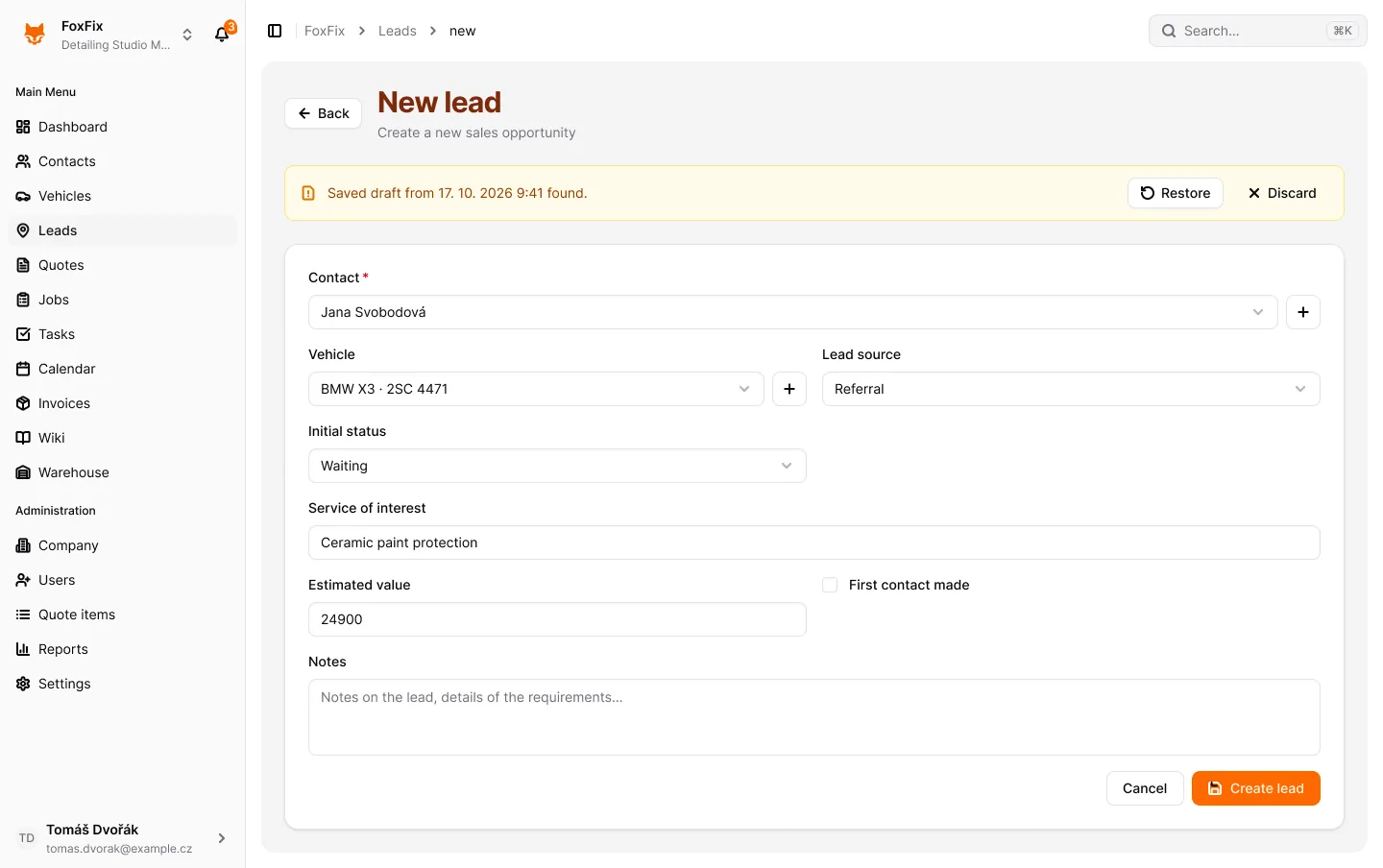
Open the New lead form with the New lead button on the Leads page, or with the New lead quick action on the dashboard.
 (opens the full-size image in a new tab)
- In the Contact field, choose the customer. You can search by name, company, email, phone or company ID. If the customer is not in your address book yet, click + next to the field (see New contact straight from the form).
- Optionally choose a Vehicle. The vehicle list becomes available only after you choose a contact (until then the field shows “Select a contact first”). Create a new car with the + button next to the field. You can also add the vehicle later.
- Choose the Lead source — Website, Referral, Manual (the default), API / integration or one of your company's own sources from Lookup lists.
- Leave the Initial status as Waiting if you have not spoken to the customer yet.
- Fill in Service of interest (“PPF, tinting, detailing...”) and Estimated value (“E.g. 25000”, a number only, in Czech crowns).
- If you have already spoken to the customer, tick First contact made.
- Write the details of the request in Notes.
- Click Create lead. The detail of the new lead opens.
Who will be the assignee
If the company has Lead auto-assignment turned on, the new lead goes to the next user in the configured order. Otherwise you become the assignee. You can change the assignee at any time by editing the lead.
Form fields
| Field | Required | What it is for |
|---|---|---|
| Contact | yes | The customer the enquiry is about. |
| Vehicle | no | The customer's car; it is then filled in on the quote. |
| Lead source | no | Where the enquiry came from — reports evaluate sources by this. |
| Initial status | no | The status the lead is created in. |
| Service of interest | no | A short description of the enquiry; shown in the list and on the board. |
| Estimated value | no | The estimated value of the deal. It must be a non-negative number. |
| First contact made | no | Marks the lead as called. |
| Lost reason | only for the Lost status | Appears when you choose Lost as the status. |
| Note on the loss | no | More detail on the lost reason. |
| Notes | no | Details of the request. |
Unfinished form (draft)
While you fill it in, the form is saved continuously as a draft. If you leave the page and come back, you will see “Saved draft from … found.” at the top:
- Restore — puts the unfinished details back into the form,
- Discard — deletes the draft and you start again.
New contact straight from the form
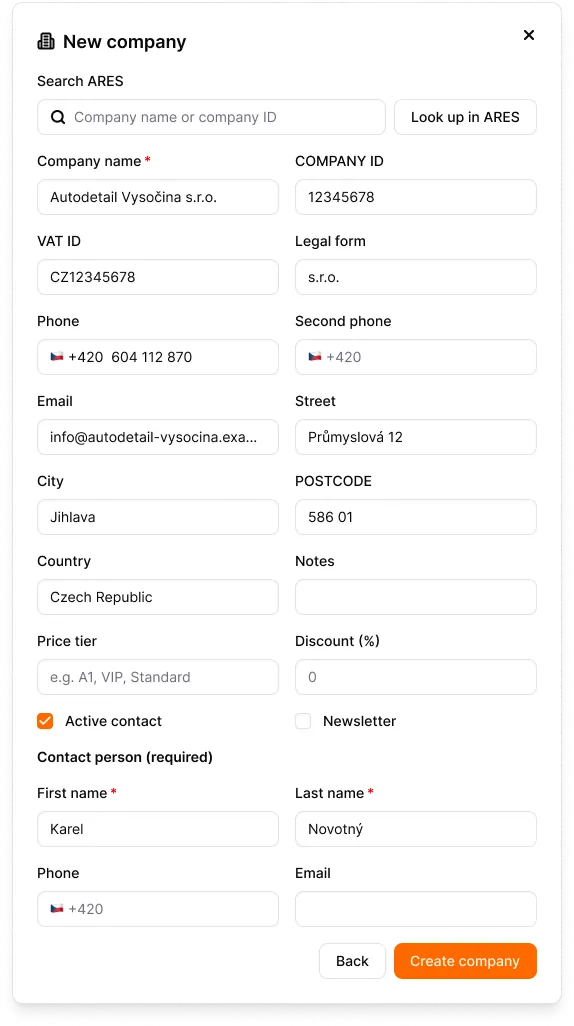
The + button next to the Contact field (or the Create customer option in its list) opens the New contact dialog:
- Choose Person or Company.
- For a person, fill in First name and Last name and, if needed, Phone, Email and Company. Under the More details button you will find the title, a second phone number, address, VAT ID, notes, price tier and discount.
- For a company, you can load the details from ARES — type the name or company ID into the “Company name or company ID” field and pick the company, or click Load from ARES. A company must have a Contact person (required) filled in.
- Click Create contact (for a company, Create company).
- In the Contact created confirmation, click Close. The new contact is already selected in the lead form.
 (opens the full-size image in a new tab)
If a contact with the same email, phone or company ID already exists in the address book, the dialog warns you with a “A similar contact already exists” card and offers to use the existing contact. More in the New contact and editing chapter.
New vehicle straight from the form
The + button next to the Vehicle field opens the New vehicle dialog. Make, Model and Position are required; you will find the other details under More fields. Once saved, the car is already selected. For details, see the Vehicles chapter.
Editing a lead
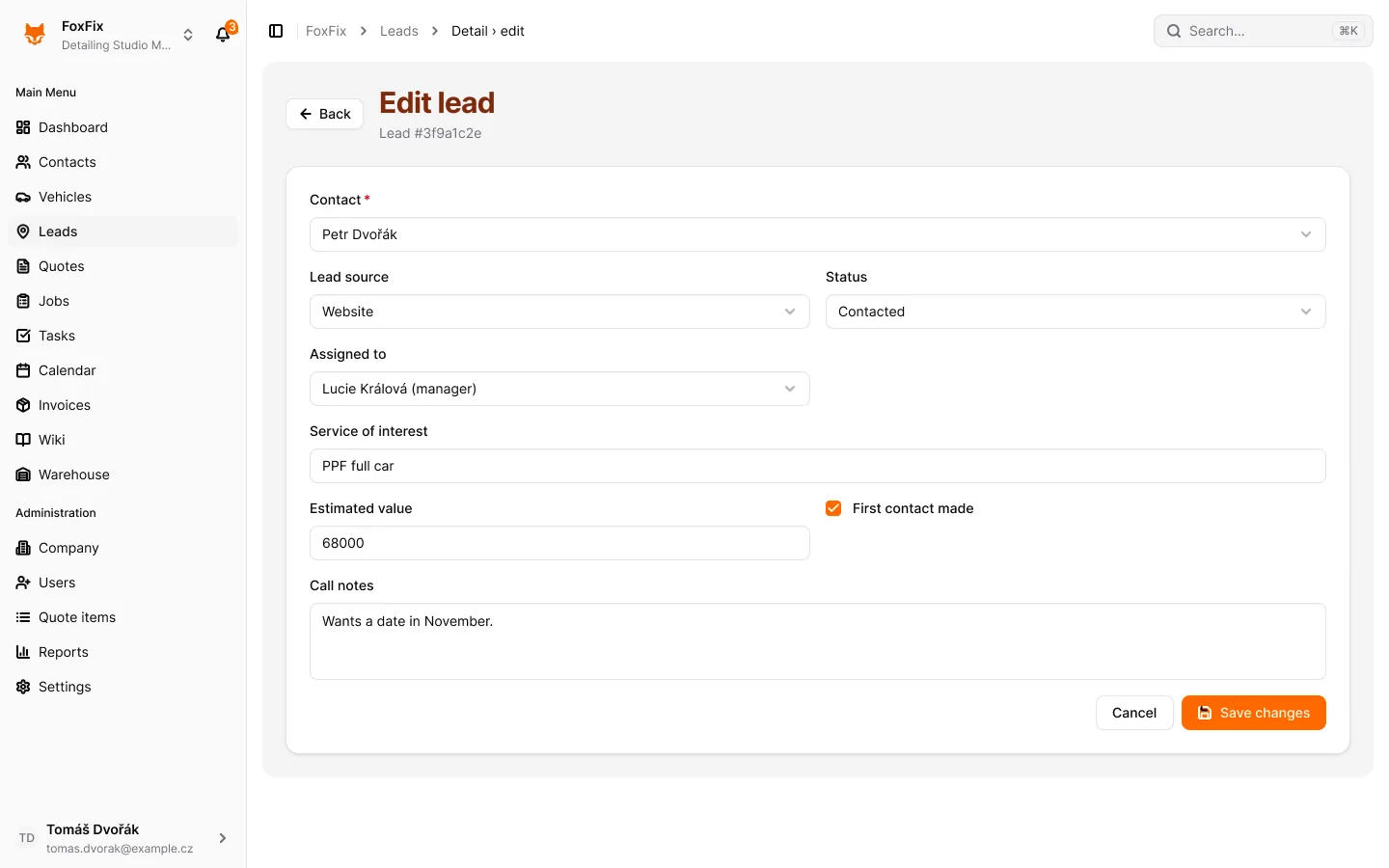
Open the Edit lead form with the Edit button in the lead detail or from the ⋯ menu in the lead list.
 (opens the full-size image in a new tab)
Compared with a new lead, you can also:
- change the Status,
- choose the person it is Assigned to (you can see each user's role next to their name), or choose Unassigned,
- edit the Call notes.
The vehicle is not changed here — attach or change it in the Vehicle card in the lead detail.
- Make the changes you need.
- If you are changing the status to Lost, choose a Lost reason — otherwise you cannot save the lead.
- Click Save changes. You return to the lead detail, and changes to the status and assignee are written to the history.
The Cancel button takes you back without saving.
Tips and common problems
- “Please select a contact” — a lead cannot be saved without a contact. Choose a contact, or create one with the + button.
- “The estimated value must be a non-negative number.” — enter only a number in the estimate, with no currency and no spaces, for example 25000.
- I created the same lead twice by mistake. Mark the extra lead as Lost with the reason Other, or delete it in the lead list (the ⋯ menu → Delete).