
Lead detail
The lead detail brings together everything about one enquiry: the customer's contact details, the state of the deal, quotes, call notes, the vehicle, tasks and the change history. From here you move the lead forward, create a quote and close the deal.
Open the detail by clicking a row in the lead list or a card on the board.
 (opens the full-size image in a new tab)
What you will find on the page
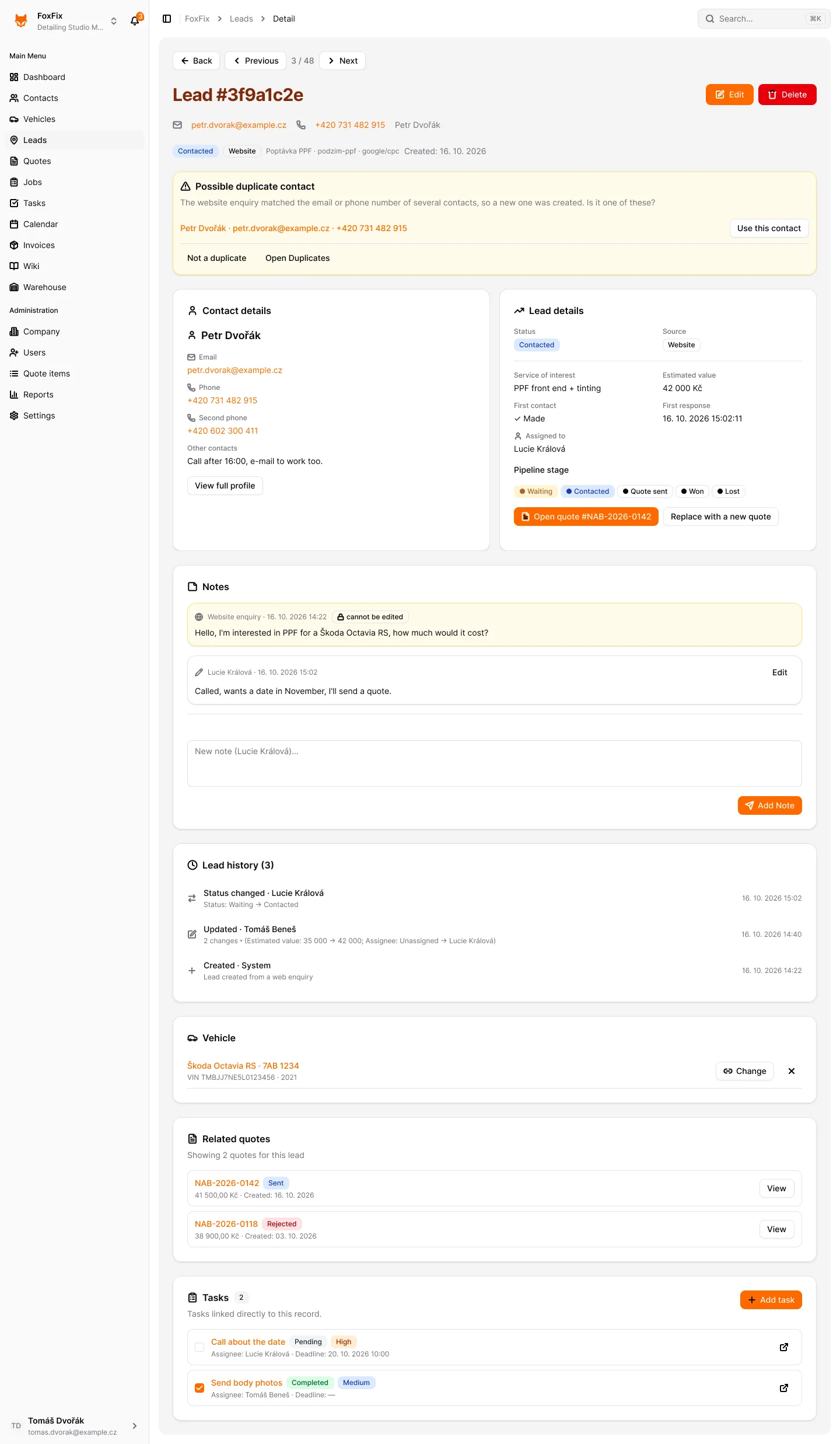
- Header — the lead number (“Lead #3f9a1c2e”), the customer's clickable email and phone, status, source and creation date. On the right are the Edit and Delete buttons.
- Contact details — the name or company name, email, phone numbers, other contacts and, for a company, its people. The View full profile button opens the contact detail.
- Lead details — status, source, service of interest, estimated value, first contact, assignee, Pipeline stage and the quote buttons.
- Notes — the website enquiry and your colleagues' notes.
- Lead history — who changed what, and when.
- Vehicle — the car the enquiry is about.
- Related quotes — all quotes created for the lead.
- Tasks — tasks linked to this lead.
Moving between leads
When you open the detail from the list or the board, you will see the Previous and Next buttons at the top left, along with your position (e.g. “3 / 48”). This lets you go through the leads in the same order and with the same filters you had in the list. You can also switch between leads with the ← → arrow keys on your keyboard (not while typing in a field). The Back button returns you to the list.
Pipeline stage
The Pipeline stage row in the Lead details card shows all statuses in the order of the board columns. The current status is highlighted.
- Click a different stage to change the lead's status. The message “Status changed to "…"” appears and the change is written to the history.
- Moving the lead to Contacted, Quote sent, Won or Lost marks it as called, and the first such move records the First response time. Custom statuses (columns the company has added to the board) only change the status, nothing else.
- For the Won status, the date the deal was won is shown.
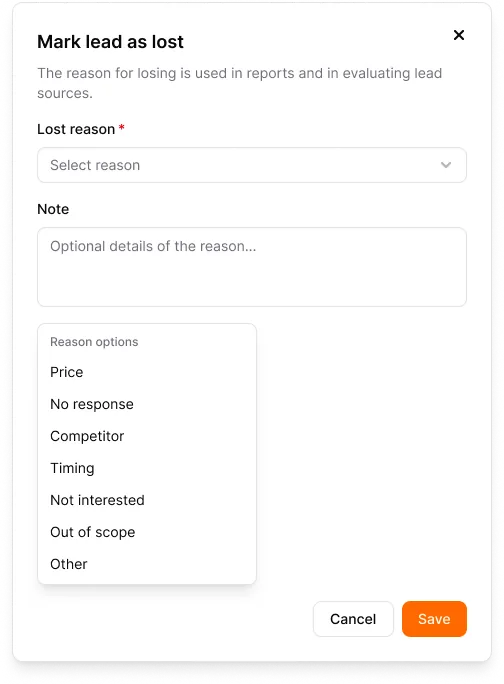
- Clicking Lost opens a dialog asking for the lost reason (see below).
The card also shows First contact — Made or Waiting for contact. You record first contact in the lead list with the Record first contact action (see Leads), or by ticking First contact made when editing the lead.
How to mark a lead as lost
- In Pipeline stage, click Lost.
- In the Mark lead as lost dialog, choose the Reason for losing: Price, No response, Competitor, Timing, Not interested, Out of scope or Other.
- Optionally add a Note (“Optional details of the reason...”).
- Click Save.
The lost reason is shown in the Lead details card and is used in reports and when evaluating lead sources. If you later move the lead back to another built-in status (for example Contacted), the lost reason is removed.
 (opens the full-size image in a new tab)
Quotes for the lead
The Lead details card shows different buttons depending on whether the lead already has an active quote:
- Create quote — the lead has no active quote yet. A new quote opens with the client (and the vehicle, if the lead has one) already filled in, and is linked to the lead. When the quote is saved, the lead moves to Quote sent by itself (unless it is already won or lost) and the quote total is saved as its estimated value.
- Open quote #… — opens the lead's active quote.
- Replace with a new quote — administrators and managers only. Once you confirm the Replace the existing quote? dialog, the existing quote is marked as rejected and the form for a new quote for the same lead opens.
The Related quotes card lists all quotes for the lead with their number, amount, date and status. The View button opens the quote detail.
No new quote was created?
If you leave the form without saving after replacing a quote, the old quote stays rejected and no new one is created. The lead detail will warn you about this. Create a new quote with the Create quote button, or restore the status of the old quote in its detail.
You will find more about quotes in the Quotes chapter.
Notes
Notes are a shared record of communication with the customer. Each one shows who wrote it and when.
- Add note — type into the “New note (your name)…” field and click Add note.
- Edit — you can correct your own notes; an edited note shows “(edited …)”.
- Website enquiry — the text the customer sent through the website form. It has a yellow background, is labelled cannot be edited and cannot be changed, so that the original wording of the enquiry is kept. Entries of the Automation and System types are locked in the same way.
The name of the author of the latest note and its date appear in the lead list in the Last contacted by column.
Possible duplicate contact
When a website enquiry arrives with an email or phone number that several contacts in your address book share, FoxFix creates a new contact for the lead and shows a yellow Possible duplicate contact panel at the top of the detail, listing the similar contacts.
- Use this contact — the lead is switched to the selected existing contact.
- Not a duplicate — the panel disappears and the lead stays with the new contact.
- Open Duplicates — opens the Duplicate contacts page (administrators and managers only).
Vehicle
The Vehicle card shows the car the enquiry is about (make, model, licence plate, VIN and year). A lead does not have to have a vehicle — in that case you will see “The lead has no vehicle yet.”
- Attach or change a vehicle — click Change and search for the car by licence plate, VIN, make or owner.
- New vehicle — creates a car straight from the lead (the New vehicle dialog, see Vehicles).
- Remove vehicle — the cross next to the Change button detaches the car from the lead; the vehicle itself stays in the address book.
If you pick a vehicle that belongs to another contact, the app asks you first (“The vehicle belongs to another contact”). After you click Attach, the car is attached to the lead but its owner does not change.
Tasks for the lead
The Tasks card shows tasks linked to the lead (for example “Call about the appointment”).
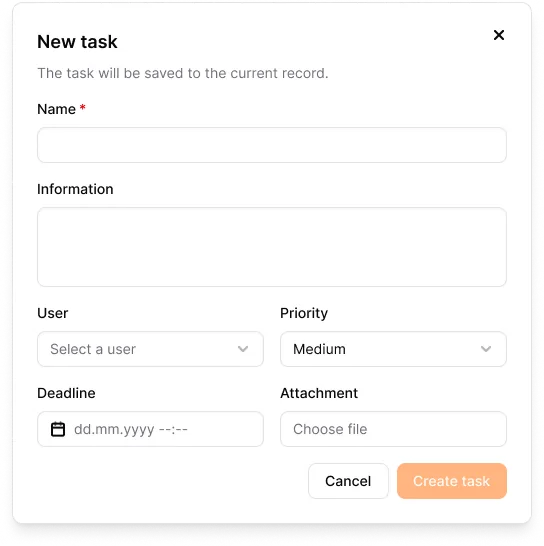
- Click Add task.
- Fill in the Title and, if needed, Details, User (who the task belongs to), Priority, Deadline and Attachment.
- Click Create task.
Tick the box next to a task to mark it as done; click again to reopen it. The icon on the right opens the task detail. More in the Tasks chapter.
 (opens the full-size image in a new tab)
Lead history
The Lead history card records the creation of the lead and changes to its status, assignee, details and vehicle — always with the author and time. For an Updated entry, click “N changes” to expand exactly what changed (the original value struck through, the new one in green).
Deleting a lead
Only administrators and managers see the Delete button in the header. After you confirm (“Do you really want to delete this lead? This cannot be undone.”), the lead is permanently deleted and you return to the list. The contact, vehicle and quotes are not deleted.
Deleting cannot be undone
For a lead that did not turn into a deal, mark it as Lost with a lost reason instead. That way it stays in the reports and in the customer's history.
Tips and common problems
- “You do not have permission to view this lead” — the link leads to a lead belonging to another company. Check which company you are signed in to.
- “Lead not found” — someone has deleted the lead in the meantime. Go back with the Back to the lead list button.