
Rolls (film by the metre)
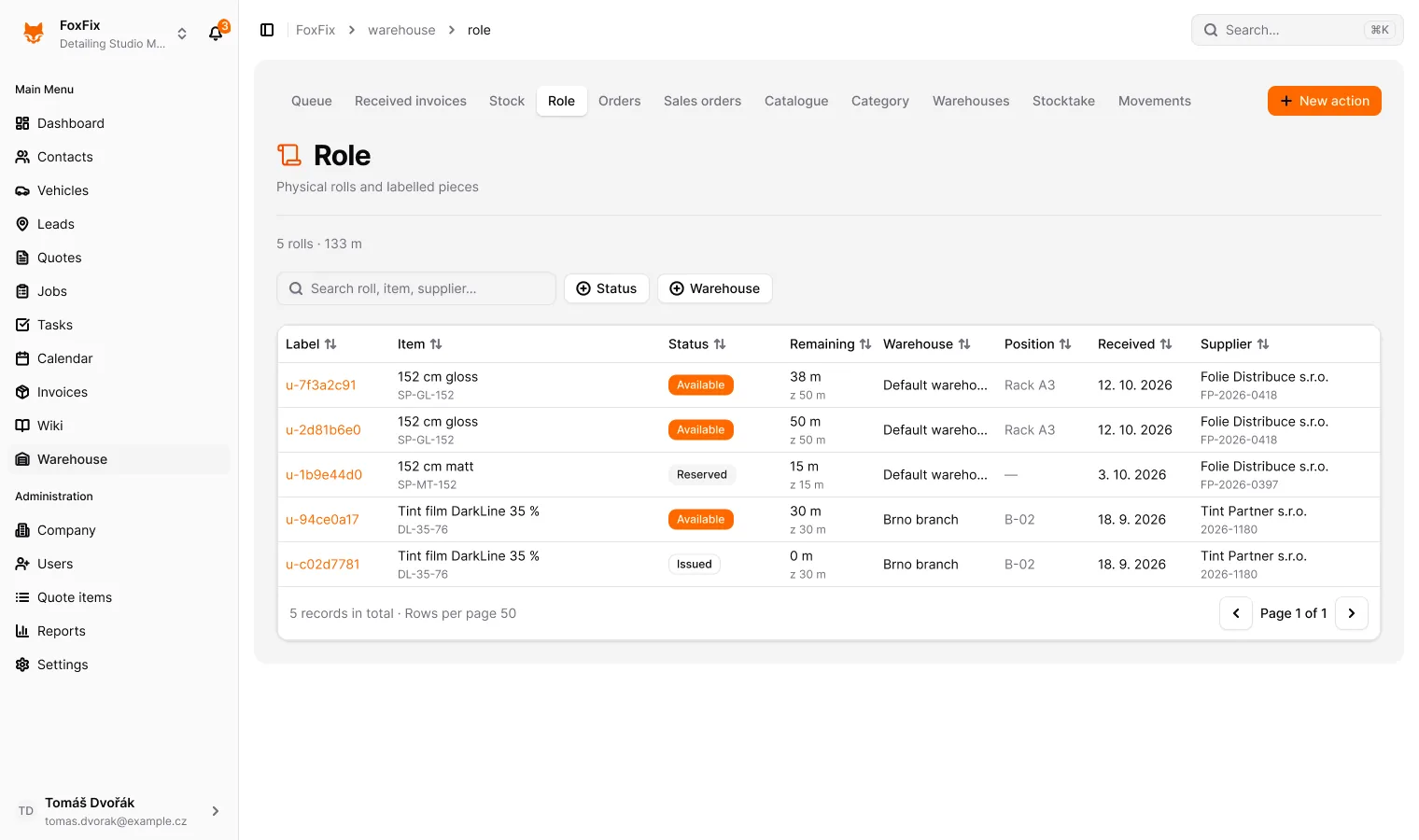
PPF, tint and wrap films are not bought or issued by the piece but by the metre, from a specific roll. That is why FoxFix tracks every roll of such goods separately: it has its own QR label, and the app knows which invoice it came from, where it is and how many metres are left on it. The Rolls tab (“Physical rolls and labelled pieces”) shows all rolls in one place.
 (opens the full-size image in a new tab)
How to set up goods on rolls
Roll tracking is turned on for a variant in the catalogue:
- Unit — Metre (or m²).
- Turn on Track by roll/lot.
- Fill in the Length of a new roll — how many metres an unopened roll has (e.g. 15). Every received roll starts with this figure.
On the warehouse you can set Write off roll remainder below (m) (default 0.5 m) — see Warehouses and bins. After an issue, a remainder up to this length is written off as unusable and the roll is closed.
How rolls get into stock
Rolls are always received through a received invoice. Quick receipt on the Receive page is blocked for goods tracked by roll (“Roll tracking required”), because each roll must get its own label.
- Upload the supplier's invoice and save it to the queue. On the film line the app converts the quantity into rolls, e.g. “= 3 rolls of 50 m”.
- Print the labels — one for each roll.
- In the receiving wizard, scan the bin, the manufacturer's barcode and the label you stuck on each roll.
- In the Metres on the rolls section, check the length of each roll. The length of a new roll is prefilled; overwrite it if the roll is actually different. The summary shows “Total 150 m of 150 m on the invoice”. You cannot confirm more metres than are on the invoice; fewer means the rest stays outstanding.
- Confirm with Receive. Each roll appears on the Rolls tab with the status Available.
Roll overview
Above the table is a summary for the current filter, e.g. “14 rolls · 386 m”. The table has these columns:
| Column | Meaning |
|---|---|
| Label | The roll's identifier (links to the detail). |
| Item | Variant and SKU. |
| Status | Available (in stock), Reserved (held for a job), Issued (used up or closed). |
| Remaining | How many metres are left of the original length, e.g. “38 m of 50 m”. |
| Warehouse, Bin | Where the roll is. |
| Received | Date of receipt. |
| Supplier | Supplier and invoice number. |
Search with the “Search roll, item, supplier…” field and filter by Status and Warehouse.
Roll detail
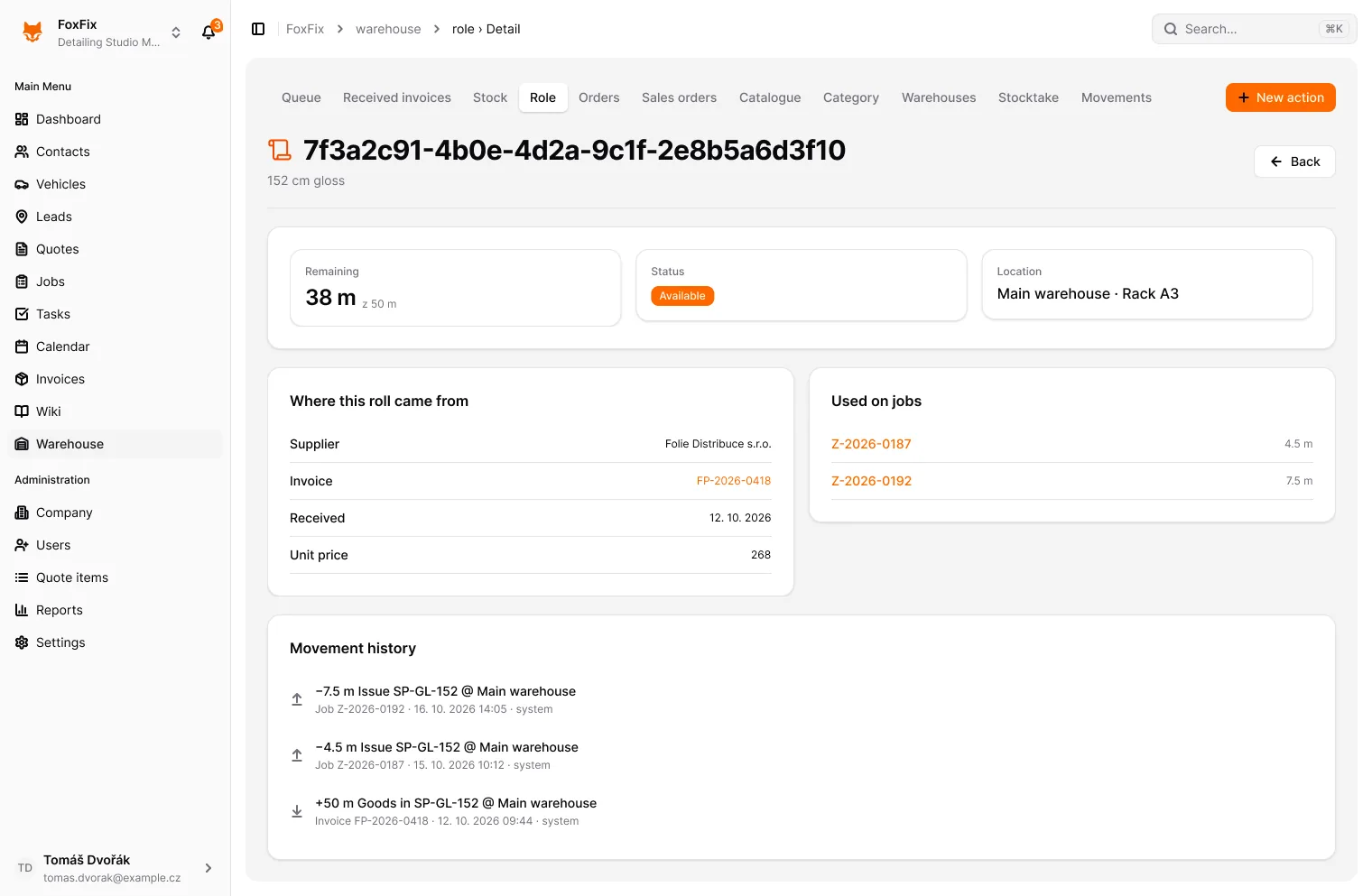
Click a roll to open its detail:
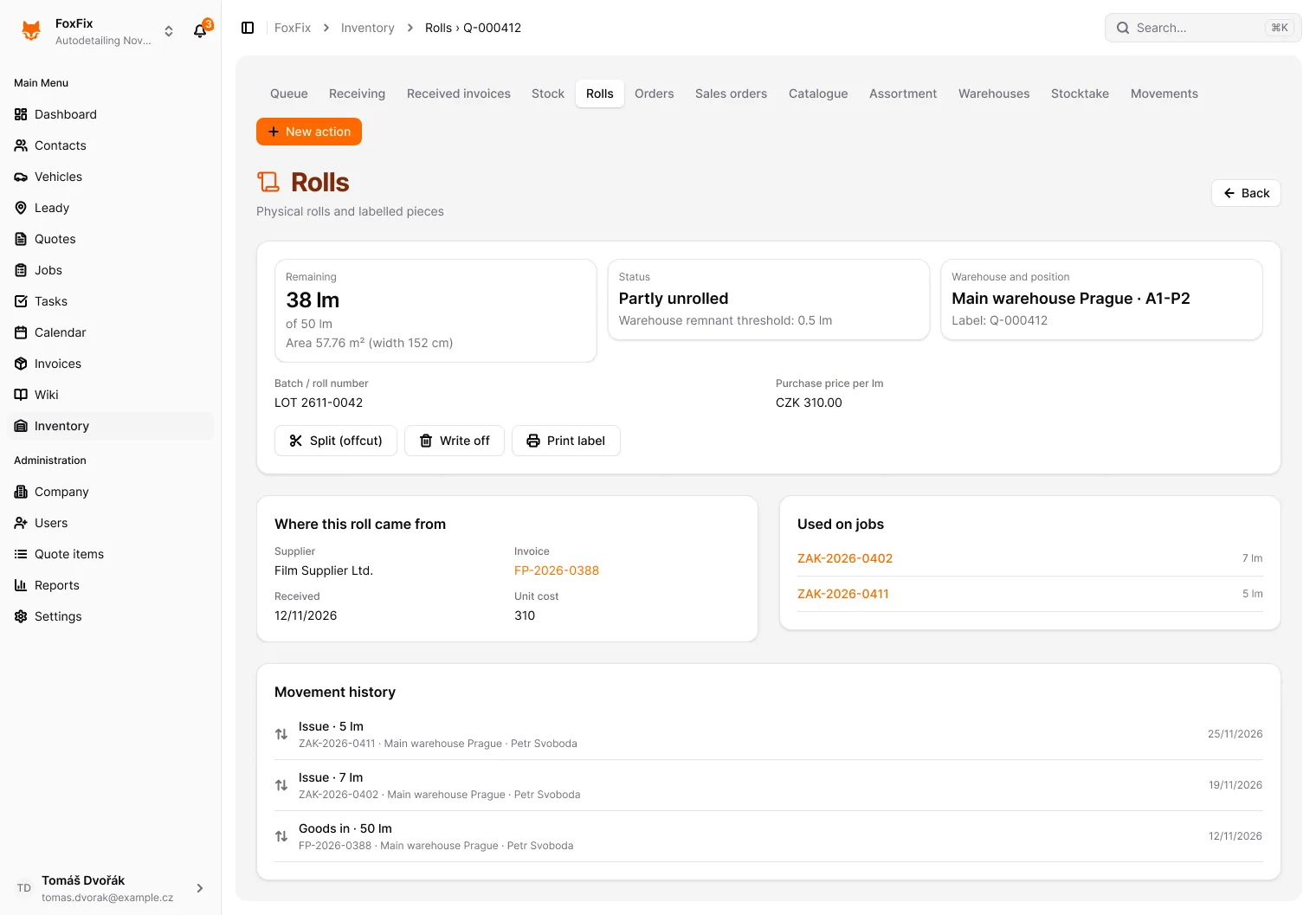
- Remaining, Status and Location (warehouse and bin),
- Where this roll came from — supplier, invoice (link), date of receipt and unit cost,
- Used on jobs — which jobs the metres from this roll went to, and how many,
- Movement history — the roll's receipt, issues and write-offs, newest first.
 (opens the full-size image in a new tab)
Issuing metres to a job
Material for a job is reserved automatically when the job is created. In the queue, an Issue metres button then appears next to the film:
- Click Issue metres. A full-screen wizard opens.
- “1. Scan the roll you will cut from” — scan the label of the roll you are holding. The remaining metres are tracked per roll, so it has to be the right one.
- The wizard shows Left on the roll, e.g. “38 m of 50 m”.
- “2. How many metres are you issuing?” — the field is prefilled from the job; overwrite it if you are cutting a different length.
- Below the field you can see what will be left: “X m will remain on the roll.”, or a warning that the remainder will be below the warehouse threshold and written off as unusable.
- Confirm with Issue N m. You will see “Issued N m” (and possibly “The remaining X m were written off as unusable.”).
Different roll takes you back to scanning. The message “We do not have this roll here…” means the roll belongs to different goods or a different warehouse. The whole procedure for issuing to a job is described in Issuing material to a job.
Tips and common problems
- Rolls are missing from the Rolls tab. They are only created by receiving goods with roll tracking turned on. Check the variant settings.
- “The roll does not have that many metres.” You entered more than is left on the roll. Issue the remainder from this roll and continue from another.
- Enter the actual roll length when receiving. The length of a new roll is only a prefilled estimate; whatever you enter in the Metres on the rolls section is what gets drawn down.
The new Rolls screen (November 2026 update)
When your company has the November 2026 update switched on, all film lengths are written in lm (linear metres), never just "m" — area in m² is only worked out from lm × roll width.
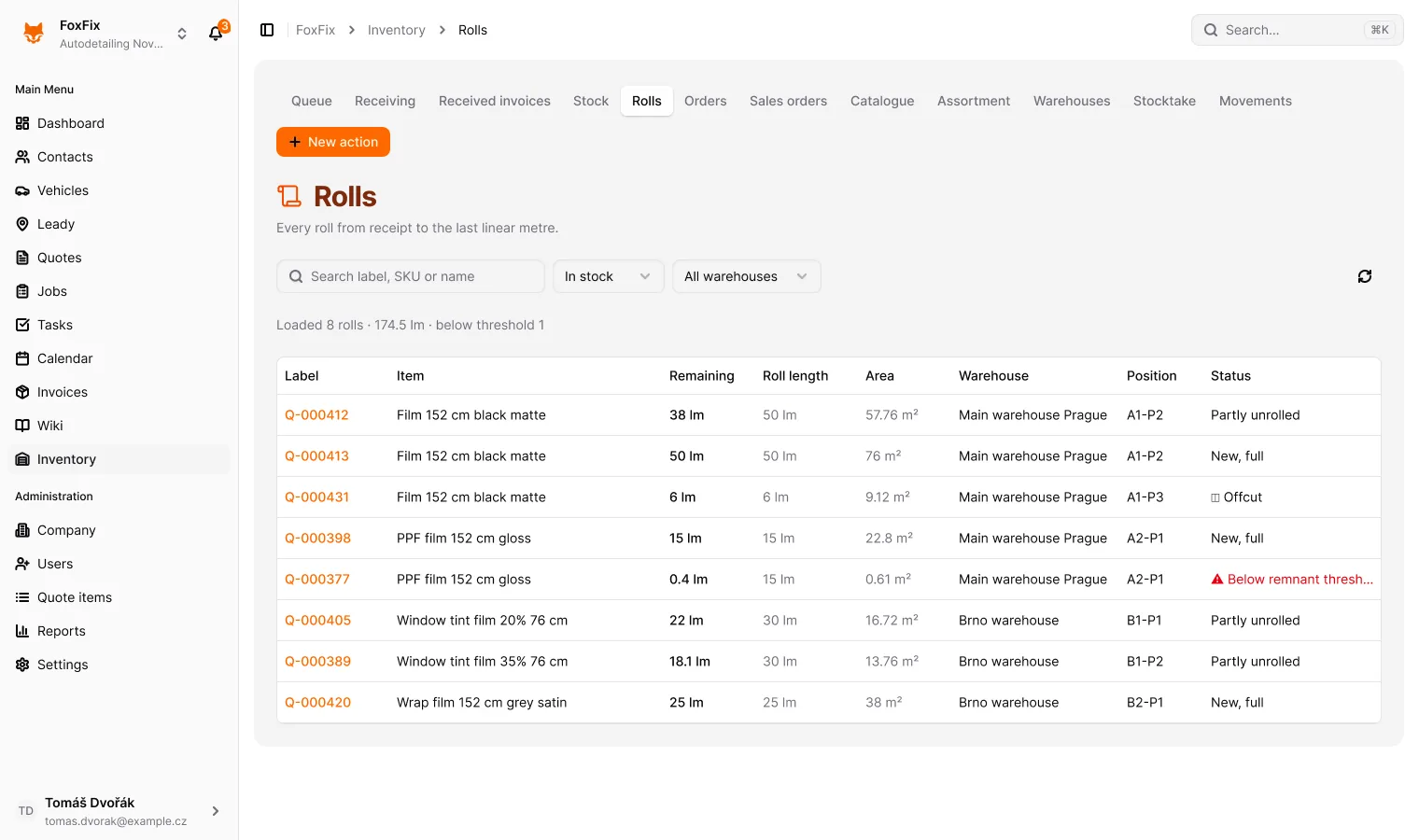
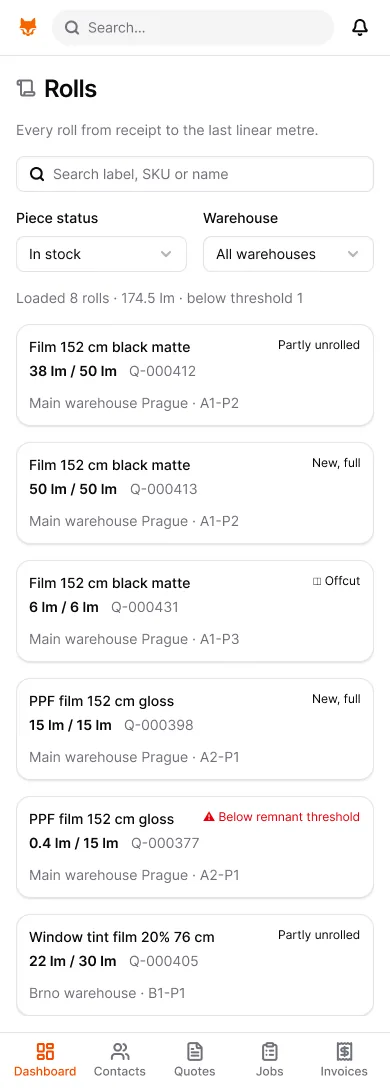
Roll list
- Pick the Piece status (default In stock; also Awaiting position, Reserved, Prepared, Written off, Sold off, Issued) and optionally a Warehouse.
- The list shows Label, Item, Remaining (lm), Roll length, Area, Warehouse, Position and the roll status: New, full · Partly unrolled · ◫ Offcut · ⚠ Below remnant threshold · Reserved · Prepared / locked · ✕ Written off · Sold off.
- Below remnant threshold means no more lm are left on the roll than the warehouse remnant threshold. A manager decides such a roll: write it off, sell it off, or keep it.
- Rolls arrive in pages (Load more). The summary above the list counts the loaded rolls: how many, total lm and how many are below the threshold. Searching for a label, SKU or name filters the loaded rows.
- You only see rolls in warehouses your role has access to.
 (opens the full-size image in a new tab)
 (opens the full-size image in a new tab)
Roll card
At the top you see Remaining in lm (of the total length, with the area), the Status with the warehouse remnant threshold, and Warehouse and position with the label. Only purchasing and management see the purchase price per lm. The roll's origin, job usage and movement history stay below.
 (opens the full-size image in a new tab)
Split a roll (offcut)
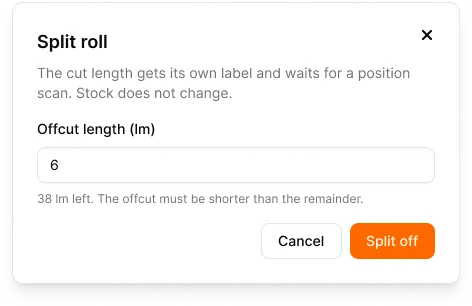
- On the roll card click Split (offcut). This works only for a roll in stock.
- Enter the Offcut length (lm). It must be shorter than the rest of the roll and at least as long as the warehouse remnant threshold — a shorter piece belongs in a write-off.
- Confirm Split off. The offcut gets its own Q label number, the roll is shortened and stock does not change.
- Click Print offcut label, stick it on and put the offcut on a position (until then it is Awaiting position).
You can print the label of a roll or an offcut again at any time with the Print label button on its card (same Q number and QR code).
 (opens the full-size image in a new tab)
Write off a roll
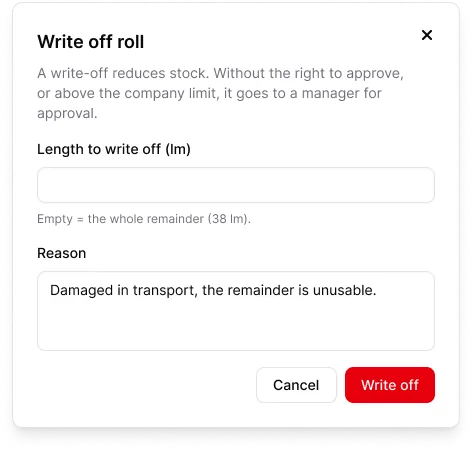
- Click Write off.
- Length to write off (lm) — an empty field means the whole remainder.
- Fill in the Reason (required) and confirm Write off.
What happens next:
- Branch managers and above write off at once — stock drops by the lm written off and a fully written-off roll becomes ✕ Written off.
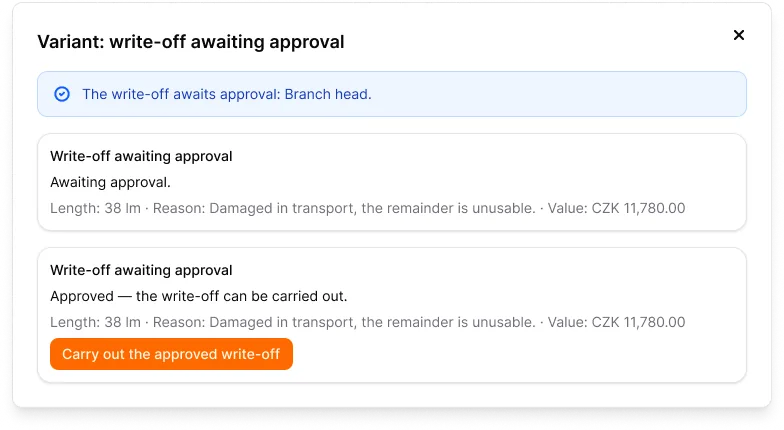
- Warehouse staff only propose a write-off. The proposal goes to the branch manager in the approval queue. Nobody approves their own write-off — when the branch manager proposes it, the level above approves.
- The write-off limit is a company setting (Limits and rules, no limit by default). When the company sets one, a write-off above the limit needs approval even from a branch manager. With a limit set, a card without a purchase price cannot be written off until purchasing adds the price.
- After approval the roll card shows Carry out the approved write-off. Only that lowers the stock. If the roll changed in the meantime (someone issued from it or moved it), the write-off is refused and has to be proposed again.
 (opens the full-size image in a new tab)
 (opens the full-size image in a new tab)