
Finding your way around the app
Every FoxFix page has the same frame: a side menu on the left, a bar with breadcrumbs and search at the top and the page content in the middle. This page describes each part of the frame and what you will find there.
 (opens the full-size image in a new tab)
Left menu
The menu is split into two groups.
Every signed-in user sees the Main Menu:
| Item | What it is for |
|---|---|
| Dashboard | Overview of the day: your work, quick actions and company figures. → Dashboard |
| Contacts | Directory of customers, companies and suppliers. → Contacts |
| Vehicles | Records of customers' vehicles. → Vehicles |
| Leads | Enquiries and sales opportunities. → Leads |
| Price Quotes | Quotes for customers. → Quotes |
| Jobs | Workshop work from vehicle intake to handover. → Jobs |
| Tasks | The team's internal tasks. → Tasks |
| Calendar | Scheduling jobs and appointments. → Calendar |
| Invoices | Invoicing and the iDoklad connection. → Invoices |
| Wiki | The company's internal guides and know-how. → Wiki |
| Inventory | Stock, receiving and issuing goods. → Inventory |
Only the Administrator and Manager see Administration: Company, Users, Quote items (price list), Reports and Settings.
A few rules worth knowing:
- Modules that your company has not switched on, or that are not included in its subscription plan, do not appear in the menu at all. Modules are switched on by an administrator (see Roles, modules and subscription).
- The Warehouse clerk role has a simplified menu with only Tasks, Calendar, Wiki and Inventory.
- The section you currently have open is highlighted in the menu.
- You can hide and show the menu with the panel-icon button on the left of the top bar, or with the keyboard shortcut ⌘B (Mac) / Ctrl+B (Windows).
Top bar and breadcrumbs
The top bar shows the breadcrumbs: the path to the current page, for example FoxFix › Contacts › Detail. Click any part of the path to go back up a level.
On the right of the bar is the Search... button with the ⌘K shortcut.
When you move to another page, a thin orange bar briefly appears at the very top. It means the new page is loading.
Global search
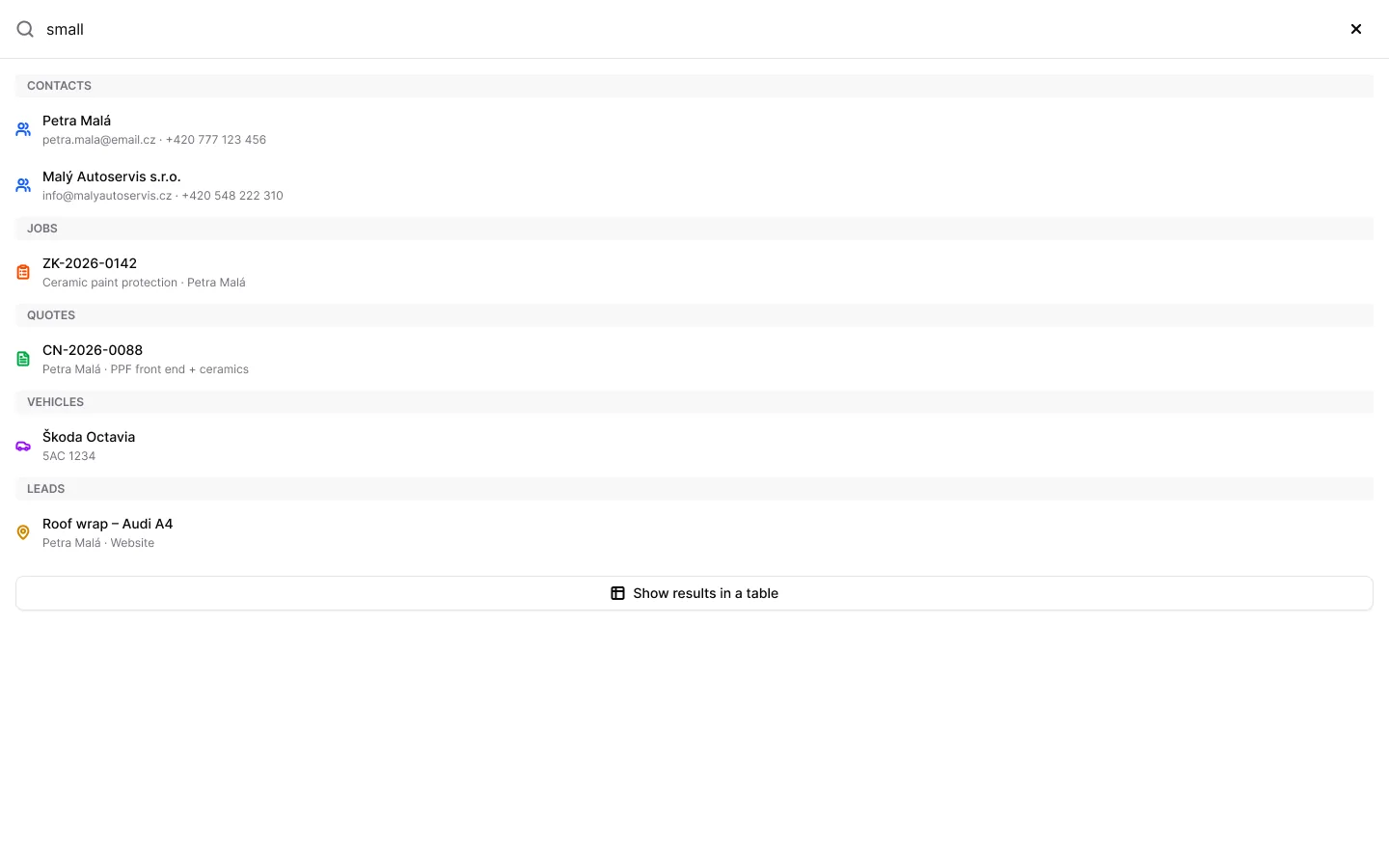
Search looks through contacts, jobs, quotes, vehicles and leads all at once. Only the modules your company has switched on are searched.
 (opens the full-size image in a new tab)
- Click Search... at the top, or press ⌘K (Mac) / Ctrl+K (Windows).
- Start typing, for example a customer's name, a licence plate or a job number. Searching starts from 2 characters and results appear as you type.
- Results are grouped by type (Contacts, Jobs, Quotes, Vehicles, Leads). Click a row to open the record.
Close search with the cross at the top right or the Esc key. When nothing is found, it shows “No results for …”.
Results in a table
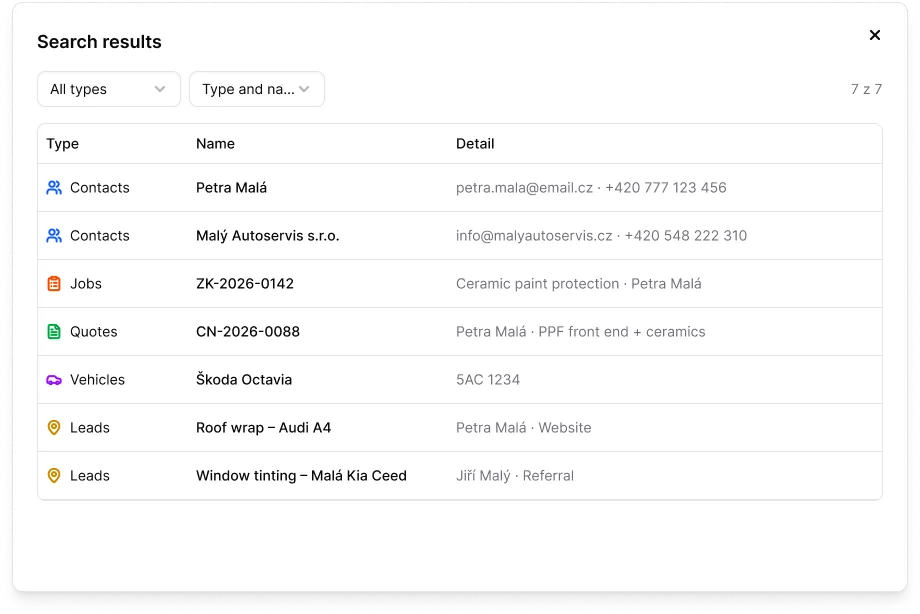
When there are many results, click Show results in a table at the bottom. In the Search results window you can limit the results to one type (the All types field) and sort them by Type and name, or by Name only. On the right you can see how many results are shown.
 (opens the full-size image in a new tab)
Notifications
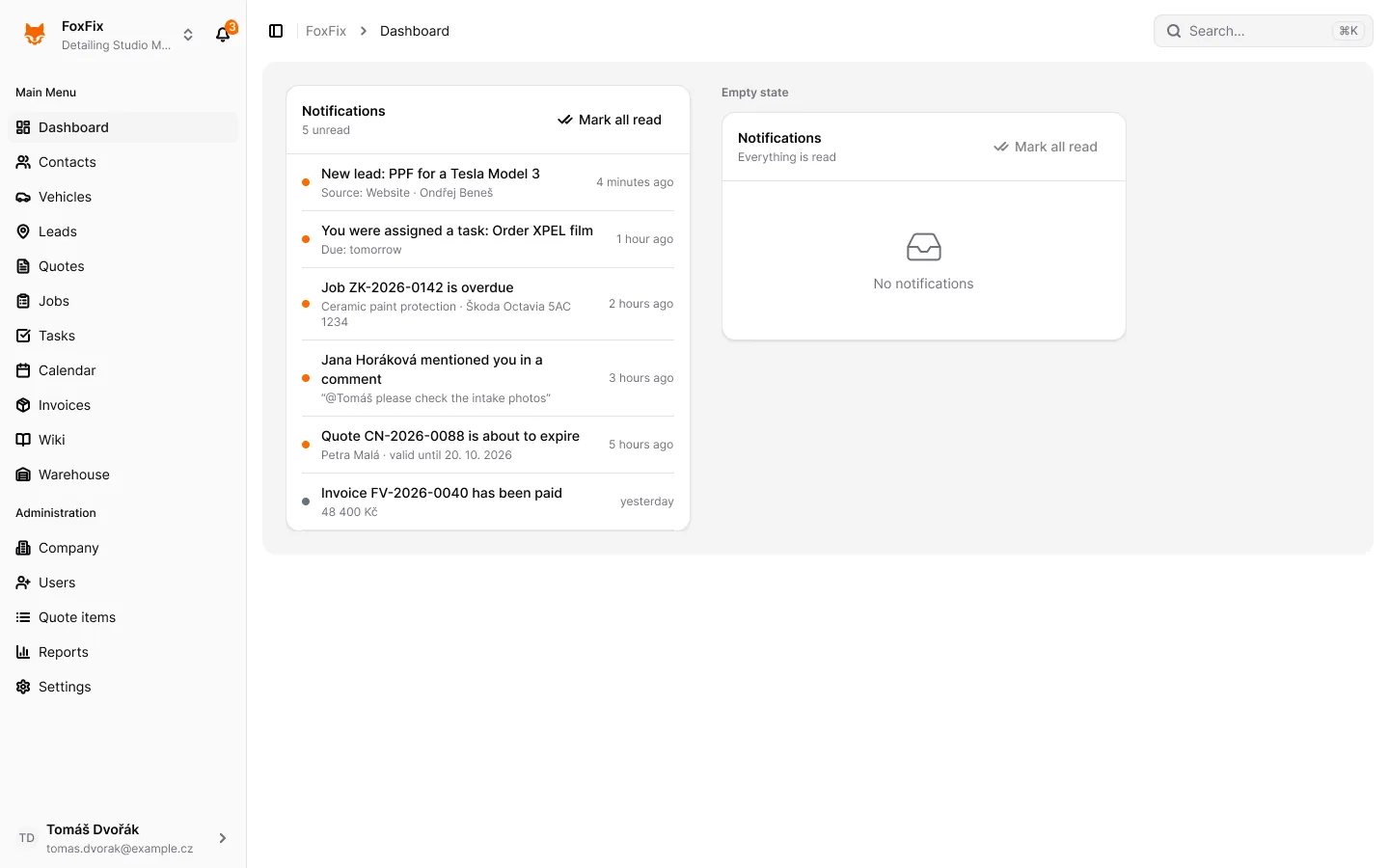
The bell is in the header of the left menu next to the company name (in the top bar on mobile). The orange number on the bell shows how many unread notifications you have.
 (opens the full-size image in a new tab)
- Click the bell to open the list. Unread notifications have an orange dot and a tinted background.
- Click a notification to mark it as read and open the record it is about (a task, job, lead…).
- The Mark all read button marks all notifications as read.
Notifications tell you about things such as an assigned task, a new lead, a mention in a comment, an overdue job or task, a quote about to expire or a paid invoice. You choose which of them you also want by email under Settings → Notifications (see My profile and notifications).
User menu
Right at the bottom of the left menu are your name and email. Click them to open the user menu:
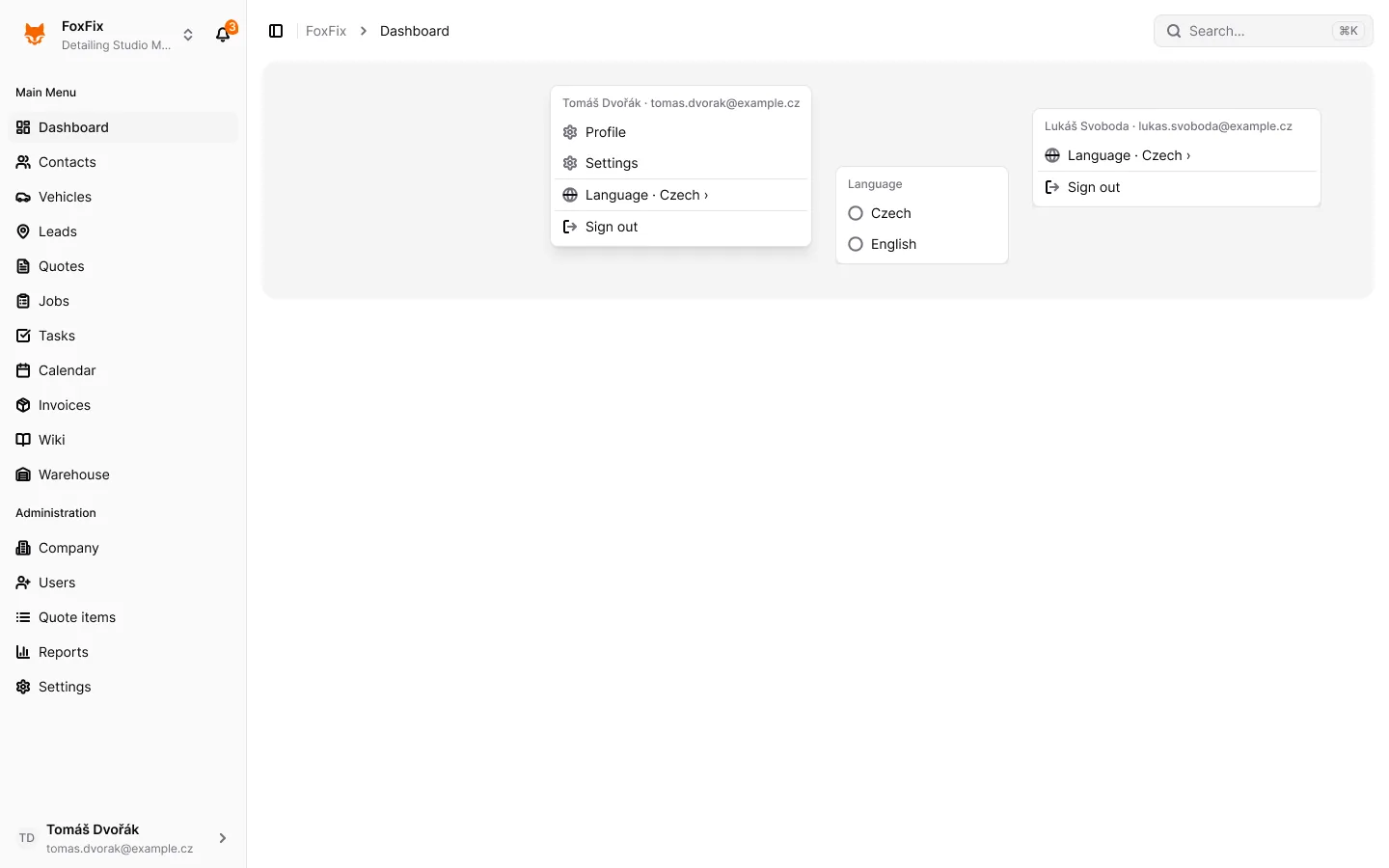 (opens the full-size image in a new tab)
- Profile – your name, phone and account information.
- Settings – an overview of all settings (see Settings).
- Help – opens this handbook in a new tab, straight at the chapter for the part of the app you are in.
- Language – switches the app language.
- Logout.
The Warehouse clerk role only has Help, Language and Logout in the menu.
Switching the language
- Open the user menu.
- Hover over Language. The current language is shown on the right.
- Choose Čeština or English.
The app switches immediately. Your choice is saved to your account, so it still applies the next time you sign in. Until you choose a language yourself, the app is shown in the company's default language, which an administrator sets. This does not change the language of documents and emails for customers. That is set by an administrator in the company settings.
Company switcher
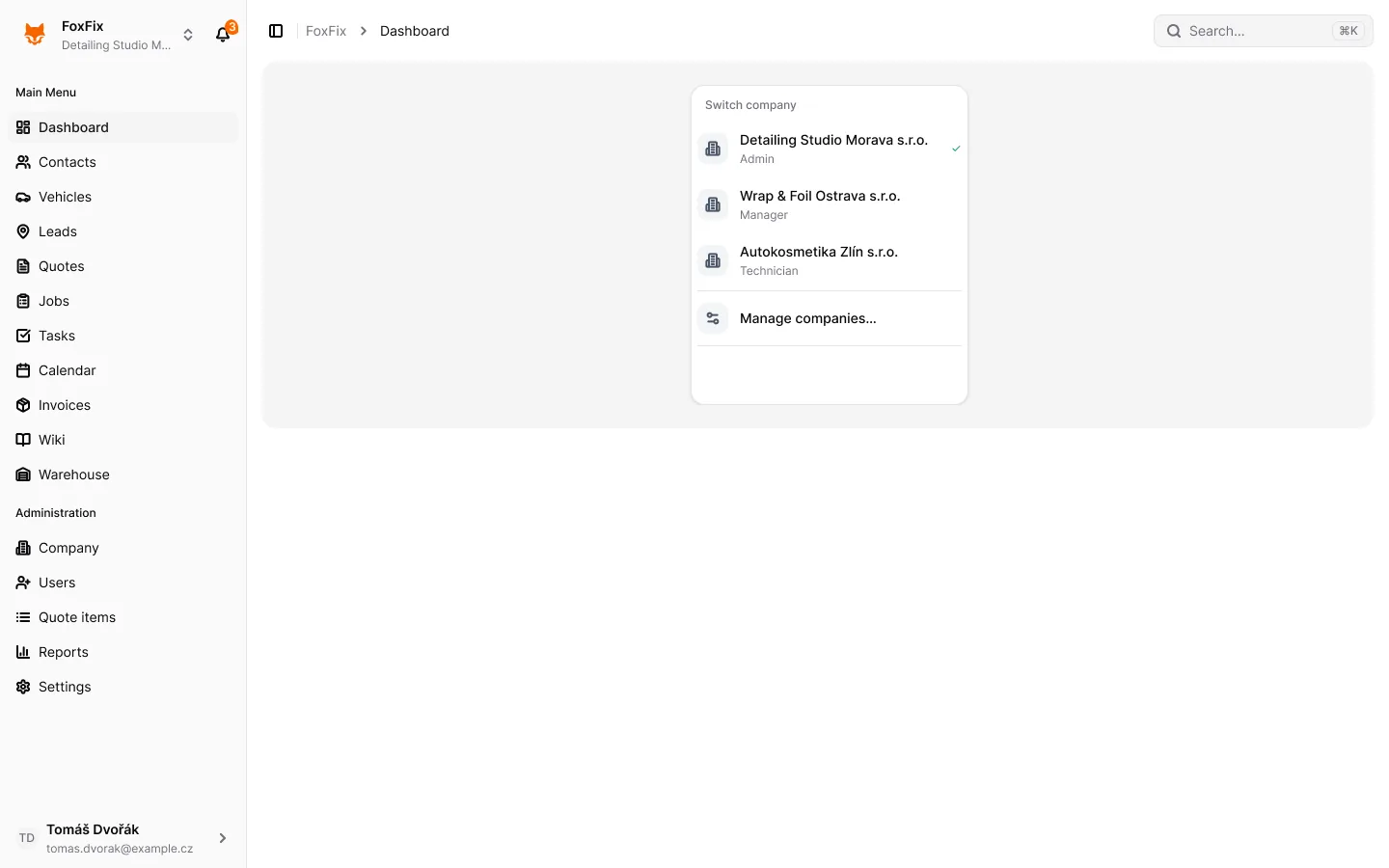
If you work in more than one company (for example you have two branches run as separate companies), you switch between them in the header of the left menu. Below the FoxFix logo you can see the name of the company you are currently working in.
- Click the company name at the top left.
- Under Switch company you can see all your companies and, below each one, your role in it. The current company has a green tick.
- Click another company. The app switches and opens its Dashboard.
Each company has its own data. Contacts, jobs and invoices are not shared between companies, and you can have a different role in each one.
Manage companies
Choose Manage companies… in the switcher to open a window listing your companies.
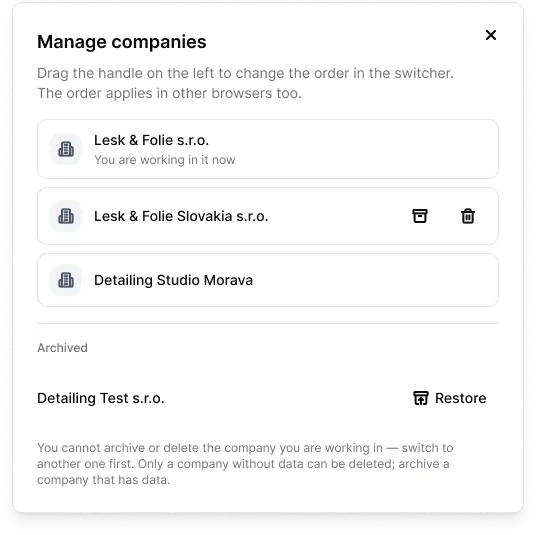 (opens the full-size image in a new tab)
- Order in the switcher – drag a company by the handle on the left to change it. The order is saved to your account and also applies in other browsers.
- Archive company (box icon) – the company disappears from the switcher and its data is kept. You will find an archived company at the bottom in the Archived section; Restore brings it back.
- Delete company (bin icon) – only possible for a company with no data. To confirm, you must type the exact company name and click Delete company. Deletion cannot be undone.
You can only archive and delete companies in which you are an Administrator, and never the company you are currently working in. Switch to another one first. With the November 2026 update (once the company has it switched on) only the Managing director or an Admin who may change the settings of the whole company can archive, restore or delete it. For now the buttons in the window follow the previous Administrator role.
A company with data cannot be deleted
A company that already has customers, jobs or invoices cannot be deleted. If you no longer use it, archive it.
Loading and connection
- Loading – when the app opens, a grey frame with the outlines of the menu and content appears first. A moment later it is replaced by the real data.
- You are offline – when your internet connection drops, an orange bar appears below the top bar: “You are offline — showing the last loaded data”. What you see may not be up to date. Wait until the connection is back before saving changes.
- Connection restored – when the connection comes back, a green bar appears for a few seconds: “Connection restored — data is updating”.
 (opens the full-size image in a new tab)
Keyboard shortcuts
| Shortcut (Mac / Windows) | Action |
|---|---|
| ⌘K / Ctrl+K | Open global search |
| ⌘B / Ctrl+B | Hide or show the left menu |
| ⌘J / Ctrl+J | Open or close the AI assistant |
| Esc | Close search or the AI assistant |