
Leads
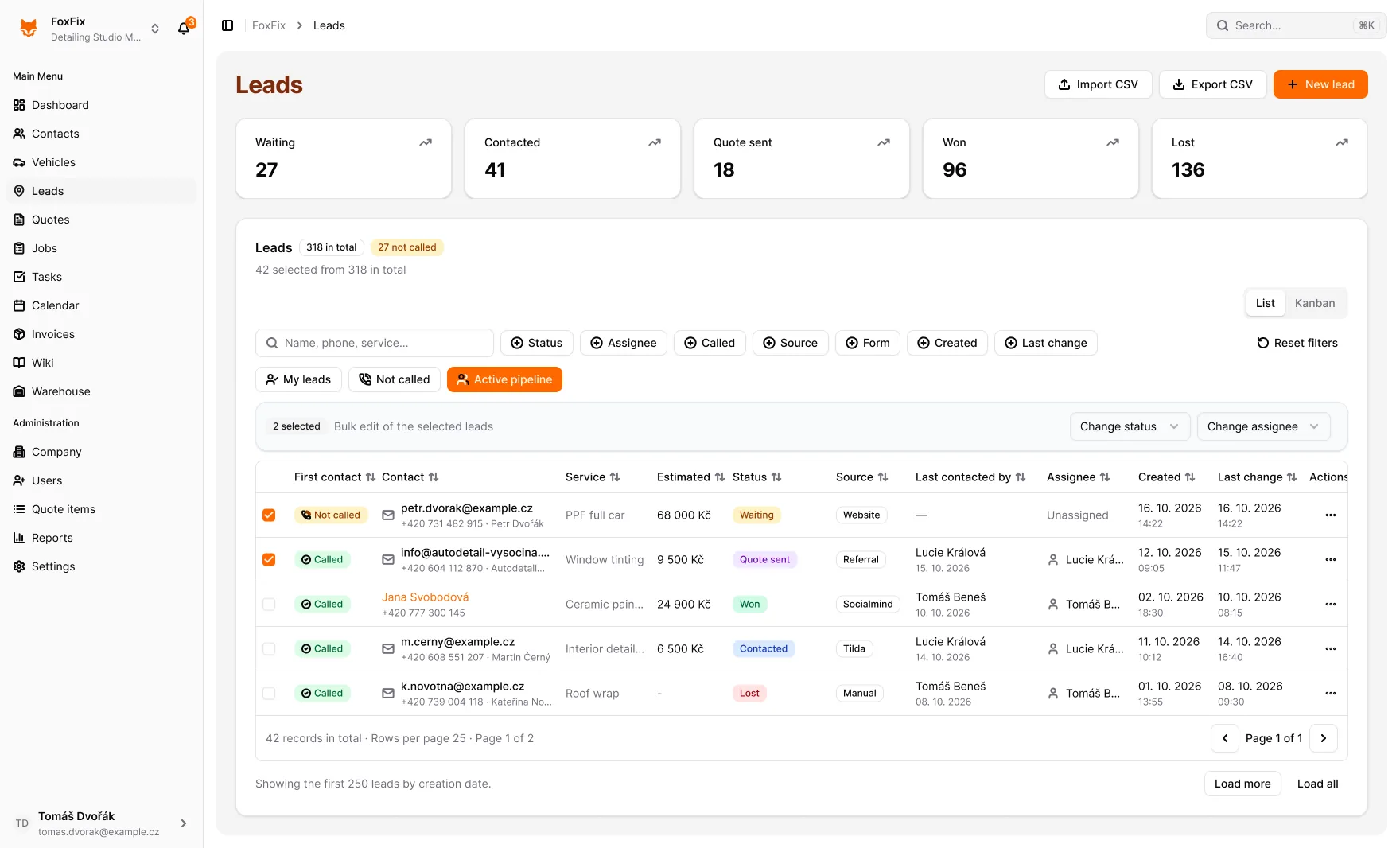
A lead is a customer enquiry that you are trying to turn into a job. The Sales opportunities page (Leads in the menu) shows all of the company's leads, their status and who is looking after them. From here you create new leads, find enquiries nobody has called yet and change the status or assignee of several leads at once.
Who can see this
All users of the company, as long as the company has the Leads module turned on. The module is included in every plan; an administrator can turn it on or off in Settings → Company.
 (opens the full-size image in a new tab)
The whole sales path from enquiry to job is described step by step in the guide New job from an enquiry.
What you will find on the page
- Buttons at the top — Import CSV, Export CSV and New lead.
- Status tiles — the number of leads in each status: Waiting, Contacted, Quote sent, Won, Lost and your own custom statuses (board columns).
- Leads card — top right, the “… in total” count and a yellow “… not called” badge. Below the heading you can see how many leads match the filter (“42 selected from 318 in total”).
- List / Kanban toggle — a table, or a board with status columns. Your choice is remembered.
- Search and filters, with the quick toggles below them.
- Lead table with pagination.
Table columns
| Column | Meaning |
|---|---|
| First contact | Called (green) or Not called (yellow). |
| Contact | The contact's email, phone and name. Click the name to open the contact. |
| Service | What the customer is interested in. |
| Estimate | The estimated value of the deal. |
| Status | A coloured status label. |
| Source | Where the lead came from (Website, Referral, Manual, API / integration or one of the company's own sources from Lookup lists); for website enquiries also the form name and campaign. |
| Last contacted by | Who last added a note to the lead, and when. |
| Assignee | Who is looking after the lead, or Unassigned. |
| Created | Date and time the lead was created. |
| Last change | When the lead last changed. |
On a narrower screen the less important columns are hidden. On a phone the leads are shown as cards.
Click a row to open the lead detail. Click a column header to sort the table; click again to reverse the order.
How to find a lead
Search
Start typing into the “Name, phone, service…” field. The table filters straight away — the search covers the contact, service, estimate, status and source.
Filters
Each filter is a button with a + icon. Click it and tick one or more values; the number selected appears on the button itself.
- Status — lead statuses, including custom columns.
- Assignee — the company's users and Unassigned.
- Called — Called or Not called.
- Source — where the lead came from.
- Form — the name of the website form the enquiry came from.
- Created — when the lead was created.
- Last change — when the lead was last edited (a change of status, assignee, details…).
Date filter
The Created and Last change filters offer the quick options Today, Last 7 days, This week, Last week, Last 30 days and This month. Enter a custom range in the From and To fields. Remove the filter with the Clear button.
Quick options move with time
A quick option is always calculated from today. If you save a link to the list with the Last 7 days filter, tomorrow you will see the last 7 days counted from tomorrow. For a fixed range, use the From and To fields.
Quick toggles
Below the filters are three buttons that you turn on and off with a single click:
- My leads — only leads where you are the assignee.
- Not called — only leads nobody has spoken to yet.
- Active pipeline — only leads in the Waiting, Contacted and Quote sent statuses.
The Reset filters button clears all filters and the search, returns the sorting to creation date and clears the row selection.
Filters, search and sorting are written into the page address, and the page also remembers them for next time. You can send the link from your browser to a colleague — they will see the same selection.
How to deal with leads nobody has called
- Click Not called. Only leads nobody has spoken to yet remain.
- Call the customer.
- Open the ⋯ menu in the Actions column for the lead and choose Record first contact.
- In the dialog, adjust Service of interest and write a summary in Call notes (“Call summary, next steps...”).
- Click Save. The lead moves to the Contacted status, is marked as called, and you become its assignee.
Lead actions menu
The ⋯ menu at the end of the row offers:
- Record first contact — only for leads not yet called (see above).
- View details — opens the lead detail.
- Edit — opens the edit form.
- Create quote — opens a new quote linked to the lead.
- Delete — after confirmation, permanently deletes the lead.
How to change the status or assignee of several leads at once
- Tick the leads in the first column of the table. The checkbox in the header selects all leads on the current page.
- A bar appears: “N selected – Bulk edit of the selected leads”.
- Pick a new status in the Change status field, or a new assignee in the Change assignee field. The change is made immediately.
- Clear the selection with the Clear selection button.
Closing leads as Lost in bulk
When you move leads to Lost in bulk, Other is saved as the lost reason. To record the real reason (price, a competitor…), close the lead in its detail. Moving leads back to Waiting marks them as not called.
CSV export
The Export CSV button downloads the leads that currently match the
search and filters (regardless of which rows are ticked) as a
leady-….csv file. The file contains the contact, email, phone, status,
source, form, campaign, UTM data, service, estimated value, assignee, the
Called flag and the creation date.
- Export is only available in List view.
- If not all leads have been loaded yet, the app loads them first. When the message “All leads loaded, run the export again” appears, click Export CSV once more.
CSV import
The Import CSV button is for a one-off transfer of leads from a Tilda CRM export. It is not meant for everyday use and only works for the company the transfer was prepared for. For any other company the page shows “Import blocked” and imports nothing. If you need to move leads over from another system, contact FoxFix support.
Loading a long list
For companies with many leads, only part of the list loads at first. Below the table you will then see “Showing the first N leads by creation date.” and the Load more and Load all buttons. As soon as you use search, a filter, a different sort order or the board, all leads load automatically. Until then, the counts in the tiles have a + after the number.
The list refreshes itself in the background (every 10 minutes and whenever you return to the browser tab with the app), so new website enquiries appear without reloading the page.
Tips and common problems
- Where do leads with an assignee already set come from? The company may have automatic assignment of new leads to selected users turned on. An administrator or manager sets it up in Settings → Lookup lists → Lead auto-assignment.
- How do I get website enquiries straight into FoxFix? An administrator or manager generates a token in Settings → Integrations → Website leads (API) and passes it to whoever runs the website.
- A lead I was just looking for is missing from the list. Check whether you have a filter or quick toggle switched on, and click Reset filters.