
Stock card – approval, merging and history
A stock card is one catalogue item (a product variant) with its own SKU, unit, prices and stock. With the November 2026 update a card has a status, cards created without the right to do so become a proposal awaiting approval, duplicates can be merged and every change is written to the history. Everything described here appears once your company has the update switched on.
Who may do what
- Create a card as active straight away and edit cards: Purchasing, Branch manager, CFO, Managing director and Admin (the “Stock cards” row with the right to edit in Settings → Roles and permissions).
- Propose a card: anyone who can see cards (warehouse worker, salespeople, worker, back office, cost centre manager). A proposed card works right away – it can be received, issued and sold – and waits for approval.
- Approve or reject a proposal: roles with the right to edit cards, but never the person who proposed the card (four-eyes rule).
- Merge duplicates: roles that edit and deactivate cards for the whole company: Purchasing, CFO, Managing director and Admin.
- New product (Catalog → New product) is created by FoxFix on the server: roles that may edit cards can do it, and a hidden assortment group cannot be chosen.
Card statuses
| Status | Meaning |
|---|---|
| Active | A normal card. Offered in receiving, issuing, quotes and orders. |
| ⏳ Awaiting approval | Created by someone without the right to create cards, or automatically from an invoice or by the scanner. It works right away; someone still has to approve it. |
| Inactive | The card is not offered. History and movements stay; a rejected proposal ends up here. |
| Merged | Another card replaced this duplicate. Stock and suppliers are on the target card and the card points to it. |
The status is shown as a badge on the card detail. Only FoxFix changes it on the server (approval, rejection, merge) – it cannot be set by hand.
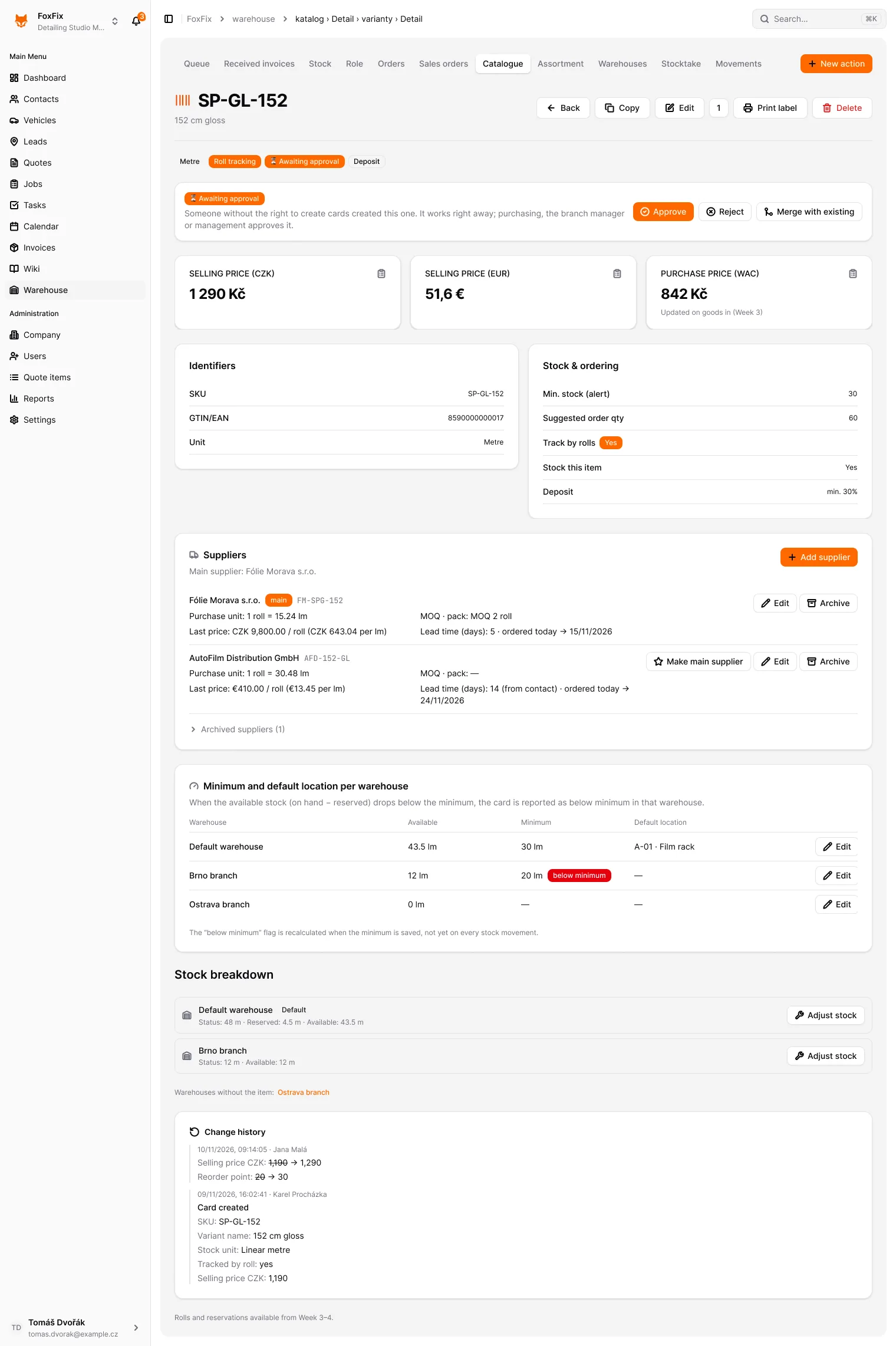 (opens the full-size image in a new tab)
Cards from an invoice and from the scanner
- Received invoice: for a line with create product ticked, FoxFix creates the card itself and matches the line to it at once. The card is ⏳ awaiting approval even when purchasing enters the invoice – the goods can be received right away.
- Quick create (scanner, unknown code during receiving): after you fill in the name, SKU and unit, FoxFix first checks for duplicates by name, EAN and supplier code. If it finds similar cards it shows them – use an existing card or Create a new card anyway. The new card is a proposal awaiting approval.
With the update, the former “Item proposals” queue is no longer used for new cards – the card is created straight away and approved on the card.
To approve
In Warehouse → Catalogue there is a To approve button above the filters with the number of waiting cards. Clicking it:
- limits the product list to products with a card awaiting approval,
- opens an overview of the cards with the proposal date and an Open card button.
When nothing is waiting, the button is hidden.
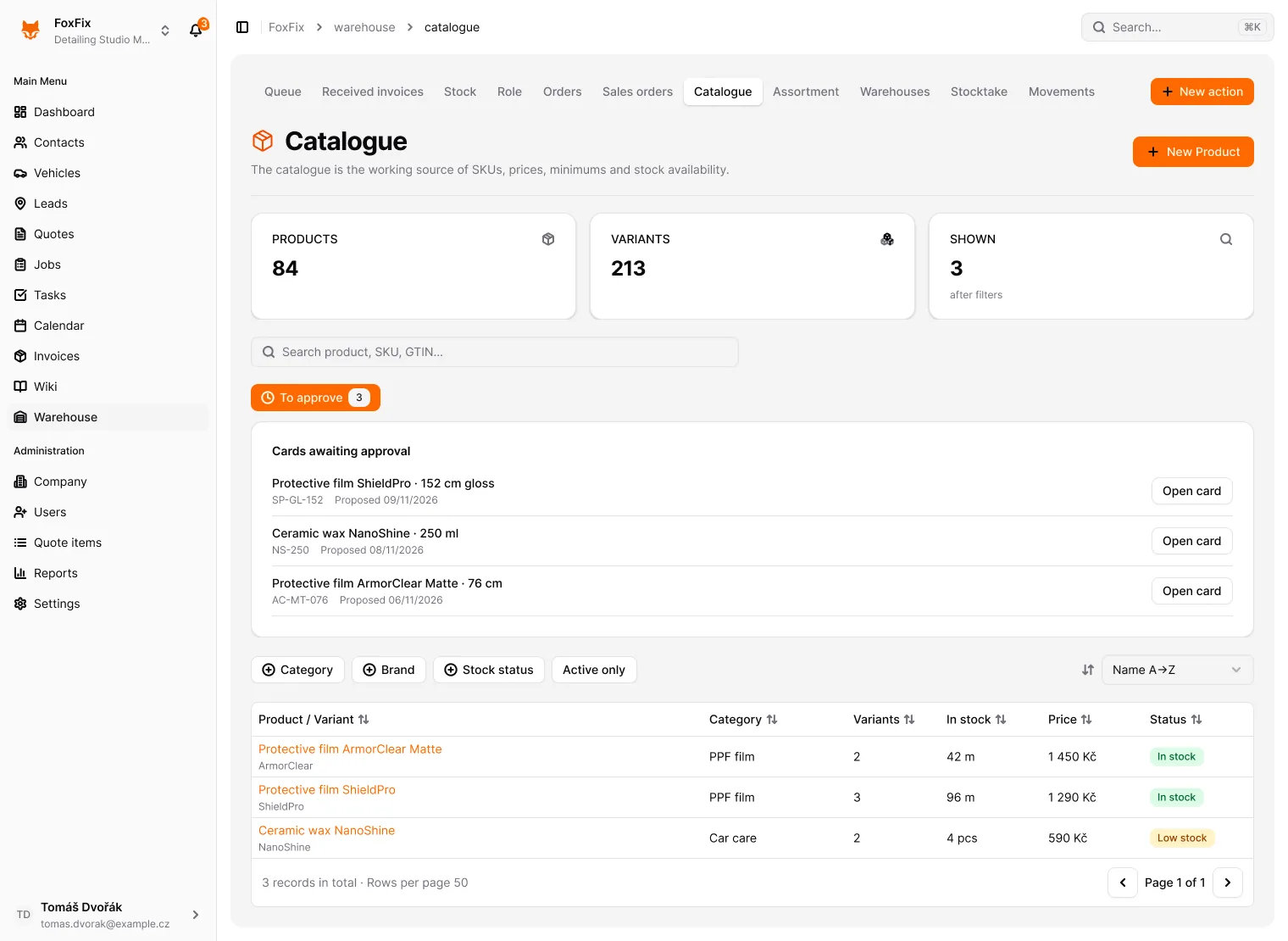 (opens the full-size image in a new tab)
Approve a card
- Open the card and click Approve in the status block.
- Optionally fill in the Selling price (CZK excl. VAT) and the Cost centre of the Goods item – FoxFix then creates or updates the “Goods” sales item in the price list (named Cost centre: card, price from the card; without a price the item stays inactive). The Cost centre of the Goods item field is shown only to roles that may edit the price list (branch manager, CFO, managing director, admin); purchasing fills in the price only, and one of those roles creates the price-list item.
- Click Approve card.
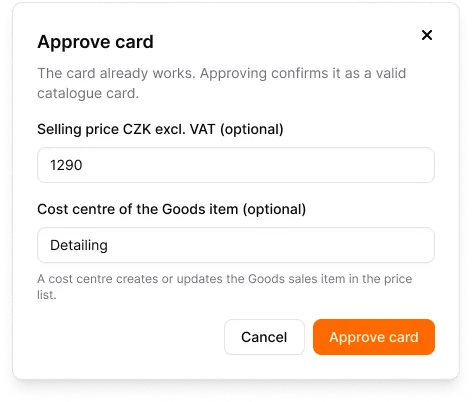 (opens the full-size image in a new tab)
If the assortment group requires fields (e.g. EAN, width, roll length, manufacturer, package content), the card cannot be approved without them – fill them in by editing the card first.
Reject a proposal
Click Reject, enter a reason (required) and confirm. The card is deactivated – nothing is deleted, movements and history stay. The reason is visible in the card history. A rejected card has no Reactivate, Deactivate or Delete button in its detail – the rejection cannot be bypassed.
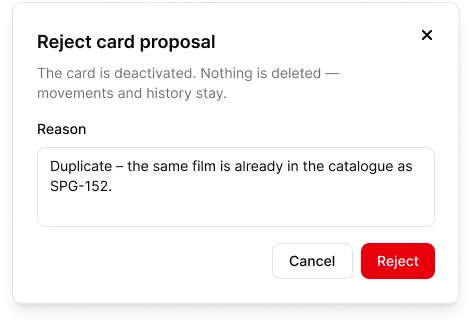 (opens the full-size image in a new tab)
Merge with an existing card
When two cards were created for the same goods:
- Open the card that should disappear (the source) and click Merge with existing.
- FoxFix immediately offers possible duplicates (same EAN, supplier code, SKU or a similar name) with the reason for the match. Find another card by searching by name, SKU or EAN.
- Choose the target card and click Merge into the chosen card.
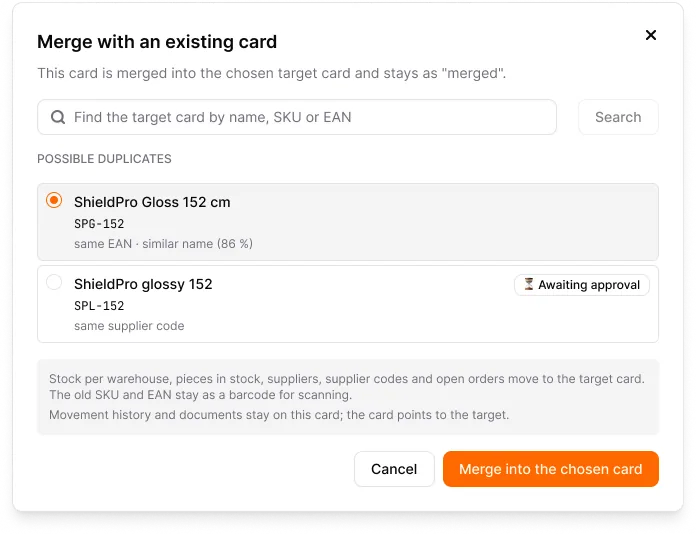 (opens the full-size image in a new tab)
What happens:
| Moves to the target card | Stays on the source card |
|---|---|
| Stock per warehouse (by transfer, in the movement history of both cards) | Movement history |
| Pieces in stock (rolls, labelled pieces) | Issued pieces and documents (invoices, closed orders) |
| Card suppliers (the same supplier is archived on the source, its different code stays as a supplier code) | Archived suppliers |
| Supplier codes from receiving | |
| Open supplier order lines | |
| The old SKU and EAN as another barcode for scanning |
The source card becomes Merged, is deactivated and points to the target card (Open target card). The average purchase price of the target card is recalculated from the transferred stock. A merged card is no longer offered anywhere and has no Reactivate, Deactivate or Delete button in its detail.
When merging is not possible
- The cards have a different unit or different tracking (rolls × pieces) – the quantity would be transferred wrongly.
- The source card has open reservations (goods held for a job or a customer) – issue or release them first.
- The target card is itself merged into another one, rejected or deactivated – only a card that works (active or ⏳ awaiting approval) can be the target, so such cards are not offered as targets at all.
Editing a card: Sales and Jobs
In Edit (and for a new variant) there is a block above the form with Sold, Sold by, Issued to jobs, VAT rate and Warranty B2B / B2C. Each field shows where the value comes from:
- ↑ from group … – inherited from the assortment group template (Manage assortment),
- ↑ company default – no group sets the field, the company default applies (e.g. warranty 12 / 24 months),
- ⚑ own – the card differs from the group. Reset to group links the field to the group again.
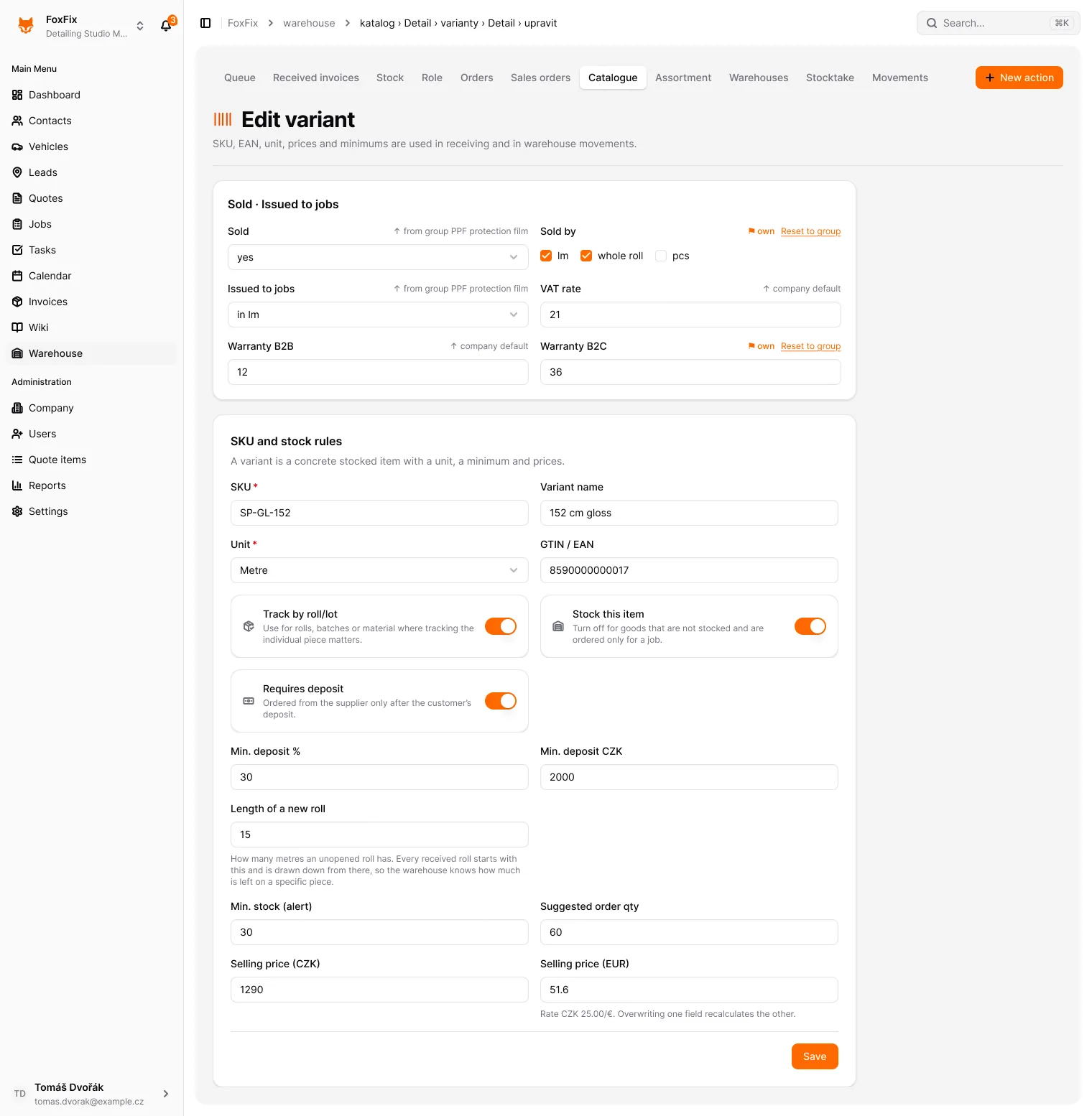 (opens the full-size image in a new tab)
Changing a field marks it as ⚑ own. Saving goes through the server, which also enforces:
- The unit of a card with stock, reservations or movements cannot be changed (even if the form let you).
- A card belongs to the same assortment group as its product. Changing the group of a product updates all its cards.
- A hidden group is not offered for new goods.
- The SKU must be unique in the company.
Change history
At the bottom of the card detail is the Change history block: who changed what and when – for each field the old and new value. Card creation, every edit, approval, rejection (with the reason) and merging are recorded. Derived values (average and last purchase price from receipts) are not recorded. The newest changes are at the top. For a long history a note and the Older entries button appear below the list – loaded entries are sorted in by date.
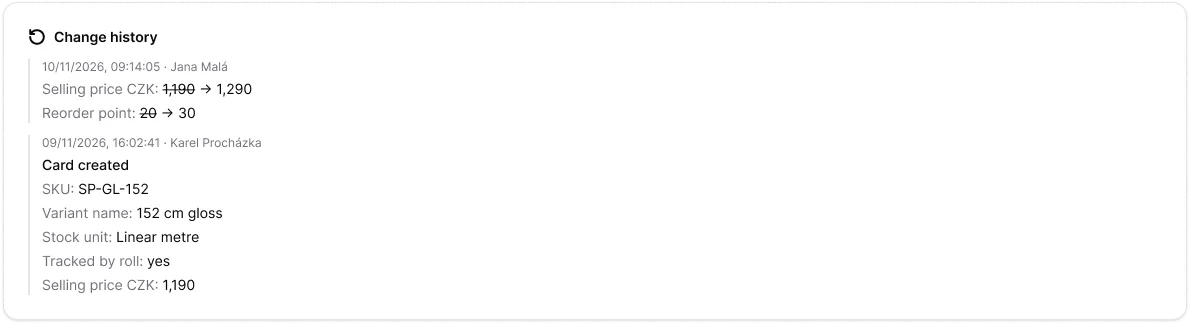 (opens the full-size image in a new tab)
The new card detail and card edit form
With the 26-11 update
This section describes the new card detail and the new Edit card form. They appear once your company has them switched on. Until then, the description above applies.
Card detail
At the top are the name, SKU (and EAN), SKU copy, and the buttons Back, Edit, Copy card and Print label with a label count. Under the header is a strip of four fields: Status, Assortment (the full path), Unit · tracking (by roll, by serial number, by piece or quantity only) and Use (sale in sale units, jobs).
Prices. The price cards are shown only to people who have the right to see them:
- Selling price in CZK and EUR per unit excluding VAT, plus the price per roll for rolls. The VAT line shows the card's effective rate (↑ from the group or ⚑ own) and the price including VAT. When no rate is set, only "excl. VAT" is shown.
- Purchase price (weighted average cost) with the last purchase below it, its date and a link to the received invoice. For a foreign-currency purchase you see the original amount and the rate; the rate appears only when the receipt carries no allocated landed costs. Then margin, the 12-month purchase price range and a purchase history › link (Movements narrowed to the card). Without a receipt, the last known purchase price is used, without an invoice.
Margin is (selling price − average purchase price) ÷ selling price, excluding VAT, rounded to whole percent. Stock value is quantity on hand times average purchase price. Only roles with the right to purchase prices see either.
Stock. On hand (for packs also the split into packs and remainder), a bar reserved · free · to minimum, a "below minimum" warning, on the way with the nearest date, and an Order button. Below it is job consumption (90-day average). A card tracked by roll shows Rolls in stock tiles: free, reserved for a job, and the percentage left.
Identifiers (SKU, EAN, supplier code, unit, maker, width, roll) and Stock and ordering (recommended order, roll tracking, stocking, deposit, B2B discounts and the card exception) are read-only; use Edit to change them.
Where it goes and what arrives
One table of everything waiting for this item: what, where, quantity, when and status. A row links to the document.
- Job issues based on reservations (reserved, prepared, picked) and the plan by norm where the goods are only being calculated. Jobs without reservations (unconfirmed) are not shown. A row links to the job detail.
- Customer orders (draft, confirmed, packing) with the remainder that has no reservation; reservations already issued are subtracted from the remainder. At most the 10 newest orders per card are read.
- Receipts from supplier orders, including drafts.
- Balance under the table: on hand minus outgoing. A warning with deliveries says a delivery will not make it in time, or that quantity is missing and no delivery is waiting.
Recent movements
The newest movements of the card and an all movements link that opens Movements narrowed to this card.
Copy card
Copy card creates a new card of the same product with the same settings and prices. A new SKU is required; you may change the variant name and EAN. EAN, barcodes, maker code, suppliers, minimums, stock and pieces are not copied. A role without the right to create cards creates a ⏳ proposal awaiting approval.
Edit card in 6 blocks
The form has blocks on the left (a selector on a phone): 1 · Basics, 2 · Unit and tracking, 3 · Sales, 4 · Jobs, 5 · Stock and ordering and 6 · Change history. A block that contains an error or a missing required value from the assortment is marked.
- ↑ from group / ⚑ own. The markers also apply to the unit, purchase pack, pack content and roll tracking. ⚑ own is recognised by a difference from the group. Reset to group on a field the group sets only drops the own flag; on a field the group does not set it clears the card's value.
- Applies to all variants of the product: product name, maker and assortment. The form reminds you with the number of variants.
- Read-only: status (changed by the buttons in the detail) and supplier code; likewise the serial number mode, which the server decides.
- Still edited in the detail: default positions, minimum per warehouse and suppliers are saved immediately in the card detail.
- Norms are edited in the service price list.
- The unit of a card with stock or movements is locked for others (the detail shows "stock ... — change by admin with a reason only"); an admin can change it by giving a reason.
Saving goes through the server only (same rules as above). If required assortment values are still missing after saving, FoxFix lists them.
What is still missing
Surface, thickness and batch on the card are not there yet. The Used in services section and the norms in block 4 come later; until then the detail shows actual consumption on jobs. The link to the card's serial numbers appears once that screen exists.