
Invoicing and payment
This guide takes you through issuing an invoice, sending it to the client and checking whether it has been paid. Use it when the work is done, or when you want to invoice earlier — for example straight after the job is approved.
An invoice in FoxFix always starts as a Draft. It exists only in the app and is not sent anywhere. It goes to iDoklad and to the client by email only when you click Send invoice in the invoice detail. That way you always have room to check and correct the draft.
Before you start
- Module: Invoices, and for invoicing from a job also Jobs.
- Role: an invoice from a job is issued by an Administrator, Manager or Salesperson; for a job in the Awaiting billing status, by anyone. An invoice without a job by an Administrator or Manager, an invoice directly from a quote by an Administrator only. Anyone who can see invoices can send a draft and mark a payment.
- iDoklad: for the invoice to reach your accounts and the client, the company must have iDoklad connected — see Company setup.
How an invoice is created — four ways
- From a job — the Issue invoice button in the job detail. The recommended way: the invoice takes over the job's items, including extra work added while the job was in progress.
- Without a job — on the Invoices page, the Create invoice button and the Without a job switch. For a sale or service that has no job.
- Directly from a quote — the Create invoice button in the quote detail. A shortcut without recording the work in the workshop.
- By selling from stock — see the guide Selling from stock.
If you want to collect a deposit first and bill the rest later, use the Proforma invoice guide.
Issuing an invoice from a job
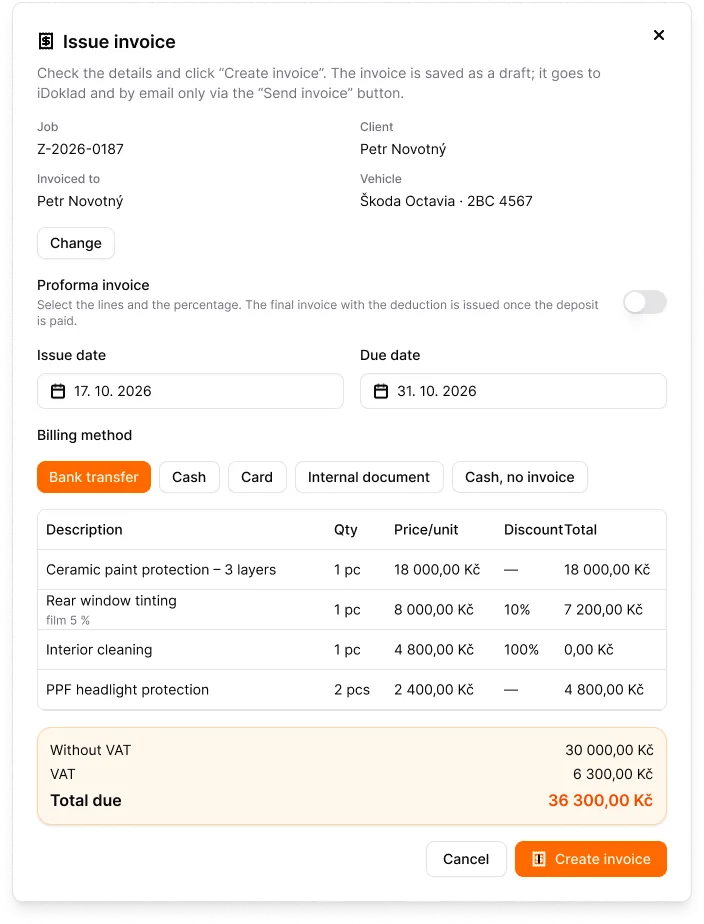
You will find the Issue invoice button at the top right of the job detail. In the Awaiting billing status (you switch the job to it manually when editing the job) everyone can see it. Administrators, Managers and Salespeople also see it for a job in the Approved, Active, Awaiting payment and Handed over and completed statuses, as long as no invoice has been created for it. So you can invoice in advance as well as after the vehicle is handed over.
 (opens the full-size image in a new tab)
- Open the job detail and click Issue invoice. The Issue invoice window opens.
- Check the header — Job, Client, Invoiced to and, if shown, Vehicle.
- If you are invoicing someone other than the job's client, click Change next to Invoiced to (see below).
- Issue date is prefilled with today. Due date is prefilled from the job's planned completion; if that is missing or already past, it is set to +14 days. You can overwrite both.
- Choose the Billing method: Bank transfer, Cash, Card, Internal document or Cash, no invoice.
- Check the item table (Description, Qty, Price/unit, Discount, Total) and the Excl. VAT, VAT and Total due summary.
- Confirm with Create invoice. You will see "Invoice … created as a draft. The job stays active until the vehicle is handed over."
The due date must be after the issue date
If you enter a due date that is the same as or earlier than the issue date, the invoice is not created and you will see "The due date must be later than the issue date". iDoklad would reject such an invoice, so FoxFix stops it straight away.
Issuing an invoice does not close the job. A job that has not yet been handed over is switched to Active by the invoice. It is closed only by the vehicle handover (status Handed over and completed); the payment status is tracked on the invoice.
Who to invoice
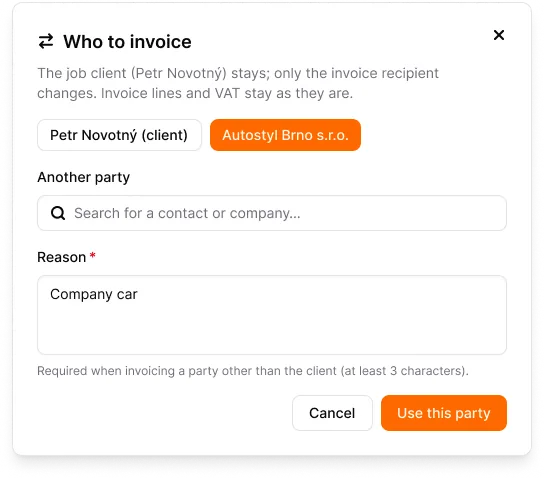
Is the job paid for by a leasing company, a business or another payer? The job's client stays; only the invoice customer changes.
 (opens the full-size image in a new tab)
- In the Issue invoice window, click Change next to Invoiced to.
- Pick the suggested company, or search for a contact in the Another party field ("Search for a contact or company…").
- Fill in the Reason ("Leasing, company car, re-invoicing…") — it is required, at least 3 characters.
- Confirm with Use this party. To go back to the client, choose Invoice the client.
For a draft that has not yet gone to iDoklad, you can also change the customer later in the invoice detail with the Change customer button.
Internal document and Cash, no invoice
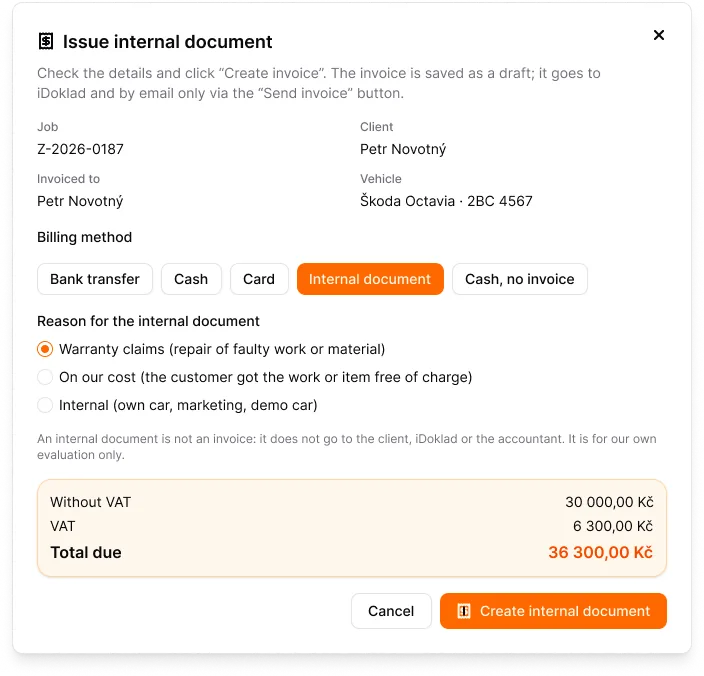
- Internal document — for work nobody pays for. Choose the Reason for the internal document: Warranty claim (repair of faulty work or material), At our expense (the client got the work or item free of charge) or Internal (your own car, marketing, a demo vehicle). For a warranty claim job, Warranty claim is preselected. Confirm with Create internal document. An internal document is not an invoice: it does not go to the client, iDoklad or the accountant, and is only for your own evaluation. In the list it carries the Recorded badge, and the detail shows the reason too.
- Cash, no invoice — the customer pays cash on the spot and does not want an invoice. No invoice is created; the job is marked as paid in cash and carries the Paid in cash badge. The button changes to Mark as paid and the window warns that "This action cannot be undone."
 (opens the full-size image in a new tab)
Invoice without a job
For Administrators and Managers, when you invoice something that has no job (selling goods, training, re-invoicing).
- In the left menu open Invoices and click Create invoice.
- Switch to Without a job. The Invoice without a job form opens.
- Select the Customer, fill in Issue date, Due date, Currency and Payment method (Bank transfer, Cash, Card, Other or Internal document (warranty, our cost)).
- Add lines with the Add line button — name, quantity, unit, unit price excluding VAT, VAT rate (0, 12 or 21 %) and any discount.
- Optionally add a Note on the invoice and confirm with Create invoice without a job. A draft is created.
Always issue an invoice for an existing job from the job detail — only then is the invoice linked to the job.
Invoice directly from a quote
A path for the Administrator when you do not want to create a job:
- Open the quote detail and click Create invoice.
- Confirm the question "Create an invoice directly from the quote?" with Continue. The dialog warns that the invoice will be created without a job — if you need a record of the work actually done, create a job first.
- On the New invoice page a panel appears: "The invoice is being created directly from quote #…". Click Create invoice from quote.
- A draft is created with a due date of +14 days, and the quote moves to the Job created status — you can no longer create a job from it.
Draft: checks and edits
A new invoice always has the Draft status. In the invoice detail you can:
- Edit — change the issue date, due date and payment method. The draft takes its items from the job; if you have changed the job, use the Update lines from the job button while editing.
- Change customer — see Who to invoice.
- PDF — download the invoice as a PDF (works in every status).
The invoice number is assigned automatically in a monthly series (YYYYMMNNNN). Proforma invoices (ZF-) and internal documents (IN-) have their own series. A new number is always one higher than the highest number in the given month.
Editing an invoice that has already been sent is reserved for the Administrator and Manager. The page is called Edit issued invoice; after saving, the change is written to iDoklad and the invoice goes to the accountant (you set the address in the iDoklad integration as Accountant email). The status and total amount of an issued invoice cannot be changed. Edit an issued proforma invoice and a final invoice with the deposit deducted directly in iDoklad.
Invoices in euros and reverse charge
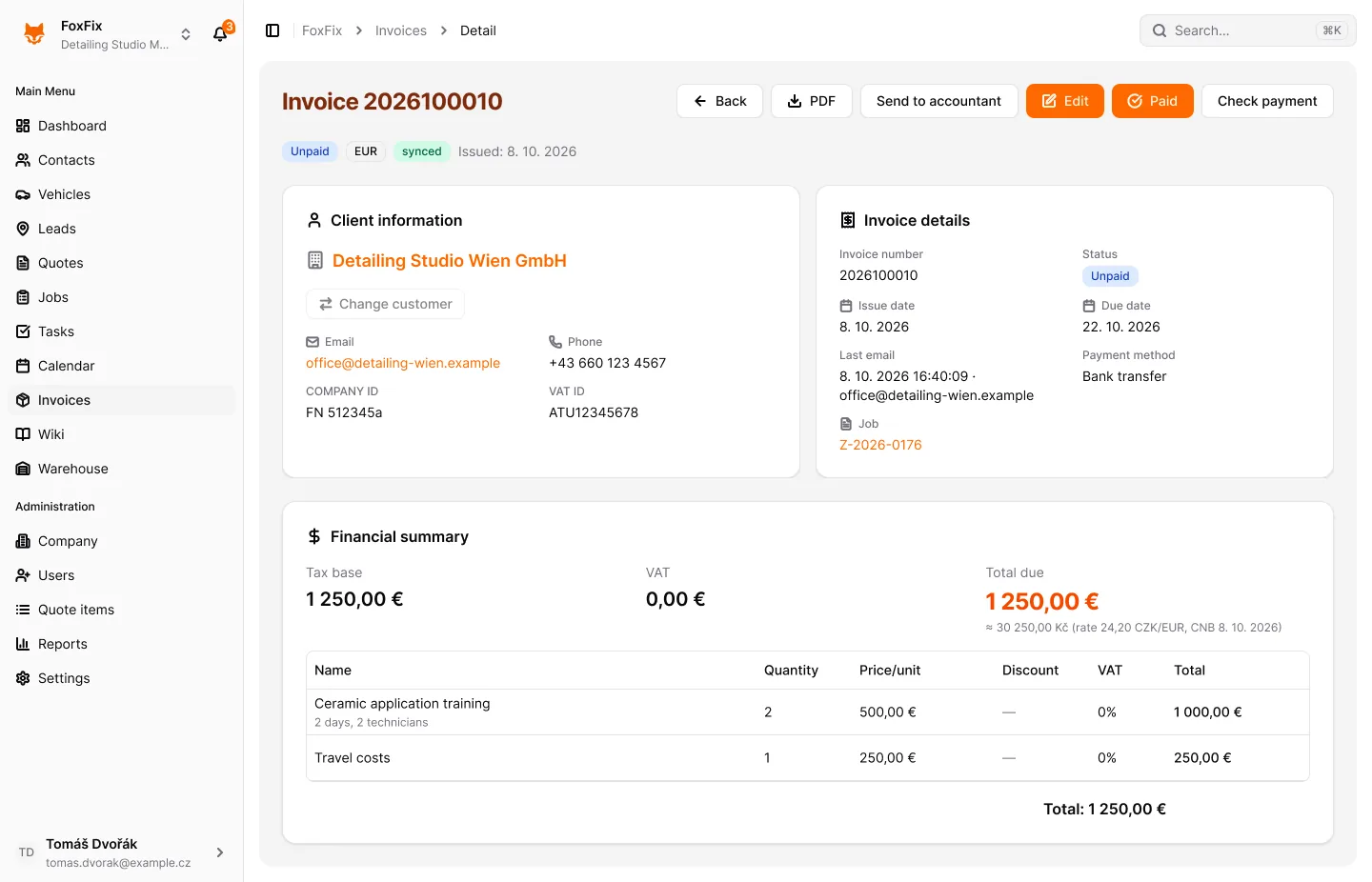
- The invoice Currency is taken from the quote and the job. A euro invoice shows the EUR badge in the detail, with the amount converted to Czech crowns below it at the CNB rate or the company rate.
- For a euro invoice to go to iDoklad, the company must have an account selected in the Invoicing in EUR field of the iDoklad integration. Otherwise sending ends with the message "The invoice is in EUR, but no account for EUR invoices is selected in Settings → iDoklad…".
- Reverse charge is set automatically when the customer is based abroad and has a VAT ID filled in. All items then have 0 % VAT and the PDF carries the sentence "Reverse charge — VAT to be accounted for by the customer."
 (opens the full-size image in a new tab)
Sending the invoice (iDoklad and email)
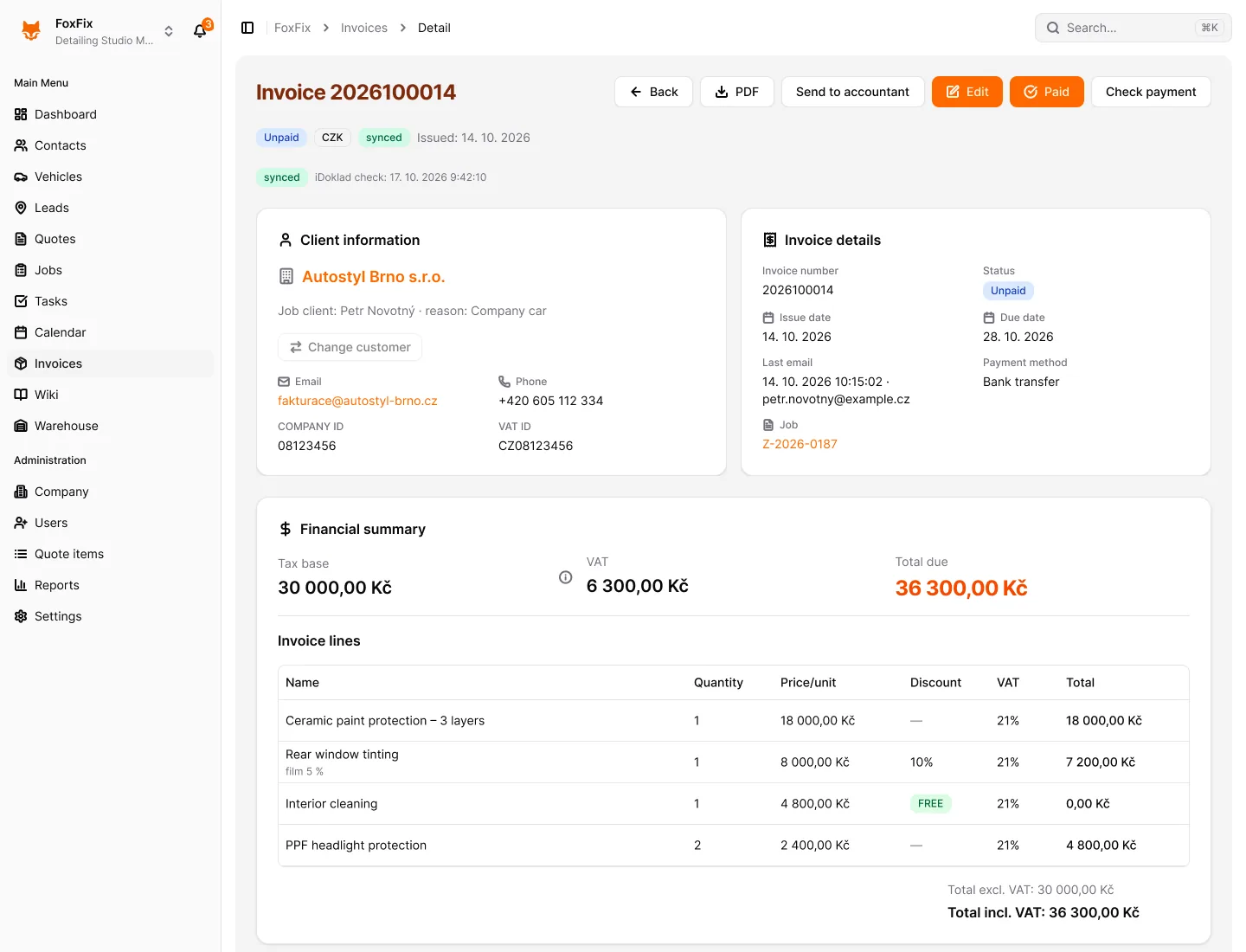 (opens the full-size image in a new tab)
- In the invoice detail, click Send invoice.
- Confirm the question "Synchronise to iDoklad and send the invoice to: …?" — it shows the exact list of recipients.
- FoxFix creates the invoice in iDoklad and iDoklad sends it by email. You will see "Invoice synchronised and sent to …", the payment badge changes to Unpaid, the invoice shows a green synced badge and the detail gains a Last email line with the time and addresses.
Who receives the invoice is set by the Sending invoices settings in the iDoklad integration: the customer's email (if Send the invoice to the customer is on) and the configured copies. Depending on the situation you will see:
- "The contact has no email and no other recipients are set, so there is nowhere to send the invoice." — add an email to the customer in contacts.
- "The contact has no email — it will go to the copies only." — the invoice is sent, but not to the customer.
- "iDoklad supports at most 5 recipients; it will not be sent to: …" — addresses over the limit are left out.
If sending fails, a red error badge appears together with the error text. The invoice is not treated as sent and Send invoice stays available — fix the cause and send it again. No second invoice is created in iDoklad.
Checking payment
The payment status is shown by a coloured badge in the list and in the detail: Draft, Unpaid, Overdue, Partially paid, Paid, Recorded (internal document) or Cancelled.
For invoices sent to iDoklad, iDoklad is the source of truth. As soon as the payment is matched with the bank there, the badge in FoxFix switches by itself:
- Automatically — payments are checked in the background every 15 minutes and also when you open the invoice detail. You can see the time of the last check in the "iDoklad check: …" line.
- Check payment — a button in the invoice detail for an immediate check.
- Synchronise payments — a button above the Invoices list for a bulk check.
Mark an invoice paid outside the bank (cash, card) manually: in the detail click Paid and confirm "Mark the invoice as paid?". The detail then shows the Payment date.
Tip: You have an overview of debtors on the Invoices page — the Awaiting payment and Overdue tiles above the list and the Status filter in the table.
Deleting an invoice
Administrators and Managers can delete an invoice: in the invoice list open the ⋯ menu on the row, choose Delete and confirm "Are you sure you want to delete this invoice?". Goods reserved in the warehouse for the invoice are released. You can then issue an invoice for the job again.
Do not deal with a sent invoice by deleting it
Deleting in FoxFix does not remove the invoice from iDoklad or from the client's inbox. Handle an invoice that has already been sent in iDoklad (with a credit note or a cancellation) and keep it in FoxFix for your records.
Result: the invoice is in iDoklad, the client has it in their email and the Paid badge tells you it has been paid.