
Lead board (Kanban)
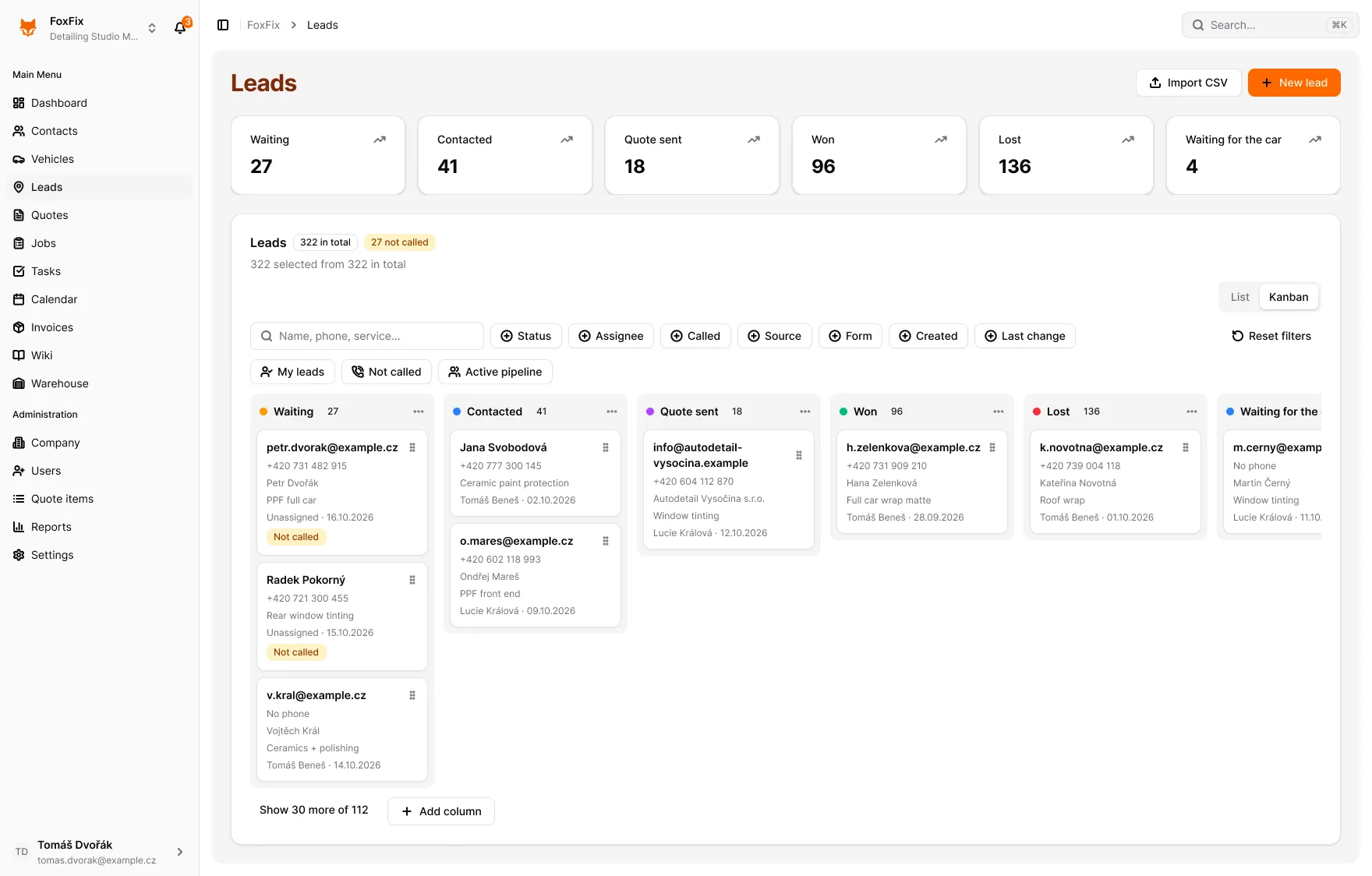
The board shows leads as cards in columns by status. It is the quickest way to keep track of deals in progress and move them along: you simply drag a card into another column. The company can customise the columns.
Switch to the board on the Leads page with the List / Kanban toggle → Kanban. Your choice is remembered.
 (opens the full-size image in a new tab)
What you will find on the board
- Columns — the built-in statuses Waiting, Contacted, Quote sent, Won and Lost, plus the company's custom columns. A column header shows its name, the number of cards and the Column settings icon.
- Lead cards — the contact's email or name, phone (or “No phone”), service, assignee and creation date. Leads not yet called have a yellow Not called badge.
- Add column — a button after the last column.
Search, filters and quick toggles above the board work the same way as in the table — the board only shows leads that match them. CSV export is only available in List view.
Each column shows its first 30 cards. Show more with the Show 30 more of … button below the column.
How to change a lead's status by dragging
- Grab the lead card with your mouse (moving it slightly is enough). On a touch device, hold your finger on the card until it “lifts” — a short swipe only scrolls the board sideways.
- Drag the card to the target column and let go. For an empty column, drop it on the “Drag a lead here” box.
- The lead's status changes immediately and is written to the lead history. If saving fails, the card returns to where it was and the message “Could not move the lead” appears.
Click a card (without dragging) to open the lead detail.
Lost by dragging
When you drag a lead to Lost, Other is saved as the lost reason, with the note “Closed by dragging on the board.” To record the real reason, mark the lead as lost in its detail. Dragging a lead back to Waiting marks it as not called.
Custom board columns
Board columns are also lead statuses. A custom column (for example “Waiting for car”) appears wherever you choose a status: in the tiles above the list, in the Status filter, in bulk edit, in the lead form and in Pipeline stage in the detail. Column changes apply to the whole company.
Any user with access to leads can edit the columns.
Add a column
- Click Add column after the last column.
- Type the name into the “Column name” field.
- Confirm with the Add button or the Enter key. Press Esc or click Cancel to stop adding.
A new column is grey; you can change its colour in the column settings.
Rename a column or change its colour
- In the column header, click the Column settings icon.
- Type the new name into the Column name field and save it with the tick button (Save name) or the Enter key.
- Under Colour, click one of the colours: Yellow, Blue, Purple, Green, Red, Grey, Turquoise, Pink, Orange or Indigo.
Change the order of columns
Grab the column by the handle on the left of its header and drag it to its new place. You will then see the same order in Pipeline stage in the lead detail.
Delete a column
- Open Column settings for a custom column.
- Click Delete column.
- The leads that were in the column move to Waiting (the message “N leads moved to another column”).
Built-in columns cannot be deleted — in their settings you will see “Built-in status — it can be renamed and moved, but not deleted.”
Custom columns and reports
Custom columns are for splitting deals in progress more finely. A lead only counts as won or lost in the built-in Won and Lost columns — so move closed deals there.
Tips and common problems
- The board is wider than the screen. Scroll it sideways with the mouse wheel while holding Shift, with the scroll bar at the bottom, or by swiping on a phone.
- I cannot drag a card on my phone. Hold your finger on the card for a moment first, and only then drag.
- “Someone else changed the columns meanwhile…” — a colleague (or a connected service) changed the columns in the meantime. The board reloads itself with their changes; then repeat your column change.