
Tasks
Tasks make sure nothing falls through the cracks: ordering film, calling a client about a payment, preparing a handover report. Every task has an assignee, a due date and a priority. The Tasks page shows all tasks in one place — both those linked to jobs and standalone ones.
Who can see this
All users of a company that has the Tasks module turned on (it is included in every plan).
 (opens the full-size image in a new tab)
What you will find on the page
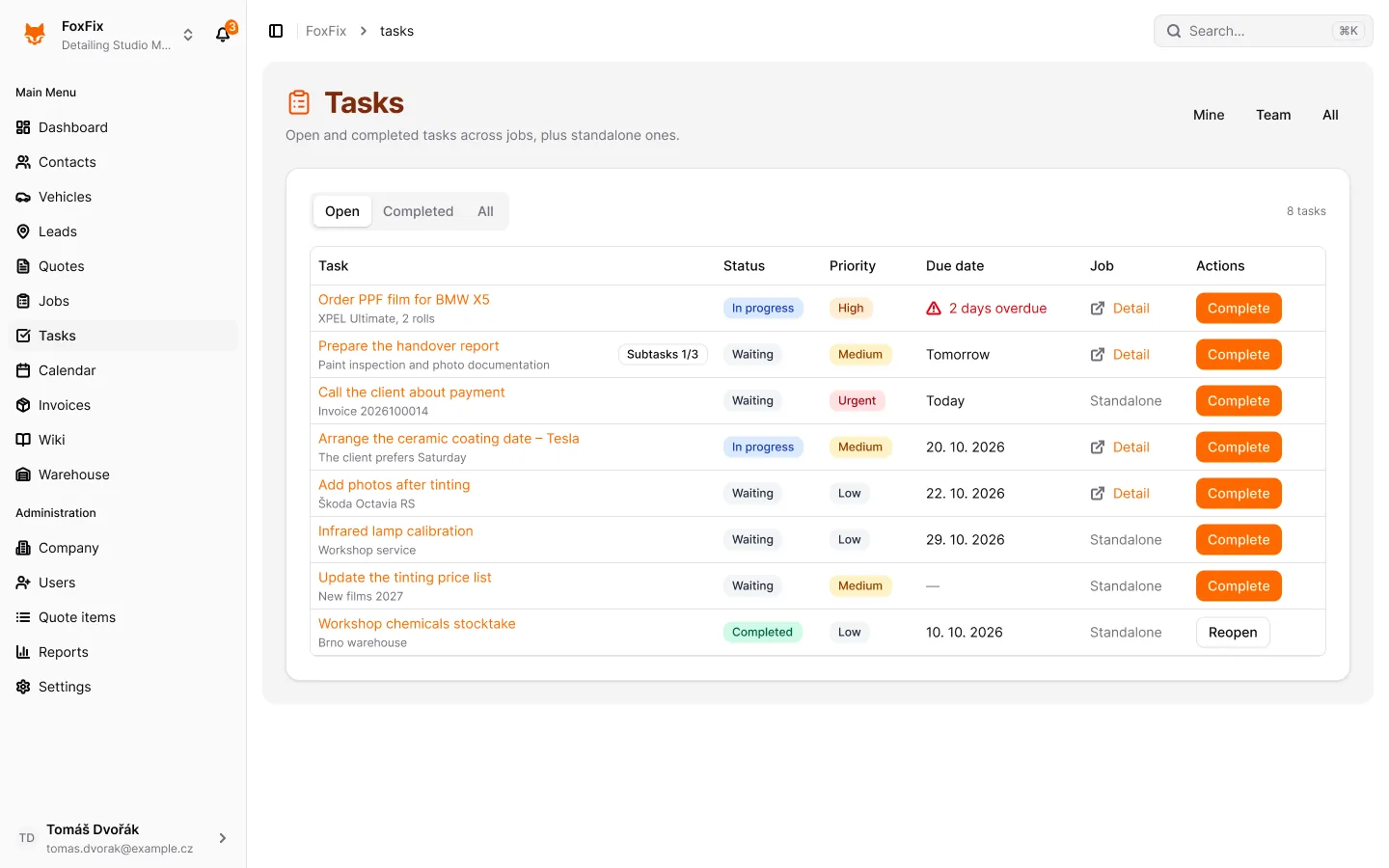
At the top right is the scope toggle:
- Mine — tasks where you are the assignee (the default),
- Team — all tasks that have an assignee,
- All — all of the company's tasks, including unassigned ones.
Above the table you switch between the Open, Completed and All tabs. On the right you can see the number of tasks in the current selection.
| Column | Meaning |
|---|---|
| Task | The title (click it to open the detail) with the start of the description below it. The Subtasks 1/3 label shows how many subtasks are done. |
| Status | Pending, In progress, Completed or Cancelled. |
| Priority | Low, Medium, High or Urgent. |
| Due | Today, Tomorrow, a date, or in red “N days overdue”. With no due date, “—”. |
| Job | A Details link to the job the task belongs to. Standalone means the task does not belong to a job. |
| Actions | The Complete button, or Reopen for a finished task. |
Tasks are sorted by due date — overdue ones first, then the nearest, with tasks without a due date at the end. The list updates itself when a colleague changes or adds a task.
How to create a task
There is no button for a new task on the Tasks page. You always create a task where it belongs — on a job, lead, contact, vehicle, quote or invoice. That way every task has its context.
On a job
- In the job detail, open the Tasks tab and click Add task.
- In the New task window, fill in the Task title (“e.g. Order parts”) and, if needed, a Description.
- Choose the Assignee. You are automatically shown as Assigned by.
- Set the Priority and Due date and time.
- Click Create task.
On a lead, contact, vehicle, quote or invoice
- In the detail, find the Tasks card (“Tasks linked directly to this record.”) and click Add task.
- In the New task window, fill in the Title and, if needed, Details.
- In the User field, choose the assignee (you are prefilled).
- Set the Priority (the default is Medium) and the Deadline. You can also attach a file in the Attachment field.
- Click Create task.
The task appears in the card and on the Tasks page. The assignee gets a notification in the app (and, depending on their settings, by email).
How to complete a task
- In the list, click Complete next to the task. “Task completed” appears and the person who assigned it gets a notification.
- If you completed a task by mistake, bring it back with the Reopen button on the Completed or All tab.
- In the Tasks card in the detail of a lead, contact, vehicle, quote or invoice, just tick the box next to the task.
Task detail
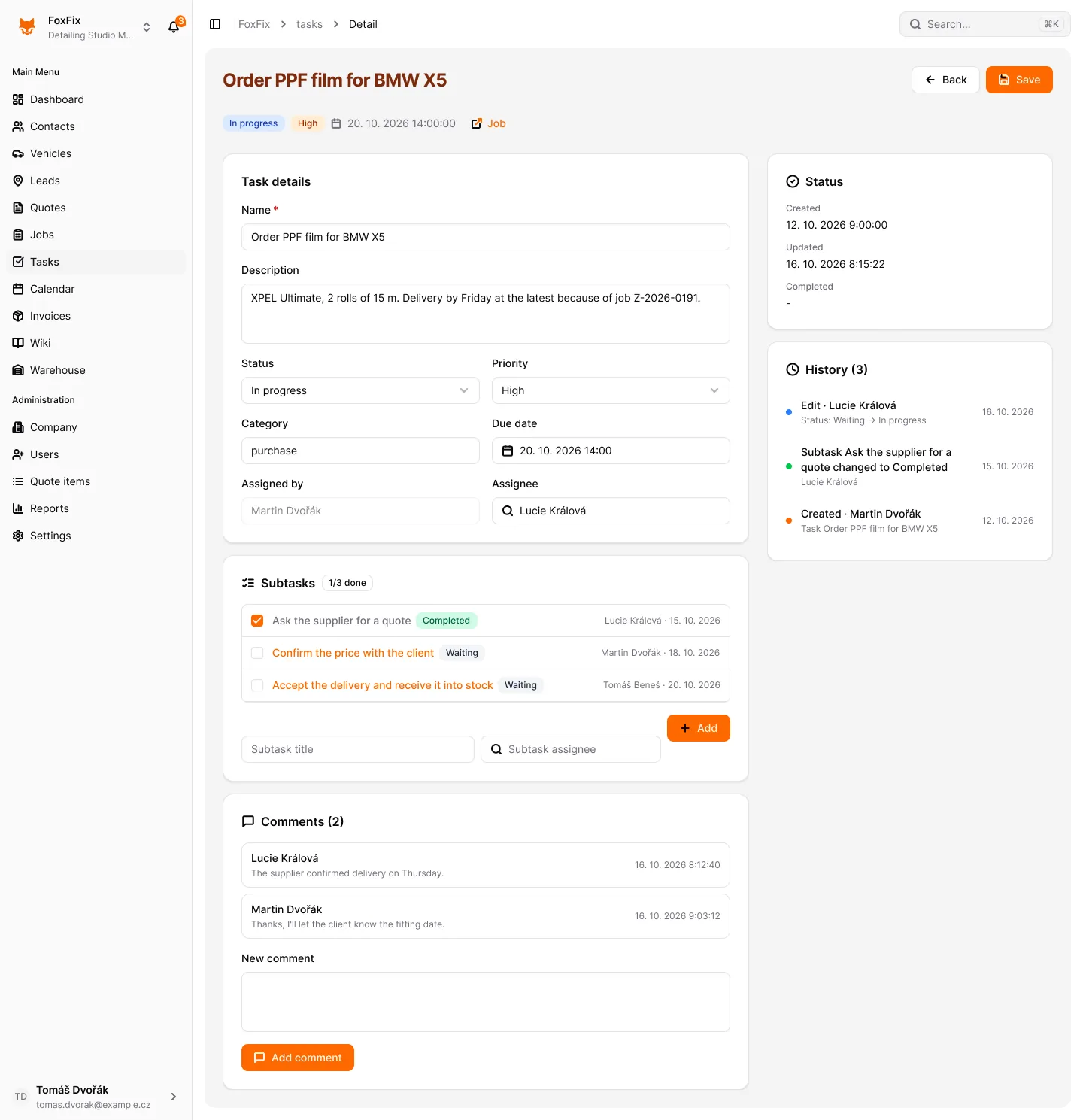
Click a task's title to open its detail. The header shows the status, priority, due date and — if the task belongs to a job — a Job link.
 (opens the full-size image in a new tab)
Editing a task
- In the Task details card, change what you need: Title, Description, Status, Priority, Category (“e.g. administration”), Due or Assignee. Assigned by cannot be changed.
- Click Save at the top. “Task saved” appears.
A task without a title cannot be saved (“The task title is required”).
Subtasks
Split a large task into smaller steps, each with its own assignee.
- In the Subtasks card, type the name of the step into the “Subtask title” field.
- Optionally choose a Subtask assignee.
- Click Add or press Enter.
Tick a finished subtask with its checkbox — it gets struck through. The label on the right shows progress (“1/3 done”). When you tick the last subtask, FoxFix offers a Complete task button to close the main task as well.
Subtasks can only be added to a main task, not to another subtask. The Tasks list only shows main tasks.
Comments
Type a message into the New comment field and click Add comment. Everyone who opens the task can see the comments — handy for agreeing on things without picking up the phone.
Status and history
On the right, the Status card shows the Created, Updated and Completed times, with the History of all changes below them.
Tasks in the calendar
Tasks with a due date are also shown in the calendar. In the week and day views you can change a task's due date by dragging it.
Tips and common problems
- I cannot see a task I gave to a colleague. Switch the scope from Mine to Team or All — Mine only shows tasks where you are the assignee.
- A task with no assignee only appears in the All scope.
- Due date reminders go to the assignee (for a task with no assignee, to the person who assigned it): once 24 hours before the due date and once when the task goes past its due date. If you move the due date, the reminders come again. Choose which notifications you get by email in Settings → Notifications.