
Branches
A branch is a place where the company works – for example a workshop in Prague and one in Brno. Locations, warehouses and people belong to a branch. On the Branches page you keep a branch's address and contacts, its heads and the people who work there. A company with a single site does not need a branch – create one when you have more sites.
Who can see it
- Admin, Managing director and CFO – create, edit and archive branches and assign people.
- Other roles – can only read the list.
The Branches row in the Settings overview is shown to administrators and managers. The company structure can be changed by anyone who has the right to configure for the whole company in the “Settings (general)” row of Settings → Roles and permissions.
Open the page in Settings → Branches. It is part of the November 2026 update and appears once your company has it switched on.
 (opens the full-size image in a new tab)
List of branches
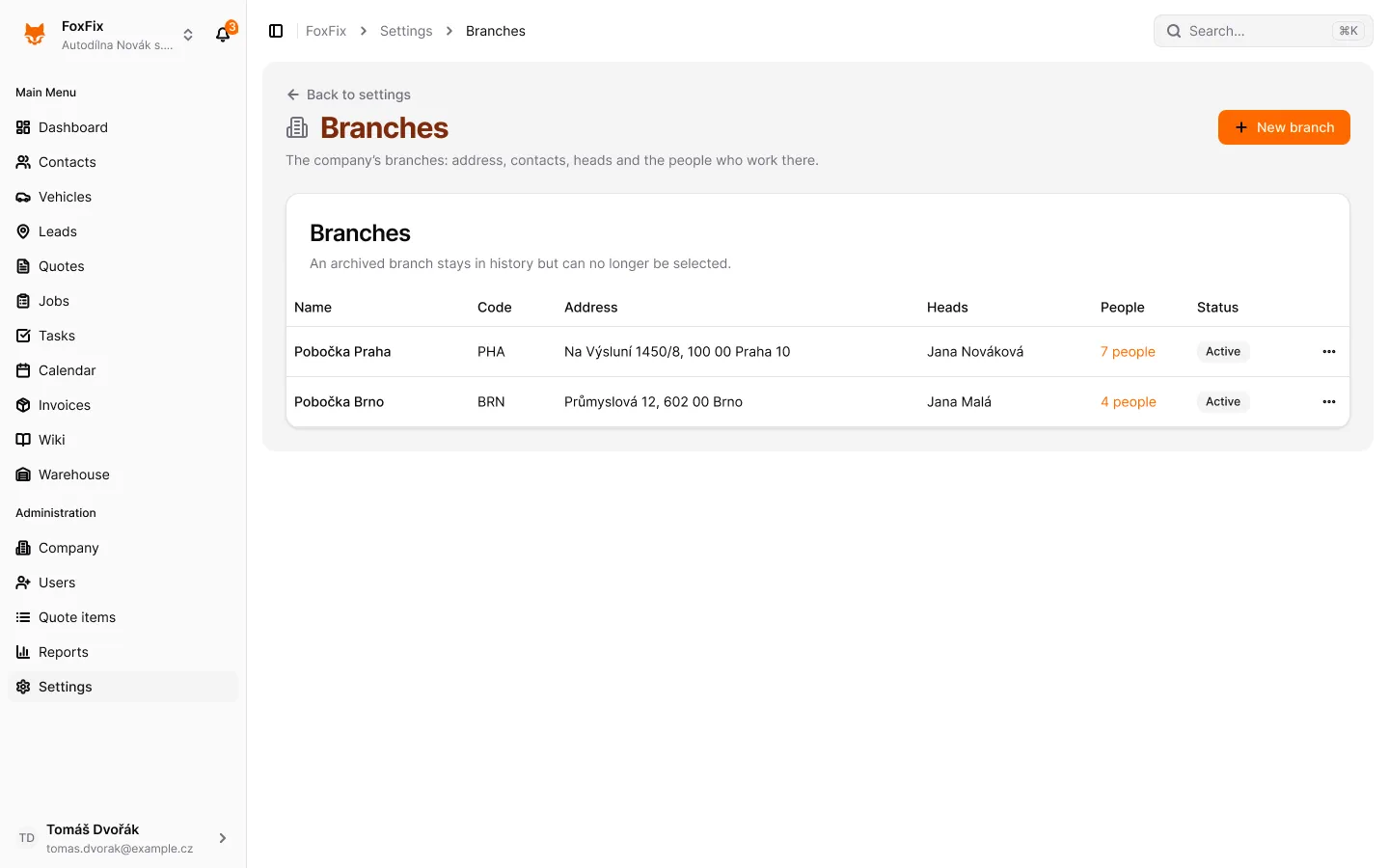
The table shows the Name, Code, Address, Heads, the number of People and the Status. The ⋯ button at the end of the row offers Edit, People and Archive (Restore for an archived branch). Show archived branches with the Show archived switch.
New branch
- Click New branch.
- Fill in the Name (e.g. Prague) and optionally the Code (e.g. PRG). The code must be unique in the company.
- Fill in the Address, Phone and Email. Branch details are used on documents and in approvals.
- Tick the Branch heads. You can search the list by name or email.
- Click Save.
The branch head approves documents of their branch above the location head's limit – see For approval.
People of a branch
- Click the number of people in the row, or choose ⋯ → People.
- Tick the people who work at the branch and click Save.
Each person belongs to at most one branch. Anyone who belonged to another branch moves here. You can also change a user's branch in Settings → Users (the Roles, licence and branch panel).
Archiving
⋯ → Archive hides a branch from selection. It stays in history, with its warehouses and people. You can bring an archived branch back at any time via ⋯ → Restore. Branches are never deleted.