
Getting started with Inventory
The Inventory module is FoxFix's stock management. It keeps track of goods and materials (including film on rolls, by the metre), goods in from supplier invoices with label scanning, purchase orders, reservations and issues to jobs, sales to customers, transfers between warehouses, stocktakes and a complete movement history.
This guide is written for warehouse staff, technicians and managers. You do not need anything technical — just a browser (a phone is fine) and a FoxFix login.
Who can see this
Inventory is included in the Profi, Business and higher plans (it is not part of the Start plan). Within the plan, an administrator turns it on for the company. A user with the Warehouse clerk role always sees Inventory, even when the switch is off — as long as the company's plan includes it.
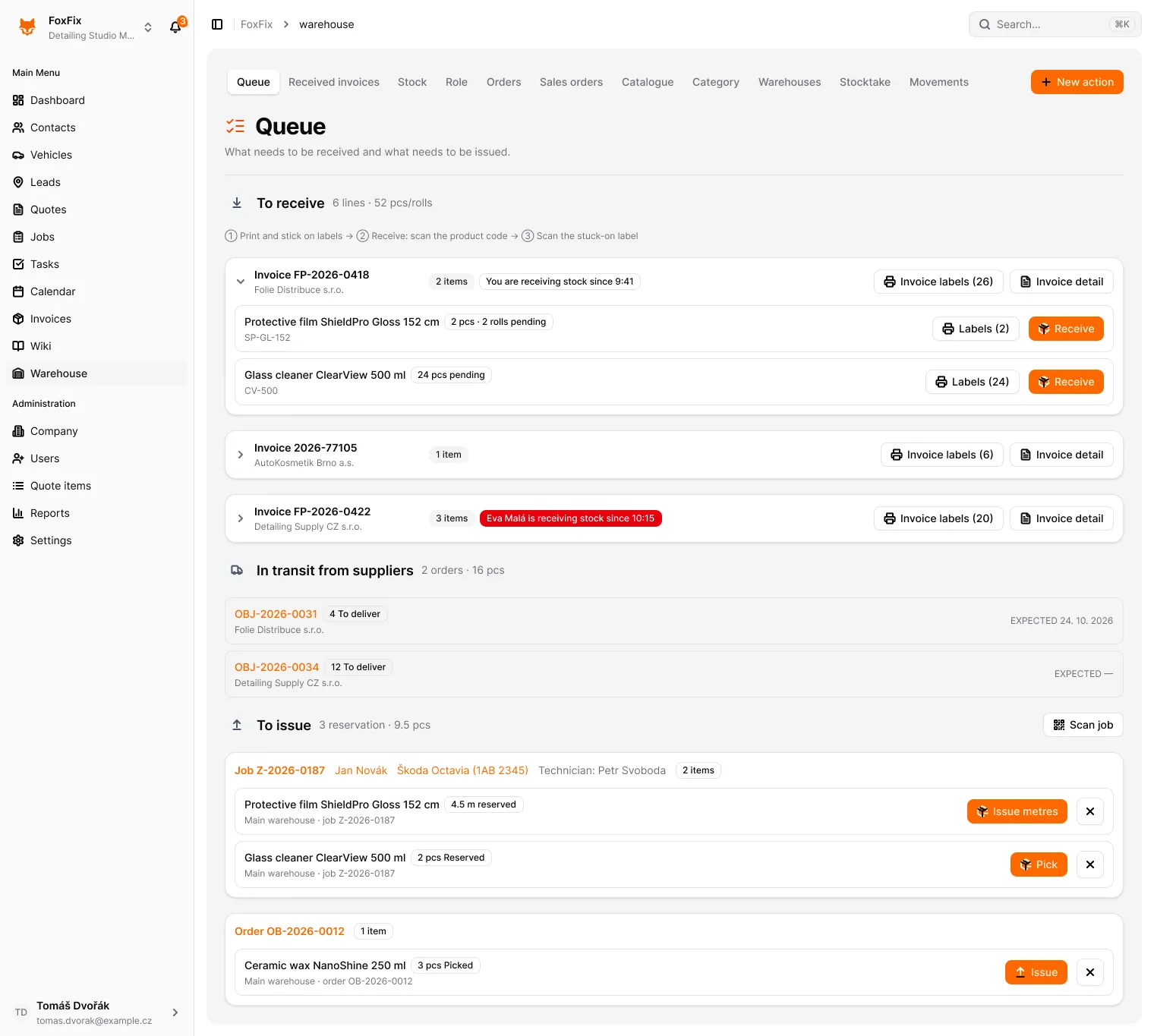 (opens the full-size image in a new tab)
How to turn the module on
The module is turned on by your company's administrator:
- In the left-hand menu, under Administration, open Company (the Company settings page).
- Find the Application modules section — only an administrator can see it.
- Turn on the Inventory switch (“Inventory management (beta).”). The confirmation “Inventory: on” appears.
- The Inventory item appears in the left-hand menu for all users.
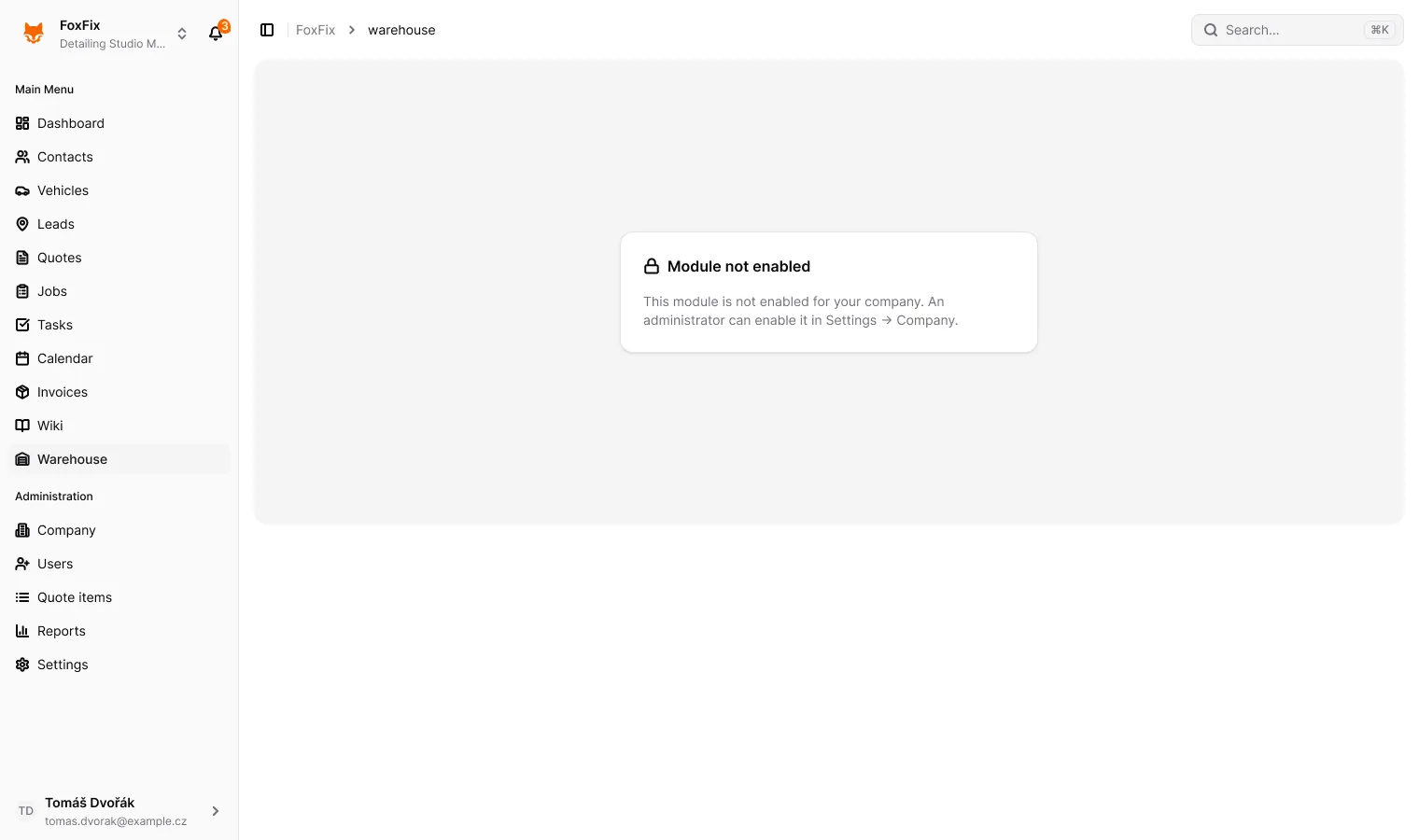
If the module is not turned on, a user who opens Inventory sees a card with a padlock:
| Card heading | What it means | What to do |
|---|---|---|
| Module not enabled | Your plan includes Inventory, but the switch is off. | Ask an administrator to turn it on as described above. |
| Module not in your plan — “This module is included in the … plan and above.” | Your plan does not include Inventory. | An administrator can change the plan with the View subscription button. |
| Module not in your plan — “Your company's subscription is not active…” | The subscription has expired. Your data stays safe. | Renew the subscription in the subscription settings. |
 (opens the full-size image in a new tab)
Finding your way around
Every Inventory page has a row of tabs at the top. On a phone, swipe it sideways.
| Tab | What it is for |
|---|---|
| Queue | The warehouse worklist: what is waiting to be received, what is in transit from suppliers and what needs to be picked and issued. Opens first. → Queue |
| Received invoices | Supplier invoices with AI extraction, and receiving their lines into stock. → Received invoices |
| Stock | What you have in stock, how much, where and at what value. → Stock overview |
| Rolls | Film and material on rolls — how many metres are left on each roll. → Rolls |
| Orders | Purchase orders with suppliers and purchase requests. → Purchase orders |
| Sales orders | Selling goods to customers with shipping and a delivery note. → Sales orders |
| Catalogue | Products and their variants (SKU, prices, minimum stock). → Catalogue |
| Categories | The category tree for sorting products. → Categories |
| Warehouses | Physical warehouses and the bins inside them (racks, shelves) with QR labels. → Warehouses and bins |
| Stocktake | Recounting the warehouse and automatically reconciling stock levels. → Stocktake |
| Movements | The history of all stock movements. → Movement history |
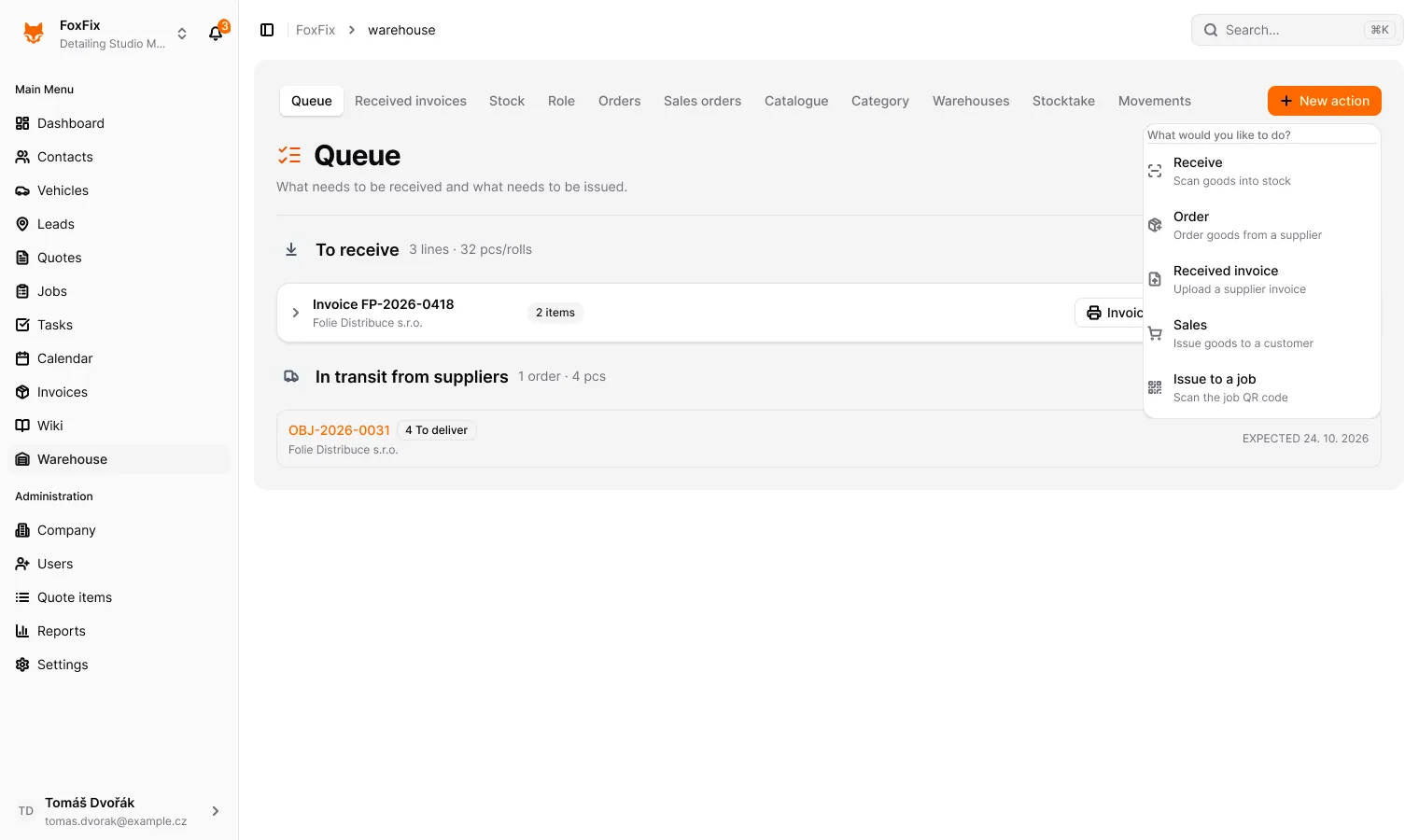
To the right of the tabs is the New action button. It opens the menu “What would you like to do?” with the most common tasks:
- Receive — quick goods in by scanning. → Receiving goods
- Order — a new purchase order with a supplier.
- Received invoice — upload a supplier invoice.
- Sale — sell goods to a customer. → Issues and sales
- Issue to a job — scan the job QR code. → Issuing material to a job
 (opens the full-size image in a new tab)
Key terms
| Term | Meaning |
|---|---|
| Product | An item in the catalogue, e.g. “ShieldPro protective film”. On its own it has no price or stock — those belong to its variants. |
| Variant (SKU) | A specific version of a product, e.g. “152 cm gloss”. It has its own SKU (your stock number), EAN, unit, prices and stock level. |
| Unit | What the item is counted in: Piece, Metre, m², kg or Litre. |
| Roll | A physical roll of film or other material with its own QR label. Inventory tracks how many metres are left on it. |
| Category | A folder for sorting products (e.g. “PPF film”); categories can be nested. |
| Warehouse | The physical place where goods are kept (e.g. “Main workshop Prague”). |
| Bin | A position inside a warehouse — a rack, shelf or zone (e.g. code “A3-P2”) with its own QR label. |
| Movement | Every change in stock: goods in, issue, transfer, adjustment, reservation… Everything is saved to the history. |
| Reservation | Goods held for a job, a sales invoice or a sales order. They are physically on the shelf, but nobody else can issue them. |
| On hand / Reserved / Available | The physical quantity / the quantity held by reservations / what you can actually issue (On hand − Reserved). |
| Picked | Reserved goods that a warehouse worker has taken off the shelf and confirmed by scanning. All that is left is to issue them. |
| Min. stock (alert) | A threshold on the variant — when stock falls to it or below, the item is flagged as Low stock. |
Recommended order for the first setup
Before you start receiving goods, set up the structure:
- Create a warehouse — Warehouses tab → New warehouse. If you only have one site, a single warehouse marked as Default warehouse is enough. → Warehouses and bins
- Create bins and print their QR labels — in the warehouse detail, New location, then the QR icon next to the bin → Print. Bin scanning is used both when receiving and when picking.
- Create categories — Categories tab → New category (e.g. “PPF film”, “Car care products”). A category is required for a new product.
- Add products and their variants — Catalogue tab → New Product, then in the product detail New variant with an SKU, unit and prices. → Catalogue
- Receive goods — deliveries are best handled through Received invoices, small items through Receive.
You do not have to build the catalogue in advance
When you upload your first supplier invoice, FoxFix can create the missing products itself from the invoice lines. Have your categories and warehouse ready beforehand, though.
Who can do what
- Every user who can see the module can get into Inventory. Any of them can receive, issue, transfer, run a stocktake and edit the catalogue.
- A new stock card created during goods in (from an invoice, the queue or a scan) is created directly only by an Administrator or a Manager; everyone else proposes it for approval.
- Selling with a discount above the card's limit is reserved for an Administrator or a Manager.
- Deleting a received invoice is reserved for an Administrator.
- The Warehouse clerk role has a cut-down main menu: it only sees Inventory, Tasks, Calendar and Wiki. Within Inventory it has the same rights as the other roles apart from Administrator and Manager.
User roles are set by an administrator — see Roles and permissions.
Working on a phone
Inventory is designed for phones too:
- on a phone, tables are shown as easy-to-read cards,
- you swipe the tabs sideways,
- the receiving, picking and metre-issue wizards open full screen and keep the main button at the bottom, within reach of your thumb,
- you can scan with the rear camera or with a handheld barcode scanner.
Just open app.fox-fix.com (opens in a new tab) in your phone's browser and allow camera access when the page asks. More on scanning and printing labels in Labels and scanner.