
Movement history
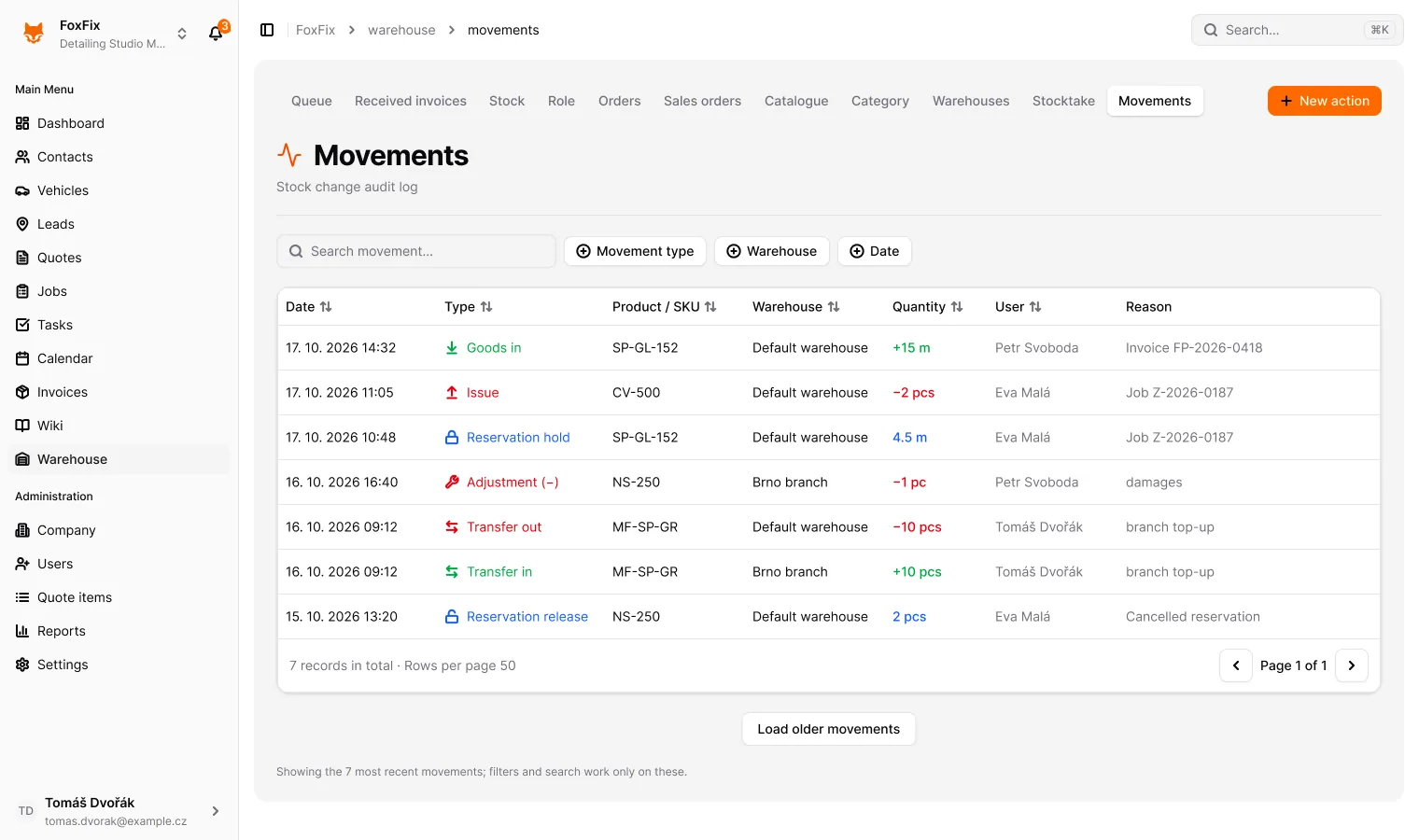
The Movements tab (“Stock change audit log”) is the warehouse log: every change in stock — goods in, issue, transfer, adjustment, reservation — has a permanent record here with the date, user and reason. Nothing is ever deleted from the history; mistakes are corrected with a new adjustment, so you can always see what really happened.
 (opens the full-size image in a new tab)
What the table shows
| Column | Meaning |
|---|---|
| Date | When the movement happened (date and time). Sorted newest first by default. |
| Type | The kind of movement with an icon and colour — goods in in green, issues in red, reservations in blue. |
| Product / SKU | Which item the movement concerns. |
| Warehouse | The warehouse in which the stock changed. |
| Quantity | With a sign and unit, e.g. +15 m or −2 pcs. |
| User | Who made the movement. |
| Reason | A note on the movement (invoice number, job number, reason for an adjustment…). |
Movement types
| Type | When it is created |
|---|---|
| Goods in | Receiving goods — from a received invoice, by scanning on the Receive page, or in a batch. |
| Issue | Issuing reserved goods to a job, a sales invoice or a sales order (the reason contains the document number), and issuing metres from a roll. |
| Transfer out / Transfer in | The pair of records for each transfer. |
| Adjustment (+) / Adjustment (−) | Manual stock adjustments and stocktakes. This also covers the automatic reversal of a failed transfer with the reason “Automatická oprava neúspěšného převodu” (automatic correction of a failed transfer), writing off an unusable roll remnant, and writing off goods when a received invoice is deleted. |
| Reservation hold / Reservation release | Holding goods for a job, invoice or order, and cancelling the hold. These change only the reserved quantity, not the physical stock. |
| Return | Goods returned to stock, e.g. unused material from a job. |
| Waste | Job material written off as waste (offcuts, application errors, material defects…) — recorded on the job with a reason. |
How to find a specific movement
- Open the Movements tab.
- Narrow down the list:
- with the “Search movement…” field (searches items and reasons),
- with the Movement type filter (only offers types that appear in the list),
- with the Warehouse filter,
- with the Date filter — presets Today, Last 7 days, This week, Last week, Last 30 days, This month, or your own From – To range.
- Change the sorting by clicking a column header. Clear the filters with the Reset button.
Example — “who wrote off my polishing paste?”: type the name or SKU of the paste into the search, tick Issue and Adjustment (−) in the Movement type filter, and the User and Reason columns show you straight away who did it, when and why.
Older movements
The page loads the most recent movements first; below the table is the note “Showing the N most recent movements; filters and search work only on these.” If you are looking for something older, click Load older movements — then filter again.
Where else you can see the history
- Bin detail (Warehouses → warehouse → bin) has a “Movements in this bin” card.
- Roll detail (the Rolls tab) has a Movement history card for that specific roll.
On a phone
On a phone, movements are shown as cards: a coloured type icon, the quantity with its sign, the SKU and warehouse, the reason, and the date with the user.
The new Movements screen
In companies with the 5 Nov 2026 update Movements has a new look:
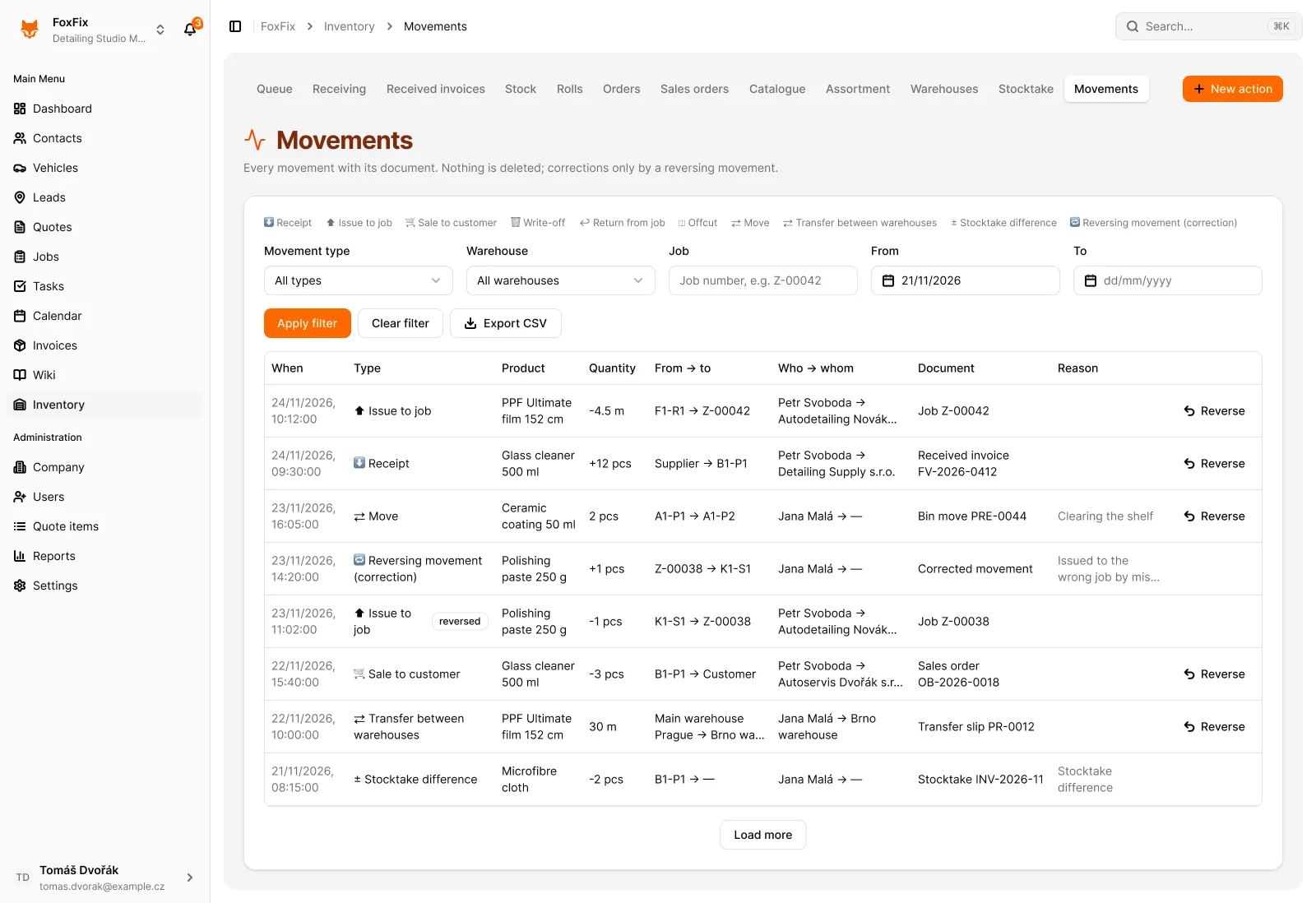
- A legend at the top: ⬇ Receipt · ⬆ Issue to job · 🛒 Sale to customer · 🗑 Write-off · ↩ Return from job · ◫ Offcut · ⇄ Move · ⇄ Transfer between warehouses · ± Stocktake difference · 🔁 Reversing movement (correction).
- Columns: When · Type · Product · Quantity (signed; a move has no sign) · From → to (position, warehouse, supplier, job) · Who → whom (who recorded it → recipient, customer or the other warehouse) · Document (received invoice, job, order, stocktake…) with a link · Reason.
- Filters: movement type, warehouse, job (the job number, e.g. Z-00042), period from – to (Prague time). Click Apply filter; the filter searches on the server, not only the loaded page. Load more adds further movements.
- Card: with the 26-11 update, the all movements link in the card detail opens Movements narrowed to one card (an address with
?variantId=). A Card: … tag appears above the filters; the cross removes the card filter. - Export CSV downloads the loaded movements with the same columns (for older movements use Load more first).
- For a transfer the other warehouse is shown when both of its parts are on the loaded pages (so not with a single-warehouse filter).
- When an issue to a job or invoice is reversed, the job's and invoice's material is counted without the reversed movement.
- On a phone the movements are shown as cards.
 (opens the full-size image in a new tab)
Reverse a movement
Nothing is deleted — a wrong movement is corrected by a reversing movement:
- Click Reverse on the movement (shown to roles that may record movements in that warehouse, e.g. the warehouse worker).
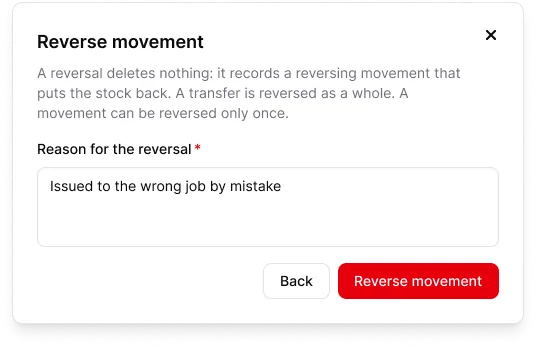
- Fill in the Reason for the reversal (required) and confirm Reverse movement.
- FoxFix records a reversing movement that puts the stock back and marks the original as reversed. A transfer between warehouses is reversed as a whole (both warehouses).
 (opens the full-size image in a new tab)
A movement can be reversed only once. Reservations, job waste, offcuts, claim movements and reversing movements themselves are not reversed. Reversing a receipt fails when the goods have left or are reserved ("There is no longer enough free stock for the reversal to take back."), and reversing a piece movement fails when the piece is somewhere else by now ("The piece is somewhere else by now; the reversal would not match the stock."). An issue to a job cannot be reversed when the same item was later returned from that job — the reversal would put the goods back a second time; correct the return or use a stocktake difference instead.
Tips and common problems
- The history is permanent — a movement cannot be deleted or edited. Got a quantity wrong? Make the opposite adjustment with an explanatory reason.
- Fill in reasons. A short note (“stocktake 10/2026”, “broken during unloading”) saves a lot of searching six months later. A reason is required for a manual adjustment.