
Roles, modules and subscription
What you can see and do in FoxFix depends on three things:
- Your role in the company (for example Technician or Administrator).
- The modules the company has switched on (for example Inventory or Wiki).
- The company's subscription plan and whether the subscription is active.
If something is missing in the app, the reason is usually in one of these three areas.
Roles
An administrator or manager assigns your role in the invitation. You can see your role in Settings (the Your role card), in Profile (Role in the system) and in the company switcher below each company's name. If you work in more than one company, you can have a different role in each.
| Role | For whom | What they can do |
|---|---|---|
| Administrator | Owner, management | Everything. On top of what a manager can do: switches on modules and the AI assistant, sets the company language, connects iDoklad, imports services, manages the subscription, invites other administrators and managers, changes roles and deletes users. Only the administrator can issue an invoice straight from a quote and skip the intake checklist. |
| Manager | Operations manager | Sees the Administration section (Company, Users, Quote items, Reports, Settings). Invites technicians, salespeople and warehouse clerks, resets passwords, edits company details, the price list and lookup lists. Can delete records (contacts, vehicles, leads, quotes, jobs, invoices). |
| Salesperson | Sales, customer intake | Day-to-day work with leads, contacts, vehicles, quotes, jobs and invoices. Sees prices. Has no Administration section and cannot delete records. |
| Technician | Workshop | Works with jobs, checklists, tasks and the calendar. Sees the price-free versions of job documents and does not see costs on job materials. Has no Administration section and cannot delete records. |
| Warehouse clerk | Warehouse | A simplified menu with only Inventory, Tasks, Calendar and Wiki. Other pages (including the Dashboard and Settings) redirect them to Inventory. They see Inventory even when the company has not switched it on, as long as the subscription plan includes it. |
The Dashboard adapts to your role: a technician mainly sees their agenda for today, a salesperson tasks to deal with, and management also sees team workload and decisions waiting for them. The Warehouse clerk has no Dashboard; Inventory opens after they sign in. More in the Dashboard chapter.
How to invite a colleague and change their role is described in Inviting a new user.
Modules
Modules are the individual parts of the app: Contacts, Vehicles, Leads, Price Quotes, Jobs, Tasks, Calendar, Invoices, Wiki, Inventory and Reports. A company switches on only the ones it uses. The Dashboard, settings and administration are part of every company and cannot be switched off.
How to switch modules on or off (administrator only):
- In the left menu, open Company.
- In the Application modules section, flip the switch next to the module.
- The change is saved immediately and confirmed with a message such as “Inventory: on”.
What happens when you switch a module off:
- The module disappears from the menu, the Dashboard and global search for all users in the company. No data is deleted. When you switch it on again, you will find everything where it was.
- Anyone who opens a page of a switched-off module through an old link or bookmark sees Module not enabled with the text “This module is not enabled for your company. An administrator can enable it in Settings → Company.”
Dependencies and defaults
Jobs are created from quotes, so without the Price Quotes module you cannot create new jobs. The Inventory module is switched off by default for new companies. Switch it on when you want to keep track of stock (see Getting started with Inventory).
Subscription plans
Every company has one subscription plan:
| Plan | What it includes |
|---|---|
| Start | All modules except Inventory. |
| Profi | All modules including Inventory. |
| Business | All modules including Inventory, with more users included. |
The plans also differ in the number of users included. You will find the current plan, the number of seats used and the subscription status under Settings → Subscription. Companies that used FoxFix before subscriptions were introduced have the unrestricted VIP Unlimited plan.
Module not in your plan
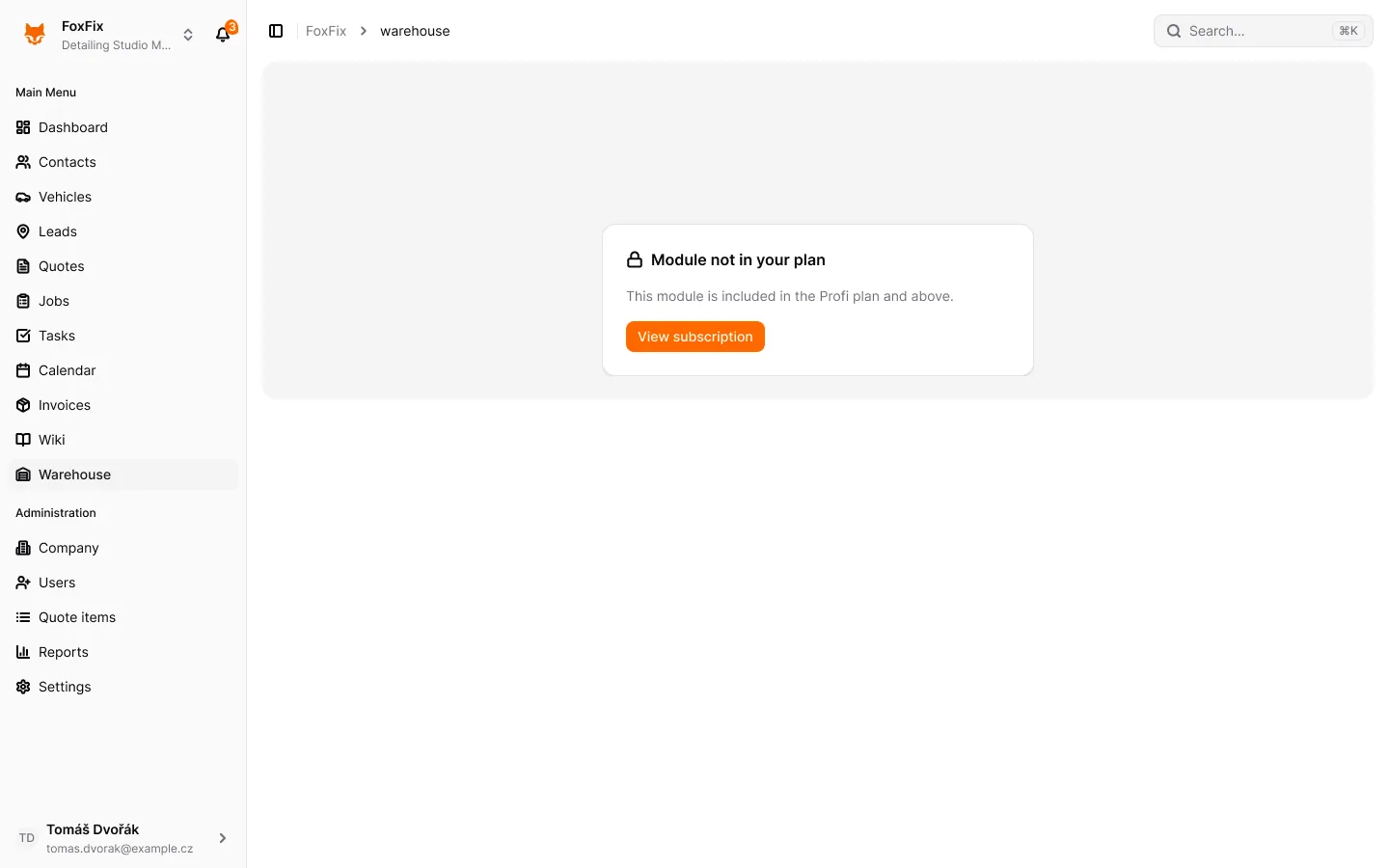
Modules your plan does not include (for example Inventory in the Start plan) do not appear in the menu or in the bottom bar on mobile. If you open such a module through an old link or bookmark, you will see a Module not in your plan card instead of the content. The text says from which plan the module is available. The View subscription button opens the Subscription page, where an administrator can change the plan.
 (opens the full-size image in a new tab)
Number of users
Each plan has a set number of users. Both active users and pending invitations count towards it. When the plan is full, a new invitation ends with the message “The company's plan has no free seat for another user. Add more users in Settings → Subscription.”
Subscription
A new company starts with a 14-day free trial (see Registering a new company). When it ends, the subscription is paid automatically by the card entered at sign-up.
Only an administrator manages the subscription, under Settings → Subscription (see Subscription). A manager can see the page but cannot change anything on it.
When the subscription is not active
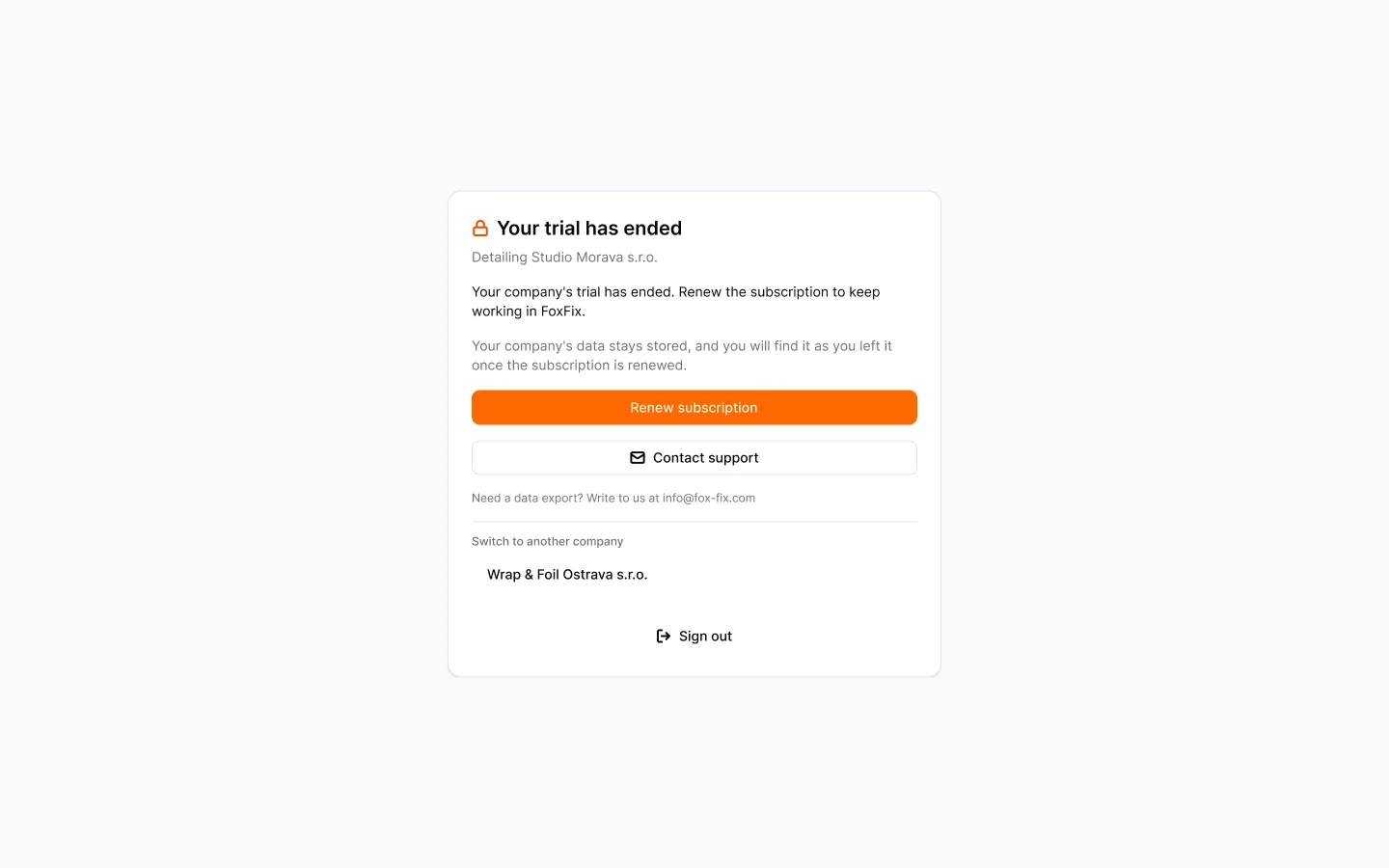
If the trial ends without payment, a payment fails or the subscription is cancelled, a lock screen is shown instead of the whole app. Its heading explains why:
- Your trial has ended
- Subscription payment failed (the payment could not be taken and the grace period has run out)
- Subscription cancelled
- Payment not completed (the company is set up, but the payment on the payment page was not completed)
- Subscription not active
 (opens the full-size image in a new tab)
What you can do:
- An administrator clicks Renew subscription and, on the Subscription page, renews the payment or changes the plan.
- Other roles see “Your company administrator can renew the subscription. Please contact them.”
- Contact support opens an email to info@fox-fix.com. Use the same address if you need a data export.
- If you have more than one company, you can switch to a company with an active subscription under Switch to another company.
Your data stays safe
A locked subscription does not delete anything. Once it is renewed, you will find all the company's data just as you left it.