
Vehicles
Vehicles are your customers' cars (and other machines). Every vehicle has an owner from Contacts and a current position – where it is right now (workshop, car park, at the client's…). Leads, quotes, jobs and invoices all refer to the vehicle, so its detail shows the car's complete service history.
Who can see this
All users of the company, as long as the company has the Vehicles module switched on (it is included in every plan).
 (opens the full-size image in a new tab)
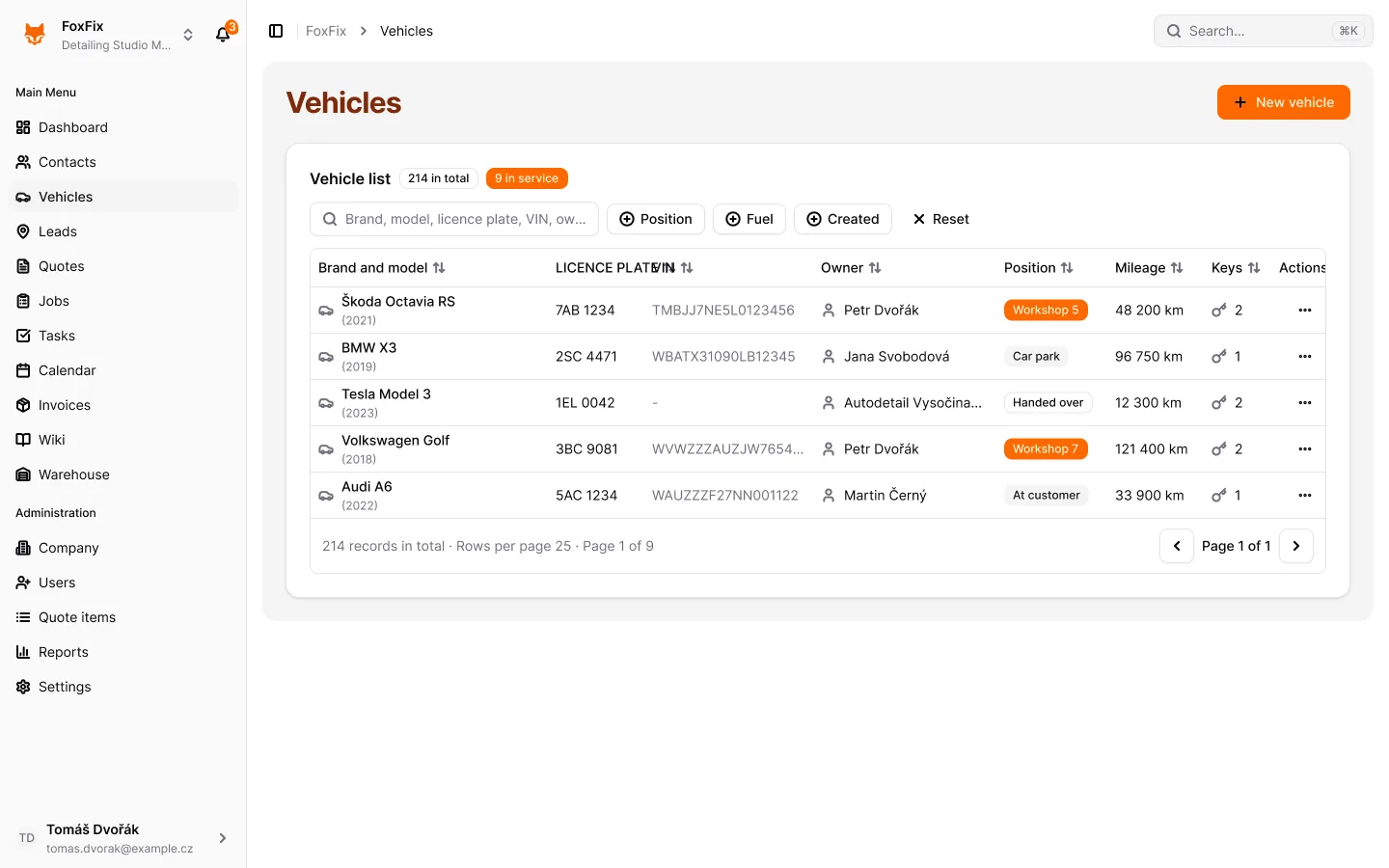
What you will find on the page
- New vehicle – the button at the top right.
- Counters – “… total” and “… in service” (vehicles whose position contains the word dílna (workshop) or servis (service)).
- Search and filters.
- Vehicle table with pagination.
Table columns
| Column | Meaning |
|---|---|
| Brand and model | For example Škoda Octavia RS, with the year of manufacture in brackets. |
| Licence plate | The registration number. |
| VIN | The vehicle identification number. |
| Owner | The contact the car belongs to, or No owner. |
| Position | Where the car is right now. |
| Mileage | The last odometer reading entered. |
| Keys | The number of keys taken in. |
Click a row to open the vehicle detail. Click a column header to sort the table; by default it is sorted by brand and model. On a phone, vehicles are shown as cards with the licence plate and owner.
How to find a vehicle
- Search – start typing in the “Brand, model, licence plate, VIN, owner…” field.
- Position – one or more positions. The In the workshop / service option selects all positions containing the word dílna or servis at once.
- Fuel – the fuel types that occur among your vehicles.
- Created – when the vehicle was added (quick options Today, Last 7 days, This week, Last week, Last 30 days, This month, or your own From – To range).
The Reset button clears all filters.
Vehicle actions menu
The ⋯ menu at the end of a row offers:
- View details and Edit,
- New job – opens a new job with the vehicle pre-filled,
- New quote – opens a new quote with the vehicle and its owner,
- Delete – deletes the vehicle after you confirm (“Are you sure you want to delete this vehicle?”).
How to add a new vehicle
- Click New vehicle (or the New vehicle quick action on the dashboard).
- Select the Owner – search for the contact by name. If the contact does not exist yet, create it first in Contacts.
- Fill in the Brand and Model. Suggestions offer common brands and models; if yours is not there, type your own name.
- Select the Position – where the car is right now.
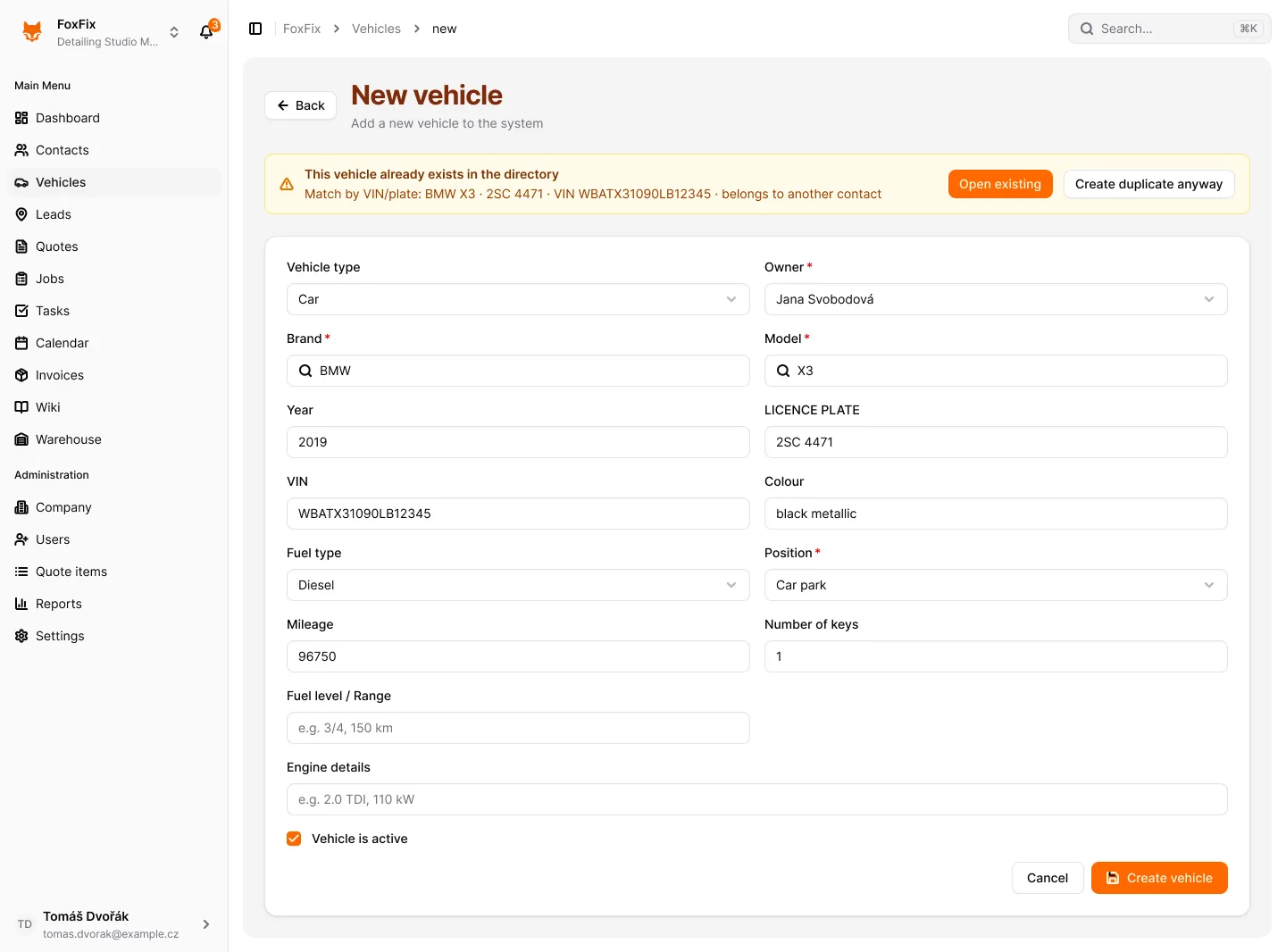
- Add further details: Vehicle type, Year of manufacture, Licence plate, VIN (17 characters), Colour, Fuel type, Mileage, Number of keys (default 2), Fuel level / Range and Engine details.
- Click Create vehicle. The new vehicle's detail opens.
 (opens the full-size image in a new tab)
Owner, Brand, Model and Position are required. If any of them is missing, you will see “Fill in all required fields”.
A half-filled form is saved as a draft – when you return to the page you can restore it with Restore or throw it away with Discard.
Duplicate licence plate and VIN check
When saving, FoxFix checks whether the directory already contains a vehicle with the same VIN or licence plate. If it does, the vehicle is not saved yet and a This vehicle already exists in the directory warning appears at the top with the details of the matching car (possibly with the note “belongs to another contact”).
- Open existing – takes you to the matching vehicle's detail. Usually all you then need to do is change its owner.
- Create duplicate anyway – the warning disappears. Then click Create vehicle again and a second record is created.
One car = one record
When a car is bought by a new owner, do not add it again. Change the owner of the existing vehicle – the job history stays together with the car.
New vehicle from a lead, quote or job
In the lead, quote and job forms you can add a vehicle without leaving the page – with the + button next to the vehicle picker or the Create vehicle option. The contact selected in the form becomes the owner.
- In the New vehicle dialog, fill in the Brand, Model and Position, and optionally the Licence plate.
- Show further details (year of manufacture, VIN, colour, vehicle type, fuel, mileage) with the More details button.
- Click Save vehicle.
- In the Vehicle created confirmation, choose Close dialog (the vehicle is selected in the form) or Create another.
The dialog also checks for duplicate licence plates and VINs. Use existing selects the matching vehicle instead of a new one; Create duplicate anyway followed by another click on Save vehicle creates a new record.
Vehicle positions
The company maintains its list of positions (by default Dílna 5, Dílna 7, Parkoviště, U klienta, Předáno – workshop 5, workshop 7, car park, at the client's, handed over) in Settings → Lookup lists → Vehicle positions. It can be managed by an administrator or manager. If you want vehicles in a position to be included in the “in service” counter and the In the workshop / service filter, use the word dílna or servis in the position name.