
Stock overview
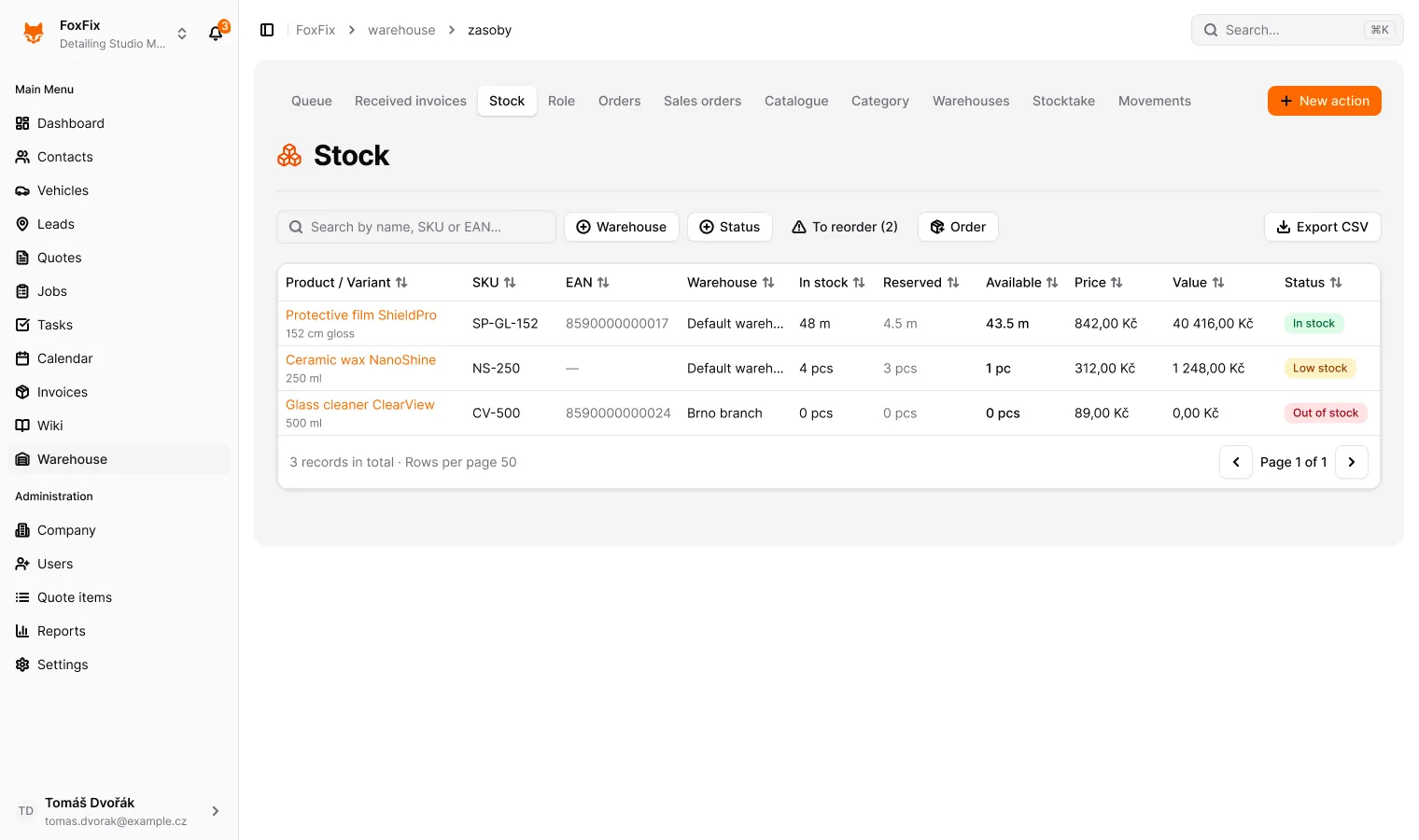
The Stock tab shows the current level of everything you hold: one row for each combination of goods variant × warehouse. If you have the same paste in two warehouses, you will see two rows. From here you can also prepare a reorder of goods that are running low in a single click.
 (opens the full-size image in a new tab)
What the columns mean
| Column | Meaning |
|---|---|
| Product / Variant | Name of the goods and the variant. Click to open the variant detail. |
| SKU | Your stock number for the item. |
| EAN | The item's barcode. |
| Warehouse | Which warehouse the item is in. |
| On hand | The physical quantity in the warehouse. |
| Reserved | How much is held for jobs, sales invoices and customer orders. |
| Available | On hand − Reserved — what you can actually issue or sell. |
| Cost | Average purchase cost per unit in CZK. Calculated automatically from the prices at receipt (including spread-in shipping and customs duty). |
| Value | On hand × Cost in CZK. |
| Status | A coloured tag: In stock, Low stock or Out of stock. |
An empty value is shown as “—” (e.g. a variant without an EAN).
How is “Low stock” decided?
An item shows as Low stock when the quantity on hand drops to or below the Min. stock (alert) set on the variant. If a variant has a min. stock of 0 (the default), it is never marked as Low stock — set up minimum tracking for important items in the catalogue.
Search and filters
- Search — start typing in the “Search by name, SKU or EAN…” field. The table filters instantly.
- Warehouse — choose one or more warehouses.
- Status — filter by the In stock / Low stock / Out of stock tags.
- To reorder (N) — one click limits the table to items that are Low stock or Out of stock. A second click turns the filter off.
- Reset — appears as soon as a filter is active and clears everything.
How to reorder goods that are running low
- Click To reorder (N). The table shows only items that are running low or out of stock.
- Narrow the selection with the Warehouse filter if needed.
- Click Order. The button is only active with the To reorder filter on.
- A purchase request is created for each item shown. The quantity is taken from the variant's Suggested order qty field; if it is empty, the quantity is calculated up to the minimum stock. You will see “Created N purchase requests” and the Purchase orders page opens.
- There, tick the requests and create an order from them.
Items that already have a pending request are not added again. If all of them already have one, you will see “All the items shown already have a pending request.”
Sorting and pages
- Click a column header to sort the table (e.g. by Available, lowest first). Another click reverses the order.
- The default sort is by product name (A→Z).
- Below the table are the number of records, the Rows per page option (25, 50, 100 or 250 rows) and page navigation.
Send a colleague exactly what you see
Filters, sorting and the page are written into the page address. Just copy the address from the browser and send it — your colleague will see the table set up the same way. The page also remembers your settings for next time.
Export to Excel
The Export CSV button on the right downloads the rows currently shown
(after filtering) as a zasoby-YYYY-MM-DD.csv file. The file is prepared so
that Czech characters display correctly in Excel — just double-click to open
it. The button is greyed out when the table shows nothing.
On a phone
On a phone the rows are shown as cards: name and variant, SKU, status tag, warehouse and available quantity. The whole card links to the variant detail.
Tips and common problems
- Available ≠ On hand. You can only issue and sell the Available quantity; the rest is reserved.
- Cost is the average purchase cost. It only changes on receipts with a price filled in. If you do not fill in prices when receiving, the Cost and Value columns will not be meaningful.
- If the connection drops, you will see the “Showing the last loaded data” bar and the message “Failed to refresh stock”. You can keep reading the last known state; once the connection is back, the data reloads by itself.
The new Stock screen (November 2026 update)
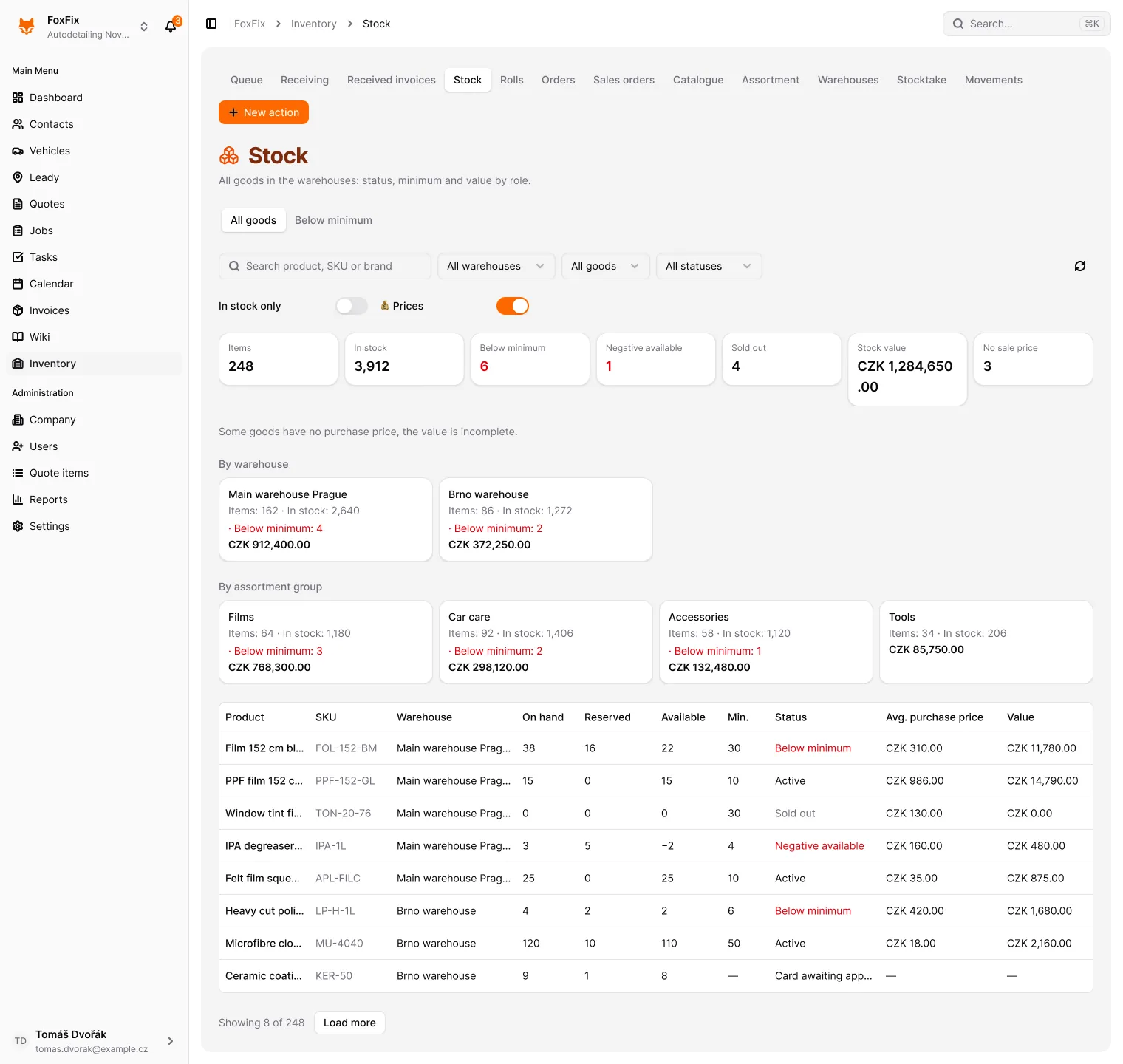
When your company has the November 2026 update switched on, the Stock tab is assembled on the server and works differently from the table above:
 (opens the full-size image in a new tab)
- Overview at the top — tiles for Items, In stock, Below minimum, Negative available and Sold out. They are counted for the selected warehouse and assortment.
- By warehouse and by group — below the overview there is a tile for each warehouse and assortment group with the number of items, the quantity in stock and the number below minimum (with the 💰 Prices switch also the value). Clicking a warehouse sets the Warehouse filter (click again to clear it); clicking a group opens its subgroups.
- Filters — search by product, SKU or brand, Warehouse, Assortment (a group including its subgroups), Status and the In stock only switch.
- Prices by role — warehouse staff see no prices at all. Purchasing and management have a 💰 Prices switch: it turns on the Avg. purchase price and Value columns and the Stock value and No sale price tiles. The browser remembers the switch. Sale prices and margins are never shown in Stock — they belong in the catalogue and on the goods card.
- Stock value counts only your own goods: customer custody and virtual warehouses are not valued. When some goods have no purchase price, a note says the value is incomplete.
- Load more — rows arrive in pages. Below the table you see "Showing N of M".
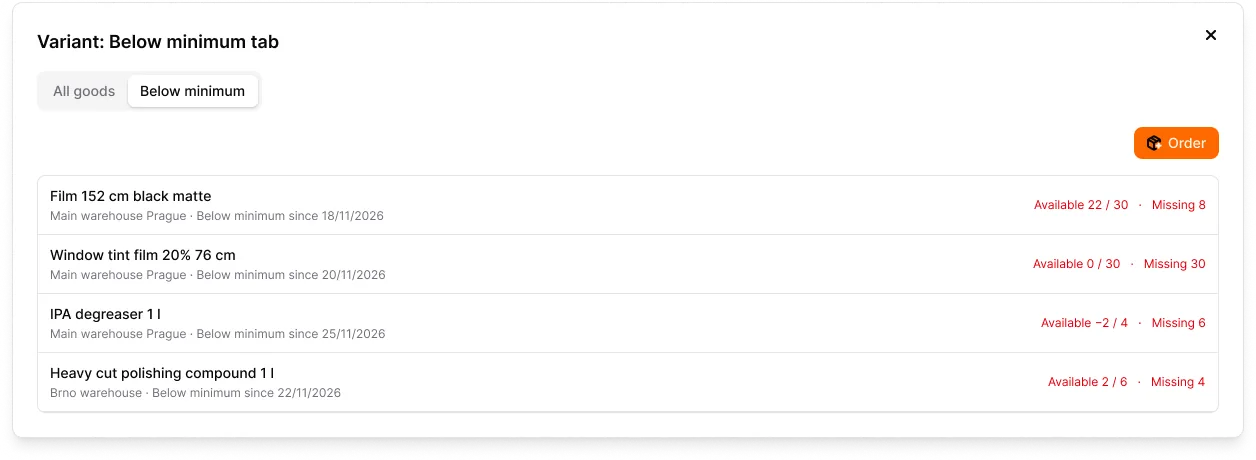
- Below minimum — the second tab lists items whose available quantity has dropped below the warehouse minimum, with Missing and the date since when. The Order button opens a new purchase order. The minimum is set per warehouse on the card, see Suppliers and minimums.
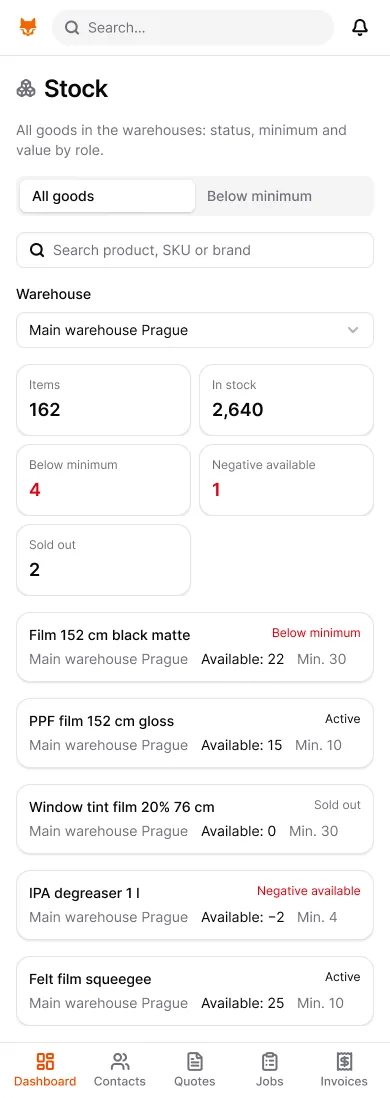
On a phone every item is one card with the available quantity and the minimum.
 (opens the full-size image in a new tab)
 (opens the full-size image in a new tab)
A large warehouse
A company with very many stock rows sees a note that the figures cover only part of the stock. Narrow it down with the Warehouse filter.