
Inventory queue
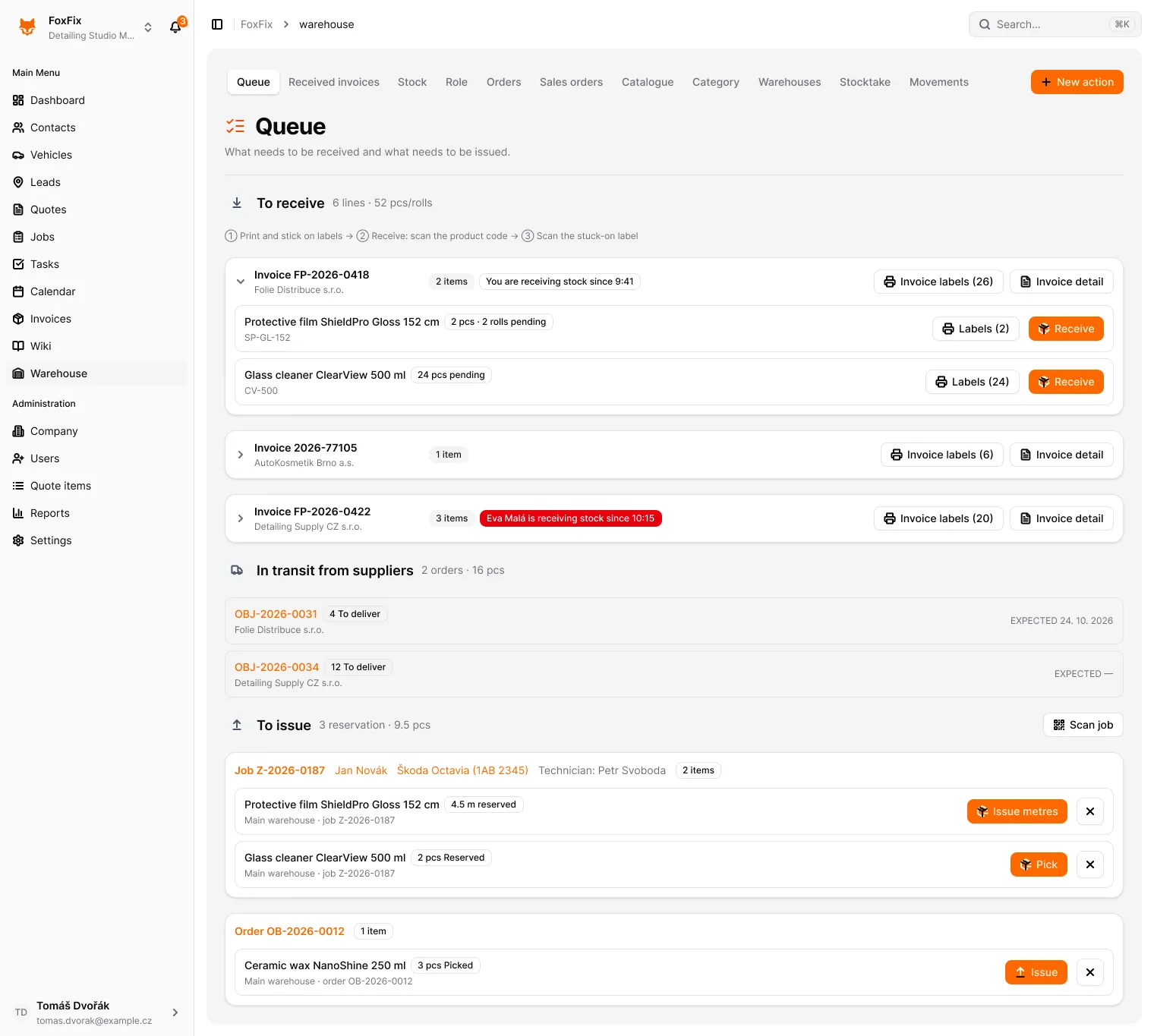
The Queue is the first page that opens when you click Inventory in the left-hand menu (“What needs to be received and what needs to be issued.”). It shows the warehouse worker all the work in one place: lines from supplier invoices waiting to be received, orders in transit and reservations that need to be picked and issued to jobs, sales invoices and sales orders.
 (opens the full-size image in a new tab)
What you will find on the page
The page has three sections. Only the ones with something waiting are shown.
| Section | What it contains |
|---|---|
| To receive | Lines from received invoices that have not been received yet. The header shows the number of lines and of pieces or rolls. |
| In transit from suppliers | Sent purchase orders where something has not arrived yet: the order number (a link), the supplier, a “N Outstanding” badge and the Expected date. |
| To issue | Reserved goods that need to be picked and issued — grouped by job, sales order or invoice. |
When nothing is waiting, you see a green tick and the text The queue is empty — “Nothing is waiting to be received or issued.”
To receive
Lines are grouped by invoice. Each invoice is a collapsed card — click its header to expand it. The header shows the invoice number, the supplier, the number of items and these buttons:
- Invoice labels (N) — print QR labels for all the invoice's lines at once.
- Invoice detail — opens the received invoice detail.
Each line shows the item name, SKU and how much is waiting (e.g. “24 pcs pending”, for rolls “2 pcs · 2 rolls pending”). On the right are the Labels (N) and Receive buttons.
The procedure is always the same and is also shown above the section: “① Print and stick on labels → ② Receive: scan the product code → ③ Scan the stuck-on label”.
How to receive a line from the queue
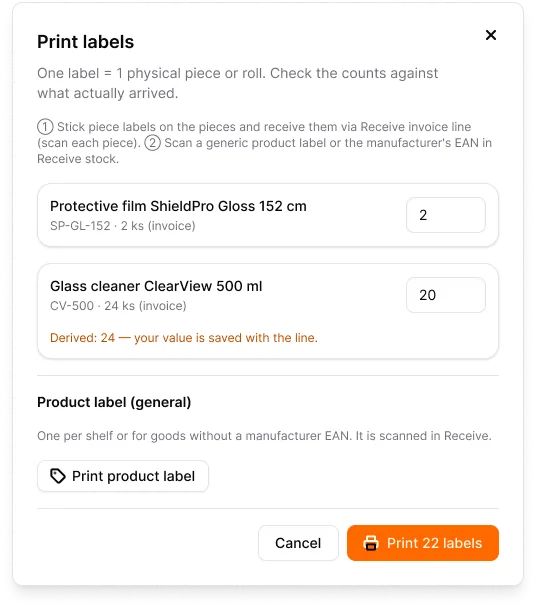
- Click Labels (N) on the line. In the Print labels dialog, check the number of labels against what actually arrived and confirm with Print N labels. Details in Labels and scanner.
- Click Receive.
- If the line is not yet matched to a stock item (or has no warehouse
selected and you have more than one), the What is this item? dialog
opens:
- search for the item by name or SKU in the Stock item field,
- or create it straight away with Create a new item (for roles other than Administrator and Manager, a proposal is sent for approval instead — see New stock card),
- select the Warehouse and confirm with Continue to scan.
- The full-screen receiving wizard opens: you scan the bin, the product barcode and the stuck-on label — piece by piece. The whole wizard is described in Received invoices.
- Once confirmed, the line disappears from the queue (after a partial receipt, the remainder stays in it).
 (opens the full-size image in a new tab)
Who is receiving right now
So that two people do not receive the same invoice at once, the invoice header shows who is working on it:
| Badge | What it means |
|---|---|
| “You are receiving stock” / “You are receiving stock since 9:41” | You have the invoice in progress. |
| “Emma Clark is receiving stock since 10:15” (in red) | A colleague is receiving the invoice right now. The Receive button is disabled. |
| “In progress (Emma Clark since 10:15), can be taken over” | A colleague started, but nothing has happened for over two hours. The button changes to Take over and receive. |
In transit from suppliers
An overview of orders you have sent to suppliers that have not yet arrived in full. Click the order number to open its detail. When the goods arrive, you receive them through the received invoice — the order then switches to Partially received or Received by itself.
To issue
This section shows all live reservations. Each group's header shows the document the reservations belong to:
- Job … with a link to the job, the client, the vehicle (make, model, licence plate) and the technician's name,
- Order OB-… — a sales order,
- Invoice … — a sale from stock,
- No document, if the reservation is not linked to a document.
Each line shows the item, warehouse, document and a quantity badge (“2 pcs reserved” or “3 pcs picked”). It always offers one main button:
| Button | When it appears | What it does |
|---|---|---|
| Pick | Piece goods that are still on the shelf. | Opens the wizard: scan the bin, then the label of each piece. When finished, the line switches to “picked”. |
| Issue | The goods have been picked. | Records the issue from stock (an Issue movement appears in the history). |
| Issue metres | Goods issued by the metre from a roll (film). | Opens the roll issue wizard: scan the roll and enter the metres cut. |
| Cross (Cancel reservation) | Always. | Cancels the reservation and returns the goods to available stock (“Reservation cancelled, the goods are available again”). |
If a job was short of material when it was created, the shortfall is recorded and passed to purchasing. As soon as the goods arrive (goods in, adjustment, return from another job), the app reserves them automatically for the jobs with a shortage — the one with the earliest planned start takes priority — and the reservation appears in the queue.
If fewer pieces were found during picking than were reserved, the line shows the warning “Only 3 pcs of 5 pcs was found.” and only the picked quantity is issued.
You will find the detailed procedure with a table of messages in the guide Issuing material to a job. Issuing metres from a roll is described in Rolls.
Scan job
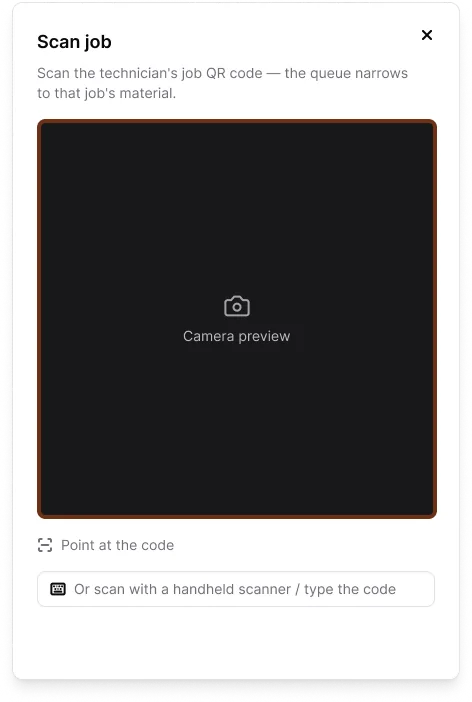
The queue can hold reservations for many jobs. To save searching:
- Above the To issue section, click Scan job (or choose New action → Issue to a job).
- Scan the job QR code that the technician shows you on their screen or on the printed job card. You can also type the code into the field below the camera.
- The queue narrows to this job's material only. At the top you will see “Job … · N items to issue” and a Clear filter button.
If nothing is reserved for the job, you will see “Nothing is reserved for this job” and an Open job button. The message “This is not a job QR code” means you scanned a different code (a goods label, for example).
 (opens the full-size image in a new tab)
Tips and common problems
- An invoice in the queue cannot be received — the button is greyed out. A colleague is receiving the invoice right now (red badge). Agree with them, or wait until Take over and receive appears.
- A line from the invoice is missing from the queue. The queue only contains lines with goods. Shipping, customs and services are not stocked and are recorded only on the invoice.
- Goods on rolls cannot be received through Receive. Rolls are always received through an invoice so that every roll gets its own label. See Rolls.
- The queue refreshes itself after every action. If the refresh fails, the message “The queue could not be refreshed” appears and you see the last loaded state.