
Purchase orders
November 2026 update
With the update switched on, the order list and detail look different — order proposals by supplier, progress, reminders and cancelling the remainder are described in Tracking supplier orders, claims in Supplier claims.
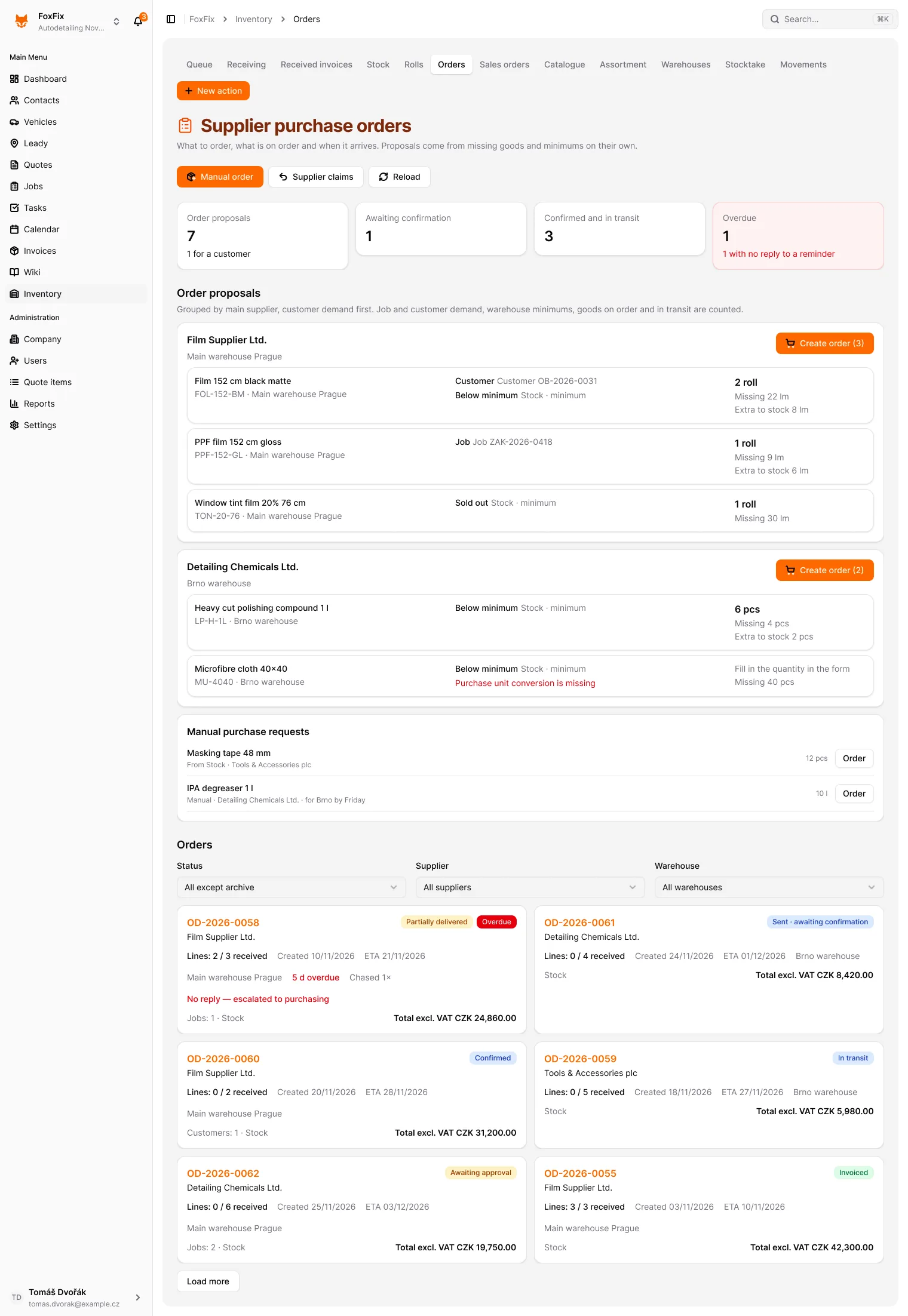 (opens the full-size image in a new tab)
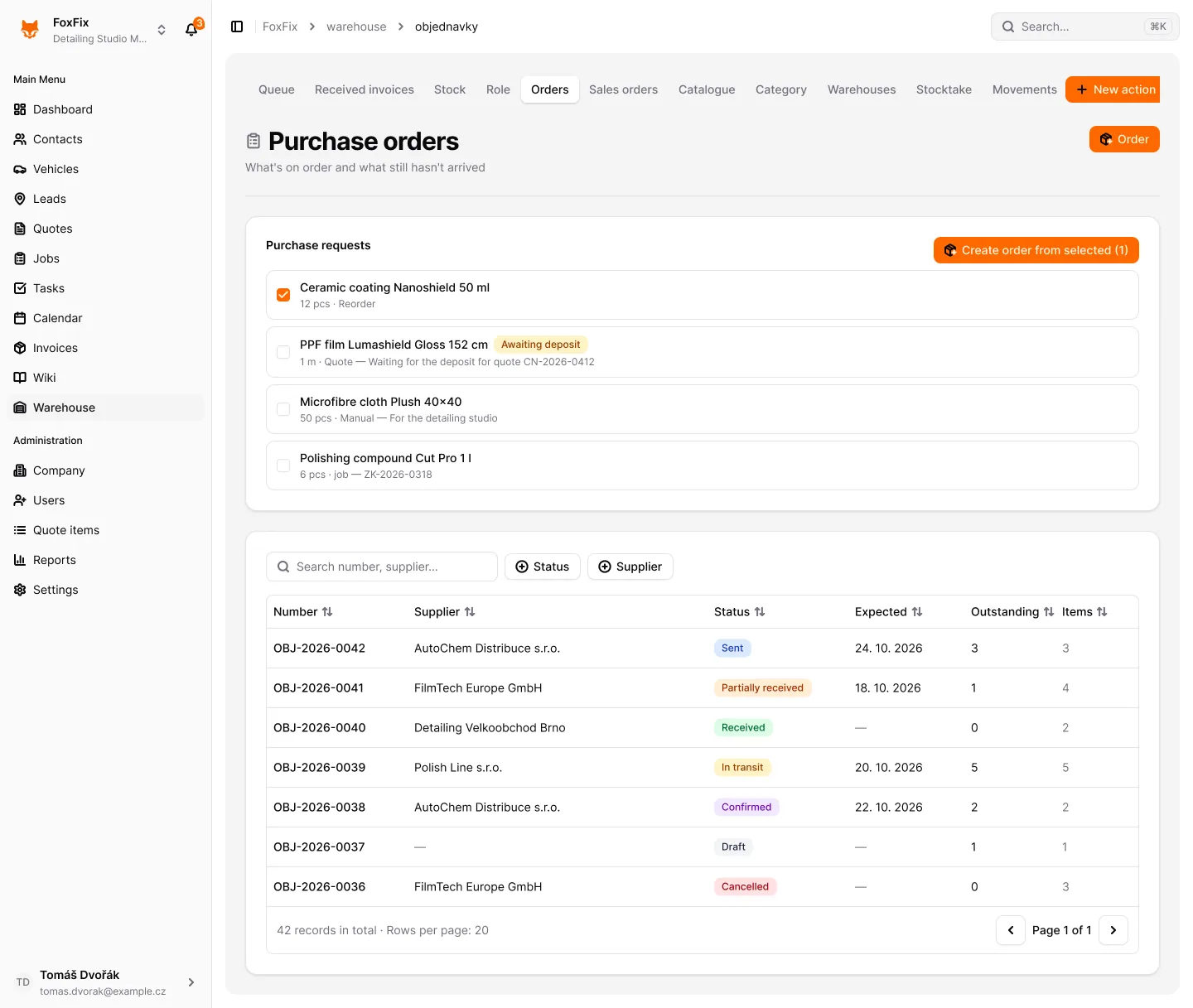
The Orders tab (“What's on order and what still hasn't arrived”) keeps track of buying goods from suppliers. At the top are purchase requests — what needs to be ordered — and below them the list of orders with their delivery status. When the goods arrive and you receive them from a received invoice, the order switches to Partially received or Received by itself.
 (opens the full-size image in a new tab)
Purchase requests
A purchase request is a reminder that “this needs to be ordered”. It is created from:
| Source | When |
|---|---|
| Reorder | In Stock you clicked Order for goods that are running low. |
| Quote | A job was created from an approved quote and there is not enough available stock for the material. |
| Job | A job was short of material when it was created — the shortfall was recorded and passed to purchasing. |
Each row shows the item, quantity, source and any note. The Awaiting deposit badge means the variant has Requires deposit turned on — order it once the customer has paid the deposit.
How to create an order from requests
- Tick the requests you want to order from one supplier.
- Click Create order from selected (N).
- The new order form opens with the items and quantities pre-filled. Add the supplier and check the prices.
- Once saved, the requests are marked as ordered and disappear from the list.
New order
November 2026 update
With the update switched on you create the order on the screen described in New supplier order — with purchase units, approval above the limit and sending with a message preview.
- Click Order (or New action → Order).
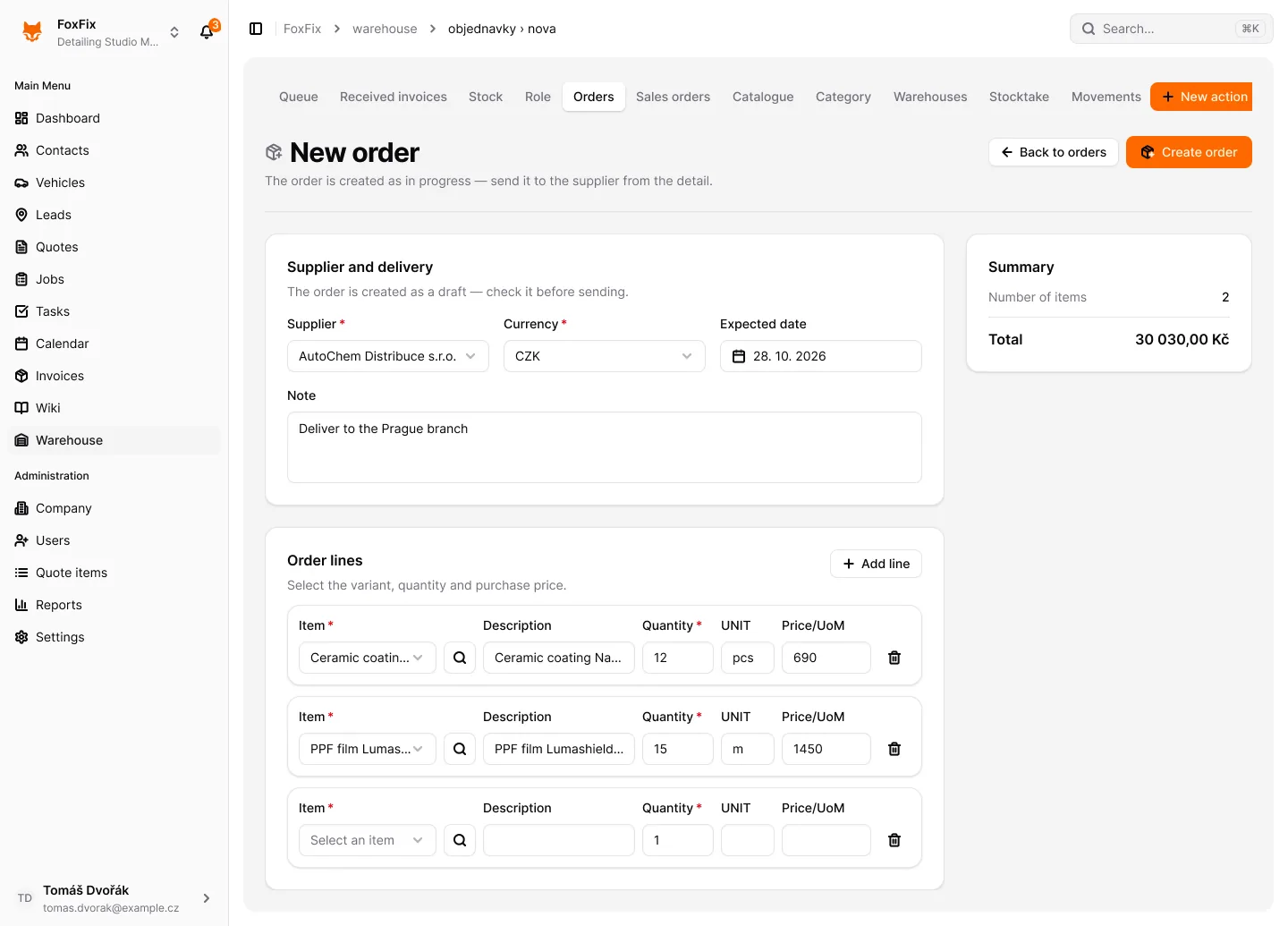
- In the Supplier and delivery card, select:
- Supplier (required) — only contacts in the Supplier category are offered,
- Currency — CZK or EUR,
- the Expected date of delivery,
- Note (“Internal note on the order”).
- In the Order items card, select the Item for each line. The description, unit and last purchase price fill in by themselves. Adjust the Quantity and Price/UoM. The magnifying glass button next to the item opens the Stock items overview with availability by warehouse.
- Add more lines with the Add line button and remove them with the bin icon.
- On the right, the Summary card shows the Number of items and the Total.
- Click Create order. The order gets a number from the number series, is created with the Draft status (“Order … created”) and its detail opens.
 (opens the full-size image in a new tab)
Order statuses
| Status | What it means | How it is set |
|---|---|---|
| Draft | A draft, not yet sent. | After creation. |
| Sent | Sent to the supplier. | The Mark as sent button. |
| Confirmed | The supplier has confirmed the order. | The Confirmed by supplier button. |
| In transit | The goods are on their way. | The Goods are in transit button. |
| Partially received | Some of the goods have arrived and been received. | Automatically, by receiving from a received invoice. |
| Received | Everything has arrived. | Automatically, by receiving from a received invoice. |
| Cancelled | The order has been cancelled. | The Cancel order button. |
Sent orders where something is still missing are shown to the warehouse worker in the queue under In transit from suppliers.
Order detail
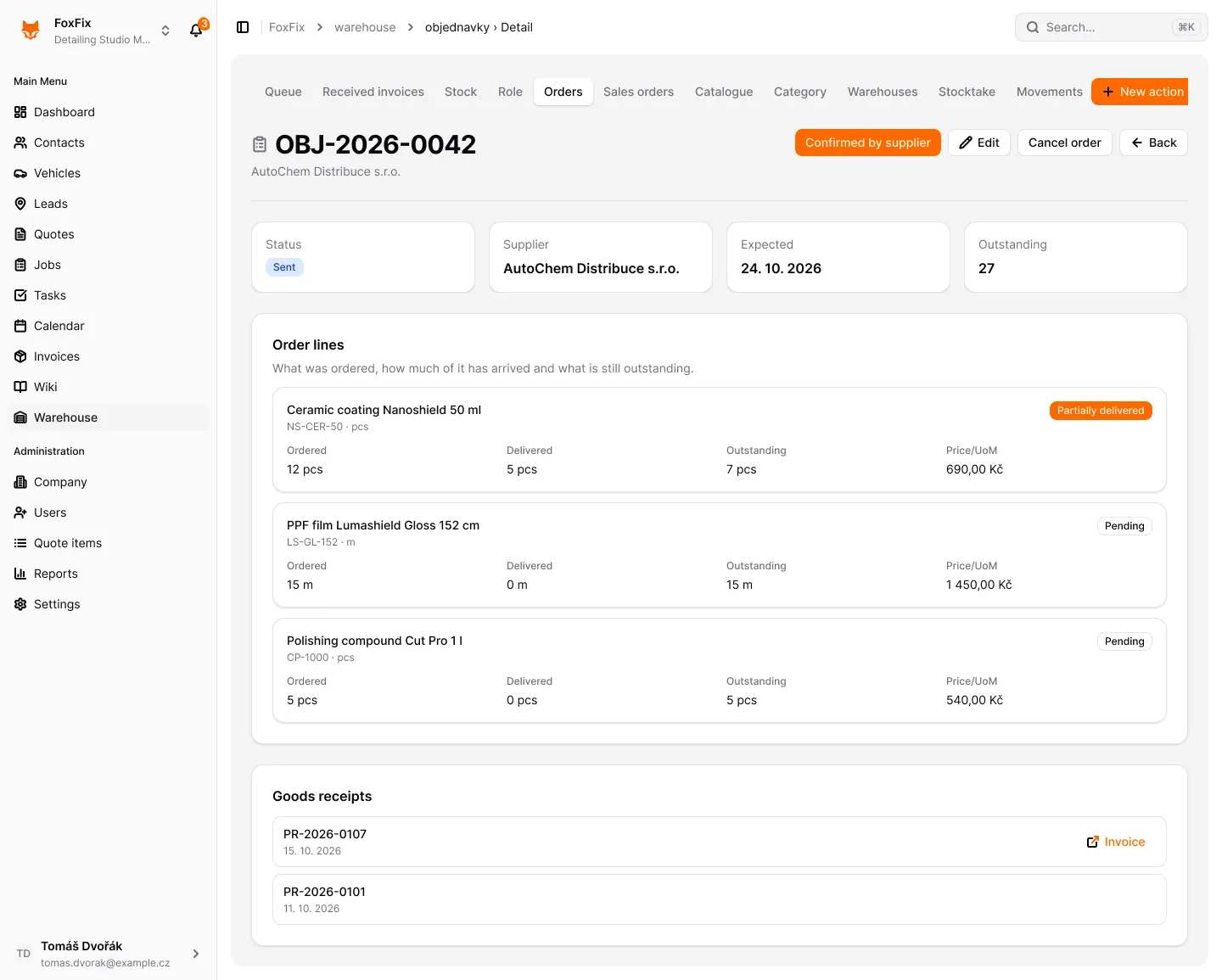
The detail shows the Status, Supplier, Expected and Outstanding cards (how much has not arrived yet), followed by Order lines and Goods receipts.
- For each line you see Ordered, Delivered, Outstanding and Price/UoM, and a Waiting, Partially delivered, Delivered or Cancelled badge.
- Goods receipts are the individual receipts of goods with their date. The Invoice link opens the received invoice the receipt came from.
 (opens the full-size image in a new tab)
Buttons in the header:
- the next-step button (Mark as sent, Confirmed by supplier, Goods are in transit),
- Edit — in a draft order you can change the supplier, currency, date and note; once sent, only the date and note,
- Cancel order — after you confirm “Cancel order …?”, the order is marked as cancelled. This action cannot be undone.
A received or cancelled order can no longer be edited.
How to match an order to an invoice
When the supplier's invoice arrives:
- Upload it on the Received invoices tab and save it to the queue.
- In the invoice detail, in the Matching against order card, select the order and click Match.
- Check the MATCH / MISMATCH verdict and the line badges (Price mismatch, Quantity mismatch, Unexpected line).
- Receive the lines. Based on the delivered quantity, the order switches to Partially received or Received by itself, and a goods receipt is added to the detail.