
Duplicate contacts and merging
The same customer can end up in the address book more than once — from a website enquiry, an old import or by being created by hand. The Duplicate contacts page finds such contacts and lets you merge them into one. You lose nothing by merging: all documents and vehicles move to the contact you keep.
Who can see this
Only administrators and managers. Other users see the message “You do not have permission”. Open the page with the Duplicates button in the contact list.
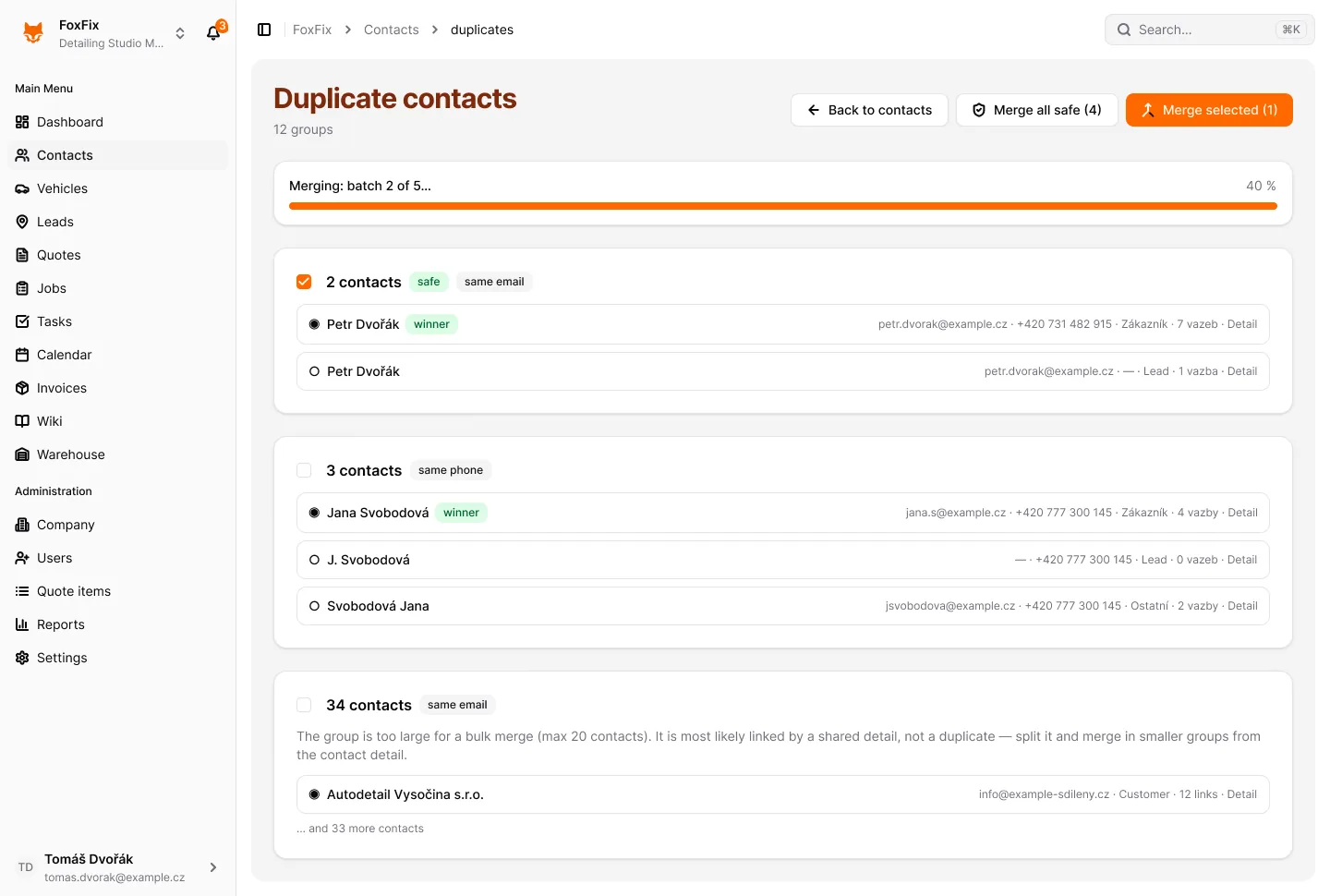 (opens the full-size image in a new tab)
What you will find on the page
Contacts are gathered into groups. Each group is one card:
- Checkbox — selects the group for merging.
- Number of contacts in the group (“2 contacts”).
- Match labels — same email, same phone, same company ID.
- A green safe label on groups that can be merged without checking (see below).
- Contact list — for each one the email, phone, category, number of links (how many documents, vehicles and leads refer to the contact) and a Details link. Use the radio button to choose the winner.
At the top you will find the number of groups and the Back to contacts, Merge all safe (N) and Merge selected (N) buttons.
How groups are formed
A group contains active contacts that have the same email, the same phone number (main or second) or the same company ID. An email shared by a large number of contacts (for example a generic company mailbox) does not count as a match — on its own it does not prove that it is the same customer.
What “safe” means
A group is safe when all its contacts are of the same type (only people or only companies), have the same email and also share at least one phone number. For such a group it is almost certain that it is one customer. Safe groups are at the top of the list and are already ticked.
Who is the winner
The winner is the contact that remains after the merge. FoxFix preselects it like this:
- a contact that is not in the Lead category takes priority,
- then the contact with the most links,
- and finally the oldest one.
You can change the winner with the radio button next to another contact. The selected winner has a winner label.
What happens during a merge
- Jobs, quotes, invoices, vehicles and leads of the losing contacts move to the winner.
- The losing contacts are deactivated — nothing is deleted. You will no longer see them in the contact list. If you open one through a link, the This contact has been merged panel appears with a link to the winner.
- The merge is written to the contact history.
How to merge duplicates
Merge all safe groups
- Click Merge all safe (N).
- In the Merge all safe groups? dialog, check the number of groups and click Merge.
- Follow the progress (“Merging: batch 2 of 5…”). At the end, the Merge result is shown.
Merge selected groups
- Check the contacts in each group — if in doubt, open Details.
- Use the radio button to choose the correct winner.
- Tick the groups you want to merge and untick the ones that are not duplicates.
- Click Merge selected (N) and confirm with Merge.
Check groups that match only on phone or company ID
Family members often share a phone number, and branches of a company can have the same company ID. Always check such groups before merging — merging is meant only for genuine duplicates.
Group too large
A group with more than 20 contacts cannot be merged in bulk — the checkbox is disabled and the card shows only the first 20 contacts. Such a group is usually held together not by a duplicate but by a shared detail (for example a shared company phone number). Go through the contacts one by one and, for those that are not duplicates, correct the shared detail by editing the contact.
Tips and common problems
- “No duplicates” — there are no contacts in the address book with the same email, phone or company ID.
- “The merge did not finish” — some groups could not be merged; the list below the message shows which. Reload the page and repeat the merge.
- Prevent new duplicates with the check when creating contacts — see Duplicate check when creating.
- The lead detail also offers a duplicate when a website enquiry matched several contacts.