
Tracking supplier orders
The Warehouse → Orders → Suppliers screen as described below is part of the November 2026 update and appears once your company has it switched on. Until then Purchase orders applies.
In one place you see what needs to be ordered, what is on order and when it arrives. Orders are created and sent by the warehouse, purchasing or management; back office and cost centre heads can view them. Purchase prices and amounts are shown only to roles allowed to see purchase prices — the warehouse sees quantities and statuses, not prices.
 (opens the full-size image in a new tab)
Overview
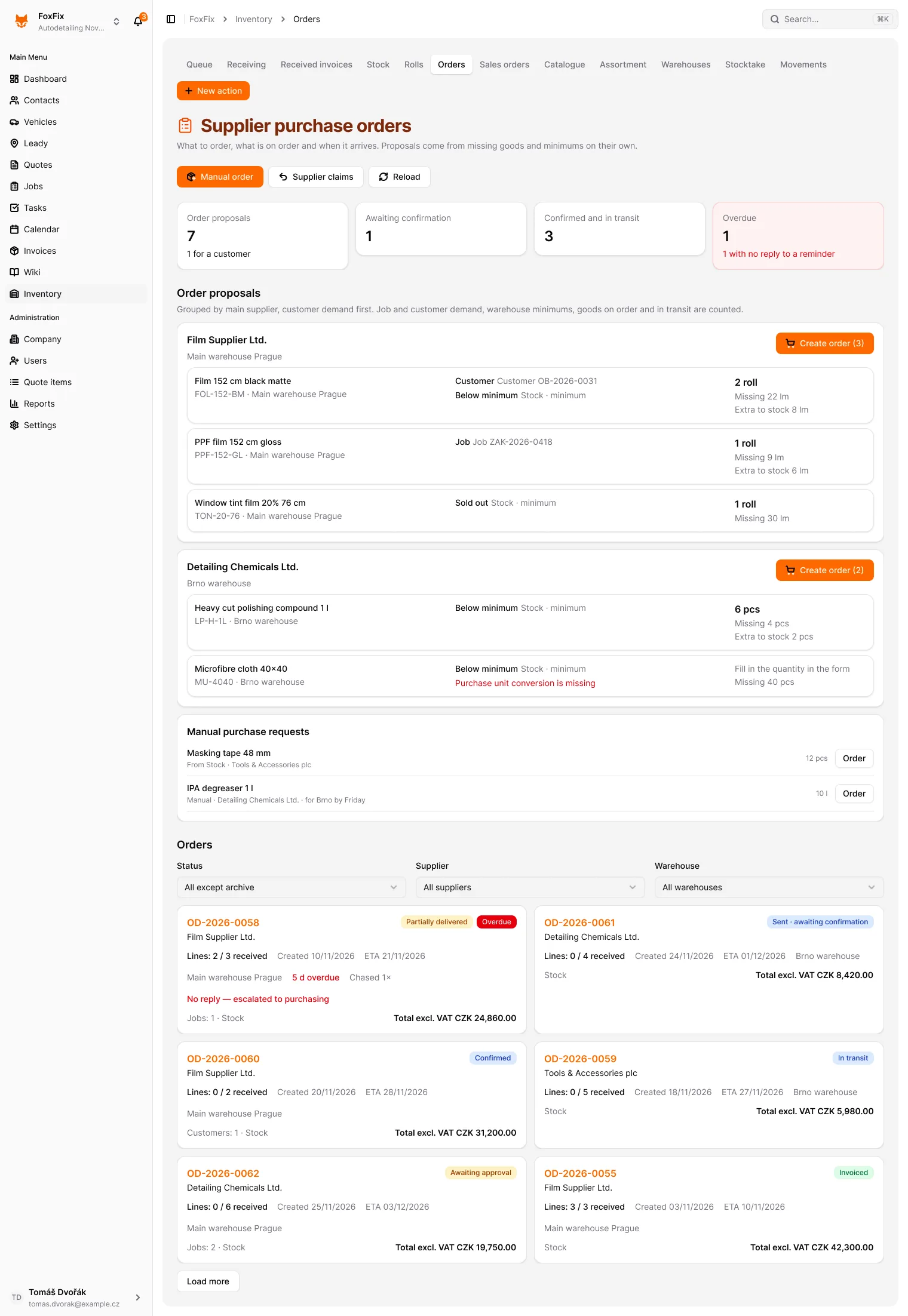
At the top are four figures from the loaded orders:
| Tile | What it shows |
|---|---|
| Order proposals | How much needs to be ordered; how much of it for a customer. |
| Awaiting confirmation | Sent orders the supplier has not confirmed yet. |
| Confirmed and in transit | Confirmed, in-transit and partially delivered orders. |
| Overdue | Orders past the delivery date; how many of them have no reply to a reminder. |
Order proposals
Proposals appear on their own; you do not create anything by hand. FoxFix adds up:
- customer — a sales order that is short of goods,
- job — material a job is missing,
- sold out and below minimum — a warehouse where the free quantity (in stock minus reserved) dropped below the card's minimum for that warehouse,
and subtracts what is already on order (drafts, awaiting approval, sent and confirmed orders) and in transit. Goods ordered for a specific job or customer cover that one first; the rest goes to stock.
Proposals are grouped by the card's main supplier, groups with customer demand first. Each line shows why and for whom it is ordered, how much is missing and how much to order in the supplier's purchase unit — rounded to the pack and minimum order quantity. Anything left over from rounding goes to stock.
Below minimum is assessed after deliveries are counted: if the card has a reorder quantity, that is proposed, otherwise the quantity missing up to the minimum.
Create an order from proposals
- In the supplier's group click Create order (N).
- New supplier order opens with the supplier, warehouse, cards, quantities and the target (job, customer or stock) prefilled.
- Check the prices, save the draft and send the order. The purchase requests the proposal came from are marked as ordered and the proposal disappears.
Manual purchase requests (from Stock, from a quote, manual) are listed separately below the proposals; Order turns them into an order the same way.
A line with the warning "The card has no main supplier" or "Purchase unit conversion is missing" is fixed on the card in Card suppliers and minimums.
Order list
Orders are listed newest first and loaded page by page with Load more. You can filter by status, supplier and warehouse.
Each order shows its number, supplier, status, how many lines are received, the delivery date (ETA), whom it is ordered for and — with purchase prices — the amount excl. VAT.
| Status | Meaning |
|---|---|
| Draft | Work in progress, not sent. After 20 days its author sees it highlighted; after 30 days it moves to the Draft archive. |
| Awaiting approval | Over the limit, waiting for the approver. |
| Approved | Approved and ready to send. |
| Sent · awaiting confirmation | Sent to the supplier. |
| Confirmed | The supplier confirmed it (with a date). |
| In transit | The goods are on the way. |
| Partially delivered | Part arrived, the rest is on the way. |
| Received | Everything arrived. |
| Invoiced | Everything arrived and matched supplier invoices cover every line. |
| Cancelled | Cancelled order. |
The Overdue label appears next to the status from the day after the delivery date until the order is fully received. You can select it in the status filter on its own.
Order detail
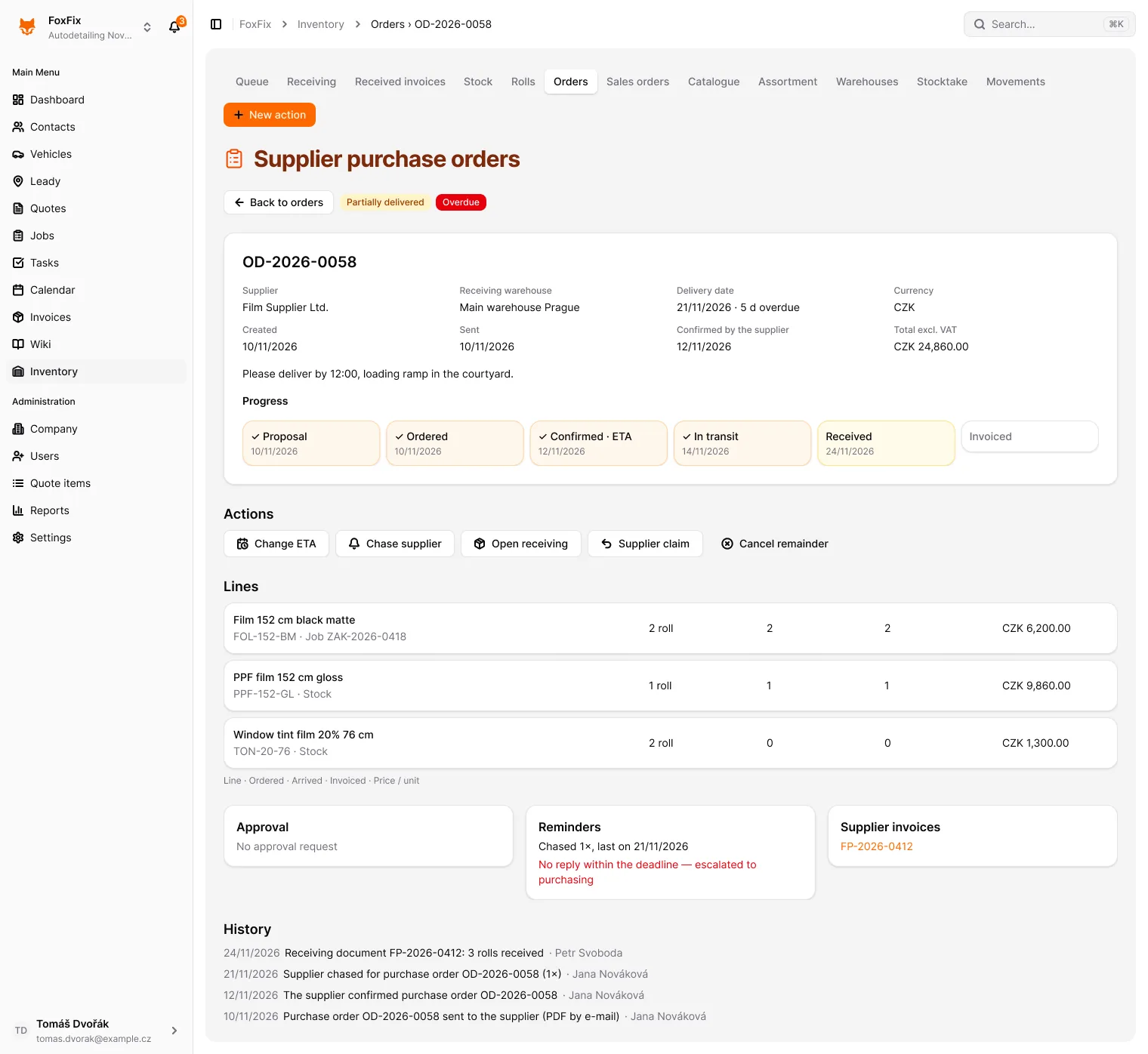
The detail shows the supplier, receiving warehouse, delivery date, the dates of creation, sending and confirmation, and the progress:
① proposal → ② ordered → ③ confirmed · ETA → ④ in transit → ⑤ received → ⑥ invoiced.
Under Lines each line shows ordered, arrived, invoiced and remaining (with prices, the unit price) and reserved on receipt for — job, customer or stock. Further down are the approval (round status, with prices also the amount), reminders, supplier invoices and the order history.
 (opens the full-size image in a new tab)
What can I do here
| Button | When | What happens |
|---|---|---|
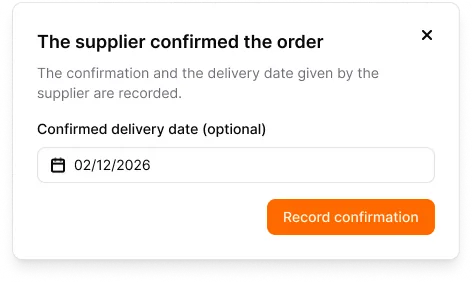
| Confirmed by supplier | Sent, not confirmed yet. | Records the confirmation and optionally the confirmed delivery date. |
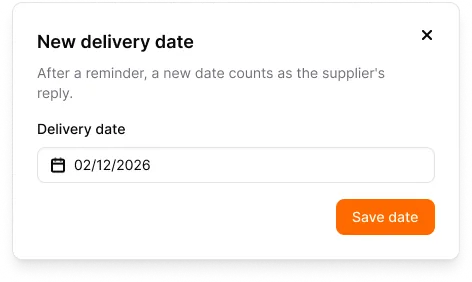
| Change ETA | Waiting for goods. | Records a new delivery date. After a reminder it counts as the supplier's reply. |
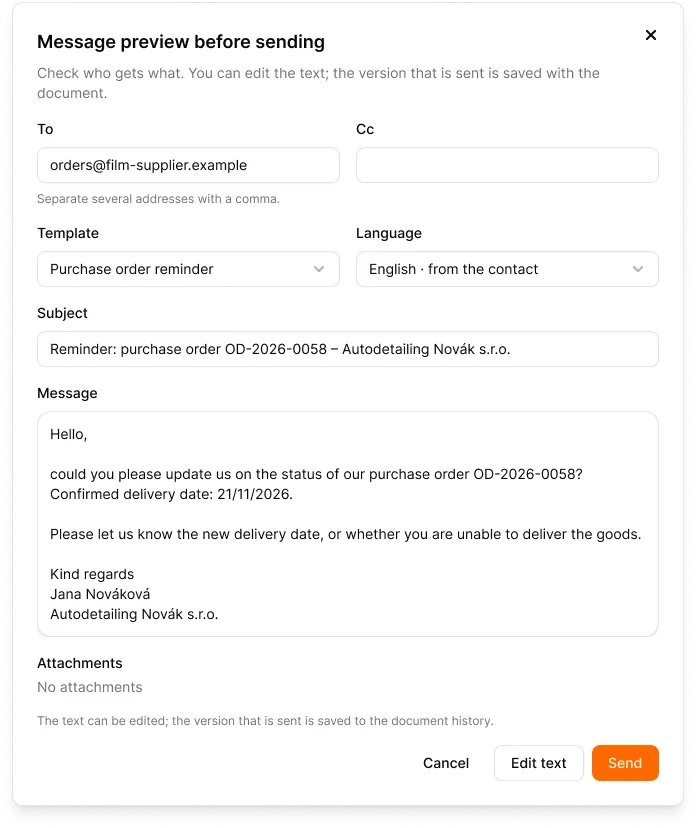
| Chase supplier | Waiting for goods. | Opens a message preview with the Purchase order reminder template (recipient, subject, text, language by supplier). After sending, the reminder count goes up. |
| Open receiving | Waiting for goods. | Goes to Documents to receive. |
| Edit and send | Draft, awaiting approval, approved. | Opens the new order form. |
| Supplier claim | Always (with write access). | Creates a supplier claim. |
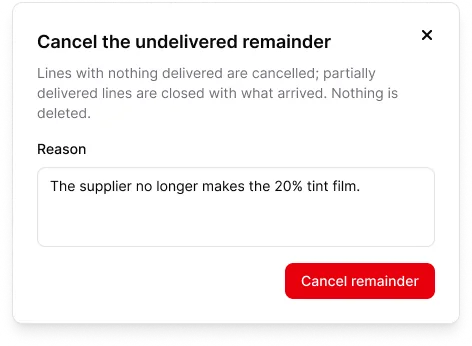
| Cancel remainder | While something is still to be delivered; not while the order awaits approval (the approver returns it first). | After you enter a reason, lines with nothing delivered are cancelled and partially delivered lines are closed with what arrived. Nothing is deleted. |
Reminders: when the supplier does not reply within 5 days (company setting) of a reminder — no confirmation, no new date and no cancelled remainder — the order shows "No reply — escalated to purchasing". The morning after the deadline, purchasing (the CFO in a company without purchasing) gets an Urge escalation notification. Each reminder is escalated only once; after the next reminder the deadline starts again.
 (opens the full-size image in a new tab)
 (opens the full-size image in a new tab)
 (opens the full-size image in a new tab)
 (opens the full-size image in a new tab)