
Wiki
The wiki is your company's knowledge base: working procedures, checklists, price lists, guides for new colleagues. You sort pages into folders and write them in an editor that handles headings, lists, tables, links and images. Everything saves by itself.
Who can see this
The wiki is visible to all users of a company that has the Wiki module switched on (it is part of every plan). Anyone can create, edit and delete pages.
 (opens the full-size image in a new tab)
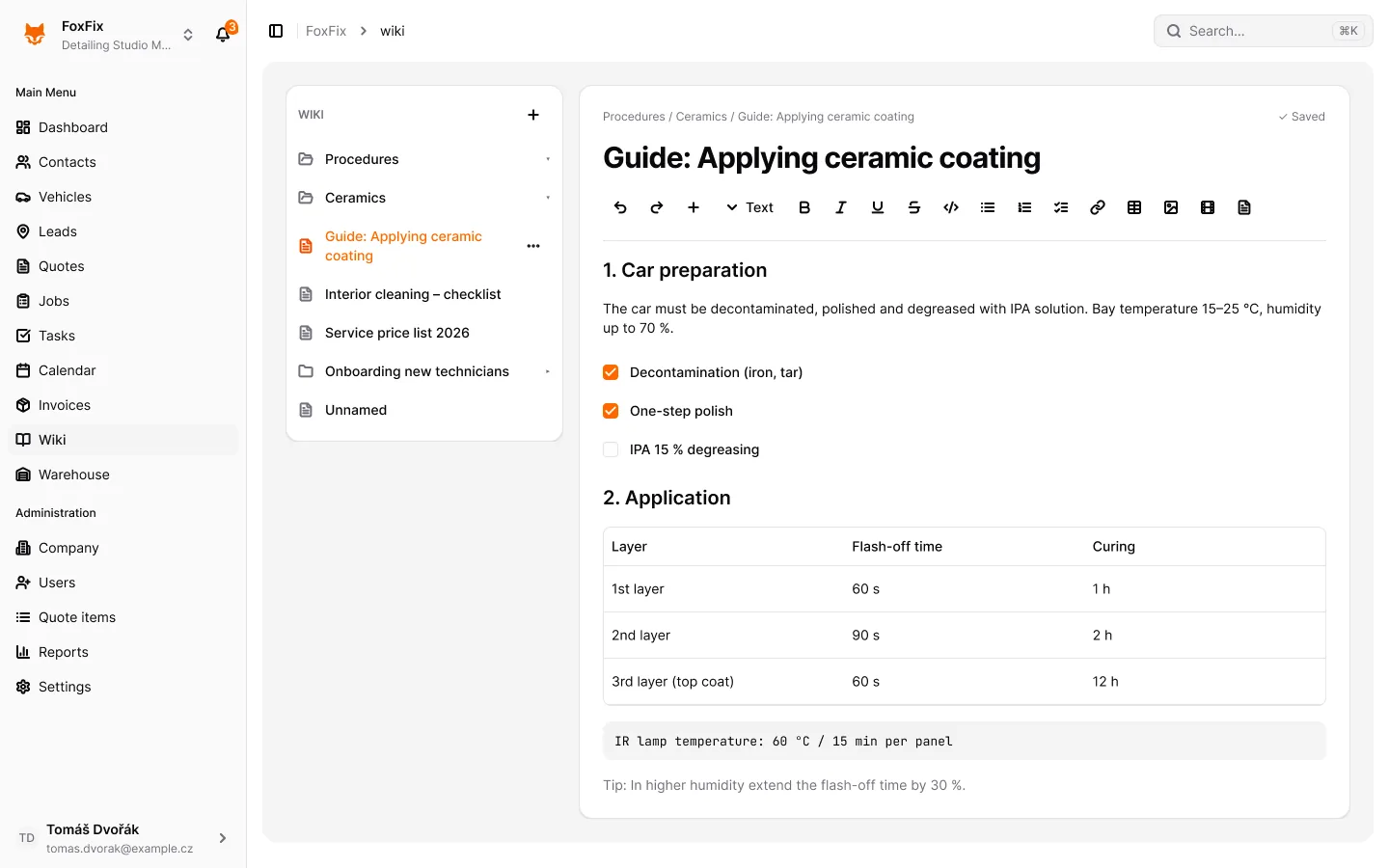
What you will find on the page
- The tree on the left under the WIKI heading – folders and pages. Expand or collapse a folder with the arrow. A page without a name is shown as Untitled.
- The open page on the right – at the top the path to the page (e.g. Procedures / Ceramic coating / Guide…), below it the large page title, the formatting toolbar and the content. At the top right you can see whether everything has been saved (Saving… / ✓ Saved).
When you open the wiki, the first page is shown automatically.
How to create a page or folder
- In the tree, click + next to the WIKI heading.
- Choose New page or New folder. The item is created at the top level.
- To create one inside a folder, hover over the folder, open the ⋯ menu and choose New page or New folder.
- Click the new title at the top of the page (“Page title”) and type your own.
When the wiki is completely empty, you will see “You have no pages yet.” and a Create your first page button.
How to write and format
Start typing in the page content (“Start typing…”). The toolbar above the content offers:
- Undo and Redo,
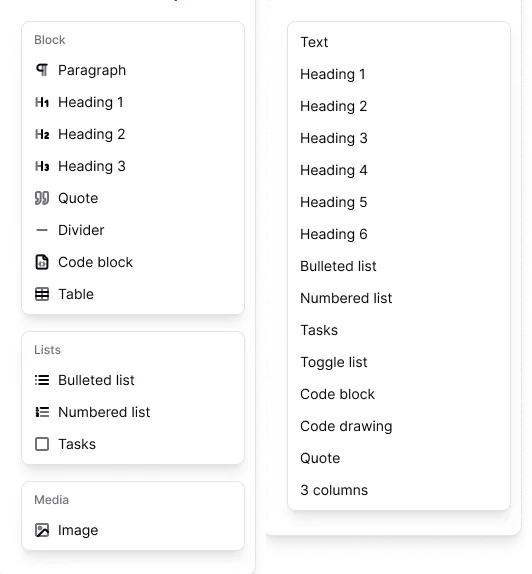
- + (Insert) – inserts a new block: Paragraph, Heading 1–3, Quote, Divider, Code block, Table, lists (Bulleted list, Numbered list, Tasks) and Image,
- Turn into (the button labelled Text) – converts the current block into another type: Text, Heading 1–6, lists, Toggle list, Code block, Code drawing, Quote or 3 columns,
- Bold (⌘B / Ctrl+B), Italic (⌘I / Ctrl+I), Underline (⌘U / Ctrl+U), Strikethrough, Inline code,
- bulleted and numbered lists and Tasks (a checklist with tick boxes); for lists you can also choose the bullet or numbering style,
- Link, Table, Image, Video and File.
 (opens the full-size image in a new tab)
Link
- Select some text and click Link.
- Paste the address into the “Paste link” field and, if needed, edit the Text to display.
For an existing link you can choose Edit link or Open link in a new tab.
Image, video and file
- Click Image (or Video or File).
- Choose Upload from computer, or Insert via URL and paste a link.
- You can write a caption below the image (“Write a caption…”).
Uploaded files are stored in your company's storage.
Table
Once you have inserted a table, you can use its menu to insert and delete rows and columns (Insert row above/below, Insert column left/right), Merge cells, Split cell, set the Background colour and Cell borders, or delete the whole table.
Automatic saving
The wiki has no Save button. Changes are saved continuously as you type, when you leave a field and when you switch to another page. You can see the status at the top right.
How to rename, move and delete
- Rename – in the item's ⋯ menu choose Rename, type the new name and confirm with Enter (Esc cancels).
- Move – drag a page or folder with the mouse onto another folder. Dragging it onto an empty space in the tree moves it to the top level.
- Delete – in the ⋯ menu choose Delete and confirm (“Delete the page "…"?”).
Deleting a folder deletes its contents too
For a folder, FoxFix asks “Delete the folder "…" and its contents?”. Once you confirm, the folder and all pages and subfolders in it disappear. Deleting cannot be undone.
On a phone
On a phone the page tree is not shown – you only see the open page and its path. Create, move and switch pages on a computer or tablet.
Tips and common problems
- I see “Select a page”. Click a page in the tree on the left. If you click a folder, you will see “This is a folder — select a page inside it.”
- The content did not load. Click Try again.
- Workshop checklists (e.g. the ceramic coating application procedure) are best written as a Tasks list with tick boxes. Note: ticking a box is saved to the page and everyone sees it.