
Quote items (price list)
Quote items are your company's price list: preset services and products that you simply pick when building a quote, without retyping the name or price. Each item can apply to a specific vehicle make and model, or to all vehicles.
Who can see it
You will find the page in the left-hand menu under Administration as Quote items — this part of the menu is visible to an Administrator and a Manager. Other users work with the price list directly in the quote form through the Item catalogue window. Only an Administrator and a Manager can create new items and categories and approve proposals; everyone else proposes items for the price list.
 (opens the full-size image in a new tab)
What you will find on the page
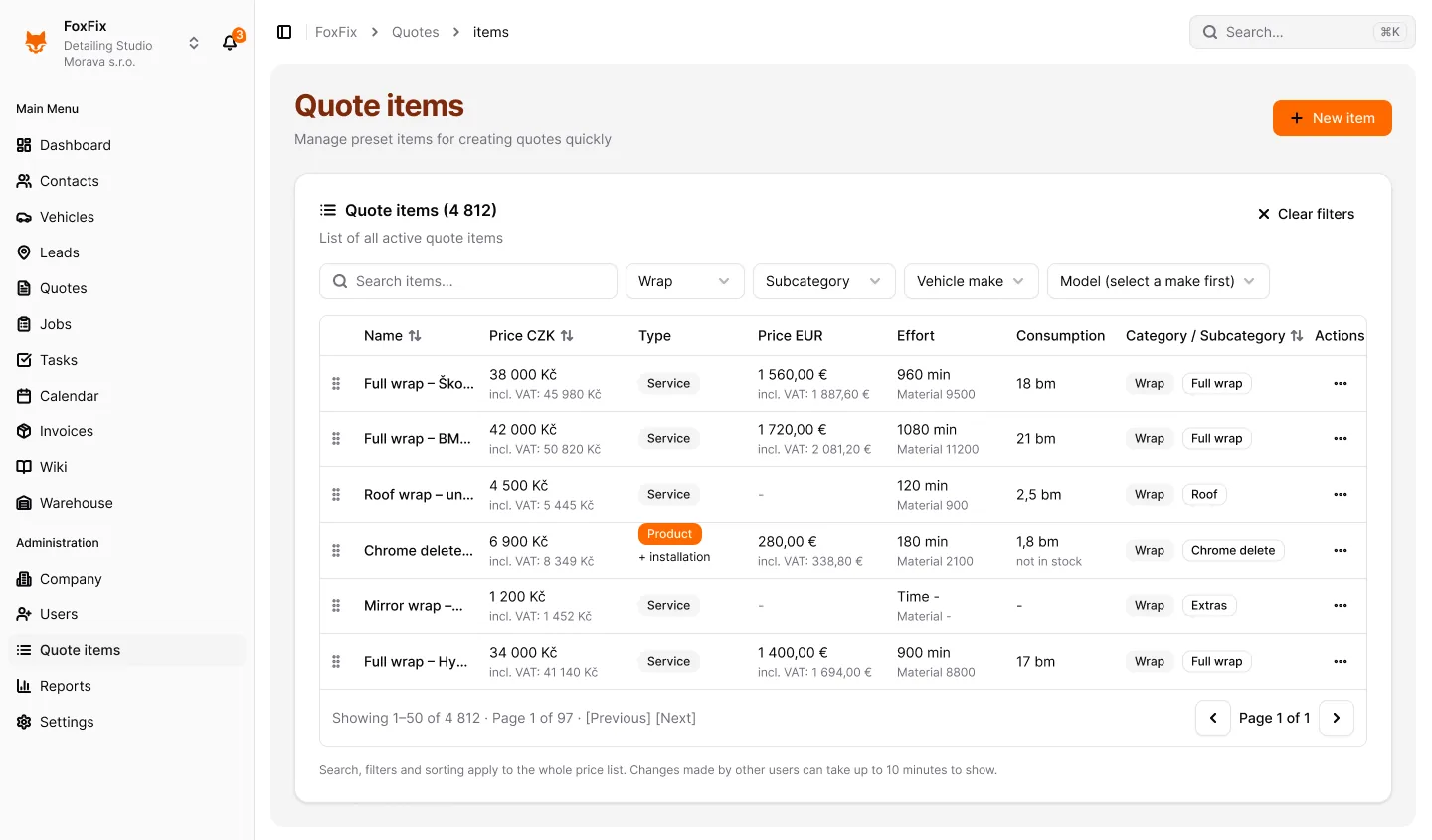
At the top right are the Item proposals (see Item proposals) and New item buttons. Above the table are the number of active items (Quote items (4,812)), search and filters. The table has these columns:
| Column | Meaning |
|---|---|
| Name | The item name. Click it to open the item detail. |
| Price CZK | The price excluding VAT in CZK, with the price including VAT below it. |
| Type | Service or Product; for a product with fitting, also + installation. |
| Price EUR | The price excluding VAT in euros (if entered), with the price including VAT below it. |
| Effort | Time required in minutes and material cost. |
| Consumption | How much material one unit of the item uses (e.g. 18 bm). The not in stock label means the item is not linked to a stock variant. |
| Category / Subcategory | Where the item sits in the price list. |
| Actions | The ⋯ menu with View, Edit and Delete. |
Search and filters
- Search — type part of the name into the “Search items...” field.
- Category and Subcategory — you can choose a subcategory only after choosing a category.
- Vehicle make and Vehicle model — you can choose a model only after choosing a make. You can type to search in all of these lists.
- Clear filters — clears all filters at once.
Search, filters and sorting apply to the whole price list. Click the Name, Price CZK or Category / Subcategory column header to sort the whole price list; click again to reverse the order. Move between pages with the Previous and Next buttons below the table.
Changes may take a while to show
Changes other users make to the price list can take up to 10 minutes to appear in your search results.
Item detail
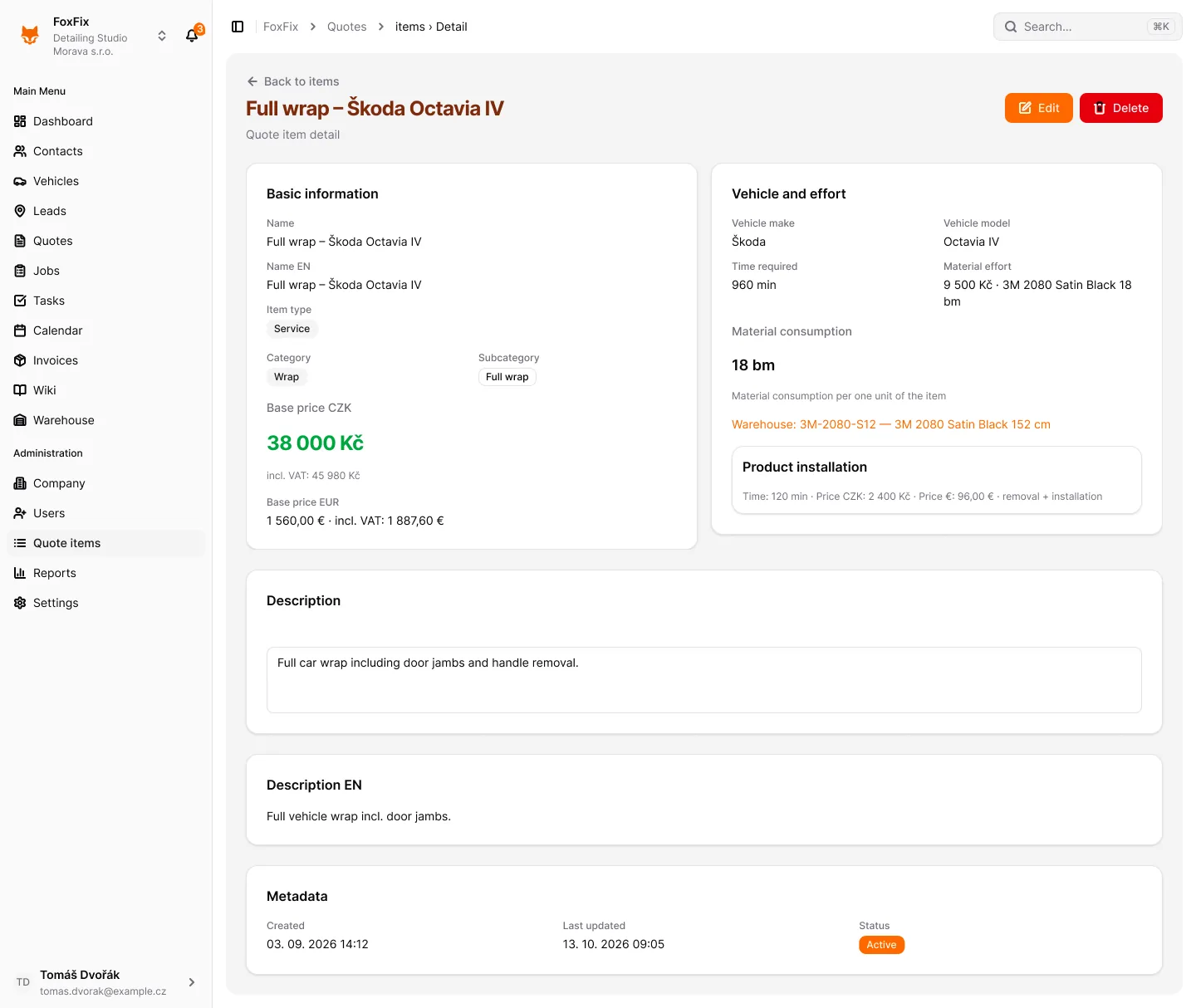
Click a name to open the item detail. It contains:
- Basic information — the name (including the English one), type, category, subcategory and Base price CZK and EUR, including the price with VAT.
- Vehicle and effort — which make and model the item applies to (or All vehicles), the time and material effort, the Material consumption with a link to the stock variant and, if relevant, the Product installation.
- Description — text you can edit in place; it saves itself.
- Metadata — when the item was created and last modified, and whether it is Active.
Items taken over from the company price list also have read-only cards:
- Price list data — for example the Line type (Package, Part, Add-on, Service, Goods), Cost centre, Pricing (Fixed or Priced per quote), time and material norms, Fulfilment (In-house, Subcontracted, External for now) and External lead time.
- Bill of materials — which stock cards the item is made up of, and in what quantity.
- Recommended items — what else should be offered with the item on a quote, and by which rule. These recommendations appear on the quote in the Don't forget to add card.
 (opens the full-size image in a new tab)
The Edit button opens the edit form; the Delete button removes the item from the price list.
If you see the amber warning “Consumption is filled in, but the item is not linked to a stock variant, so inventory cannot reserve it.”, fill in the Inventory product field when editing the item.
New item
Price-list items are created by an Administrator or a Manager. Everyone else sees, instead of the form, the message “Price-list items are created by a manager. If you cannot find an item, send a proposal — a manager adds it after review.” and a Propose an item button.
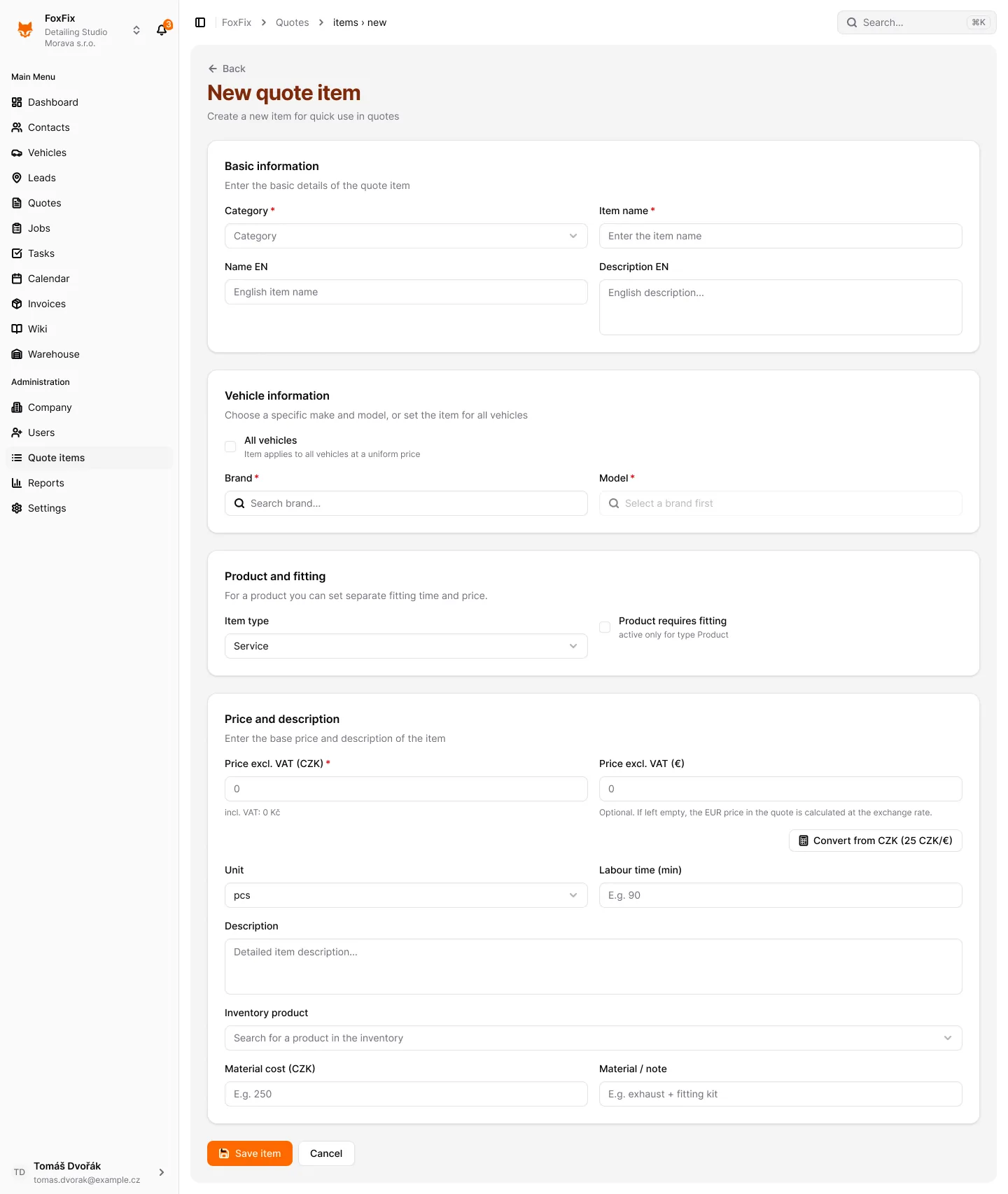
- Click New item at the top right. The New quote item form opens.
- Fill in the individual cards (see below).
- Click Save item. “Quote item created” appears.
 (opens the full-size image in a new tab)
You can also open the same form (in a compact version) directly from a quote — see When you can't find an item in the price list.
Basic information
- Category * — choose a price-list category. Add a new category with the + Add category option (the New category window opens; Add category saves it).
- Item name * — the name printed on the quote.
- Name EN and Description EN — the English version for quotes to clients who have English set. If you leave them empty, the English quote uses an automatic translation.
Vehicle information
- Tick All vehicles if the item applies to any car at a single price.
- Otherwise choose the Brand * and Model *. If the make or model is not in the list, you can type your own name.
Items for a specific vehicle are then offered first in the quote form when the quote has the same vehicle selected.
Product and fitting
- Item type — Service (labour) or Product (goods).
- Product requires fitting — only for the Product type. Once ticked, fill in Fitting (min), Fitting price CZK, Fitting price € and Fitting description (e.g. “removal + installation”).
Price and description
- Price excl. VAT (CZK) * — the price including VAT is shown below the field.
- Price excl. VAT (€) — optional. The Convert from CZK button calculates the price at the company exchange rate. If you leave the euro price empty, it is calculated at the exchange rate automatically on a euro quote.
- Unit — pcs, h, m, bm (running metre), m2, m3, kg, l, km, day, month.
- Description — a more detailed description of the item.
- Labour time (min) — how many minutes of work the item takes.
- Inventory product — the link to goods in Inventory. Once chosen, Material / note and Material cost are filled in. Thanks to the link you see availability on the quote, and the system can reserve and order the material.
- Material cost (CZK) and Material / note — internal information about material costs.
The form checks required details and does not allow negative prices or minutes (for example “Select a make and model, or tick All vehicles.”).
- You cannot create an item with the same name as one already in the price list (““…” is already in the price list. Edit the existing item instead of creating a new one.”). Names are compared ignoring diacritics, capital letters and punctuation.
- An item without a price is saved as Inactive (“The item has no price, so it is inactive — activate it once the price is filled in.”) and is not offered on quotes.
Editing an item
- In the list, open the ⋯ menu and choose Edit (or click Edit in the detail).
- Change the details in the Edit quote item form.
- Click Save changes.
A price change in the price list does not affect quotes that are already saved — it applies only to newly added rows.
Deleting an item
- In the ⋯ menu, choose Delete (or the Delete button in the detail).
- Confirm the question “Are you sure you want to delete this quote item?”.
The item is marked as inactive in the price list: it disappears from the list and from the choices on quotes. Quotes that already use it stay unchanged.
Item proposals
When a technician or salesperson cannot find what they need in the price list, they send a proposal from the quote (see Proposing an item for the price list). The manager receives the notification “New price list item proposal” and handles proposals on the Item proposals page (the button at the top right of the price list).
The page shows proposals To review and, with the All switch, also those already handled (Approved, Rejected). For each proposal you see the name, unit, vehicle, proposed price, who sent it and a link to the quote it came from.
- Approve and create — opens the new item form pre-filled from the proposal. Once saved, the item is created and the proposal is marked as approved.
- Reject — write why you are rejecting the proposal and confirm with Reject proposal. The author sees the manager's note.
Proposals also include stock card proposals (the Stock card label) — they arise in Inventory from received invoice lines for which no stock card exists yet. When approving, fill in the Product name, SKU, Stock unit, Cost centre and Sale price and confirm with Create card. A stock card and a sales item of the Goods type are created, and the invoice lines are matched to the card. Without a sale price the sales item stays inactive until you add one.
Item order
On a computer you can reorder the items on the page by dragging the handle to the left of the name.
On a mobile
On a phone the table scrolls sideways and the filters wrap onto separate lines. We recommend a computer for editing an extensive price list.