
Goods in
This guide helps you decide which way to get goods into the warehouse and why the steps follow each other exactly like this. FoxFix has two ways: receiving from a supplier invoice (with AI extraction and labelling of pieces) and quick receiving by scanning. You will find detailed click-by-click instructions on the Receiving goods page; this is the process overview.
Before you start
- Module and plan: Inventory — it is included in the Profi plan and higher, and an administrator must enable it in Settings → Company → Application modules.
- Role: anyone who can see Inventory can receive goods, including the Warehouse clerk role. A new stock card from an invoice is created by an Administrator or Manager; others propose it for approval.
- Catalogue and warehouses: you can only receive a variant that is in the catalogue and has an SKU or GTIN / EAN filled in, into a warehouse with bins created and bin QR labels printed. See Recommended order for the first setup.
Which way to choose
| Situation | Way | Why |
|---|---|---|
| A delivery with an invoice has arrived (several items) | The Received invoices tab | AI extracts the items from the PDF or photo, the invoice stays on record, every piece gets its own QR label and the receipt can be matched against an order. |
| Material on rolls (film etc.) | Always Received invoices | Quick receiving refuses rolls — every roll needs its own identity and label. |
| A few pieces without paperwork | New action → Receive | Scan the goods → scan the bin → quantity. Done in a few seconds. |
| A stocktake difference, a stock correction | Variant detail → Adjust stock | An adjustment with a required reason, not a receipt — see Manual stock adjustment. In bulk, use a stocktake. |
Way 1 — receiving from an invoice (recommended for deliveries)
The invoice is the record of what you bought and at what price. When you upload it, the warehouse gets the correct purchase prices (the stock value is calculated from them) and the whole delivery is checked piece by piece.
 (opens the full-size image in a new tab)
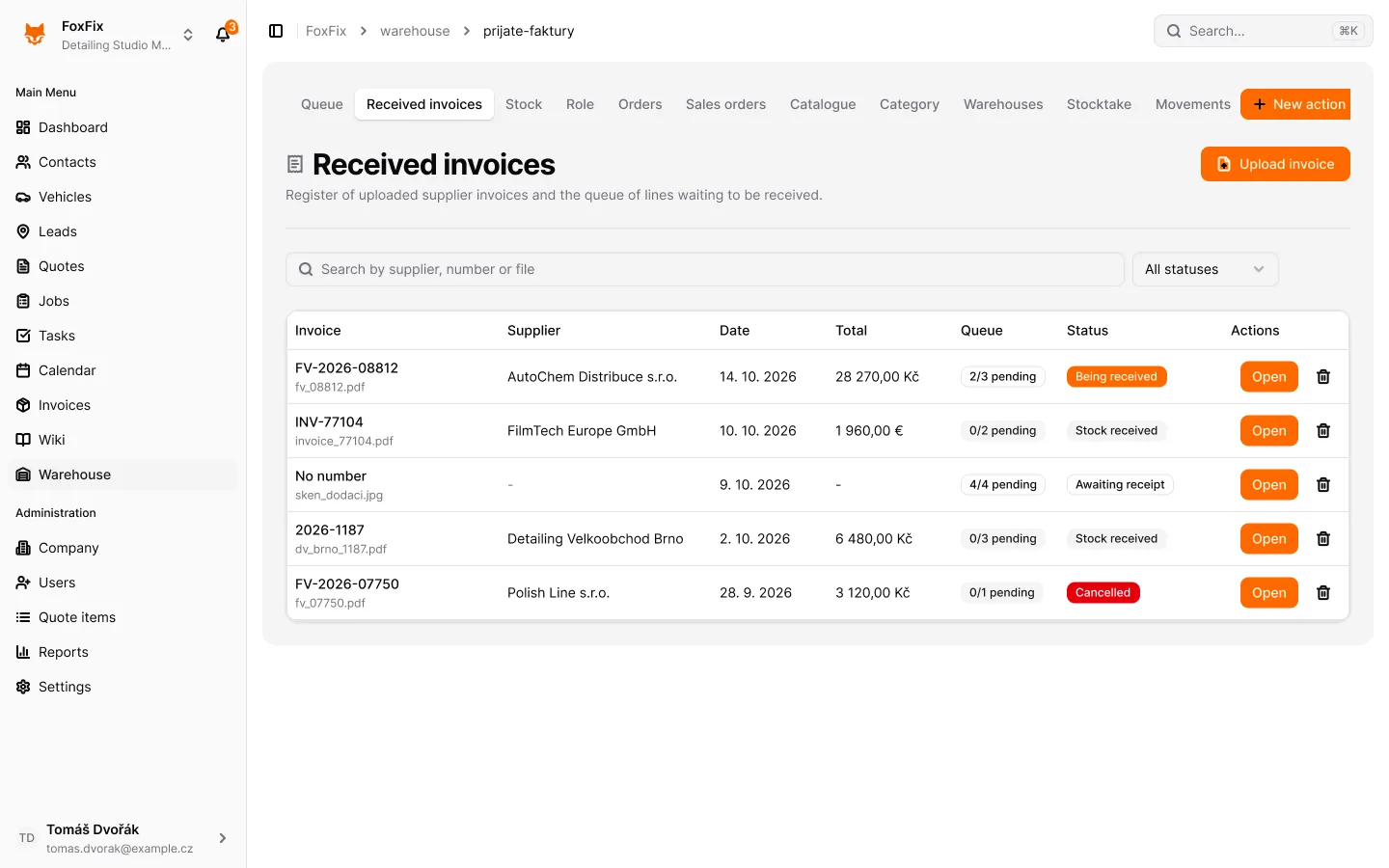
- Upload the invoice — the Received invoices tab → Upload invoice (or New action → Received invoice) → choose the file (PDF or photo). You will see "Extracting the invoice… (this takes a moment)" and then "The invoice was extracted. Please check the items."
- Check the extracted details and confirm with Save to queue. The invoice gets the Awaiting receipt status — nothing has been received yet. This way the office can upload the invoice and the warehouse clerk can receive it when the goods arrive.
- Open the invoice (the Open button) and, before unpacking, click Print labels (N). In the Print labels window you can adjust the quantities and print them. While unpacking, stick a label on every piece — the supplier's barcode is the same on all pieces, while our QR label gives each piece its own identity.
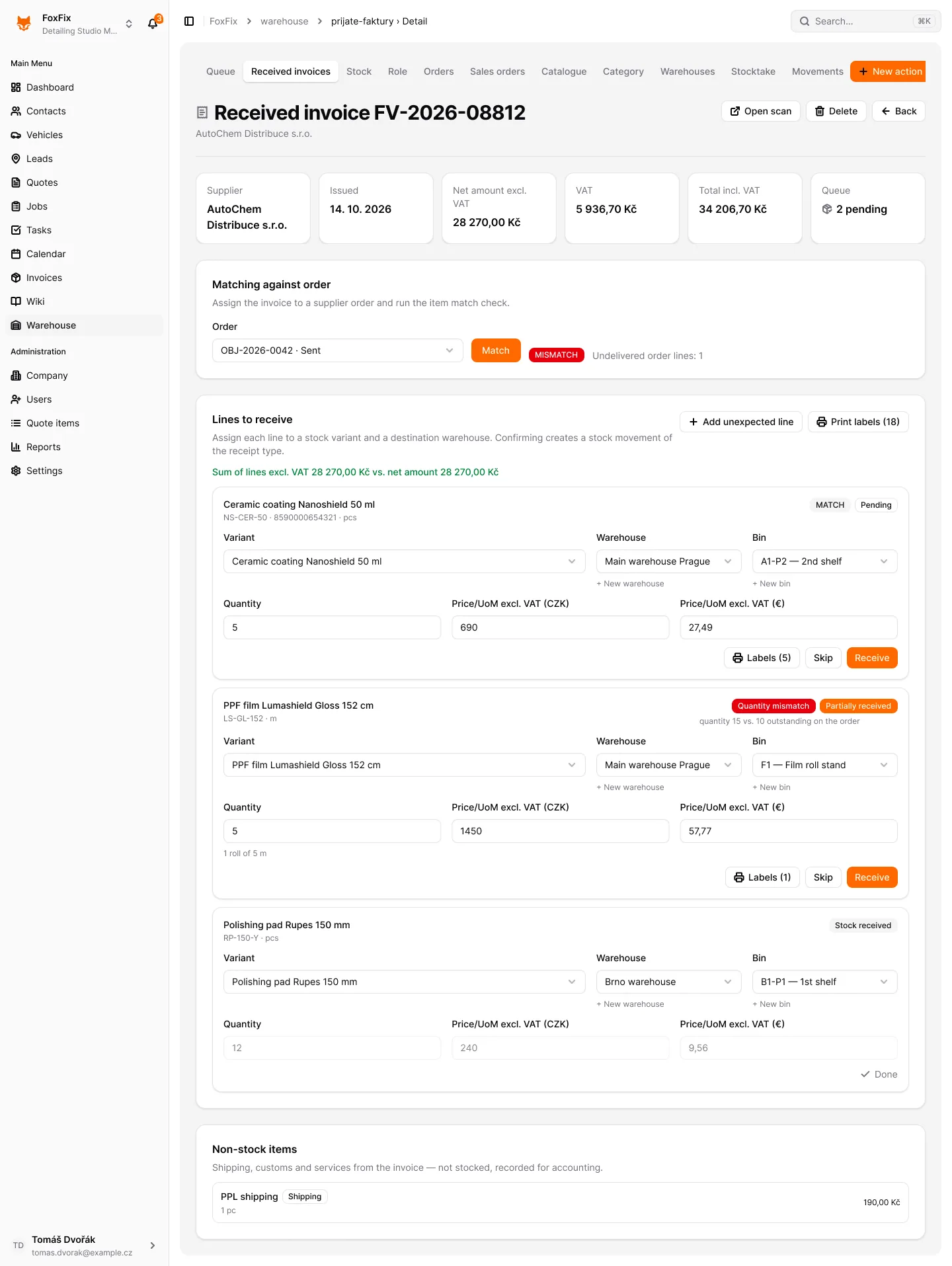
- For each row in Lines to receive, check the Variant (matched automatically by SKU/EAN and by the supplier's code from previous receipts), Warehouse, Bin, Quantity and Price/UoM excl. VAT (CZK) (for foreign invoices you can type into Price/UoM excl. VAT (€)) and click Receive.
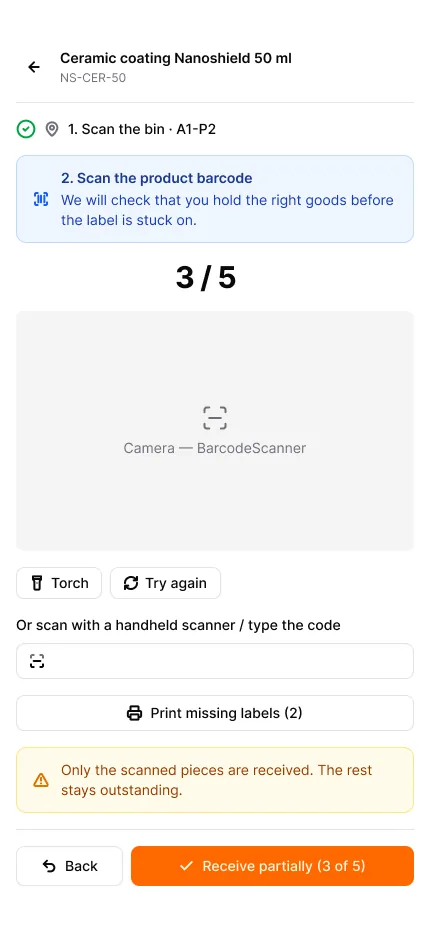
- The scanning wizard opens (full screen, built for mobile):
- Scan the bin — the QR label of the shelf where you are putting the pieces.
- Scan the product barcode — this checks that you are holding the right goods. If the product has no barcode saved, the step is skipped and you check the goods by eye.
- Stick our label on and scan it — this counts the piece. Steps 2 and 3 repeat for every piece; the X / Y counter shows the progress. Print any missing labels with the Print missing labels (N) button.
- Confirm with Receive, or Receive partially (X of Y) if fewer pieces arrived — the rest of the row stays Outstanding. You will see "Line received". Once no row is left waiting, the invoice switches to Received into stock.
 (opens the full-size image in a new tab)
 (opens the full-size image in a new tab)
Shipping, customs duty and other fees on the invoice are not received into stock. You will find them on the Non-stock items card, and shipping and duty are spread automatically into the purchase price of the goods on the same invoice. Deal with a goods row you do not want to receive with the Skip button.
Tip: Did you order the goods in advance on the Orders tab? On the Matching against order card, select the Order and click Match. For each row you will see Match, Price mismatch, Quantity mismatch or Unexpected line, and after receiving the order switches automatically to Partially received or Received. See Ordering from a supplier.
Did something arrive that is not on the invoice? The Add unexpected line button adds the item to the invoice and it is received the usual way, so a trace of it remains.
You will also find the rows of waiting invoices in Inventory on the Queue tab in the To receive section — you can receive them directly from there, see Inventory queue.
Way 2 — quick receiving by scanning
When you are bringing a few pieces into the warehouse and don't need to record a document:
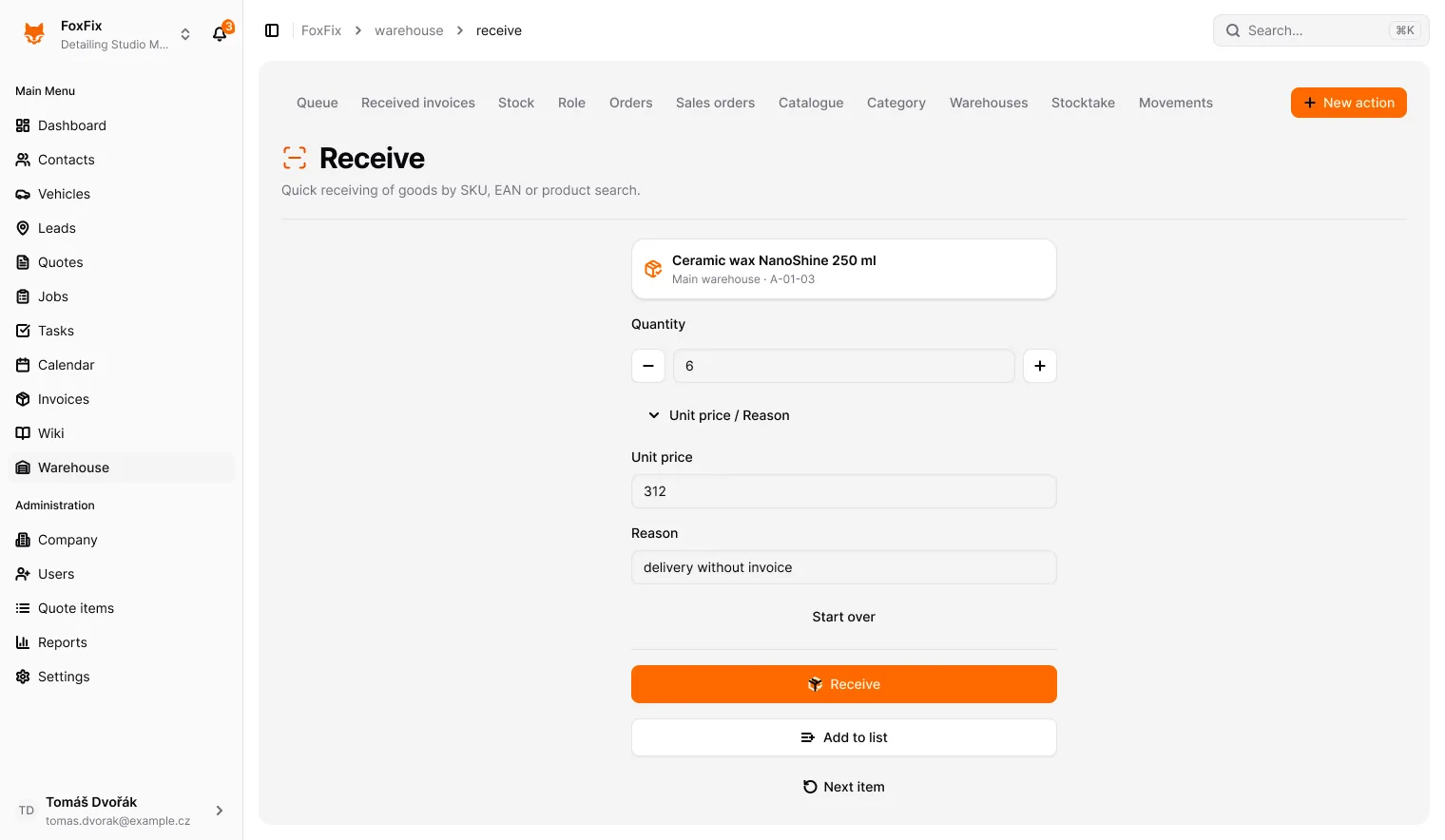
- In Inventory, click New action → Receive.
- Scan the product barcode (or enter the SKU manually).
- Scan the bin QR code (or select the warehouse and bin manually).
- Enter the Quantity and confirm with Receive. For several items at once, use Add to list and finally Receive all.
 (opens the full-size image in a new tab)
The purchase price is not filled in automatically
The quick way has no invoice to take the price from. So expand Cost per unit / Reason and fill in the price — otherwise the stock value in the stock overview will be wrong. Also bear in mind that pieces received this way have no QR labels of their own, so when issuing them to a job you will not be able to pick them by scanning labels.
Why rolls cannot be received the quick way
For a variant with Track by roll/lot switched on, quick receiving ends with the message "This material is tracked by roll. Receive it through the supplier invoice, where every roll gets its own QR label." This is not an error but a safeguard:
- Every roll is a separate piece with its own label, remaining length and history — on the Rolls tab you can see where it came from and which jobs its metres went to.
- The quick way can only add a number to the stock; it cannot create a roll.
- In the scanning wizard you fill in Metres on the rolls for rolls — the actual length of each roll. The total is compared with the invoice: the wizard refuses a surplus, and missing metres stay Outstanding.
Result: the goods are in the warehouse in the right bin, they have a purchase price and you can trace every Goods in movement in the movement history.