
Proforma invoice
For more expensive jobs (a full wrap, PPF on the whole car) it is common to ask for part of the price in advance. This guide takes you through the whole process: issuing a proforma invoice from the job, sending it and getting it paid, and finally the final invoice, which deducts the paid deposit automatically.
A proforma invoice is not a tax document. FoxFix issues the tax document for the received payment in iDoklad automatically as soon as the payment is matched. The final invoice then contains all the job's items and deducts what the client has already paid.
Before you start
- Module: Jobs and Invoices.
- Role: the proforma and the final invoice are issued by an Administrator, Manager or Salesperson; for a job with the status Awaiting billing, by anyone.
- iDoklad: both the deposit and the final invoice are sent through iDoklad, so the company must have it connected – see Company settings. If several companies invoice under one iDoklad account, choose the series in the iDoklad integration in the Proforma invoice numbering field.
- Job: you can only issue a deposit from a job, not from a quote. Each job can have one deposit.
Step 1 – Issue the proforma invoice
- Open the job detail and click Issue invoice.
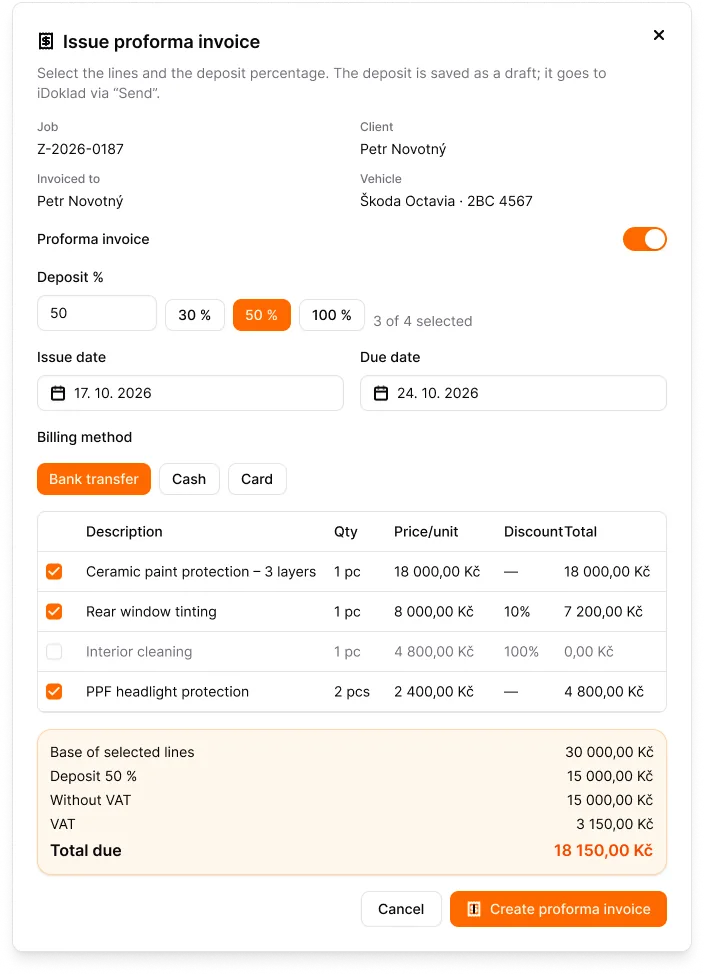
- In the Issue invoice window, switch on the Proforma invoice toggle. The window is renamed Issue proforma invoice.
- Type a percentage into the Deposit % field, or click 30 %, 50 % or 100 %. The default is 50 %.
- In the table, tick the items the deposit is calculated from. Next to the percentages you see “X of Y selected”.
- Check the Issue date and Due date (pre-filled as +7 days) and choose the Billing method: Bank transfer, Cash or Card.
- In the summary, check Base of selected lines, Deposit 50 %, VAT and Total due.
- Confirm with Create proforma invoice. You will see “Proforma invoice … created as a draft. It goes to iDoklad via “Send”.”
 (opens the full-size image in a new tab)
On the invoice the items are called “Deposit 50 % – …” and each one keeps the VAT rate of the original item. Issuing the deposit does not change the job's status.
Step 2 – Send the deposit to the client
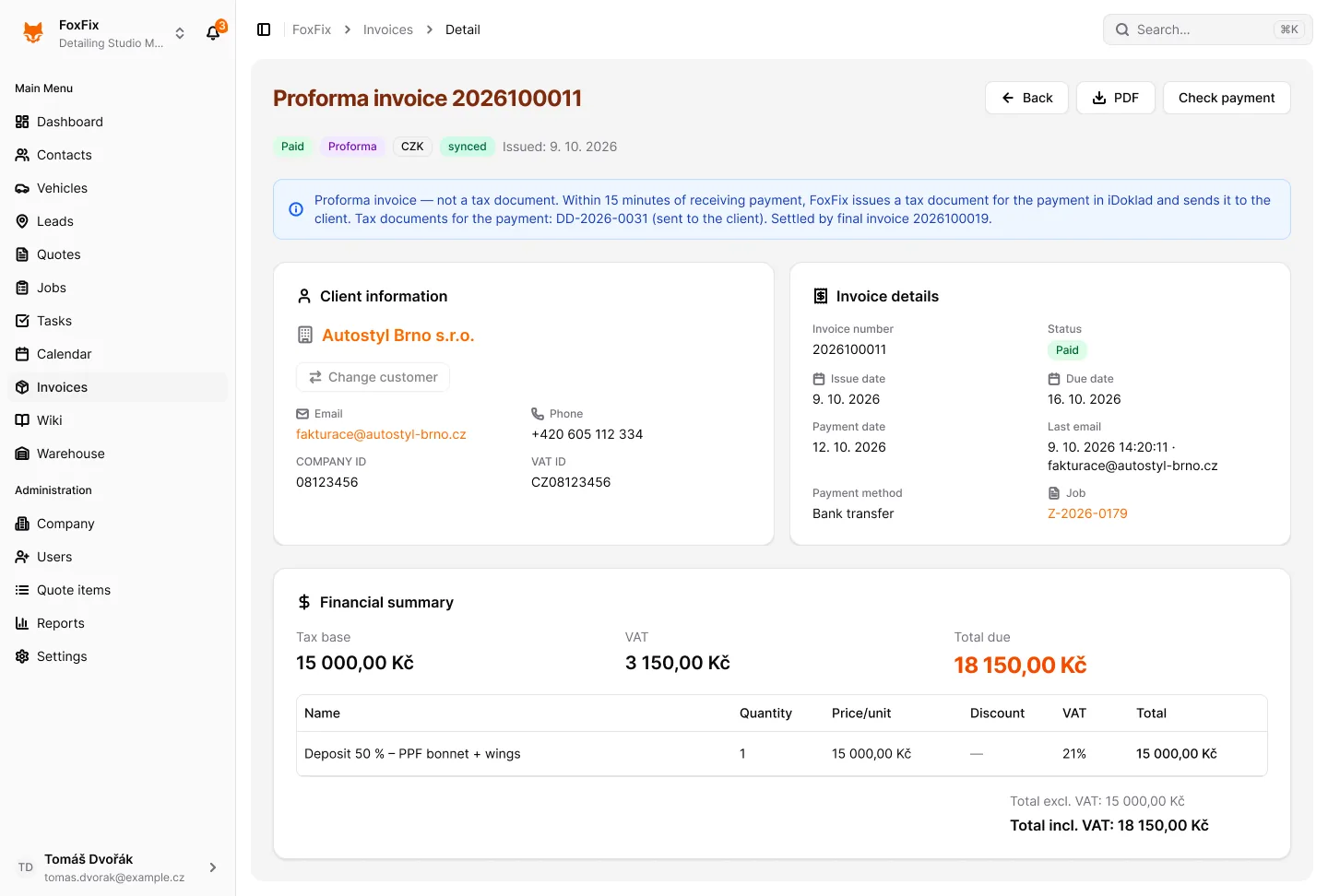
- The deposit detail opens with the heading Proforma invoice … and a purple Proforma label.
- Click Send invoice and confirm the list of recipients. The deposit is created in iDoklad and iDoklad emails it to the client.
Sending and recipients work the same way as for an ordinary invoice, see Invoicing and payment.
Step 3 – Wait for payment
As soon as the client pays and the payment is matched with the bank in iDoklad:
- FoxFix checks the deposit status itself (in the background every 15 minutes, or straight away with the Check payment button) and the label changes to Paid.
- Within 15 minutes of receiving the payment, FoxFix issues a tax document for the received payment in iDoklad and sends it to the client. You will see it in the deposit detail on the “Tax documents for the payment: …” line.
- On the job, “Deposit …: paid …” appears below the invoicing button.
 (opens the full-size image in a new tab)
Mark the deposit as paid in iDoklad
The Paid button in the deposit detail only changes the status in FoxFix. The final invoice, however, checks whether the deposit has been paid in iDoklad. If the client pays other than by bank transfer, use the Mark deposit as paid button on the final invoice instead (step 5).
Step 4 – Issue the final invoice
When the work is finished (even before the vehicle is handed over):
- In the job detail, click Issue final invoice (that is what the button is called once a deposit exists).
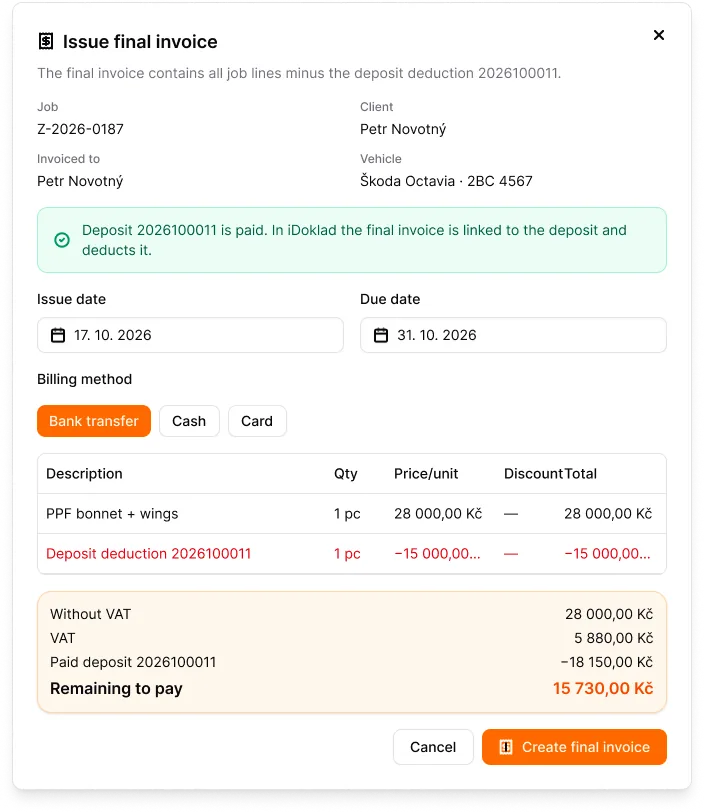
- The Issue final invoice window opens: “The final invoice contains all job lines minus the deposit deduction ….” A green box confirms that the deposit is paid; a yellow one warns that it is not yet – you can create a draft, but only send it once the deposit has been paid.
- Check the items. The red Deposit deduction … line deducts the paid deposit, and at the bottom you see Deposit paid … and Remaining to pay.
- Choose the Billing method and confirm with Create final invoice.
 (opens the full-size image in a new tab)
If the deposit is higher than all the job's items, the button is greyed out and the window reports “The deposit deduction exceeds the job lines — edit the quote lines, otherwise the final invoice cannot be issued.”
Step 5 – Send the final invoice
- In the final invoice detail you see the bar “The final invoice settles the deposit … (paid)”.
- Click Send invoice and confirm the recipients. In iDoklad the invoice is linked to the deposit and deducts it.
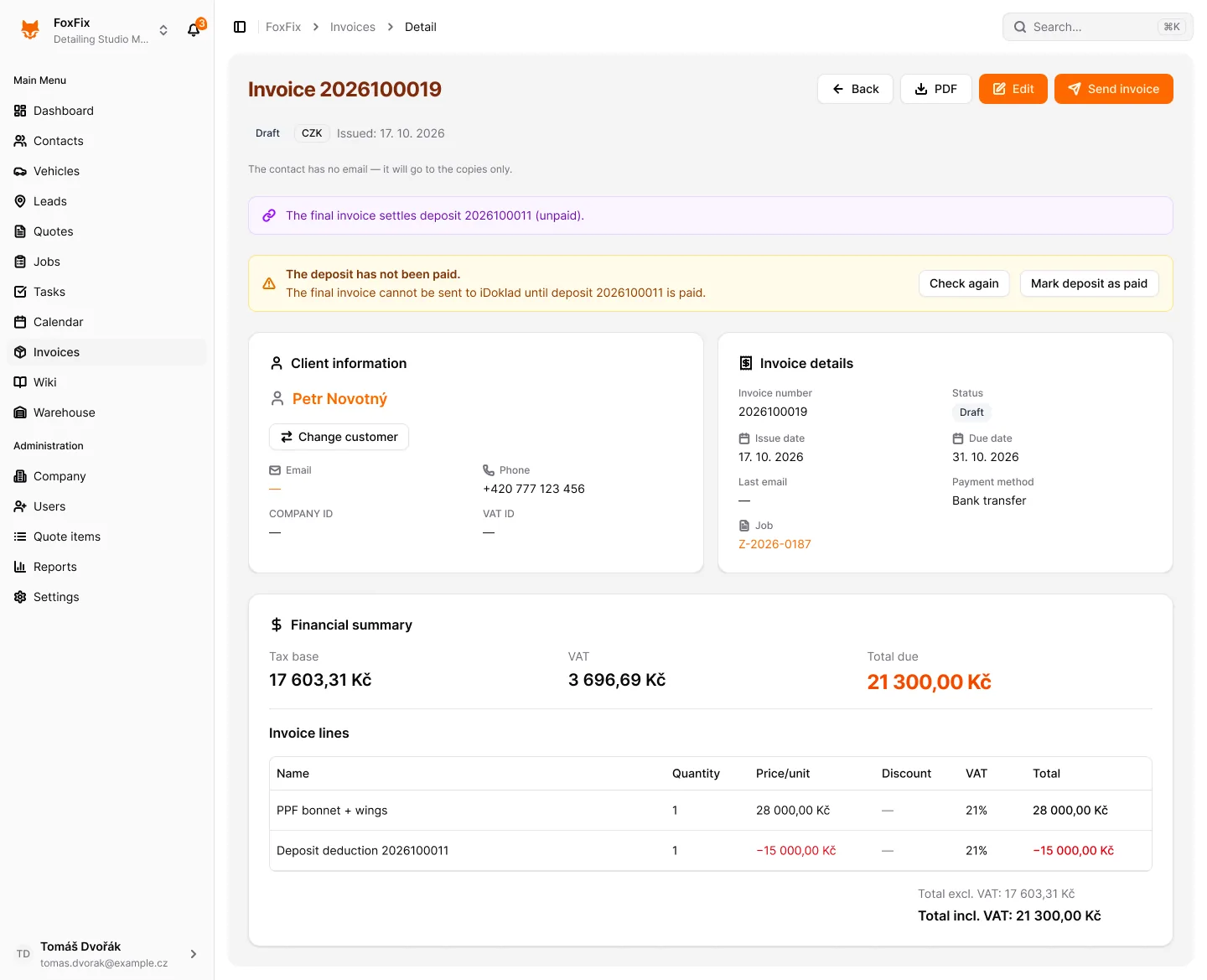
If the deposit has not been paid in iDoklad, the invoice will not be sent. You will see the message “Deposit … has not been paid in iDoklad. Wait for the payment to be matched, or mark it as paid.” and a yellow bar with two buttons appears in the detail:
- Check again – checks the deposit status in iDoklad again.
- Mark deposit as paid – Administrator and Manager only. After you confirm “Deposit … will be marked as fully paid in iDoklad. Continue?” you will see “The deposit has been marked as paid. Send the final invoice again.” Then click Send invoice again.
 (opens the full-size image in a new tab)
If the app reports that the deposit is not in iDoklad at all, send it first (step 2) and only then the final invoice.
Result: the client has the proforma, the tax document for the payment and a final invoice showing only the remaining amount. You track payment of the final invoice the same way as for an ordinary invoice.
Frequently asked questions
Can I edit a proforma invoice? Yes, while it is a draft – with the Edit button. Edit a deposit that has been sent, and a sent final invoice with the deduction, directly in iDoklad.
The customer wants to collect the car but has not paid the final invoice yet. At handover the app warns you about the unpaid final invoice and lets you confirm that you are handing over knowingly. See Handing a vehicle over to the customer.