
Company settings
The Company settings page holds your company's details that are printed on quotes, invoices and other documents: name, company registration number (IČO), VAT number (DIČ), address, contact details and logo. The administrator also chooses the company language here, switches app modules on and off and configures the AI assistant.
Who can see this
Everyone except the Warehouse clerk role can open the page. Only the Administrator and Manager can edit the details. The Company language, Application modules, AI assistant and Management reports sections are visible only to the Administrator.
With the November 2026 update (once your company has it switched on) the role in Settings → Roles and permissions decides, not the old role: company details and the logo are changed by whoever may edit Company for the whole company, and the Company language, Application modules, AI assistant and Management reports sections are shown to whoever may change Settings (general) for the whole company. By default both are CFO, Managing director and Admin. Everyone else sees the page read-only, with a note below the heading saying who changes the details.
Open the page via Settings → Company settings. Administrators and managers also have it in the left-hand menu as Administration → Company.
Setting up your company for the first time?
Follow the Setting up your company guide – it takes you step by step from the details on documents through modules to connecting iDoklad. This page is an overview of all the fields.
 (opens the full-size image in a new tab)
Company information
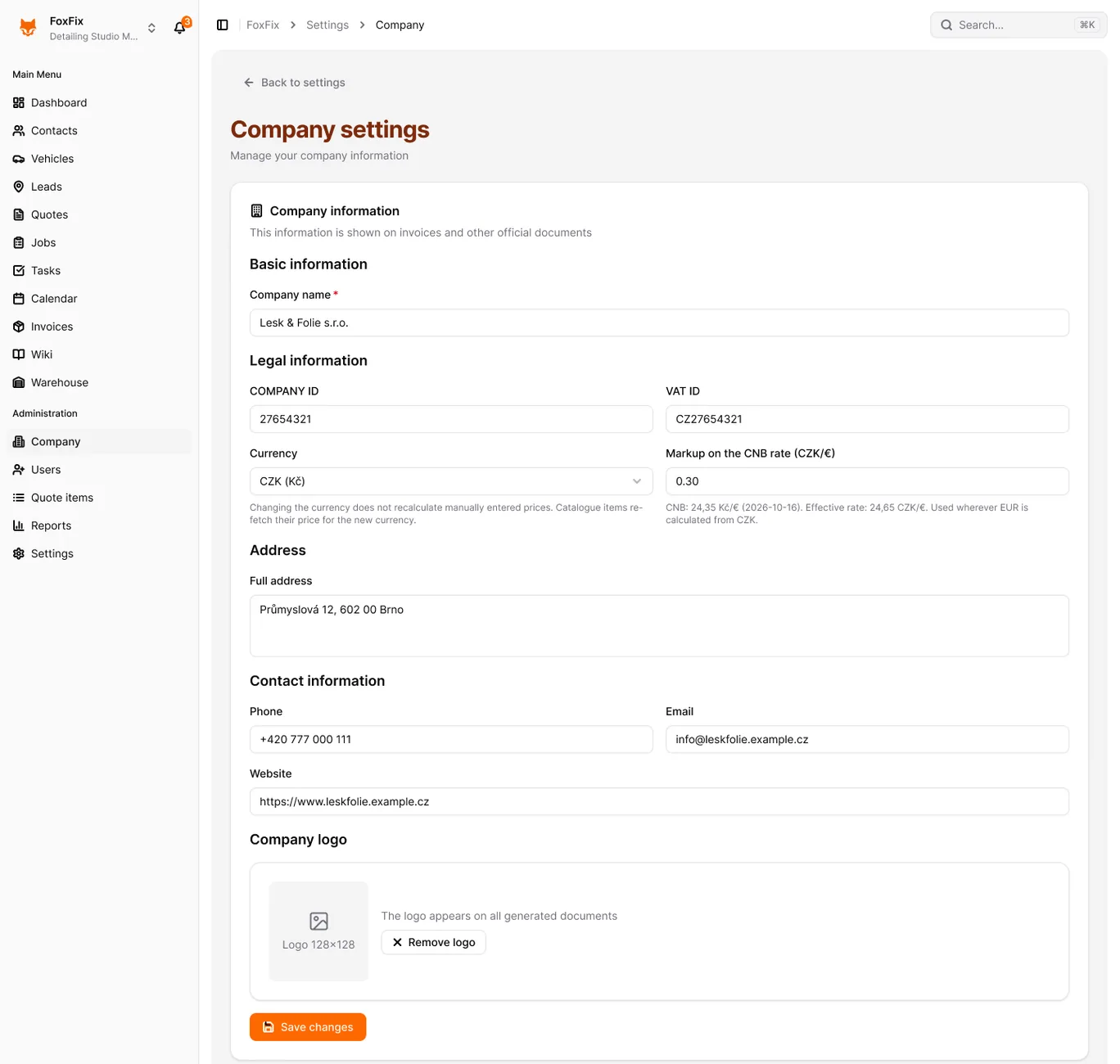
The Company information card is described as “This information is shown on invoices and other official documents”. All its fields are saved together with the Save changes button at the bottom.
| Part | Field | Note |
|---|---|---|
| Basic information | Company name | Required. |
| Legal information | Company registration number, VAT number | Printed on documents. |
| Legal information | Currency | CZK (Kč) or EUR (€). Applies to newly created documents. |
| Legal information | Markup on the CNB rate (CZK/€) | A markup on the daily Czech National Bank (CNB) rate, always in the company's favour. Purchases and EUR price lists are converted to CZK at CNB + markup, sales in EUR at CNB − markup. You see both rates below the field. If you don't want a markup, enter 0. The markup must be lower than the CNB rate. |
| Address | Full address | The whole address in one field, including postcode and town. |
| Contact information | Phone, Email, Website | Contact details on documents. |
| Company logo | – | See below. |
After saving, a green confirmation appears at the top: “Company information updated successfully”.
A currency change does not apply retrospectively
When you change the currency, a notice appears: “A currency change only affects newly created documents. Existing documents stay in their original currency.” Manually entered prices are not recalculated; catalogue items load with their price in the new currency after the switch.
Logo
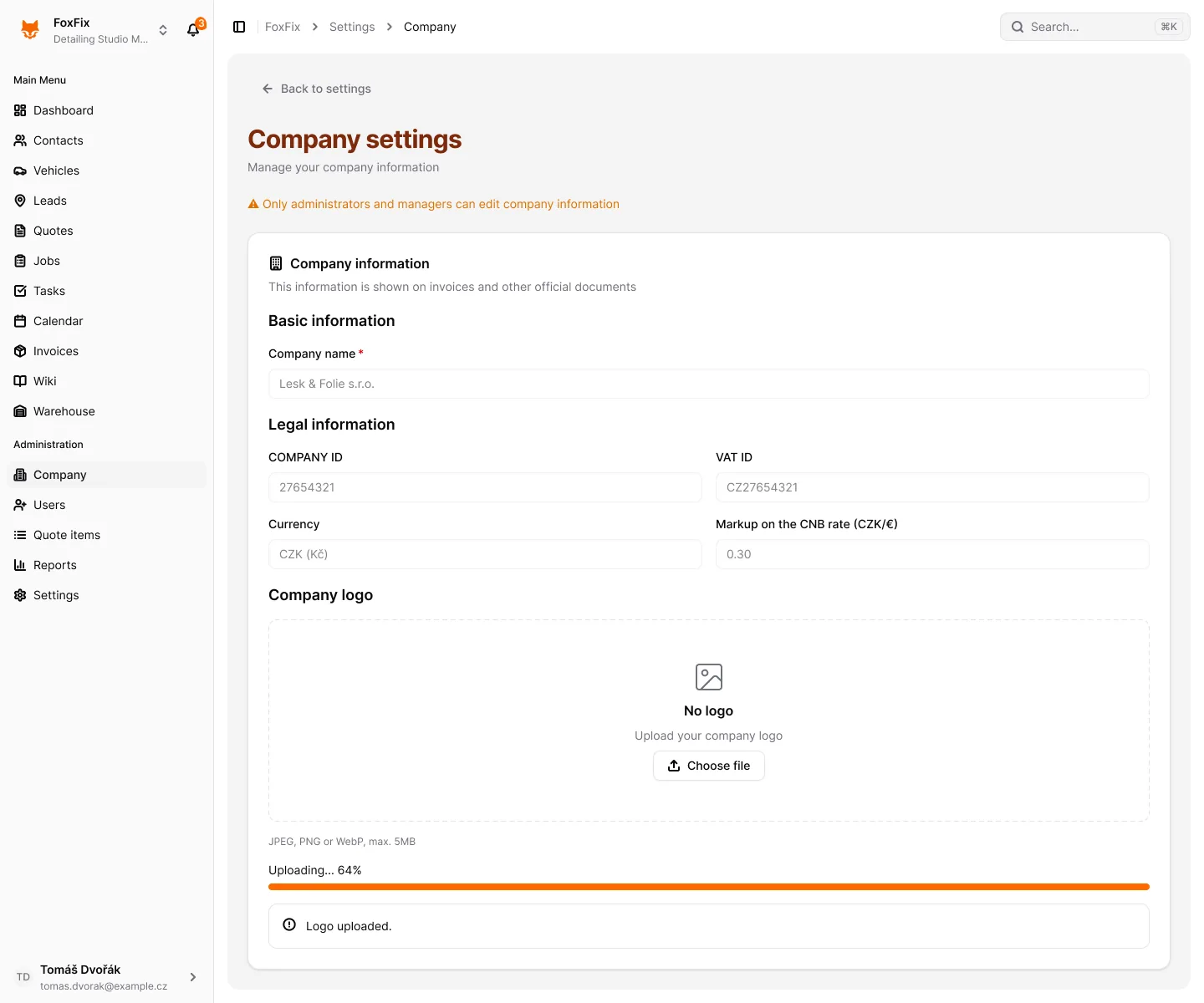
- In the Company logo part, click Choose file.
- Choose an image in JPEG, PNG or WebP format, no larger than 5 MB. While it uploads you see the progress as a percentage, and at the end the message “Logo uploaded.”.
- Click Save changes at the bottom. Only then is the logo saved to the company and shown on all generated documents.
To upload a new logo, remove the old one with the Remove logo button, choose a different file and save the changes again.
If the logo cannot be uploaded, the app tells you why – for example “The file is too large” or “Unsupported file format”.
What other roles see
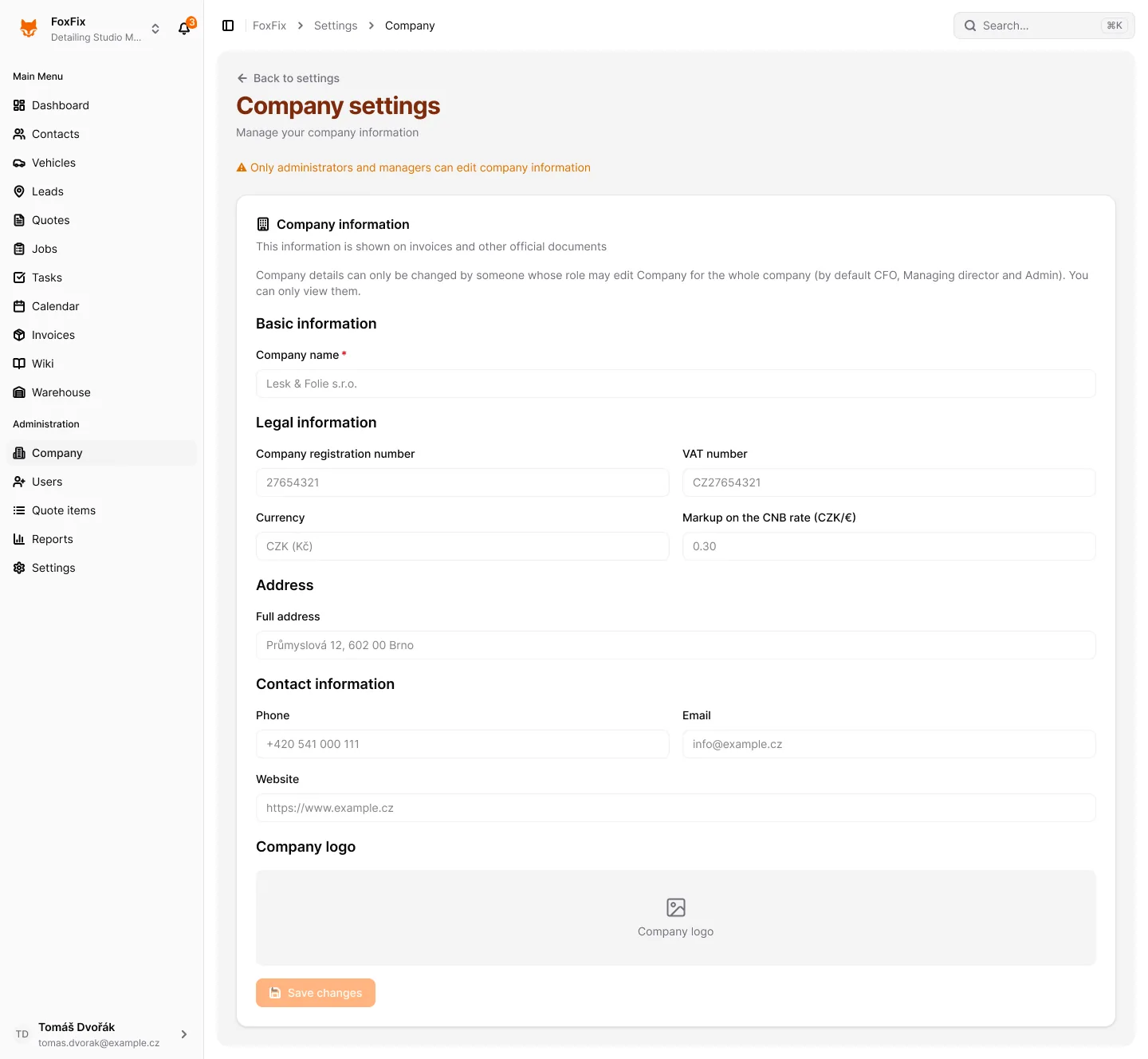
Technicians and salespeople see the same details, but read-only: the fields are greyed out and under the heading there is the notice “Only administrators and managers can edit company information”. The administrator sections are not shown to them.
 (opens the full-size image in a new tab)
With the November 2026 update every role that may not edit Company for the whole company has the page read-only. Below the description of the Company information card it also explains who changes the company details.
 (opens the full-size image in a new tab)
Administrator sections
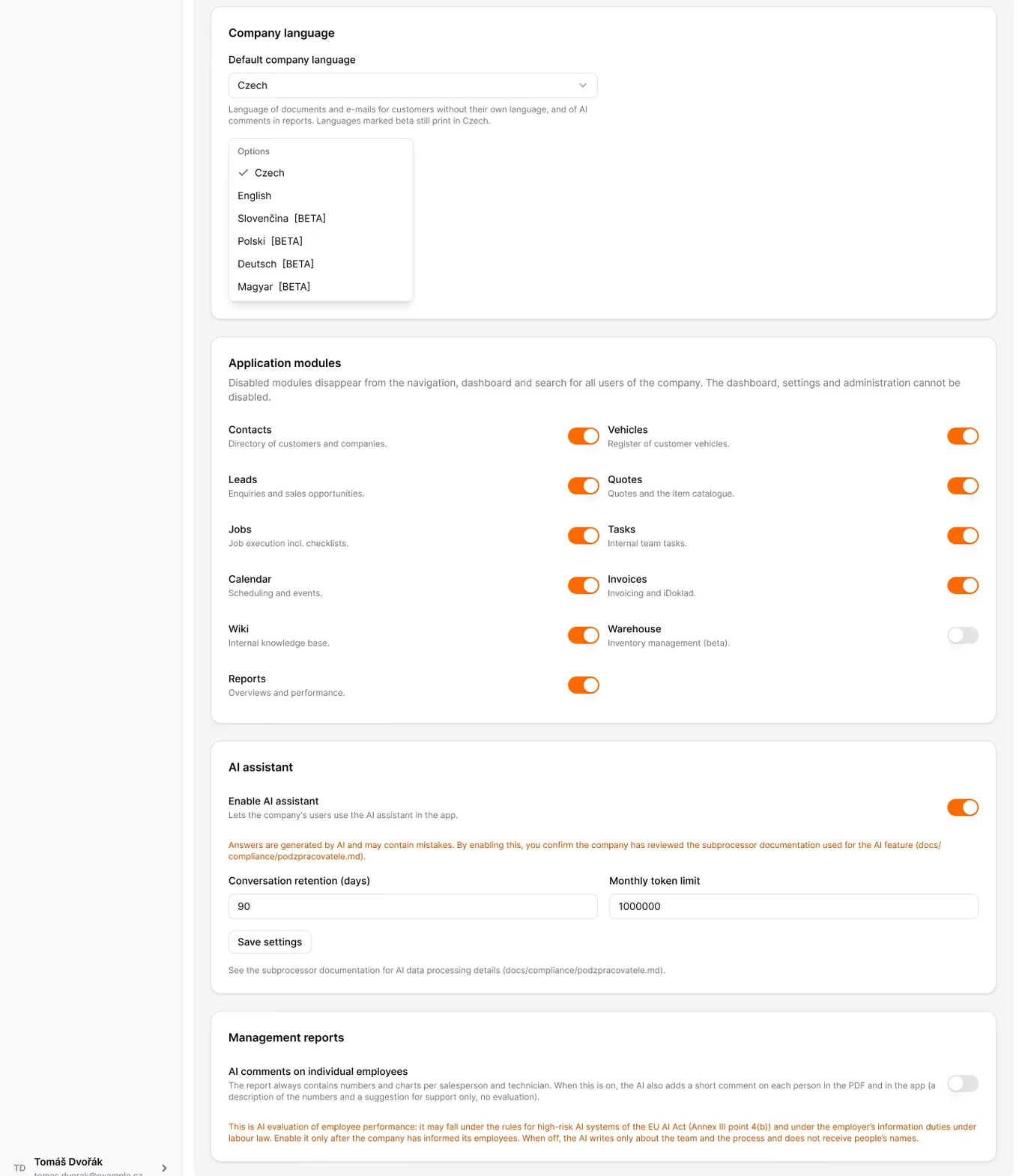
Below the logo, above the Save changes button, are four sections that only the administrator sees. Unlike the form, they are saved immediately – the Save changes button does not apply to them.
 (opens the full-size image in a new tab)
Company language
The Default company language field sets the language of documents and emails for customers who have no language of their own set, and the language of AI comments in reports. Company members who have not chosen a language themselves also see the app and invitations in this language.
You can choose Čeština, English and the languages marked beta (Slovak, Polish, German, Hungarian). Documents in beta languages are still printed in Czech for now. Once selected, the language saves itself.
Application modules
Use the switches to turn the Contacts, Vehicles, Leads, Quotes, Jobs, Tasks, Calendar, Invoices, Wiki, Inventory and Reports modules on or off.
- A module that is switched off disappears from the navigation, the dashboard and search for all users of the company. No data is deleted – when you switch it back on, everything is back.
- The dashboard, settings and administration cannot be switched off.
- After switching, a message appears (for example “Inventory: on”) and the page reloads itself so that the menu is redrawn.
- Jobs are created from approved quotes. If you switch off Quotes and leave Jobs on, the app warns you that new jobs cannot be created without the Quotes module.
Modules and the subscription plan
The Inventory module is not part of the Start plan. If your plan does not include it, it does not appear in the menu even when the switch is on, and the module page shows “Module not in your plan”. You can change the plan under Subscription.
AI assistant
- The Enable AI assistant switch makes the AI assistant available to all users of the company. By switching it on you confirm that the company has read the documentation of the sub-processors used for AI features. The page reloads after switching.
- Conversation retention (days) – how long conversations with the assistant are kept (1 to 3,650 days, default 90).
- Monthly token limit – the cap on assistant usage per month (at least 10,000, default 1,000,000).
- Save both values with the Save settings button.
How to work with the assistant is described on the AI assistant page.
Management reports
The AI comments on individual employees switch (off by default) adds a short AI comment on each salesperson and technician to the management reports. It only works when the AI assistant is switched on.
Before you switch on AI comments on employees
This is an AI assessment of employee performance. It may fall under the rules of the EU Artificial Intelligence Act (AI Act) and under the employer's duty to inform employees under employment law. Switch it on only after the company has informed its employees. When it is off, the AI writes only about the team and the process and does not receive anyone's name.
Tips and common problems
- Invoice number series are not set here but in the iDoklad connection – see iDoklad.
- Working hours for the calendar have their own page – see Working hours.
- Can't see the Application modules section? Only the administrator sees it. A manager can only edit the company details.