
Sales orders
A sales order is for selling goods that you ship to the customer. Unlike a sale from stock, where an invoice is created straight away, an order first reserves the goods, takes them through shipping, and you issue the invoice when you need it. Unlike a job, it is not tied to a vehicle or to any work.
An order goes through the statuses Draft → Confirmed → Packing → Shipped → Delivered (or Cancelled).
 (opens the full-size image in a new tab)
Order list
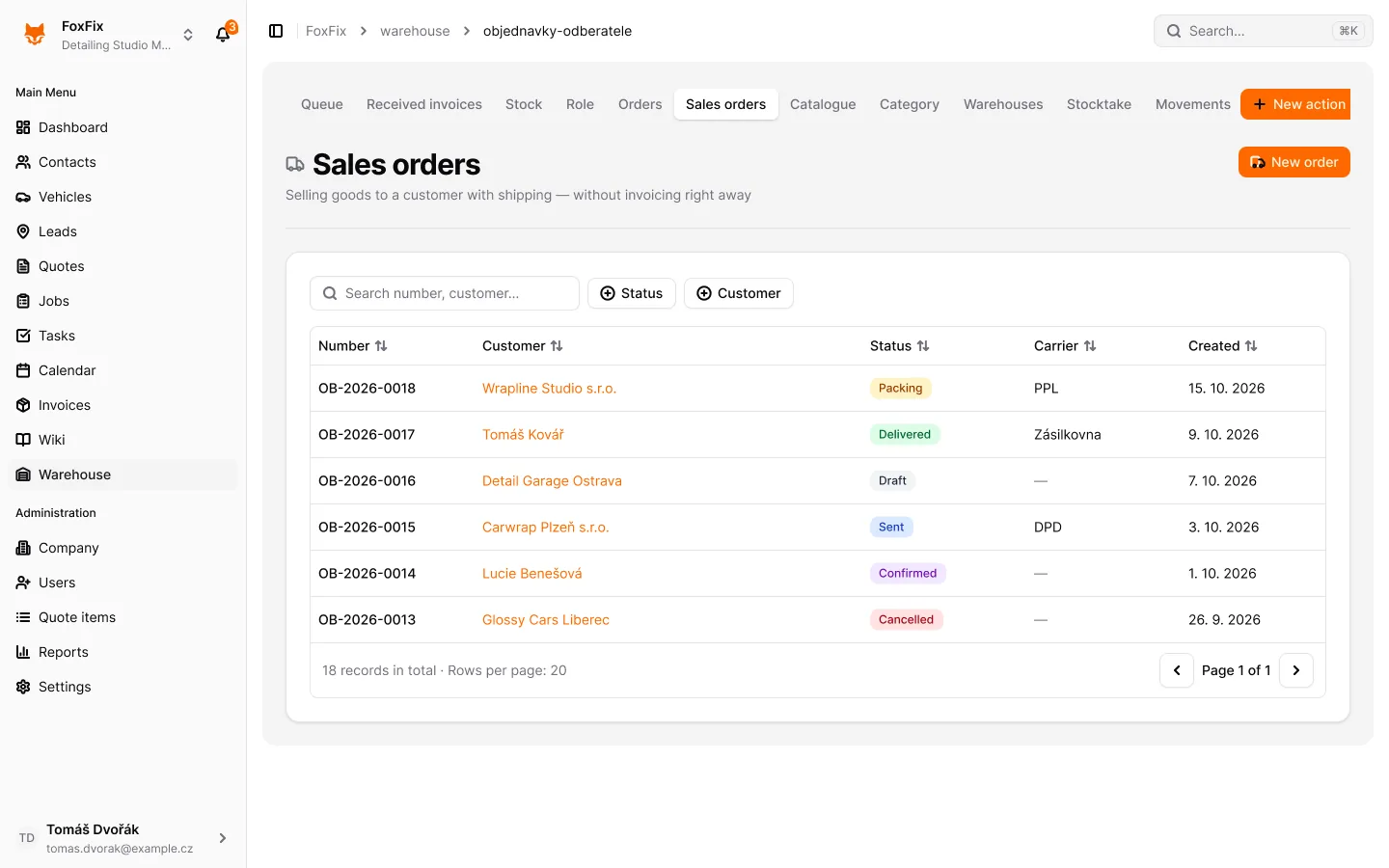
The table shows the Number (OB-…), Customer (a link to the contact), Status, Carrier and the Created date. Search with the “Search number, customer…” field and filter by Status and Customer. Click a row to open the detail.
New order
- On the Sales orders tab, click New order.
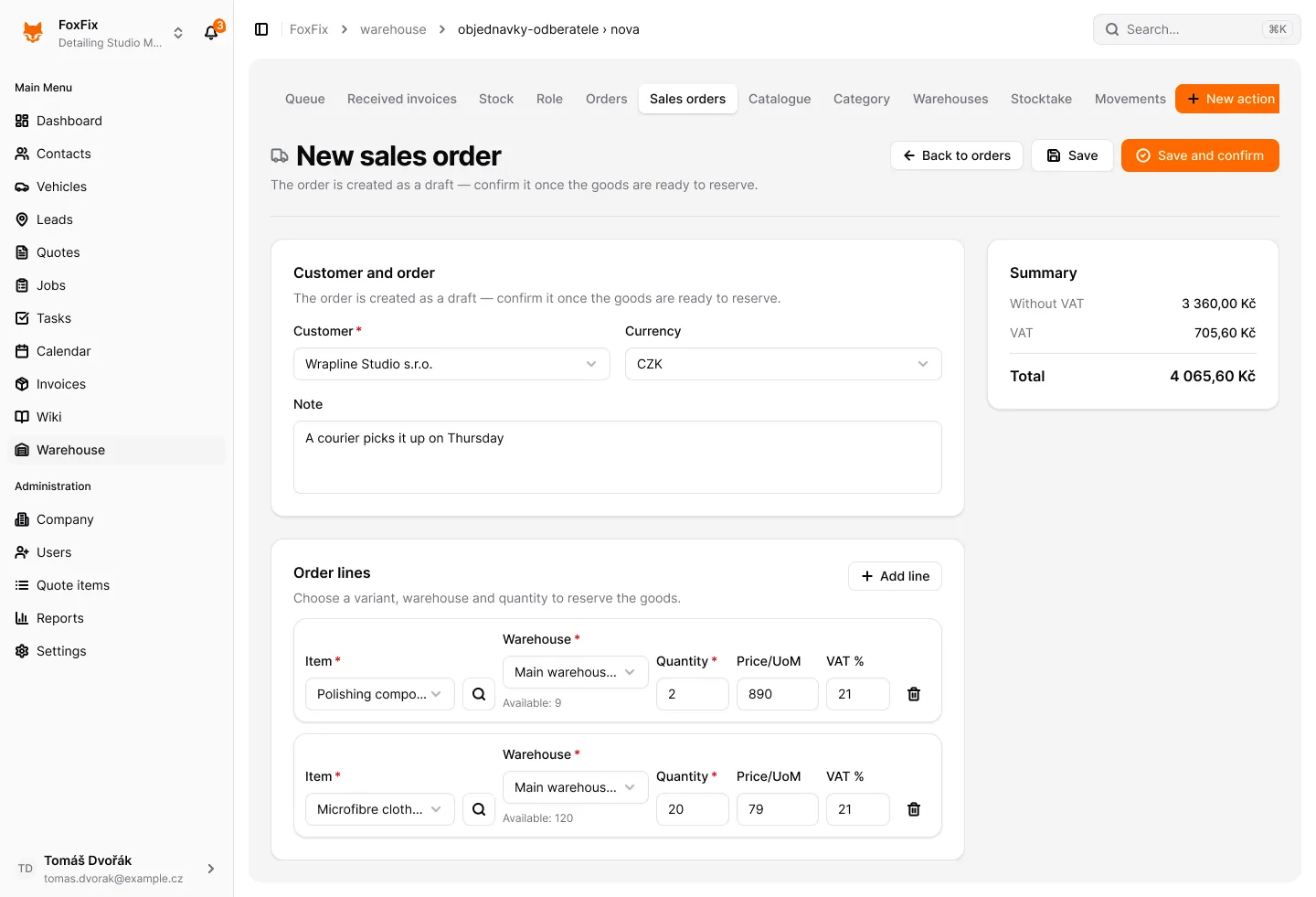
- In the Customer and order card, select the Customer (you can search by name, company, email, phone or company ID), the Currency and, if needed, a Note.
- In the Order lines card, select the Item and Warehouse for each line. Below the warehouse you see “Available: N” — how much is free (on hand minus reserved). The selling price fills in by itself; adjust the Quantity, Unit price and VAT %.
- Add more lines with the Add line button. The magnifying glass opens the Stock items overview with availability by warehouse.
- On the right, the Summary card shows Excl. VAT, VAT and Total.
- Save with one of the buttons:
- Save — creates a draft order. The goods are not reserved.
- Save and confirm — the app checks availability and reserves the goods. From then on nobody else can sell them.
 (opens the full-size image in a new tab)
If there is not enough stock, you will see “Insufficient stock. Available: X, requested: Y”. If the reservation fails on confirmation, the order stays a draft.
From confirmation to delivery
In the order detail, the button in the top right always takes you to the next step:
- Confirm (on a draft) — the goods are reserved: “Order … confirmed and goods reserved”. From now on the warehouse worker sees the reserved items in the queue under To issue as “Order OB-…” and can pick and issue them.
- Start packing — the order switches to the Packing status (“Order … is being prepared for shipping”).
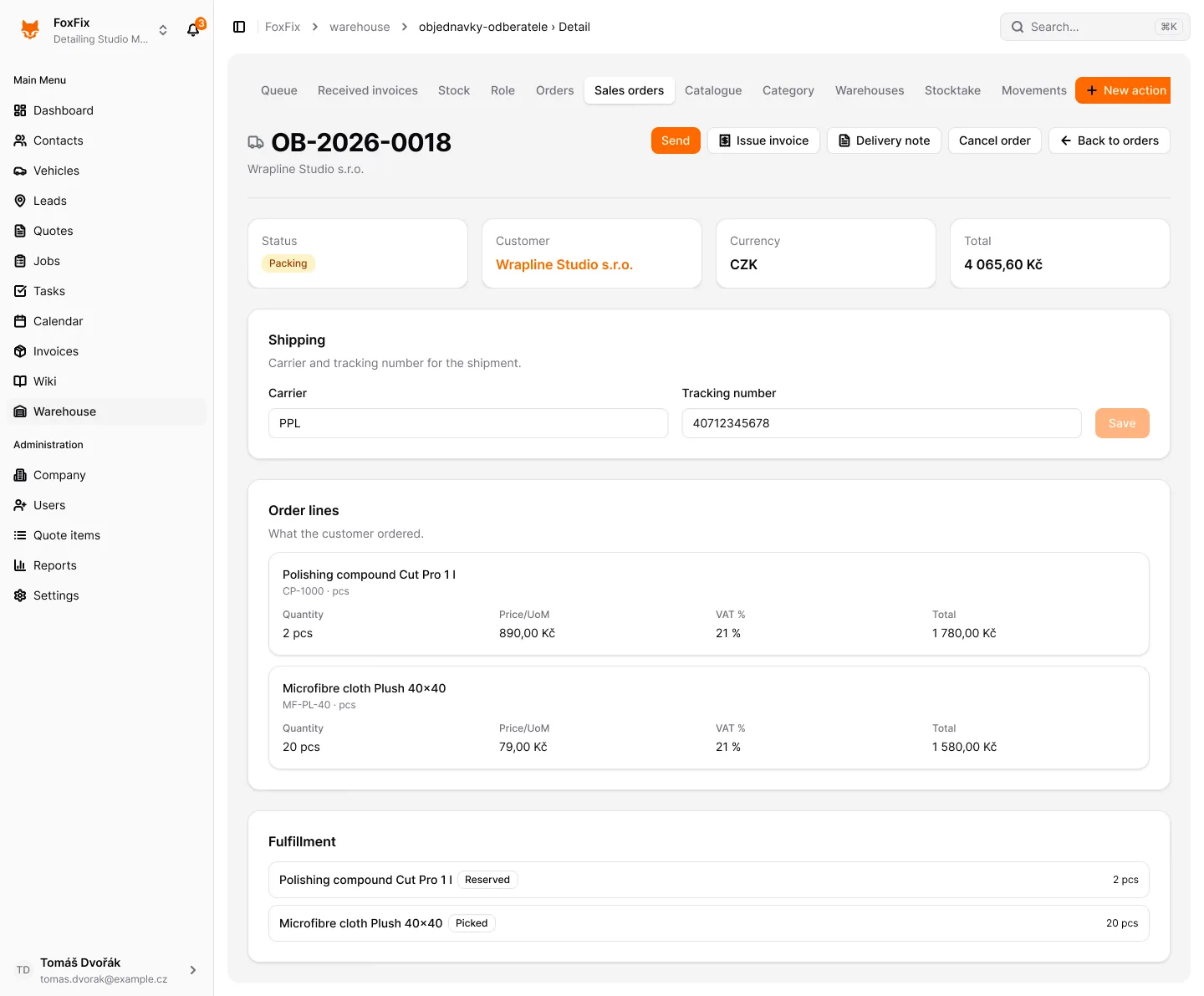
- In the Shipping card, fill in the Carrier (“E.g. PPL, DPD, Zásilkovna…”) and Tracking number and click Save.
- Ship — the button is disabled until a carrier is filled in (“Fill in a carrier in the Shipping section before shipping”).
- Confirm delivery — the app asks “Who accepted the shipment?”. Fill in the Full name and confirm.
 (opens the full-size image in a new tab)
The detail also shows the Status, Customer, Currency and Total cards, the Order lines, and the Fulfilment card — the state of each reservation (Reserved, Picked, Dispatched, Released).
In a draft order you can change the customer with the pencil icon next to the customer. Once the order is confirmed, the customer is locked.
Delivery note
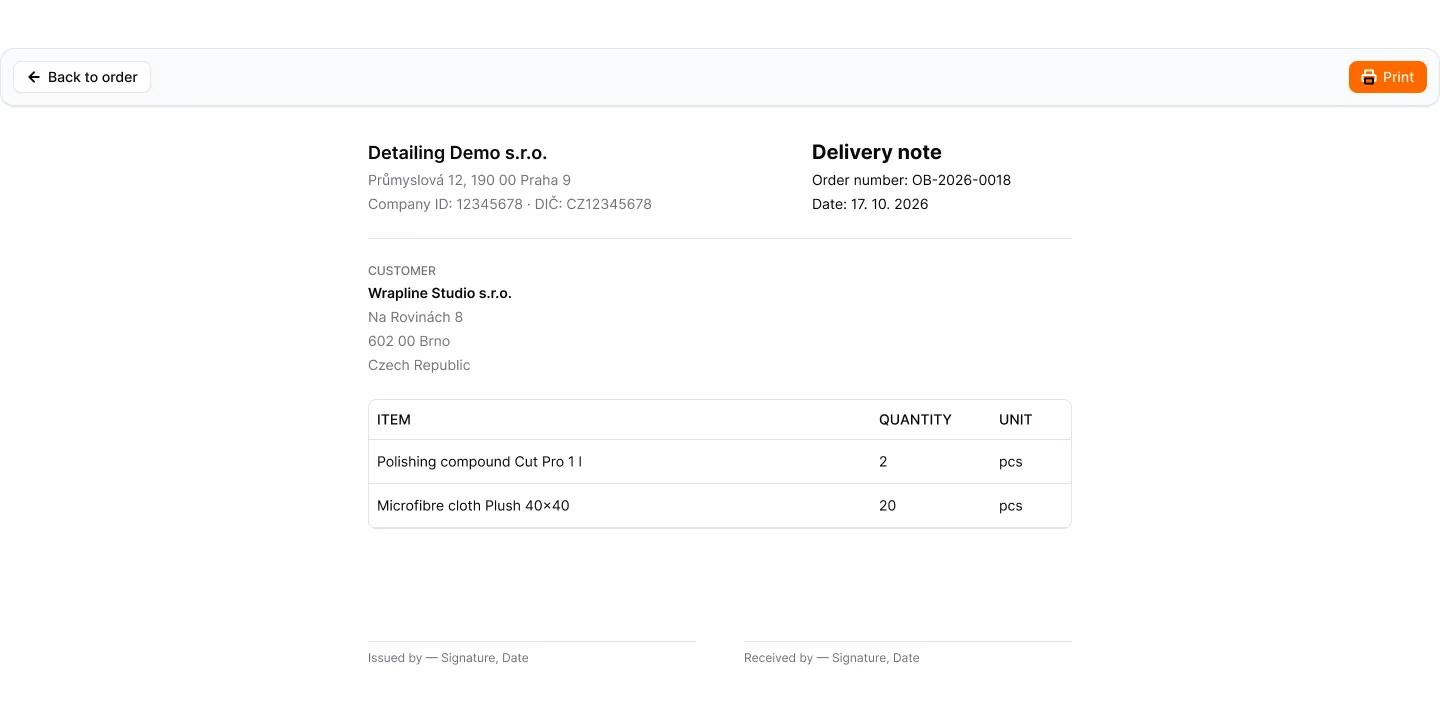
The Delivery note button opens the document for the shipment: your company with its company ID and VAT number, the order number, the date, the customer with their address, the items with quantity and unit (without prices), and signature lines for Issued by and Received by. The delivery note is created in the customer's language (Czech or English). Print it with the Print button and go back with Back to order.
 (opens the full-size image in a new tab)
Invoicing
The Issue invoice button creates a draft invoice from the order lines (due in 14 days; reverse charge for foreign customers with a VAT number) and links the stock reservations to it. In the invoice detail you then see Reserved material and Dispatched material. Once the invoice exists, the button changes to View invoice.
More about invoices in Invoices.
Cancellation
An order can be cancelled with the Cancel order button as long as it has not been delivered. Cancelling releases all reservations — the goods return to available stock. This action cannot be undone.
Order with an invoice
If an invoice already exists for the order, the dialog warns you that the invoice stays valid but without stock coverage. You will then have to issue the goods or credit the invoice manually.