
Contact detail
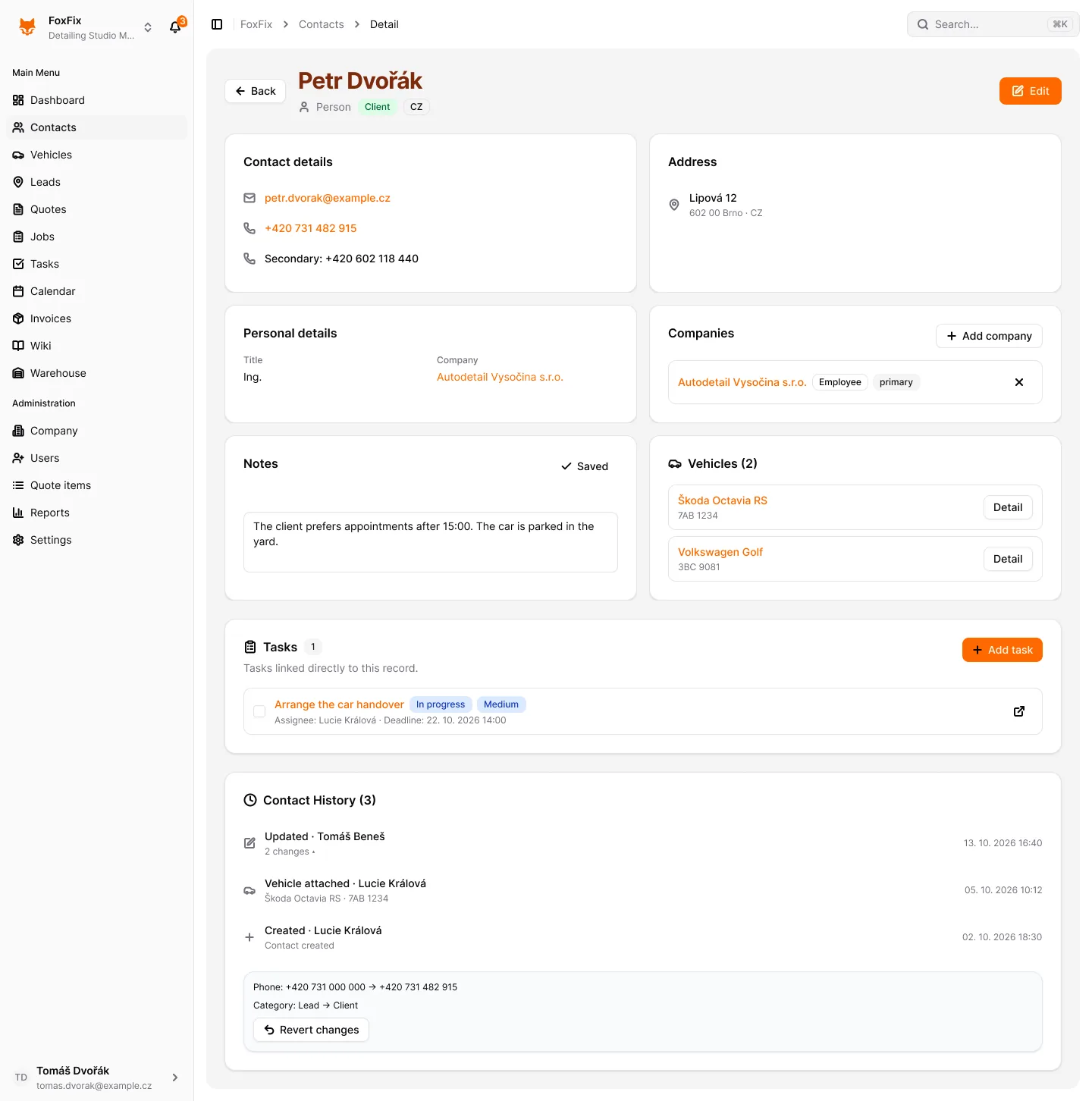
The contact detail shows everything about one customer or partner: contact details, address, the companies and people they are connected with, their vehicles, tasks and the change history. Open it by clicking a row in the contact list or a contact's name anywhere in the app.
 (opens the full-size image in a new tab)
What you will find on the page
- Header — the name or company name, type (Person / Company), category and document language (e.g. CZ). The Back button is on the left, Edit on the right.
- Contact details — clickable email, phone and secondary phone.
- Address — only if it is filled in.
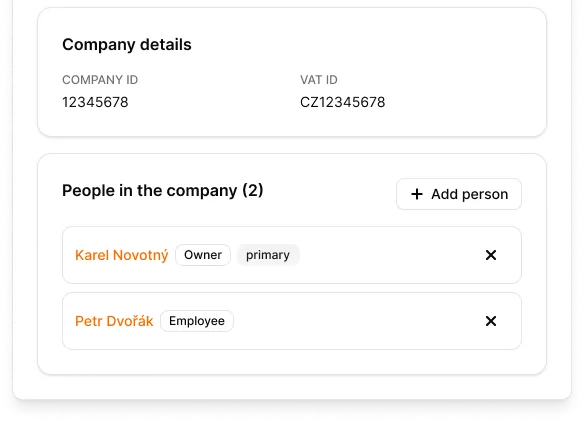
- Company details (for a company) — company ID and VAT number.
- Personal details (for a person) — title and the company the person works for.
- Companies (for a person) or People in the company (for a company) — links between people and companies.
- Notes — free text about the contact.
- Vehicles — the cars the contact owns.
- Tasks — tasks linked to the contact.
- Customer terms (once the November 2026 update is on) — B2B goods and jobs relationships, credit limit and individual prices, see Customer terms.
- Contact History — who changed what, and when.
People and companies
You can link a person to one or more companies and give each link a role: Employee, Owner or Billing contact. The main link carries a primary label.
 (opens the full-size image in a new tab)
How to link a person to a company
- In the person's detail, click Add company in the Companies card (in a company's detail, click Add person in the People in the company card).
- Search for the company (“Search for a company…”) or the person (“Search for a person…”).
- Choose the Role.
- Click Link.
Remove a link with the Remove link cross on the right of the row. The company entered in the person's Company (optional) field in the contact edit form also appears as a link — you can only change that one by editing the contact.
Notes
Write anything useful in the Notes card (“Notes about the contact…”), for example when the customer prefers appointments. The note saves itself as soon as you stop typing or click outside the field. The status is shown at the top right:
- Saving… — saving right now,
- Saved — done,
- Saving failed — the note could not be saved; click Try again.
The contact's vehicles
The Vehicles card lists the cars the contact owns (make, model and licence plate). The Detail button opens the vehicle detail. Add a new vehicle for the contact from the contact list with the ⋯ menu → Add vehicle, or see the Vehicles chapter.
Tasks for the contact
- In the Tasks card, click Add task.
- Fill in the Title and, if needed, Details, User, Priority, Deadline and Attachment.
- Click Create task.
Tick the box to complete a task; the icon on the right opens it. More in the Tasks chapter.
Contact history and reverting changes
The Contact History card records the creation of the contact, edits, attached vehicles, merges and other events — always with the author and time.
If someone overwrites a contact by mistake, you can revert the change:
- For an Updated entry, click “N changes”. A list of fields expands with the original (struck-through) and new values.
- Click Revert changes.
- The fields go back to their original values (the message “Changes reverted”).
Merged contact
If the contact was merged into another one during duplicate merging, you will see a yellow This contact has been merged panel at the top of the detail, with a link to the contact you should work with from now on. The merged record is kept only so that things can be traced — do not create new quotes or jobs on it.
Tips and common problems
- There is no Delete button in the detail. Contacts can only be deleted in the contact list, and only by an administrator or manager.
- “Contact not found” — the contact has been deleted. Go back with the Back to contacts button.