
Invoices
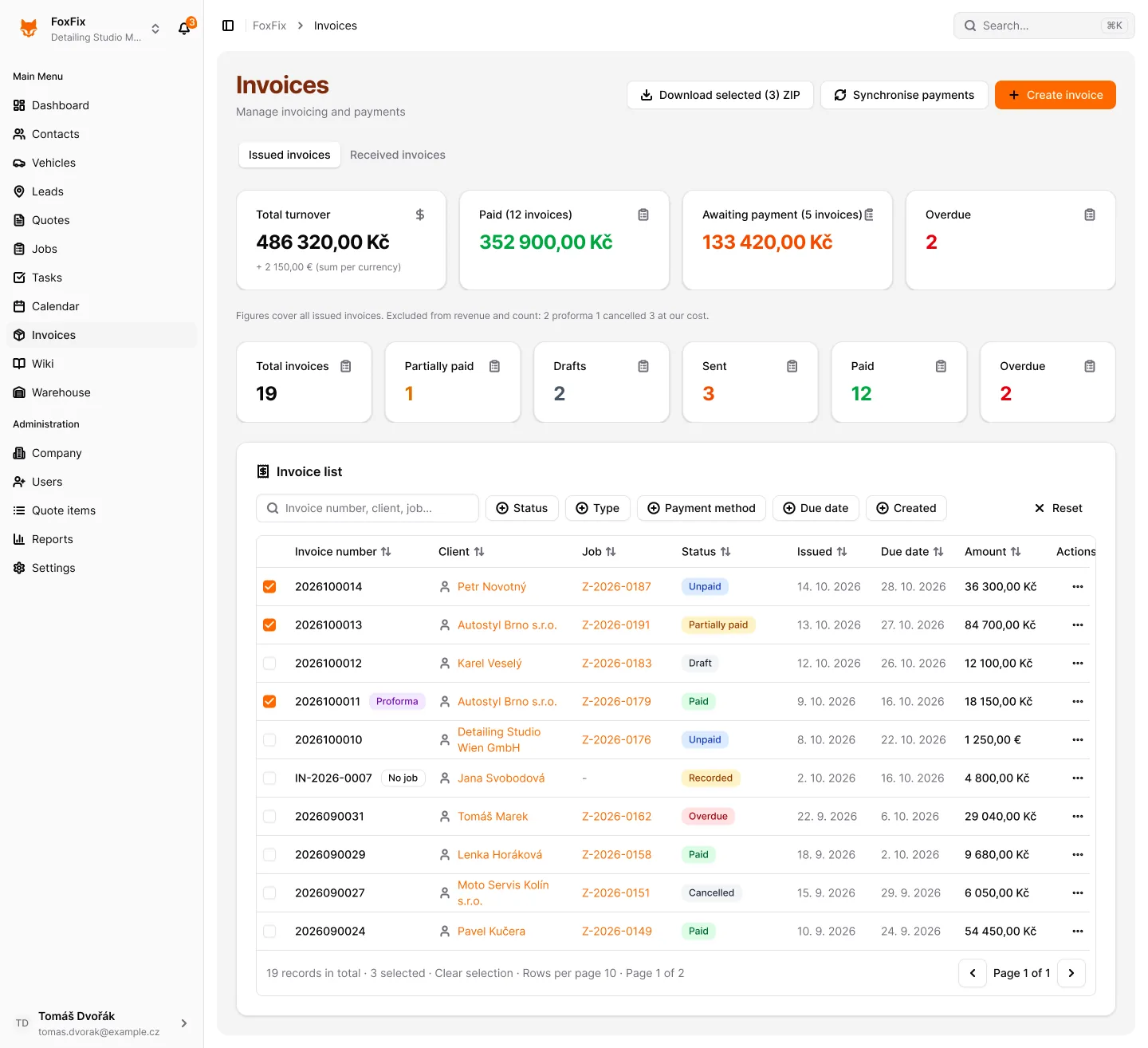
The Invoices page is where you keep track of the money: you see every issued invoice, how much has been paid, what is awaiting payment and what is overdue. On the second tab you record invoices from suppliers. You can also create a new invoice from here – step-by-step instructions are in the chapter Issuing an invoice.
Who can see it
The page is visible to all users except the Warehouse clerk role, provided the company has the Invoices module switched on (it is part of every plan). Only an Administrator and a Manager can delete invoices. If you see “Module not enabled” instead of the page, ask an administrator to switch the module on in Settings → Company.
 (opens the full-size image in a new tab)
What you will find on the page
There are three buttons in the top right-hand corner:
- Download selected (N) ZIP – appears as soon as you tick at least one invoice in the table. It downloads their PDFs in a single ZIP file.
- Synchronise payments – loads the current payment status from iDoklad.
- Create invoice – opens the New invoice page (see Issuing an invoice).
Below them you switch between the Issued invoices and Received invoices tabs.
Summary tiles
The first row of tiles shows money:
| Tile | What it means |
|---|---|
| Total turnover | The sum of all issued invoices. If you invoice in both CZK and euros, you see the two amounts separately. |
| Paid (N invoices) | The sum of paid invoices. |
| Awaiting payment (N invoices) | The sum of invoices that have been sent but not yet paid. |
| Overdue | The number of invoices whose due date has passed. |
The second row shows counts: Total invoices, Drafts, Sent, Paid, Overdue and – only when there is at least one – Partially paid.
Below the tiles a short line of text says which invoices the figures cover. As soon as you set a filter, the tiles are recalculated for the filtered rows only (“The figures apply to the filtered table rows.”). Proforma invoices, cancelled invoices and internal documents are not counted in the turnover or the counts – the text tells you how many were left out.
The invoice list table
| Column | Meaning |
|---|---|
| Invoice number | The document number. The Proforma label marks a proforma invoice; the No job label marks an invoice issued without a job. |
| Client | The customer on the invoice. Click to open their contact. |
| Job | The job the invoice was created from. Click to open it. |
| Status | A coloured status label (see below). |
| Issued / Due date | The issue date and the due date. |
| Amount | The total amount in the invoice currency (CZK or €). |
| Actions | The ⋯ menu with View, PDF, Edit and Delete. |
Click a row to open the invoice detail. On a narrower screen some columns are hidden; on a mobile invoices are shown as cards.
Invoice statuses
The label in the Status column shows where the invoice stands with payment:
| Label | Meaning |
|---|---|
| Draft (grey) | The invoice exists only in FoxFix and has not been sent anywhere. You can edit it. |
| Unpaid (blue) | The invoice has been sent and payment is awaited. |
| Partially paid (yellow) | Only part of the payment has been matched in iDoklad. |
| Paid (green) | The invoice has been paid. |
| Overdue (red) | The due date has passed and the invoice is unpaid. |
| Cancelled (grey) | The invoice has been cancelled. |
| Recorded (yellow) | An internal document – it goes neither to the client nor to iDoklad and is for your own records only. |
For invoices sent to iDoklad, iDoklad is the source of truth: as soon as the payment is matched with the bank there, the label in FoxFix switches on its own.
How to find an invoice
- Start typing in the “Invoice number, client, job…” field. The table filters immediately.
- Add filters as needed:
- Status – one or more statuses. The Unpaid (virtual) option selects all sent invoices that are not yet paid in one go (including partially paid ones).
- Type – Invoices or Proforma.
- Payment method – Cash, Bank transfer, Card, Other, No method.
- Due date and Created – a date range From – To, or a quick option (Today, Last 7 days, This week, Last week, Last 30 days, This month).
- The Reset button clears all filters at once.
Click a column header to sort the table. By default it is sorted by issue date, newest first.
Who owes me money?
In the Status filter choose Overdue and sort by the Due date column. The oldest debts are at the top. The page remembers filters and sorting and puts them in the page address, so you can send the link to a colleague.
How to download several invoices at once
- Tick the invoices you need in the table (the checkbox in the header selects the whole page).
- Click Download selected (N) ZIP. While it is being prepared, the button shows progress (“Downloading 2/5…”).
- The browser downloads a single ZIP file with all the PDFs.
You can download at most 50 invoices at a time. Only invoices that are already in iDoklad go into the ZIP – a draft has no final PDF and is therefore skipped (a message tells you which invoices are missing).
How to synchronise payments
Payment status is loaded from iDoklad automatically: in the background every 15 minutes, when you open the page (at most once every 3 minutes) and when you open an invoice detail. If you want to be sure right away, click Synchronise payments. When it finishes you will see a message such as “Synchronised 3/8 invoices”. If a related job is also completed once an invoice is paid, the message adds that too (“…, 1 jobs completed”).
Deleting an invoice
You can delete an invoice that was created by mistake – typically a draft.
- In the invoice's row, open the ⋯ menu and choose Delete (only an Administrator and a Manager see this).
- Confirm the question “Are you sure you want to delete this invoice?”.
Material reservations from Inventory that belonged to the invoice are released. If the job the invoice was created from was awaiting billing or payment, it returns to the Awaiting billing status. You can then issue an invoice for the job again.
Don't deal with a sent invoice by deleting it
Deleting in FoxFix does not remove the invoice from iDoklad or from the client's mailbox. Correct an invoice that has already been sent with a credit note or a cancellation in iDoklad, and keep it in FoxFix for your records.
Received invoices
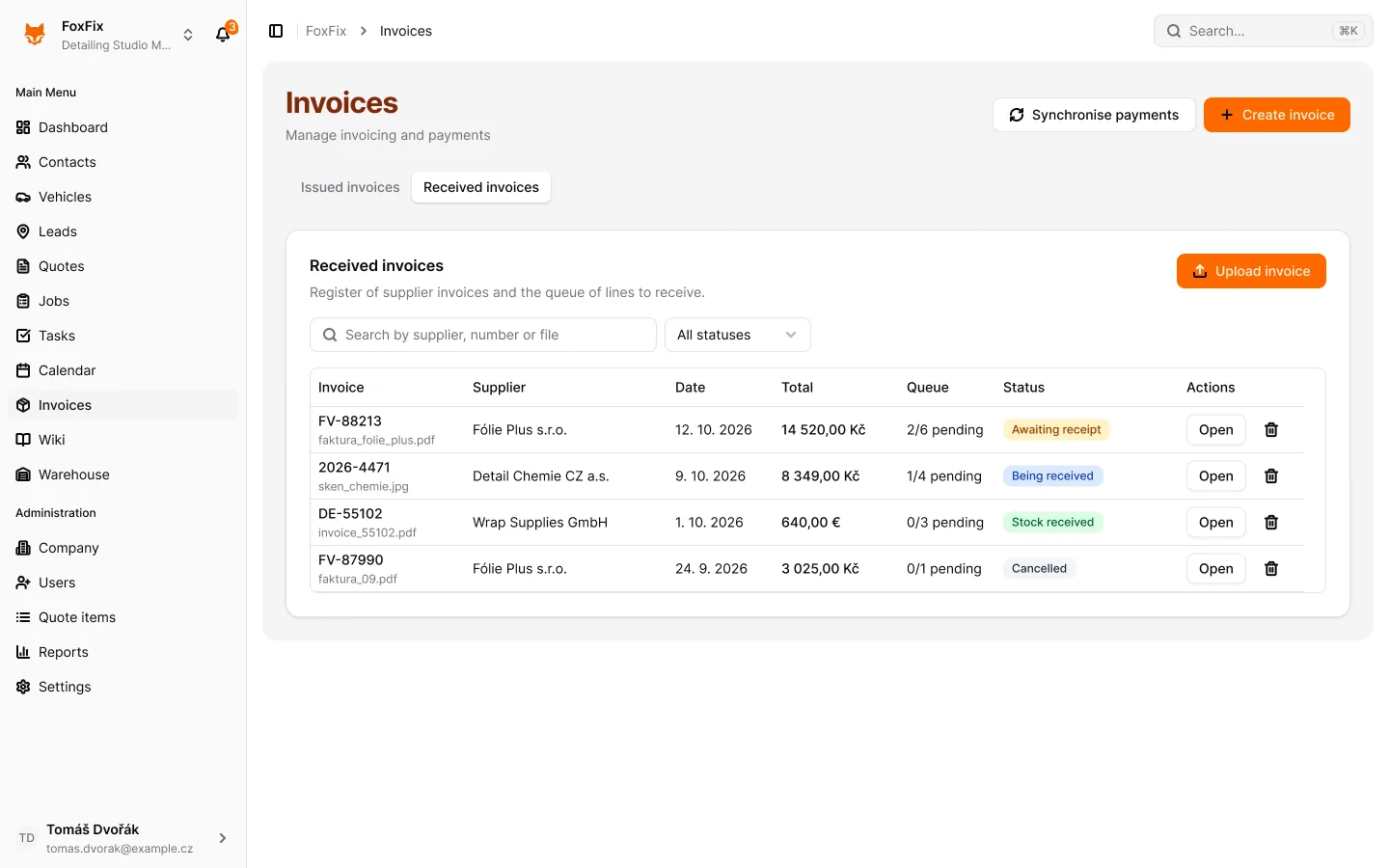
The Received invoices tab is for recording invoices from suppliers and for receiving the goods that came with them into stock.
 (opens the full-size image in a new tab)
The table shows the Invoice (number and file name), Supplier, Date, the Total amount, the Queue (how many lines are still waiting to be received, e.g. “2/6 pending”) and the Status: In progress, Awaiting receipt, Being received, Received into stock or Cancelled. You can search by supplier, number or file and filter by status.
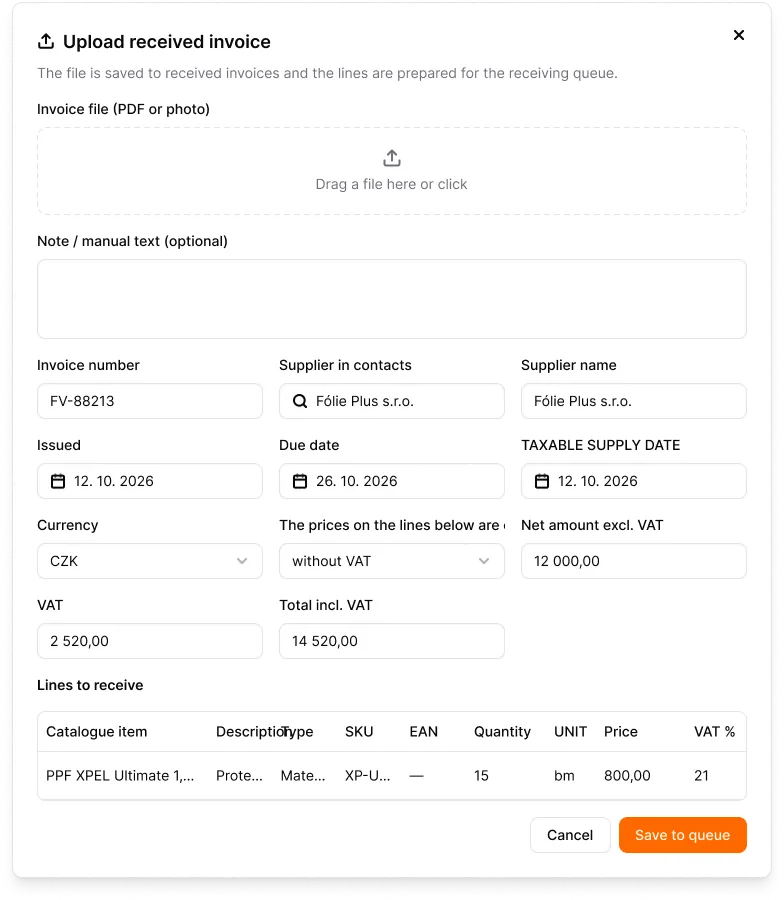
Add a new supplier invoice with the Upload invoice button. Upload a PDF or a photo and FoxFix extracts the header and lines from it on its own. You just check the details and confirm with Save to queue.
 (opens the full-size image in a new tab)
The whole process, including matching lines to the catalogue and receiving them into stock, is described in the chapter Receiving from an invoice.
A new stock card for a line the catalogue does not know is created by an Administrator or a Manager. Everyone else ticks Propose a new stock card (a manager approves it) on such a line – the proposal waits for a manager's approval, and the line can be received once the manager approves it.
Received invoice cost check
A Received invoice cost check card may appear above the table. It shows how many subcontractor invoices this month have been assigned to a job and how much of the delivery and customs costs has been spread into the price of the goods. Anything not yet assigned is listed under Unassigned subcontracts and Unassigned costs. When everything is in order, you will see “Everything is assigned.”
Deleting a received invoice
Only an Administrator can delete a received invoice: with the bin button and the confirmation “Delete invoice …?”. If you have already received something from it into stock, the quantity is deducted from stock again – only what is still left in stock.
Tips and common problems
- I can't see the Download selected ZIP button. It appears only once you tick at least one invoice, and only on the Issued invoices tab.
- The invoice is paid in iDoklad but not here. Click Synchronise payments, or open the invoice detail – the status is loaded again.
- Why doesn't the turnover match the table total? The turnover does not include proforma invoices, cancellations or internal documents.