
Transfers between warehouses
A transfer moves goods from one warehouse to another. It creates two linked records in the movement history — Transfer out from the source warehouse and Transfer in to the destination warehouse — so you can always trace what moved, when and where.
Requirement
You can only transfer between at least two active warehouses. With just one warehouse the page shows the notice “A transfer needs at least two active warehouses.”
How to transfer goods
- Open the Warehouses tab and click the warehouse you want to move goods from.
- In the warehouse detail, click Transfer at the top — the Stock transfer page opens.
- Choose the Variant:
- start typing in the field and pick from the list, or
- click the scanner icon next to the field and scan the barcode of the goods — once it is read you will see “Item selected”. (If the code matches no variant, you will see “Item not found”.)
- Check From warehouse (prefilled with the warehouse you came from) and choose To warehouse. Source and destination must be different — otherwise you will see “Source and destination must differ”.
- Enter the Quantity and, optionally, a Reason (e.g. “restocking the Brno branch”).
- Confirm with Transfer. You will see “Stock transferred” and return to the source warehouse detail.
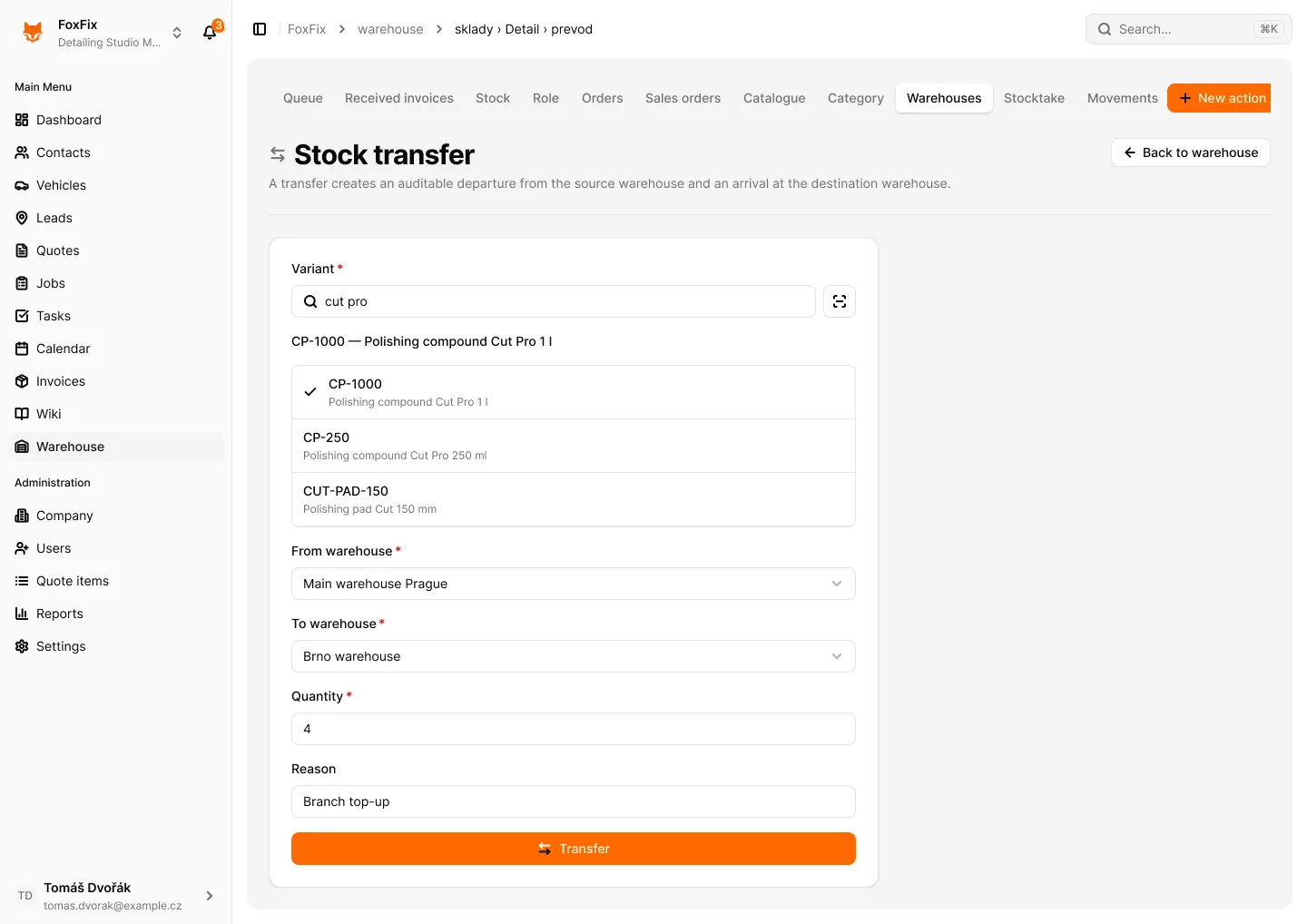 (opens the full-size image in a new tab)
Stock in both warehouses changes immediately — check it in Stock by filtering on the warehouse.
When a transfer fails
Transfers are designed so that goods never “get lost on the way”. There are three possible situations:
| Message | What happened | What to do |
|---|---|---|
| “Insufficient stock” | The source warehouse does not have that many units. Nothing was transferred. | Lower the quantity, or receive the goods first. |
| “The transfer failed and was rolled back. Please try again.” | The transfer failed part-way and the system rolled it back automatically — the goods are back in the source warehouse and nothing was lost. In the history you will see a reversing adjustment with the reason “Automatická oprava neúspěšného převodu” (automatic correction of a failed transfer; the app stores this reason in Czech). | Simply repeat the transfer. |
| “The transfer failed and could not be rolled back automatically. Please contact the administrator.” | A rare case: the goods left the source but did not arrive at the destination, and the automatic rollback failed. | Do not try the transfer again. Contact your administrator — the stock needs to be put right with a manual adjustment based on the movement history. |
What to watch out for
- Transfers work at warehouse level — you can sort out the exact bin (rack) in the destination warehouse with an adjustment or by scanning the bin at the next receipt.
- If a job in the destination warehouse is waiting for missing material, the app reserves the transferred goods for it automatically.
- You can transfer at most the Available quantity — reserved units cannot leave the warehouse. If the message says “insufficient stock” even though the On hand column shows enough, check the Reserved and Available columns in Stock.