
Dashboard
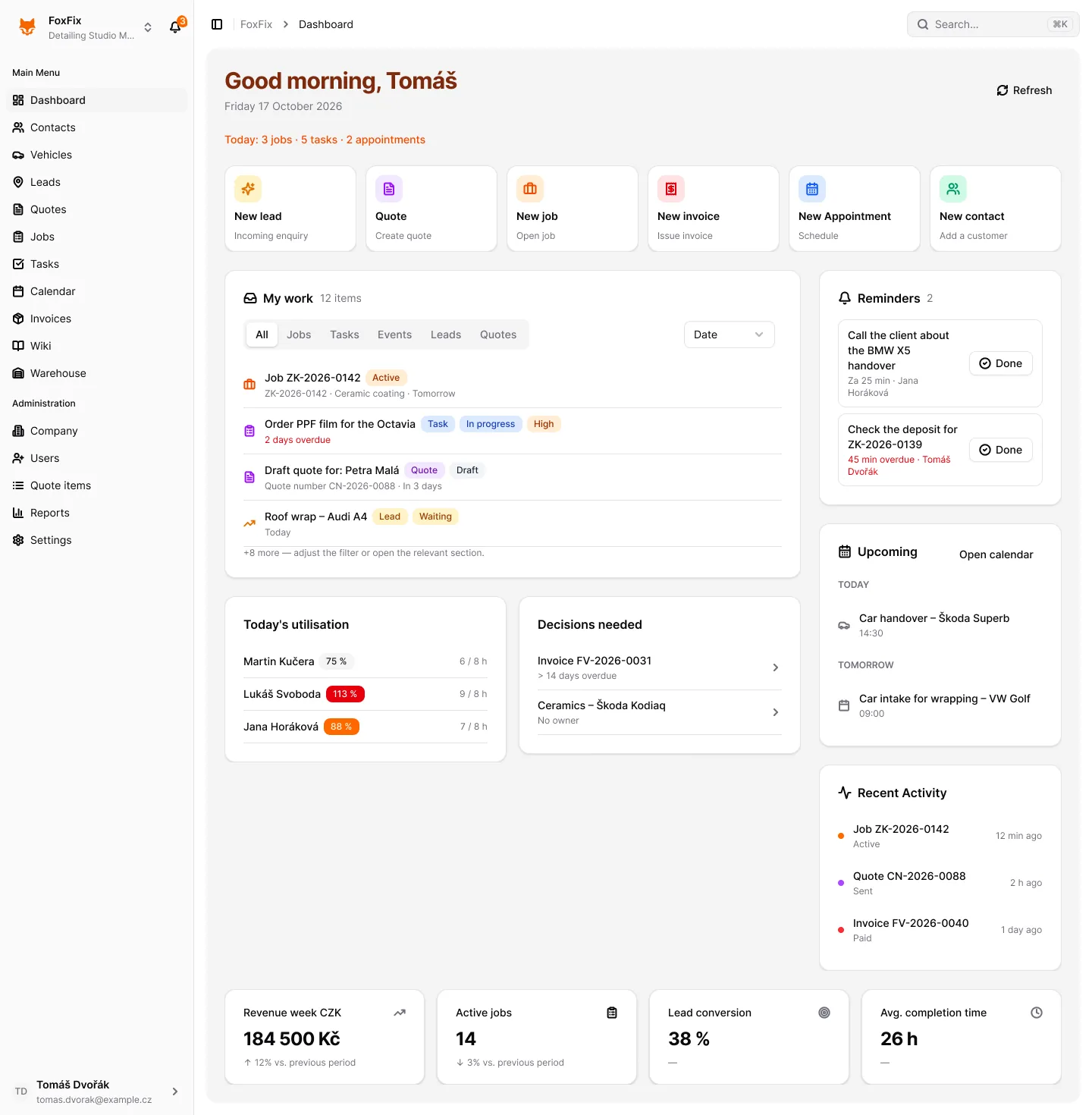
The dashboard is the start page you see after signing in. In one place it sums up what you are responsible for today, what is waiting for a decision and how the company is doing. Open it at any time by clicking Dashboard in the left-hand menu.
Who can see this
All signed-in users except the Warehouse clerk role — that role opens straight into Inventory after signing in. The content depends on your role and on the modules the company has turned on: parts belonging to modules that are off do not appear on the dashboard.
 (opens the full-size image in a new tab)
What you will find on the page
Greeting and summary of the day
At the top is a greeting with your name and today's date. Below it is the summary “Today: … jobs · … tasks · … appointments”. Click the summary to scroll down to the My work list. If you have nothing scheduled for today, you will see “Nothing scheduled today.”
The Refresh button at the top right loads the latest data without reloading the whole page.
Quick actions
A row of tiles for the most common tasks. Which ones you see depends on your role:
| Role | Quick actions |
|---|---|
| Administrator, Manager | New lead, Quote, New job, New invoice, New appointment, New contact |
| Salesperson | New lead, Quote, New contact, New appointment |
| Technician | New job, New appointment, New contact, New vehicle |
Click a tile to open the relevant form (for New appointment, the calendar).
My work
The main list of everything open that is assigned to you:
- jobs where you are a technician (main or additional),
- tasks where you are the assignee,
- leads where you are the assignee and which are not yet won or lost,
- quotes assigned to you that are not closed,
- appointments from the calendar that belong to you.
Use the All, Jobs, Tasks, Events, Leads and Quotes tabs to narrow the list down to one type. Use Sort to switch the order to Date, Status or Type. Each item shows its status and due date (“Today”, “Tomorrow”, “In 3 days”); overdue items are highlighted in red (“2 days overdue”). Click an item to open its detail.
When there are many items, you will see “+N more” at the end of the list — narrow the selection with a tab, or open the relevant section in the menu.
Today by your role
Below the My work list is a card that differs by role:
- Administrator and Manager — the Today's utilisation card shows the approximate workload of technicians: each job starting today counts as 2 hours of a daily capacity of 8 hours (e.g. “6 / 8 h” and a percentage; overload above 100% is red). The Decisions needed card lists invoices more than 14 days overdue and waiting leads with no assignee.
- Salesperson — the Needs action card groups **Leads waiting
24 h**, Quotes to send and Today's appointments. When everything is done, you will see “All done. Great work.”
- Technician — the My agenda today card shows today's jobs, tasks and appointments. Start work with the Start button and finish it with the Done button. Show finished items with the Show completed link.
Waiting for you
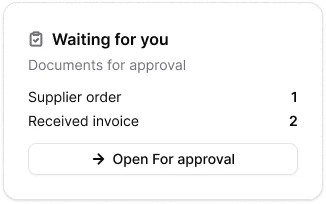
If you approve documents, the right-hand column shows the Waiting for you block: how many received invoices and supplier orders are waiting for your approval (including those of colleagues you are covering for). The Open For approval button takes you to the queue – see For approval. The block appears only in companies with the 5 Nov 2026 update switched on.
 (opens the full-size image in a new tab)
Reminders
Reminders from the calendar that concern you. Each one shows when it is due (“In 25 min”, or in red “45 min overdue”) and who is responsible for it.
- Done — marks the reminder as dealt with.
- Snooze +1 day — moves it by a day.
Upcoming
Calendar appointments for today and tomorrow, sorted by time. The Open calendar link takes you to the Calendar.
Recent activity
The last eight changes in the company — jobs, leads, quotes and invoices — with the time of the change (“12 min ago”). Click one to open its detail.
Company figures
At the bottom are cards with key indicators, the trend compared with the previous period and a small chart:
| Indicator | What it means |
|---|---|
| Revenue this week CZK (or EUR) | The total of invoices paid over the last 7 days. The euro card only appears if the company invoices in euros. |
| Active jobs | The number of jobs in the Active status. |
| Lead conversion | The share of won leads out of all leads closed (won or lost) over the last 30 days. |
| Avg. completion time | The average time from creating a job to completing it over the last 30 days, in hours. |
Tips and common problems
- Something is missing from my dashboard. The My work list only shows what is assigned directly to you. You will find a lead with no assignee or a job with no technician in the relevant section of the menu. Administrators and managers see leads with no assignee in the Decisions needed card.
- The message “Error loading the dashboard” appeared. Click Try again. If the error persists, check your internet connection.
- On a phone, all sections are stacked in a single column, and the quick actions are in two columns.