
Catalogue, variants and categories
The catalogue is the list of everything Inventory keeps track of. This chapter covers products and variants (the Catalogue tab), categories and manual stock adjustments. Warehouses and the bins inside them have their own chapter, Warehouses and bins.
How things fit together
- A product is a goods card (e.g. “ShieldPro protective film”). It groups variants, photos and a category. On its own it has no price or stock level.
- A variant is a specific stocked item (e.g. “152 cm gloss”). It carries the SKU, EAN, unit, prices, minimum stock and stock level. A product can have as many variants as you like.
- Categories sort products into a tree.
Product list
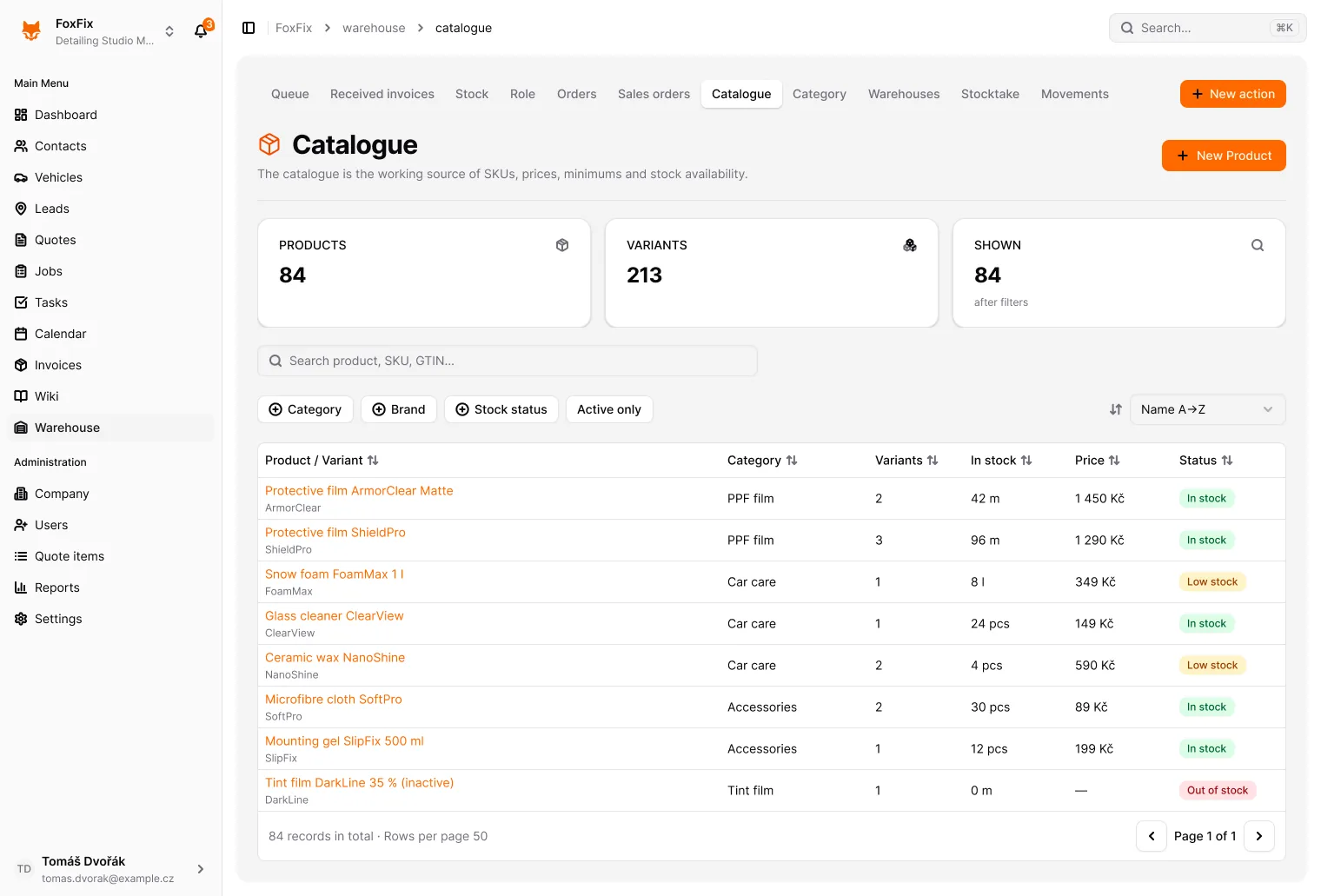
The Catalogue tab (“The catalogue is the working source of SKUs, prices, minimums and stock availability.”) has three figures at the top: Products, Variants and Shown (how many products passed the filters). Below them is the product table with the columns Product / Variant, Categories, Variants, On hand, Cost (the lowest selling price) and Status.
 (opens the full-size image in a new tab)
Search and filters:
- The “Search product, SKU, GTIN…” field searches product names, brands, descriptions and the SKUs and EANs of all variants.
- The Category, Brand and Stock status filters (In stock / Low stock / Out of stock) — you can tick several values in each.
- The Active only / Include inactive switch — inactive products are normally hidden.
- Sorting: Name A→Z, Name Z→A, Price ↑, Price ↓, Stock (lowest), Recently updated.
- Clear filters restores the default view.
- With the November 2026 update the To approve button (with the number of cards) shows only products with a card awaiting approval — see To approve.
Click a product name to open its detail.
The new catalogue with the assortment tree
With the 26-11 update
This section describes the new Goods catalogue screen. It appears once your company has it switched on. Until then, the product list described above applies.
The new catalogue is one card for both the warehouse and sales. The assortment tree is on the left, the goods in the selected group on the right.
The assortment tree
- Every group shows its card count. ▦ All goods is at the top and Without assortment at the bottom. Search the tree with "search in assortment" and fold it with collapse all.
- The selected group is remembered in this browser, separately for each company.
- The ⚙ Manage assortment link is visible to anyone who may open Manage assortment; it leads to Manage assortment.
- On a phone the tree is one Assortment ▾ picker above the list.
Filters
- The Name, SKU, EAN box searches the whole catalogue regardless of the selected group and says so above the list.
- Brand, For sale (for sale / jobs only / not for sale) and Status (active, below minimum, sold out, not for sale, pending approval, merged, inactive).
- with subgroups decides whether cards from subgroups appear under the selected group. Clear filters restores the default view.
- There is no surface filter yet; it waits for a field on the card.
Columns
The list has nine columns in this order:
| Column | What it shows |
|---|---|
| Goods card | Card name (width in cm if filled in) and the preview button. |
| SKU | Stock number. |
| Sales unit | bm, bm / roll, roll or pcs. |
| Tracking | roll, S/N, by pieces or quantity only. A card with serial numbers (any mode except off) is S/N; a card tracked by rolls is roll. |
| For sale | ✓ or ☐ jobs only. |
| Selling price excl. VAT | The price; for a roll also the price per roll. |
| B2B discounts | ✓ yes (levels from the assortment) or no; a dash for cards that are not sold or are jobs-only. |
| In stock | Stock in warehouse units. |
| Status | The card status chip. |
Card preview
The arrow in a row opens a preview with the tabs Basics, Sales and prices, Stock and rolls, Purchasing and Used in jobs. The open card › link leads to the card detail. The new card detail is described in The new card detail.
Merge duplicates and loading
- The ⇄ Merge duplicates · N suggestions button in the header lists cards that look like the same goods (same EAN, or same name and brand). The merge itself is done in the card detail, see Goods card.
- + New card creates a new card.
- Cards load 50 at a time; Load N more adds the next page. Counts may lag behind the latest changes by up to a minute.
New product
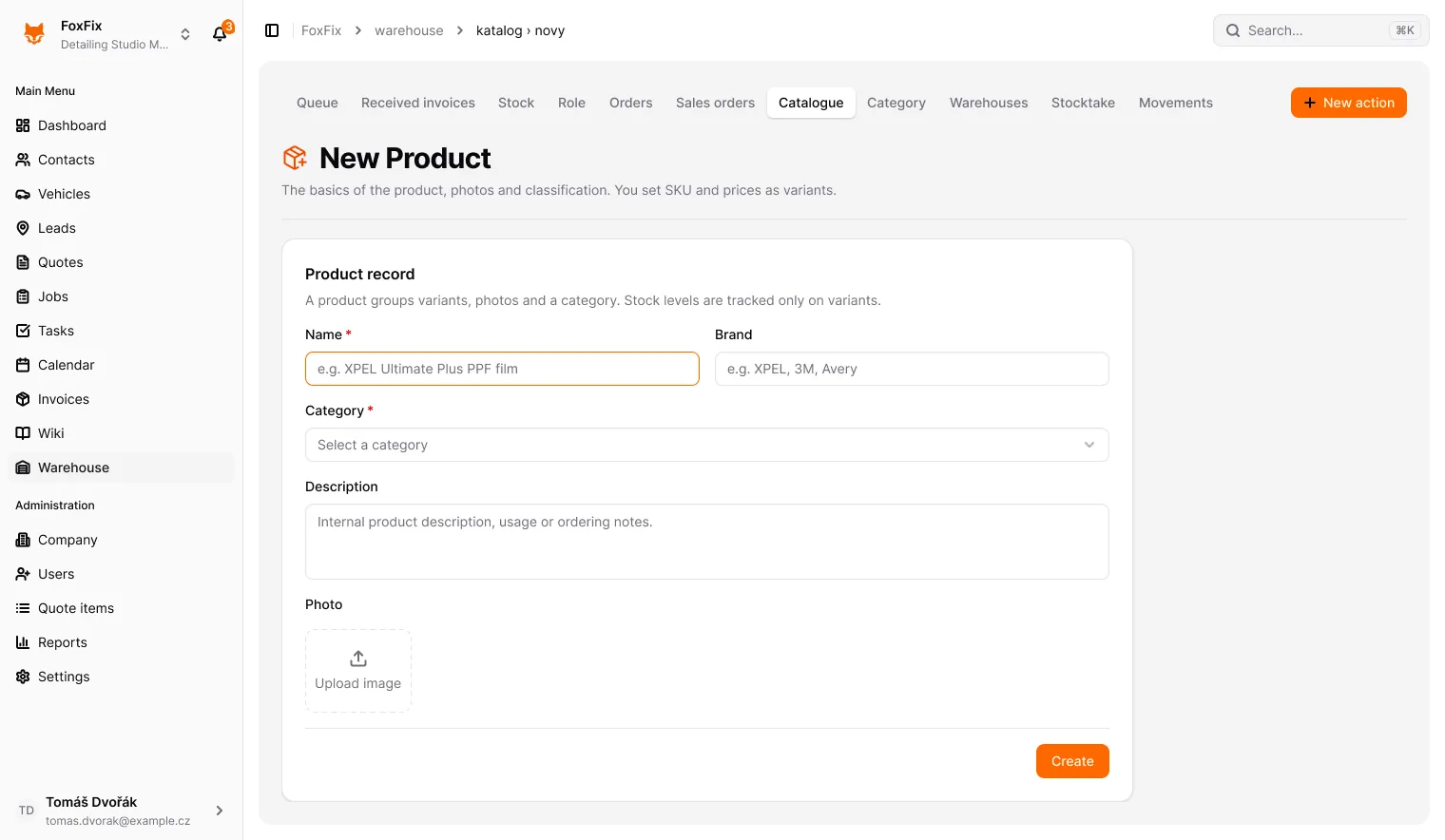
- In the Catalogue, click New Product in the top right.
- Fill in the Name (required), e.g. “XPEL Ultimate Plus PPF film”.
- Optionally add the Brand.
- Select a Category from the tree (required). Without one, “Select a category from the tree — without one the product cannot be classified or found.” appears. If you do not have any categories yet, create them first on the Categories tab.
- Optionally write a Description and add a picture with the Upload image tile (remove it with the cross).
- Confirm with Create. “Product created” appears and the product detail opens.
 (opens the full-size image in a new tab)
A new product is “empty”
A new product has no variant, so it cannot be received or sold. Add at least one variant to it straight away (see below).
Product detail
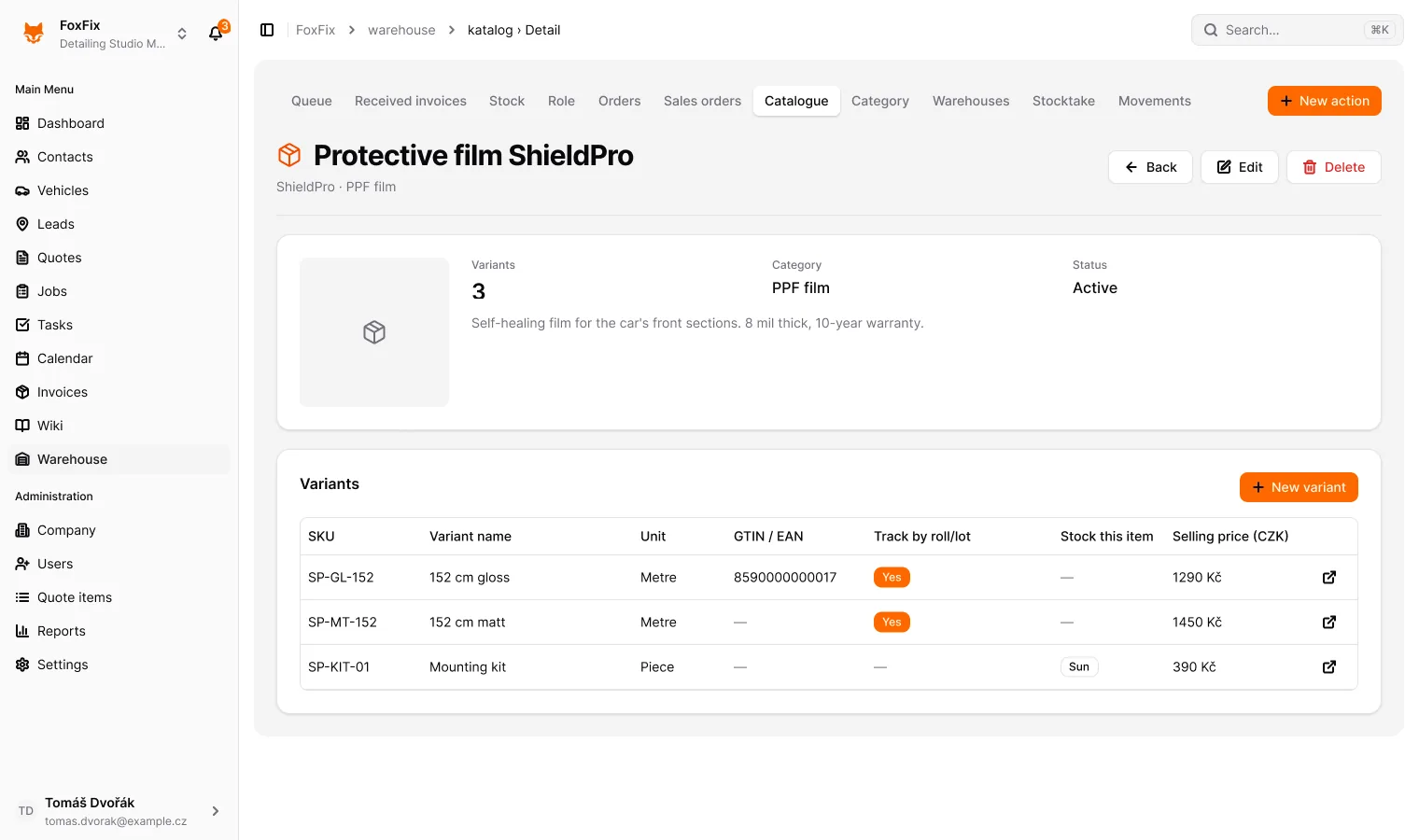
The detail shows the photo, number of variants, category, status (Active / Inactive), description and the Variants table. For each variant you can see the SKU, name, unit, EAN, whether it is tracked by roll, whether it is stocked, and the selling price. The icon on the right opens the variant detail.
 (opens the full-size image in a new tab)
At the top are the Back, Edit and Delete buttons:
- Edit opens the same form as for a new product. The category is not required here — you can also choose No category.
- Delete asks for confirmation (“Really delete product …?”) and cannot be done while the product has variants — “Delete the variants first.” appears.
Product variant
New variant
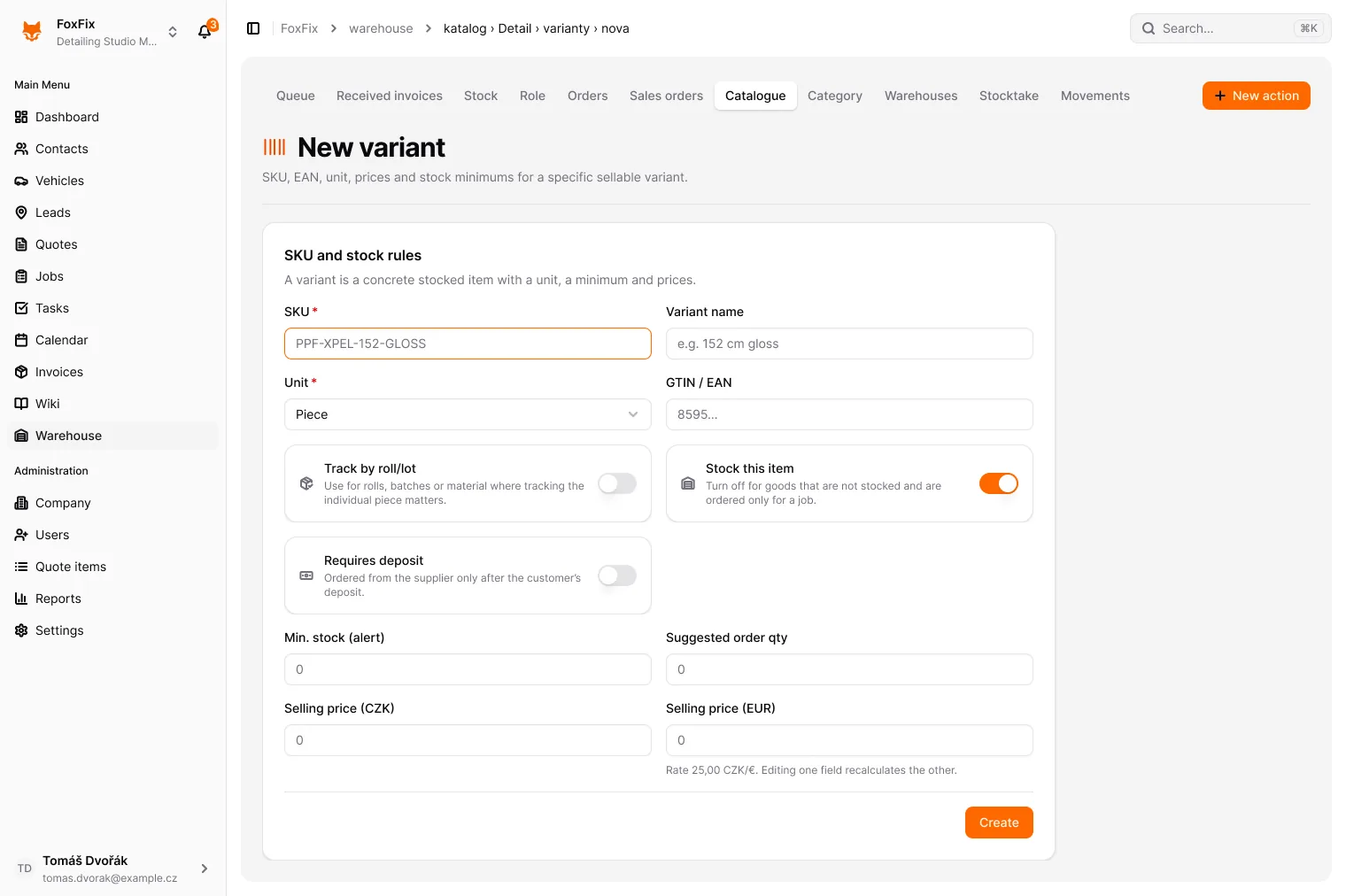
- In the product detail, click New variant.
- Fill in the SKU and stock rules form:
| Field | What it is for |
|---|---|
| SKU (required) | Your stock number, e.g. PPF-XPEL-152-GLOSS. |
| Variant name | E.g. “152 cm gloss”. |
| Unit (required) | Metre, m², kg, Litre or Piece (default). |
| GTIN / EAN | The manufacturer's barcode. It is what makes scanning work. |
| Track by roll/lot | Turn on for rolls and material where it matters which specific piece is used. More in Rolls. |
| Length of a new roll | Shown for the Metre or m² unit. How many metres an unopened roll has — every received roll starts with this figure. |
| Stock this item | On by default. Turn off for goods that are not stocked and are ordered only for a job. |
| Requires deposit | The goods are ordered from the supplier only after the customer pays a deposit. Once turned on, fill in Min. deposit % or Min. deposit CZK. |
| Min. stock (alert) | When stock falls to this level or below, the item is flagged as Low stock (0 = not monitored). |
| Suggested order qty | How much you usually reorder. Used by the Order button in Stock. |
| Selling price (CZK) and Selling price (EUR) | Pre-filled when selling. Overwriting one field recalculates the other at the current exchange rate. |
- Confirm with Create. “Variant created” appears and you return to the product detail.
 (opens the full-size image in a new tab)
Variant detail
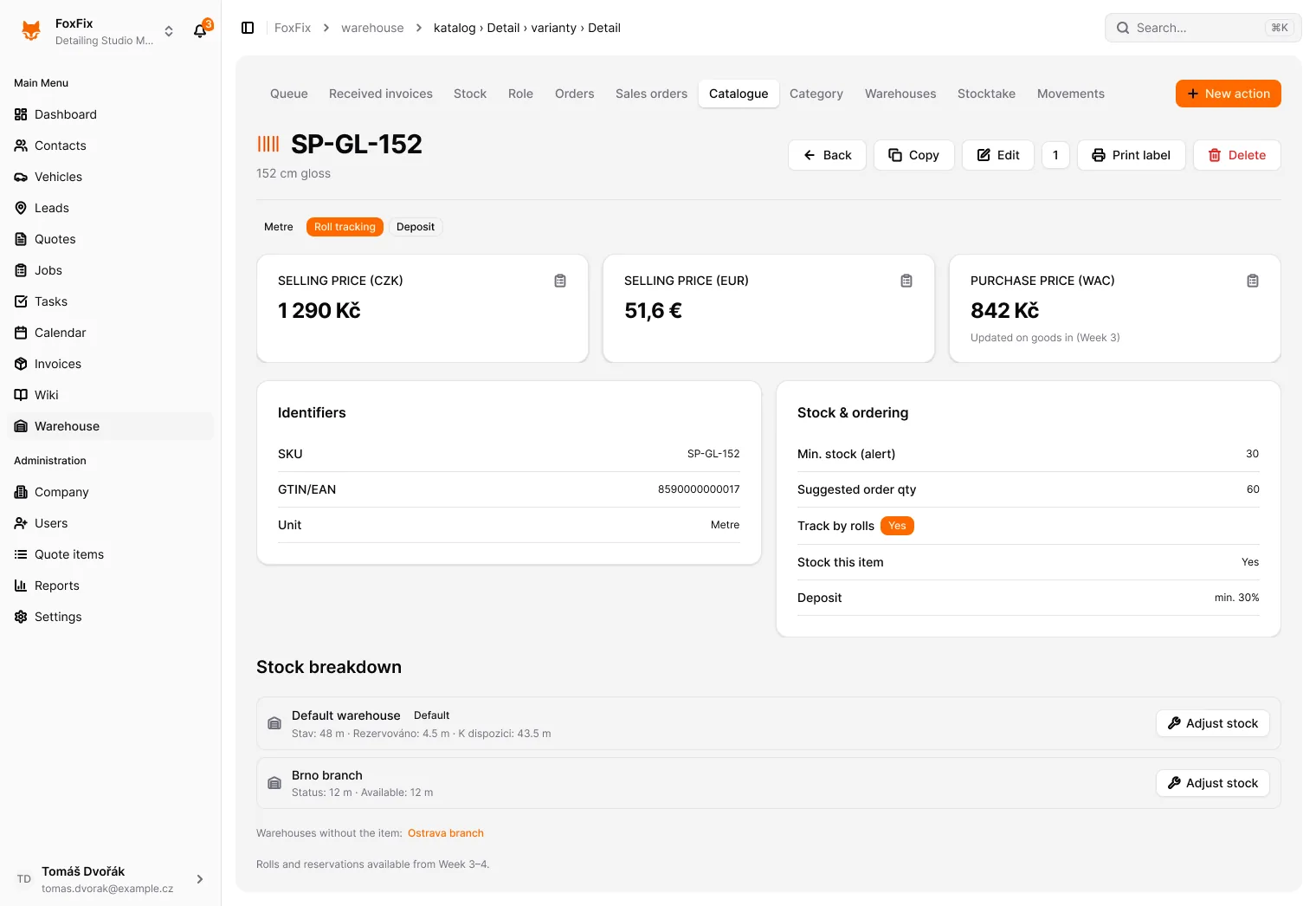
The variant detail shows everything Inventory knows about the item:
- property badges — unit, Roll tracking, Inactive, Not stocked, Deposit,
- Selling price (CZK), Selling price (EUR) and Purchase price (WAC) — the weighted average purchase price, recalculated with every goods in,
- the Identifiers card (SKU, GTIN/EAN, unit) and the stock and ordering rules (minimum, recommended order, roll tracking, stocking, deposit),
- the Records card — only for items taken over from the company price list: stock type, link type, location, VAT rate and classification, Max. discount, width, manufacturer code and supplier. These details are read-only,
- Stock breakdown — how much is held in each warehouse (On hand, Reserved, Available),
- with the November 2026 update, the Suppliers and Minimum and default location per warehouse blocks — see Card suppliers and minimum per warehouse,
- with the November 2026 update, the Serial numbers and warranty block — see Serial numbers and warranty on the stock card,
- with the November 2026 update also the card status (⏳ awaiting approval, merged), Approve, Reject, Merge with existing and Change history — see Stock card – approval, merging and history.
 (opens the full-size image in a new tab)
Buttons in the header:
- Copy copies the SKU to the clipboard.
- Edit opens the variant form. Saving is confirmed with “Variant saved”.
- The quantity field (1–50) and Print label print a general product label with a QR code, name, SKU and EAN.
- Delete — deletion is blocked while the variant has anything in stock: “The variant has stock. Zero out the stock first.” You zero out the stock with an adjustment (see below).
Maximum discount
If the variant has a Max. discount filled in on the Records card, sales from stock enforce it. Only an Administrator or a Manager can allow a higher discount, and they must give a reason.
New stock card from an invoice or scan
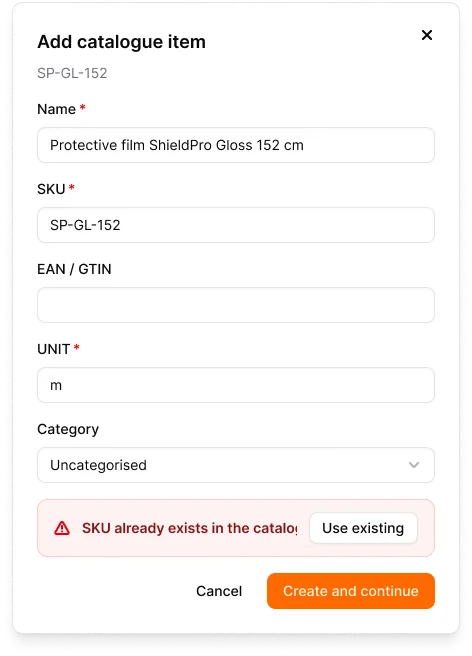
When you come across goods during receiving that are not in the catalogue, you do not have to leave for the catalogue. The Create in catalogue button (on the Receive page, in the queue and on a received invoice line) opens a short Add catalogue item form: Name, SKU, EAN / GTIN, Unit and Category. The name, SKU and unit are pre-filled from the invoice or the scanned code.
What happens after you confirm depends on your role:
- Administrator and Manager — the Create and continue button creates the item straight away (“Item created”) and you carry on receiving.
- Other roles — the Send proposal for approval button sends a proposal to a manager (“Card proposal sent to a manager for approval.”). The manager finds it in Administration → Quote items → Item proposals and approves it with Approve and create. Once approved, the invoice line is matched to the new card automatically and can be received.
If the SKU already exists in the catalogue, the form shows “SKU already exists in the catalogue” and offers Use existing.
 (opens the full-size image in a new tab)
Manual stock adjustment (damage, found items, minor corrections)
When the physical stock of a single item does not match the system, you correct it with an adjustment. For recounting a whole warehouse, Stocktake is more convenient.
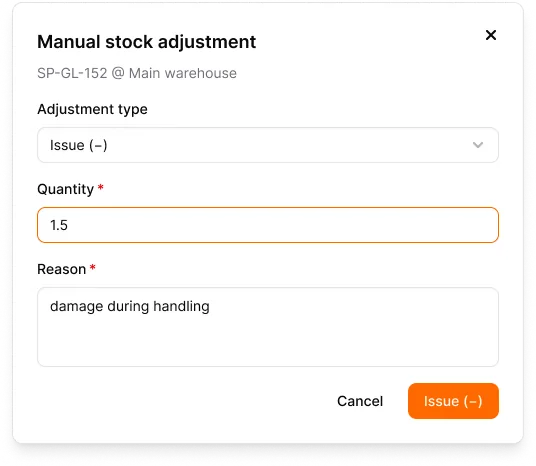
- Open the variant detail and, in the Stock breakdown section, click Adjust stock next to the relevant warehouse. A warehouse where the variant has never been held is listed under “Warehouses without the item:”.
- In the Manual stock adjustment dialog, choose the Adjustment type: Receive (+) or Issue (−).
- Enter the Quantity (it must be positive, otherwise “Enter a positive quantity”).
- Fill in the Reason (required) — e.g. stocktake, damage, found… Without a reason, “Give a reason for the adjustment — a manual change without one cannot be audited.” appears.
- Confirm with the Receive (+) or Issue (−) button. “Stock adjusted” appears and an Adjustment (+) or Adjustment (−) movement is added to the history.
You can write off at most the Available quantity (stock minus reserved). A larger write-off is rejected with the message “Insufficient stock”.
 (opens the full-size image in a new tab)
Categories
November 2026 update
With the November 2026 update the tab is called Assortment, and each group also carries a card template that the cards inherit. See Manage assortment.
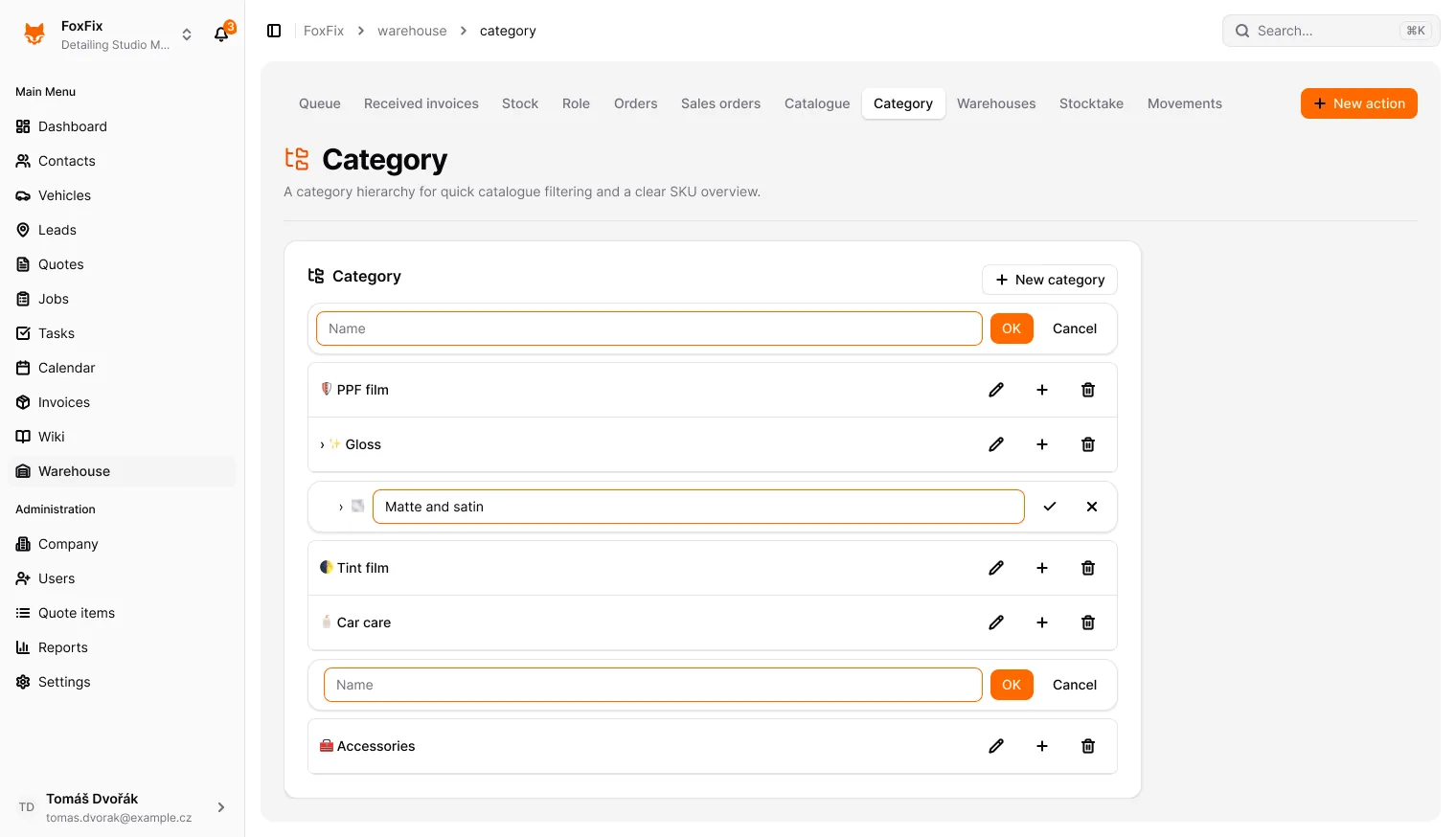
The Categories tab manages the category tree (e.g. “PPF film” → “Gloss”). Categories help you filter the catalogue and are required for new products.
- Adding — click New category, type a name into the “Name” field and confirm with OK (or the Enter key).
- Subcategory — the + icon next to an existing category opens a row for the name below it.
- Renaming — the pencil icon; edit the name and confirm with the tick or Enter (Escape cancels the edit).
- Deleting — the bin icon. The app asks “Really delete category …? Products will become uncategorised.” So the products are not deleted; they just lose their category.
 (opens the full-size image in a new tab)
Warehouses and bins
Physical warehouses, the bins inside them (racks, shelves) and their QR labels have their own chapter, Warehouses and bins.
Bins in a warehouse
How to create racks and shelves is described in Warehouses and bins — Bins in a warehouse.
Bin QR labels
Printing QR labels for racks and shelves is described in Warehouses and bins — Bin QR labels.