
Issues and sales
Goods leave the warehouse by several routes:
| Route | When to use it |
|---|---|
| Sale from the warehouse | The customer buys the goods and gets an invoice. |
| Sales order | You ship goods to the customer and need dispatch and a delivery note. |
| Issue to a job | Material for work on a vehicle. It is reserved automatically when the job is created. |
| Issue (−) adjustment | Damage, loss or other consumption without a document. |
Sales, orders and jobs all follow the same principle: goods are first reserved, the warehouse clerk picks them in the queue and only then issues them — at that point they are deducted from stock.
Sale from the warehouse
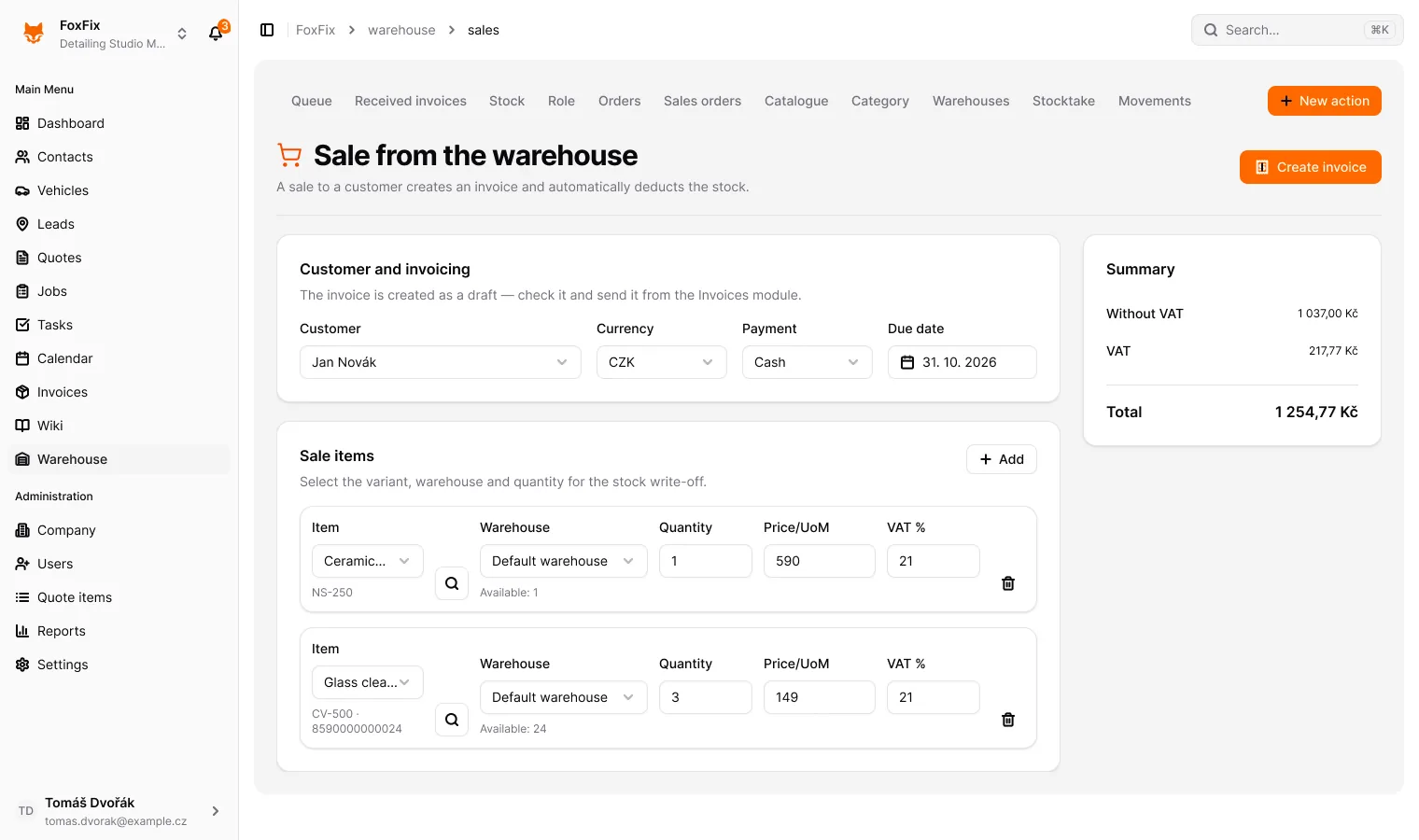
Open New action → Sale (the Sale from the warehouse page).
 (opens the full-size image in a new tab)
1. Customer and invoicing
In the Customer and invoicing card, fill in:
- Customer — start typing and choose from your contacts.
- Currency — CZK or EUR. Prices are prefilled according to the currency.
- Payment — Cash, Bank transfer, Card or Other.
- Due date — prefilled as today + 14 days; you can change it.
2. Sale items
In the Sale items card, add lines with the Add button:
- Item — search for a variant by name, SKU or EAN. The magnifier button opens the Stock items overview with a warehouse filter and the Available only option; clicking a row selects both the item and the warehouse.
- Warehouse — which warehouse the goods come from. Below the field you can see “Available: N”.
- Quantity — must not exceed the available quantity.
- Price/UoM — the variant's selling price in the sale currency is prefilled; you can overwrite it.
- Discount % — an optional discount on the line.
- VAT % — prefilled with 21.
Remove a line with the trash icon. The Summary card keeps a running total of Excl. VAT, VAT and Total.
3. Creating the invoice
- Click Create invoice at the top right. The button becomes active once a customer and at least one item are selected.
- The app checks availability, creates a draft invoice and reserves the goods for picking.
- You will see “Invoice … created, goods reserved for picking” and the invoice detail opens.
- The warehouse clerk finds the reservation in the queue, in the To issue section, as “Invoice …”, picks the goods (Pick) and issues them (Issue). Only the issue deducts the goods from stock.
The invoice is created as a draft
Check the invoice and send it to the customer from the Invoices module as usual. In the invoice detail you can see Reserved material and Dispatched material. The Warehouse clerk role has no access to Invoices — the app sends it back to the Inventory overview, and a colleague with access to Invoices finishes the invoice.
Discount over the limit
Some stock items have a maximum discount set in their Records card. The app enforces it even when you lower the price on a line by hand — for the app, a lower price is a discount too.
- A line over the limit shows “Above the card's X% limit — managers only.”
- Administrators and Managers can sell over the limit: after clicking Create invoice, the Discount over the stock card limit dialog opens. Write a reason and confirm with Sell with reason. The reason is stored with the invoice.
- Other roles cannot save a sale over the limit — they see a message that only a manager can exceed it. Reduce the discount, or ask a manager.
When something is missing
| Message | What to do |
|---|---|
| “Select a customer” | Fill in the customer in the first card. |
| “Select an item and a warehouse on every line” | One of the lines has no variant or warehouse selected. |
| “The quantity must be greater than 0” | Correct the quantity on the line. |
| “Insufficient stock. Available: X, requested: Y” | You are trying to sell more than is Available. Reduce the quantity, choose a different warehouse, or first receive or transfer the goods. |
Issuing material without a sale
Write off damage, loss or other consumption without a document with an adjustment:
- Open the variant detail → Stock breakdown → Adjust stock.
- Choose Issue (−), enter the quantity and write what happened in Reason (e.g. “damaged during unloading”).
- Confirm. An Adjustment (−) movement with your name and the reason is created in the history.
The detailed procedure is in Catalogue — Manual stock adjustment. Material for jobs (including additional issues, waste and returns) is recorded directly on the job — see Issuing material to a job.
Tips and common problems
- You can only sell the Available quantity (On hand − Reserved). Goods reserved for jobs or other invoices cannot be sold.
- Inactive variants are not offered when choosing items for a sale. If you cannot find an item, check in the catalogue that it is active and in stock.
- Deleting a draft invoice (allowed for Administrators and Managers) releases its reservations — goods that have not been issued yet return to free stock. Anything already issued does not come back on its own; return it with a Receive (+) adjustment and a reason.