
Issuing material to a job
This guide describes how material gets from stock to a specific job – from the automatic reservation, through picking by scanning, to the issue (the write-off from stock). Use it when a technician is starting work and the warehouse needs to prepare piece goods or cut metres off a roll. Selling goods to a customer is a different procedure – see Selling from stock.
Before you start
- Module and plan: Inventory (the Profi plan and above, switched on in Application modules) and Jobs.
- Items: Inventory only learns about material from quote items that have a link to a stock item in the price list and a material consumption filled in. If you have more than one warehouse, one of them must be marked as the Default warehouse – reservations are made from there.
- Labels: picking by scanning only works for pieces that received our QR label when they were received from an invoice.
- Role: the Warehouse clerk works in the Inventory Queue; they cannot open the job detail, so the technician shows them the job's QR code.
Material for a job goes through three stages:
| Stage | What it means | Where it happens |
|---|---|---|
| Reserved | The goods are held for the job but are still on the shelf. | Created automatically when the job is created. |
| Picked | The warehouse clerk has taken the pieces off the shelf and confirmed them by scanning. | Inventory → Queue → Pick. |
| Issued | The goods have been written off stock. | Inventory → Queue → Issue (for metre goods Issue metres). |
The reservation makes sure nobody sells the goods in the meantime (it is deducted from Available in Stock). Picking by scanning confirms which pieces have actually left the shelf. Only the issue is a write-off from stock.
Step 1 – The reservation is created with the job
You do not start the reservation by hand. It happens automatically as soon as a job is created from an approved quote (see Turning a quote into a job), or when you create a job with material by hand. You see the result in a message:
| Message | What it means |
|---|---|
| “N items reserved in the warehouse” | Everything is fine. |
| “N items missing — recorded as shortage and passed to purchasing” | Some of the material is not in stock. Purchasing has received a request and once the material has been received it is reserved for the job automatically. |
| “N not linked to stock” | The quote items have no link to a stock item. |
| “Nothing could be reserved from the warehouse” | None of the material needed is in stock. |
| “The material was not reserved because it is unclear which warehouse to use…” | You have more than one warehouse and none of them is the Default warehouse. |
You can check what is reserved for the job in the job detail on the Material tab, in the Material: norm vs. actual table (columns Norm, Reserved, Issued, Returned, Waste, Actual, Deviation, Cost). If material is missing, the top shows “N materials are short in stock. The shortage is passed to purchasing and reserved automatically on receipt.”
Step 2 – Start the job with the Start work button
- In the detail of a job with the status Approved, click Start work. If the button is greyed out, hover over it – the Missing: tooltip lists what to fill in (technician, planned completion, intake checklist).
- The job switches to Active. If anything was missing since the job was created, the system tries to reserve it again.
- If material is still missing, the Material is short in stock window opens (“The job is short of N materials that purchasing has not delivered yet.”). Only an Administrator or Manager can start the job anyway, with the Start anyway button and a Reason for starting without material filled in – it is recorded in the job history.
Step 3 – Find the reservation in the Inventory queue
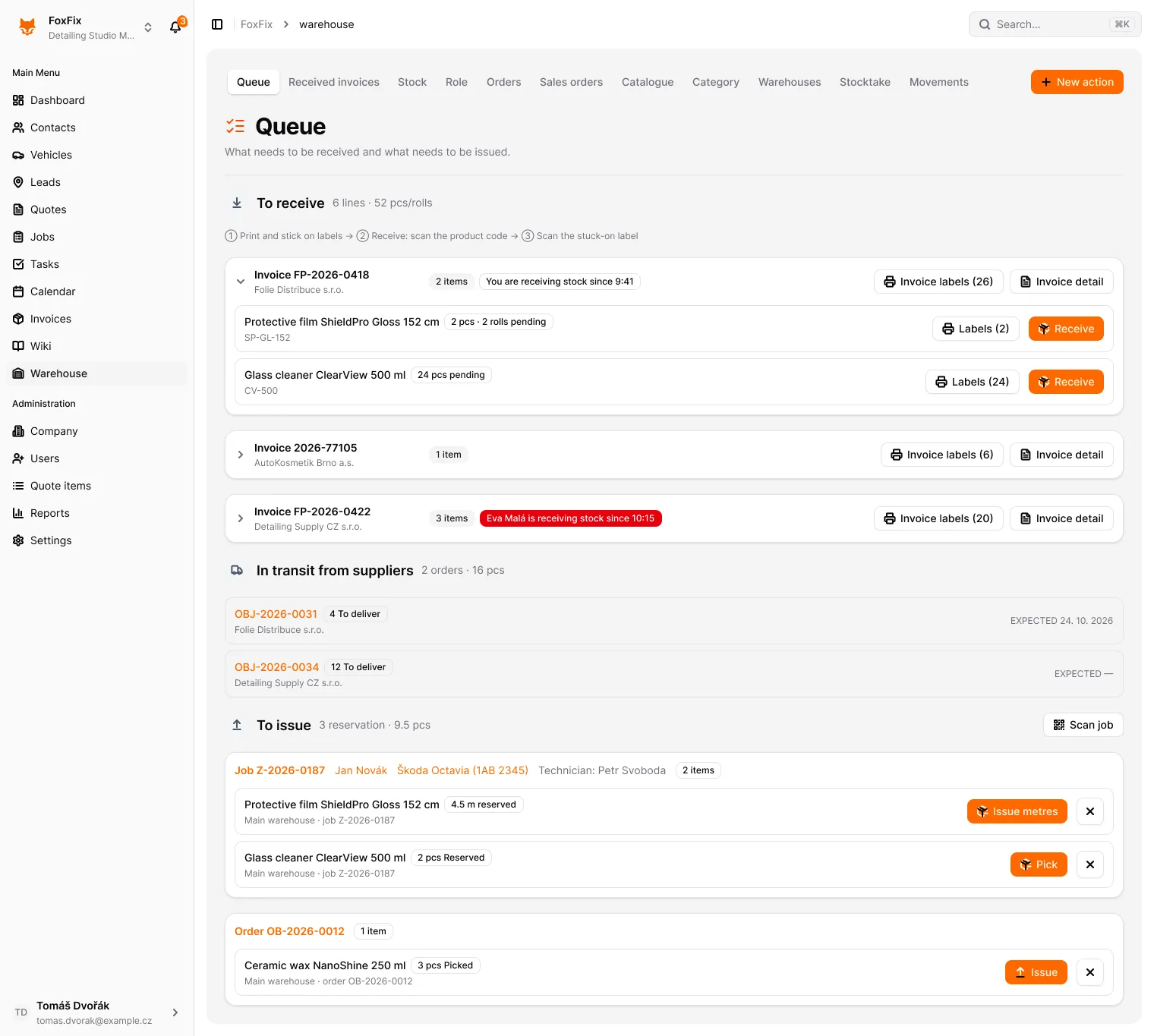
In Inventory, open the Queue tab (“What needs to be received and what needs to be issued.”). In the To issue section, reservations are grouped by document: Job … (with the client, vehicle and technician), Order OB-… or Invoice …. Each item has a label with the quantity and one main button:
- Pick – piece goods that are still on the shelf (step 4).
- Issue – goods that have already been picked and are only waiting to be written off (step 5).
- Issue metres – metre goods from a roll; picking and issuing are a single step (step 6).
- The cross – Cancel reservation: the goods go back into free stock (“Reservation cancelled, the goods are available again”).
 (opens the full-size image in a new tab)
Faster: scan the job's QR code
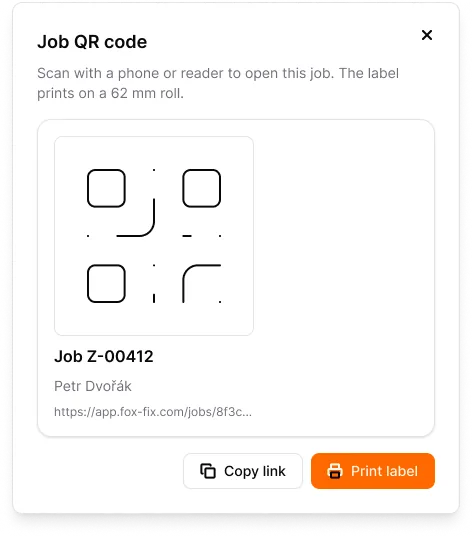
- The Technician opens the job detail and clicks the QR icon next to the number. The Job QR code opens; it is enough to show it on the screen, or print it on a label with Print label (62 mm roll). The QR code is also in the header of the technical sheet.
- The Warehouse clerk clicks Scan job in the To issue section (or at any time New action → Issue to a job) and scans the QR code.
- The queue narrows down to this job – at the top you see “Job … · N items to issue” and a Clear filter button.
 (opens the full-size image in a new tab)
Step 4 – Pick piece goods by scanning
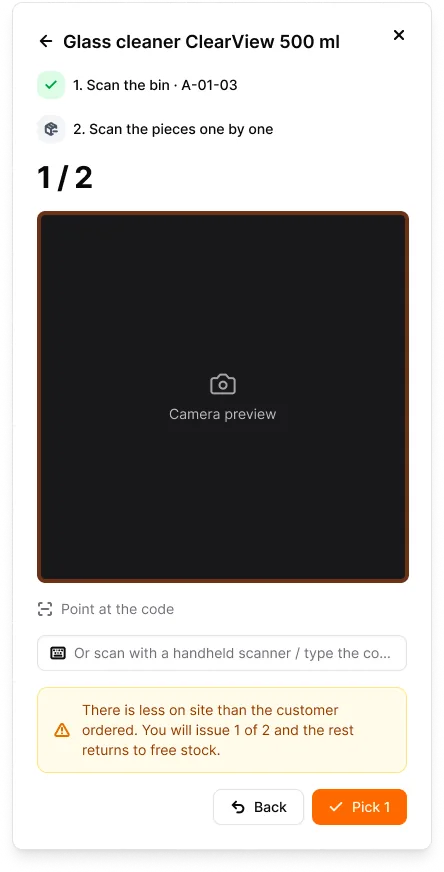
The Pick button opens a full-screen wizard:
- 1. Scan the bin – the QR label of the shelf you are taking from. If you reach into the wrong shelf, the mistake shows up immediately.
- 2. Scan the pieces one by one – scan our QR label on each piece. The X / Y counter shows your progress; Back undoes the last scan.
- Finish with Pick N – you will see “Picked N” and Issue is offered for the item in the queue.
 (opens the full-size image in a new tab)
Common wizard messages:
| Message | What to do |
|---|---|
| “This is not a bin code. Scan the shelf label.” | Find the shelf's QR label. |
| “This bin does not exist in this warehouse.” | The label belongs to a different warehouse from the one the reservation is in. |
| “This is not a piece code. Scan the label on the goods.” | Scan our QR label, not the manufacturer's barcode. |
| “You have already scanned this piece.” | Take the next piece. |
If there are fewer pieces on the shelf, the wizard shows “There is less on site than the customer ordered. You will issue X of Y and the rest returns to free stock.” In the queue you will then see “Only X of Y was found.” for the item.
Step 5 – Issue the picked goods
For an item labelled as picked, click Issue:
- you will see “Issued N”,
- the movements Reservation release and Issue with the reason “Issue to job …” appear in the movement history,
- on the job's Material tab, the quantity moves to the Issued column.
If fewer pieces were picked, only the picked quantity is issued and the rest of the reservation goes back into free stock.
Step 6 – Metre goods: cut metres off a roll
The Issue metres button opens its own wizard:
- 1. Scan the roll you will cut from – the roll's QR label, or type the code into the field below the camera.
- The wizard shows Left on the roll – how many metres there are on the roll.
- 2. How many metres are you issuing? – the field is pre-filled from the job; overwrite it if you are cutting a different length.
- Below the field you see what will be left: “X m will remain on the roll.”, or a warning that the remainder is below the threshold, will be written off as unusable and the roll will be closed.
- Confirm with Issue N m – you will see “Issued N m” (and possibly “The remaining X m were written off as unusable.”). Different roll takes you back to scanning.
After the issue: returns, waste and additional material
In the job detail, the Material tab has buttons for situations that come up during the work:
- Additional issue – material beyond the job's norm; it is added to the Inventory queue with a reason.
- Return to stock – unused material; metres go back onto the roll they were issued from.
- Waste – issued material that ended up as waste. Stock does not change; the waste is deducted from the actual consumption.
- Reserve again – tries again to reserve what is missing.
As soon as the job moves to To invoice or Completed, reservations that have not been picked are released automatically; picked goods wait in the queue until the warehouse issues them or cancels the reservation. A cancelled job releases all its reservations. Issued material stays issued – record a return or waste on the job.
Result: the material has been written off stock to a specific job, and the Material tab shows the norm, the actual consumption and the cost.
Things to watch out for
- Reserved goods cannot be sold – a sale only sees the Available quantity (On hand − Reserved).
- Cancelling a reservation with the cross returns the goods to free stock, and the technician loses the material without any warning. Only cancel after agreeing it with them.
- Goods received by the quick route do not have our QR piece labels, so the picking wizard will not accept them. So receive goods for jobs through receiving from an invoice.