
User management
On the User management page you see all members of your company as well as pending invitations. From here you invite new colleagues, change their roles, reset passwords and remove people who no longer work for the company.
Who can see this
Administrator and Manager. A manager can invite technicians, salespeople and warehouse clerks, resend and cancel invitations and reset passwords. Only the Administrator can invite a manager or an administrator, change roles and delete users.
Open the page via Settings → Users, or in the left-hand menu via Administration → Users.
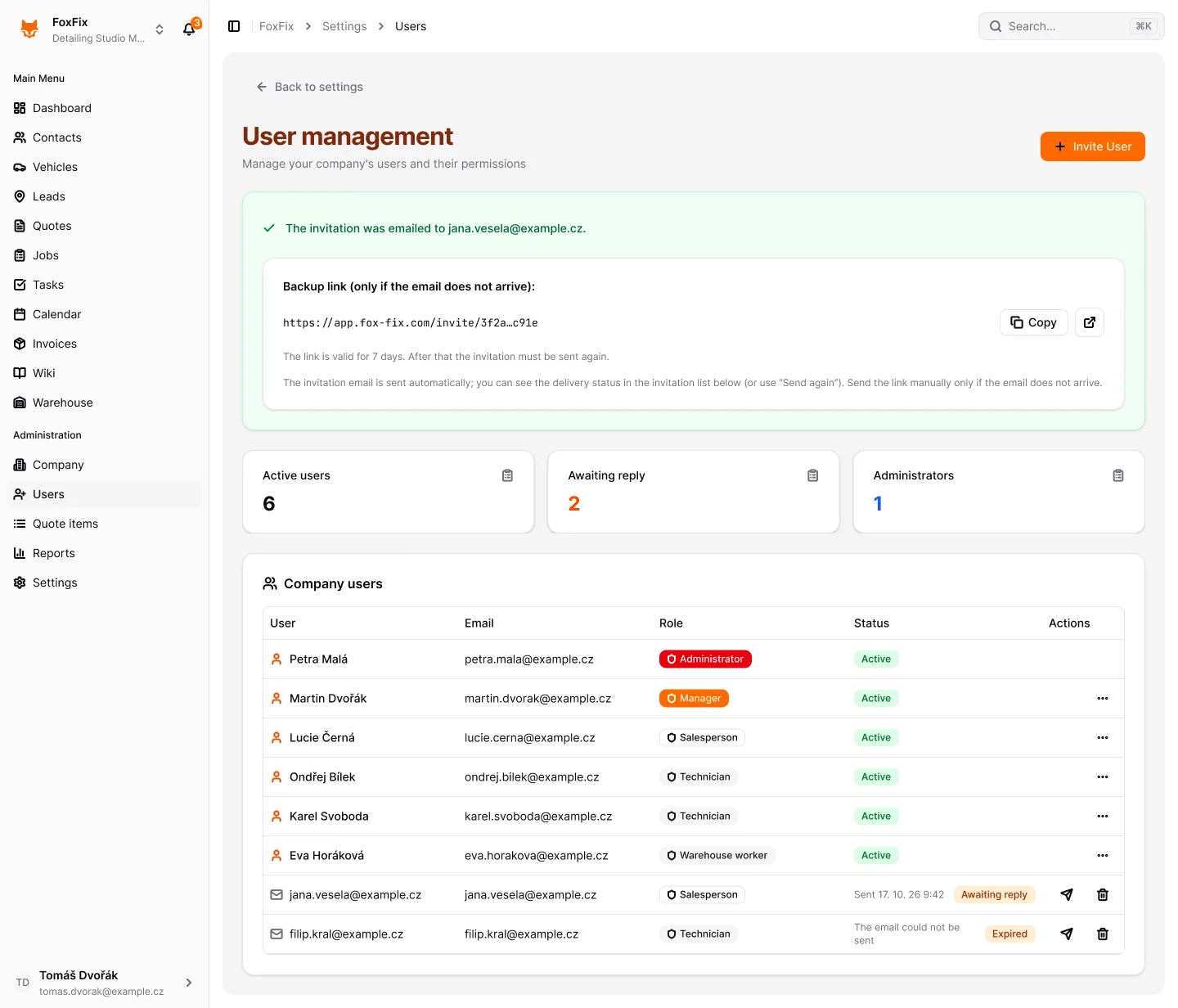 (opens the full-size image in a new tab)
What you will find on the page
- The Invite user button in the top right.
- Three counters: Active users, Awaiting reply (outstanding invitations) and Administrators.
- The Company users table with the columns User, Email, Role, Status and Actions.
The table has two kinds of row:
| Row | How to recognise it | Status | Actions |
|---|---|---|---|
| Company member | First and last name | Active | A ⋯ button with the Actions menu (missing on your own row) |
| Invitation | Light orange background, email instead of a name | Awaiting reply or Expired | A send icon (Resend the invitation by email) and a bin icon (Cancel invitation) |
Role label colours: Administrator red, Manager orange, other roles grey or white.
How to invite a new user
The full procedure, including what the invited colleague does, is described on the Inviting a new user page. In short:
- Click Invite user.
- In the Invite a new user dialog, fill in First name, Last name and Email address, and select a Role.
- Click Send invitation.
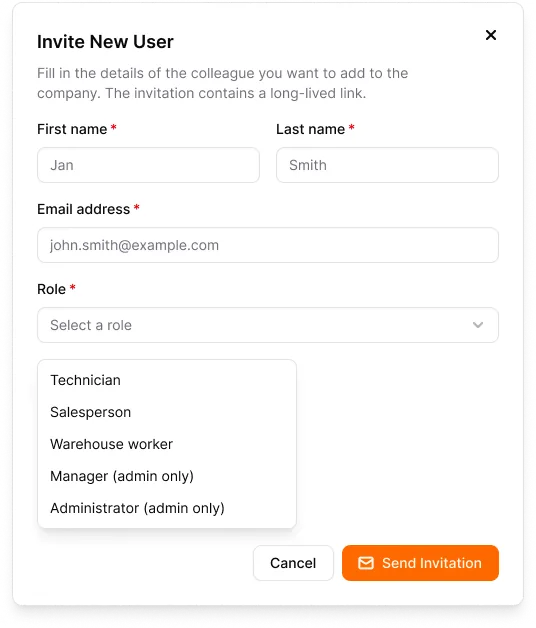 (opens the full-size image in a new tab)
What happens next:
- New user: the invitation is sent by email and a green card appears at the top: “The invitation was emailed to …”. It also contains a backup link with a Copy button. Send the link by hand only if the email does not arrive. The link is valid for 7 days.
- The colleague already has a FoxFix account (in another company): no invitation is sent; the colleague is added to your company straight away and receives a notification in the app.
- The colleague is already in your company: the app tells you so and creates nothing.
Invitation delivery status
Under the invitation label in the Status column you see what is happening with the email:
| Status | Meaning |
|---|---|
| Sent and a date | The email has gone out. |
| Sending… | The email is being sent right now. |
| The email could not be sent | Delivery failed – resend the invitation or pass on the backup link. |
| Not sent — link only for now | The email was not sent; the invitation exists only as a link. |
How to resend or cancel an invitation
- Resend: click the send icon next to the invitation. “Sending the invitation has been requested…” appears.
- Cancel: click the bin icon and confirm “Are you sure you want to cancel this invitation?”. The link in the invitation stops working.
Cancel an invitation labelled Expired and create a new one.
User limit of your plan
The number of users is limited by your subscription plan. Both active members and pending invitations count towards the limit. When the limit is used up, the invitation is not created and the app reports “The company's plan has no free seat for another user.”
What you can do:
- cancel invitations you no longer need,
- delete the accounts of people who no longer work for the company,
- or change the plan under Subscription.
You can see how many seats are taken in Settings → Subscription, on the Users row (for example “4 of 8”).
User actions
The ⋯ button on a member's row opens the Actions menu. An administrator sees all items; a manager sees only Reset password.
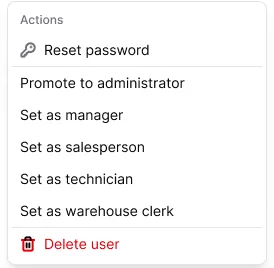 (opens the full-size image in a new tab)
Password reset
Use this when a colleague has forgotten their password and cannot recover it themselves via Forgot your password? on the sign-in page.
- In the Actions menu, choose Reset password.
- In the dialog, confirm with Yes, reset the password.
- A temporary password is shown. Click Copy and pass the password on to your colleague.
- Close the dialog with the Close button.
Your colleague signs in with the temporary password and the app immediately asks them to change it.
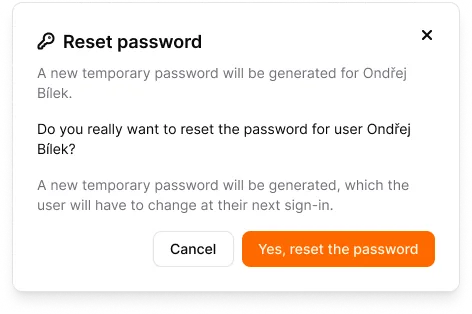 (opens the full-size image in a new tab)
You see the password only once
Once the dialog is closed, the temporary password cannot be shown again. If you do not copy it, you have to reset the password again.
Changing a role
- In the Actions menu, choose the new role: Promote to administrator, Set as manager, Set as salesperson, Set as technician or Set as warehouse clerk.
- Confirm the question “Are you sure you want to change this user's role?”. “The user's role was changed” appears.
What each role may do is described on the Roles and permissions page.
Deleting a user
- In the Actions menu, choose Delete user.
- Confirm the question. The action cannot be undone – the user is removed from the system.
- A confirmation appears that the user can be invited again.
Deletion cannot be undone
A deleted user can no longer sign in. If the colleague comes back, invite them again in the usual way. Records they created in FoxFix stay in the company.
New roles and branches
Part of the November 2026 update. It appears once your company has it switched on. From then on, user management is decided not by the old Administrator and Manager roles but by the roles in Roles and permissions and each person's branch.
Who may do what
- Admin – invites, deactivates, resets passwords and deletes anyone in the company, including other admins.
- Managing director – the same for everyone except admins.
- CFO – the same for everyone except admins and the managing director.
- Branch manager – only people in their own branch, and only up to the branch manager role (cannot invite or manage the CFO, the managing director or an admin).
- Other roles – do not manage users.
Nobody can grant a role higher than their own. API keys (the web leads token and CRM API keys) are managed by the admin, the managing director and the CFO. The server decides; the buttons only show what you may do.
An invitation with roles and a branch
- Click Invite user.
- Fill in Email address.
- Tick one or more Roles. Only roles you may grant are offered.
- Choose a Branch. A branch manager has their own branch fixed; the CFO, managing director and admin choose from the company's branches or leave the invitation without a branch.
- Click Send invitation.
The invitation is emailed even when your colleague already has a FoxFix account in another company. They accept it by signing in with that account. The invitations list shows the roles and branch of each invitation. The email and the invitation page do not list the roles.
When an invitation stops being valid
On acceptance FoxFix checks the invitation again: the person who sent it must still be allowed to grant its roles and branch at that moment. If they have lost the permission, left the company or the roles have changed, the invitee sees "This invitation is no longer valid: the person who sent it may no longer grant its roles or branch. Ask for a new invitation." and is not added. Cancel the invitation and send a new one.
The last admin
A company must always have at least one active admin with an office licence. The last admin cannot be deactivated or deleted – the app reports "The company must have at least one active administrator."
Roles, licence and branch
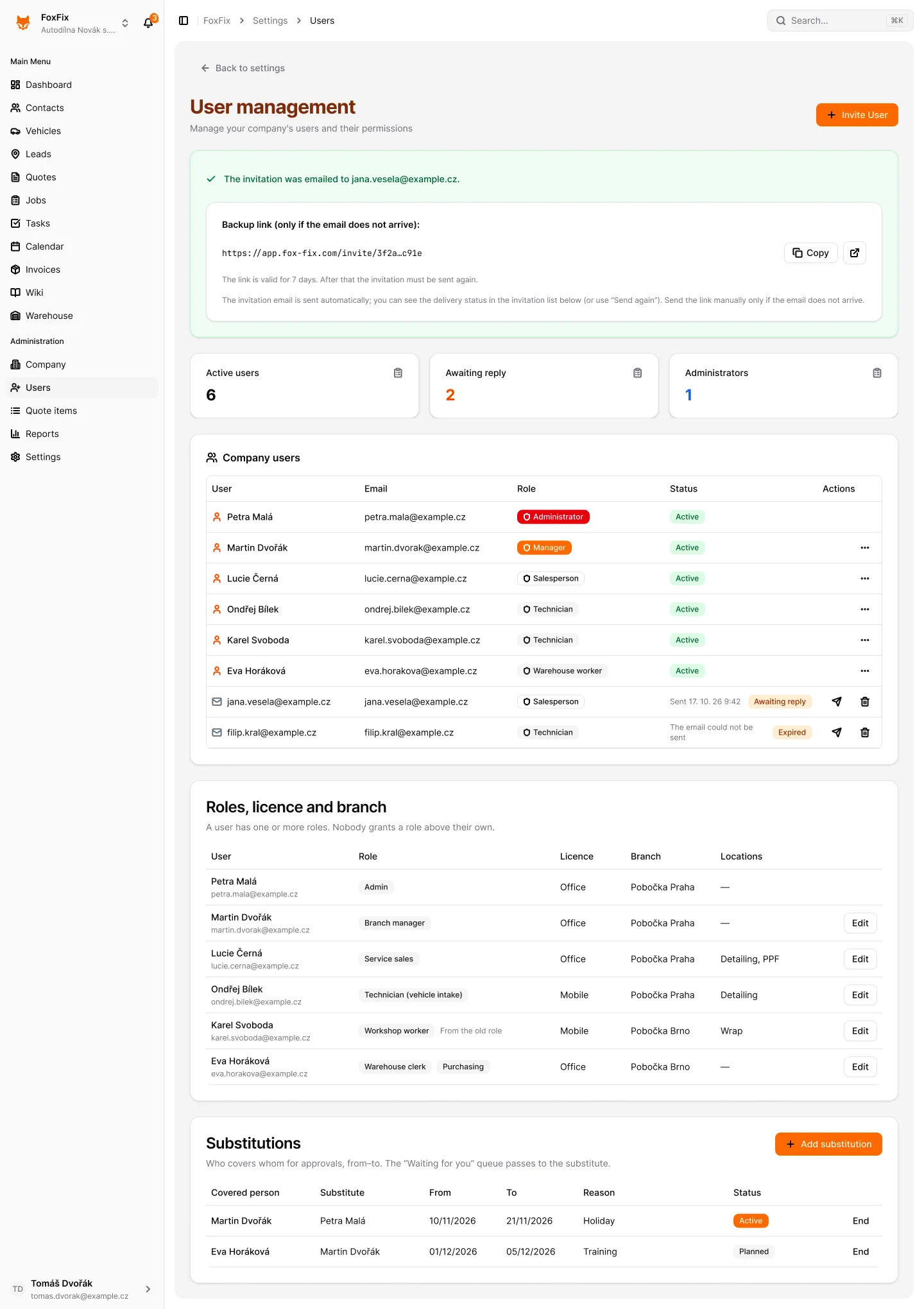
When your company has the November 2026 update switched on (new roles, locations and branches), two panels appear below the users table: Roles, licence and branch and Substitutions. They are visible to the Admin, Managing director, CFO and Branch manager (the “Users and roles” row of the role matrix). A branch manager only manages the people of their own branch.
 (opens the full-size image in a new tab)
The table shows each active user's Roles, Licence (Office or Mobile), Branch and Locations.
The note From the old role means the person has no roles assigned yet, so FoxFix derives them from their previous role: administrator → Admin, manager → Branch manager, salesperson → Service sales, technician → Workshop worker, warehouse clerk → Warehouse clerk. The CFO and Managing director roles are never given this way – assign them by hand.
How to change a user's roles
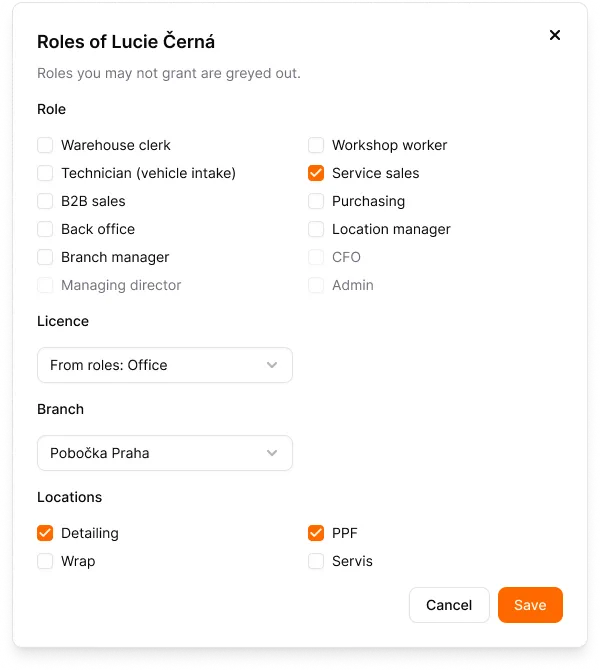
- Click Edit next to the user. You only see the button for people you may manage.
- Tick one or more roles. Roles you may not grant are greyed out. At least one role must stay ticked.
- Choose the Licence. The default is From roles: someone who only has the Workshop worker or Technician (vehicle intake) roles gets Mobile, everyone else Office. You can switch the licence by hand.
- Choose the Branch and tick the Locations the person belongs to. Only someone who may change the company structure (Admin, Managing director, CFO) changes the branch and locations; for everyone else they are greyed out.
- Click Save.
 (opens the full-size image in a new tab)
Nobody grants a role above their own:
| Who assigns | May grant |
|---|---|
| Admin | all roles |
| Managing director | all except Admin |
| CFO | all except Admin and Managing director |
| Branch manager | all except Admin, Managing director and CFO, only to people of their own branch |
If the table says “First load the default roles in Settings › Roles.”, the company has no saved roles yet. Load them on the Roles and permissions page, where the matrix also shows what each role may do.
Substitutions
The Substitutions panel sets who covers for whom when documents are approved. During a substitution the substitute sees the covered person's queue in For approval and in the Waiting for you block; when it ends, the queue goes back to the original approver.
- Click Add substitution.
- Choose the Covered person and the Substitute. They cannot be the same person, and the list only offers people you may manage.
- Enter From and To. Both days count in full; a one-day substitution has the same From and To. The form starts with today until a week from today.
- Optionally enter a Reason (e.g. Holiday) and click Save.
The Status column shows Active, Planned or Ended. End finishes a substitution early. Nothing is deleted – the substitution stays in the list as ended. Substitutions are added and ended by the Admin, Managing director, CFO and a Branch manager for people of their branch.
Tips and common problems
- No ⋯ button on your own row? You cannot change your own role or account – ask another administrator.
- The message “The account is shared with another record and cannot be deleted from here”? The colleague is also a member of another company in FoxFix, so their account cannot be deleted from your company. Contact FoxFix support.
- A manager cannot see the Manager and Administrator roles? Only an administrator can select them in an invitation.
- Your colleague did not receive the email? Check the delivery status in the Status column and ask them to look in their spam folder. Then resend the invitation or pass on the backup link.