
My profile and notifications
On the My profile page you edit your name and phone number, see which role you have in the app, and can sign out. On the Notification Settings page you choose which alerts reach you by email as well as through the bell in the app. Both settings are personal – they affect only you.
Who can see this
Every signed-in user except the Warehouse clerk role.
My profile
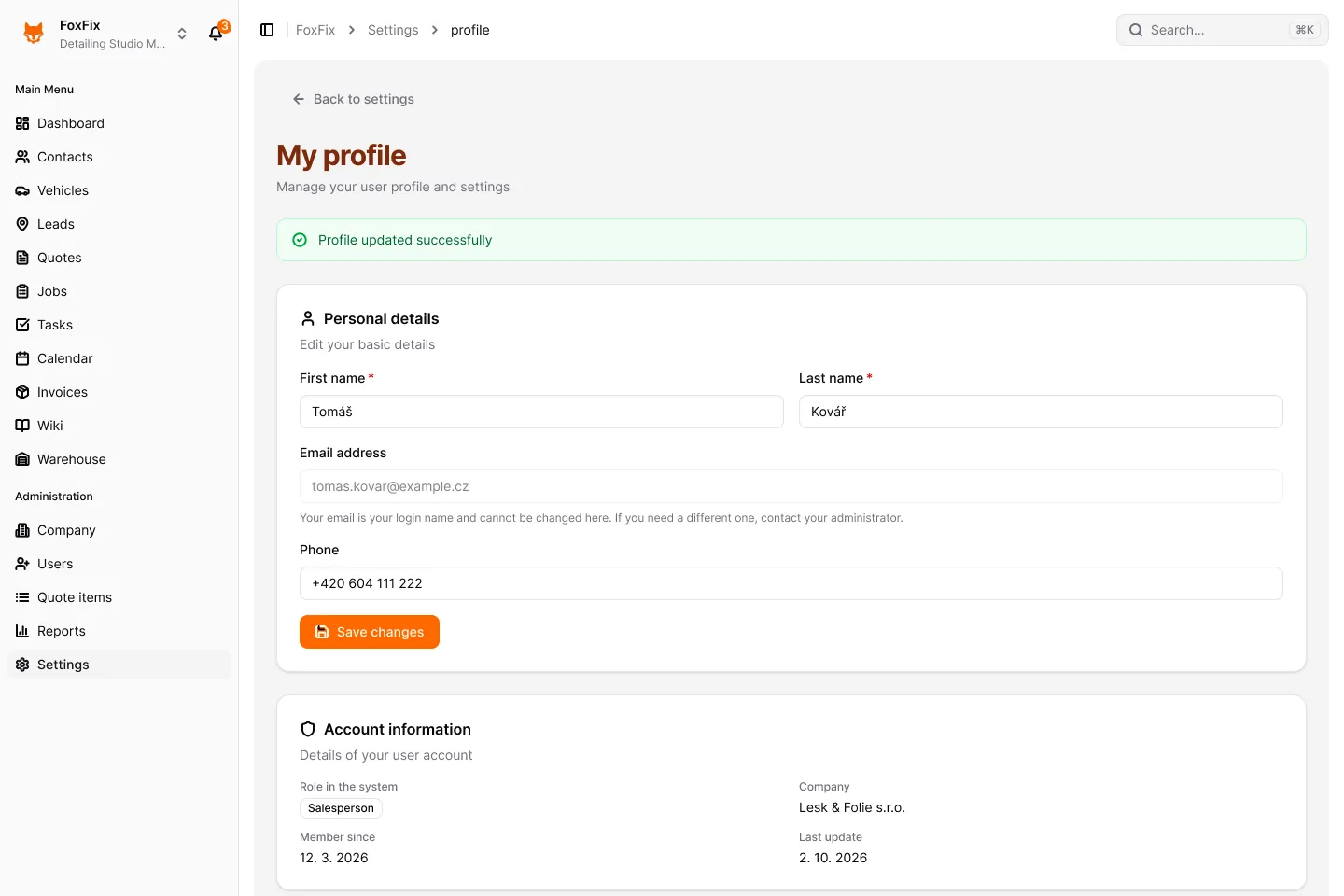
Open your profile via Settings → My profile, or click your name in the bottom left and choose Profile.
 (opens the full-size image in a new tab)
What you will find on the page
- Personal details – the First name, Last name, Email address and Phone fields.
- Account information – your Role in the system (a coloured label), the Company you are currently working in, the Member since date and the Last updated date.
- Security settings – signing out of the app.
How to edit your name or phone number
- Change the First name, Last name or Phone. First name and last name are both required.
- Click Save changes. A green confirmation appears at the top: “Profile updated successfully”.
If you work in more than one company, the change applies to all of them.
You cannot change your email here
Your email is your login name, which is why the field is greyed out. If you need to sign in with a different email, contact your company's administrator.
Forgotten or new password
You set your password on the sign-in page:
- Sign out (see below).
- On the sign-in page, click Forgot your password? and follow the instructions: enter your email, click Send code, then fill in the Reset code from the email and your new password.
If you cannot sign in at all, ask your company's administrator or manager to reset your password – they will generate a temporary password, which you change the next time you sign in. See User management.
How to sign out
- In the Security settings card, on the Sign out of the system row, click Sign out.
- Confirm the question “Are you sure you want to sign out?”. The app takes you to the sign-in page.
You can also sign out by clicking your name in the bottom left and choosing Logout.
App language
To switch the app language, click your name in the bottom left and choose Language. The choice applies to your account. If you do not choose a language, you see the app in the language the administrator has set for the company.
Notification settings
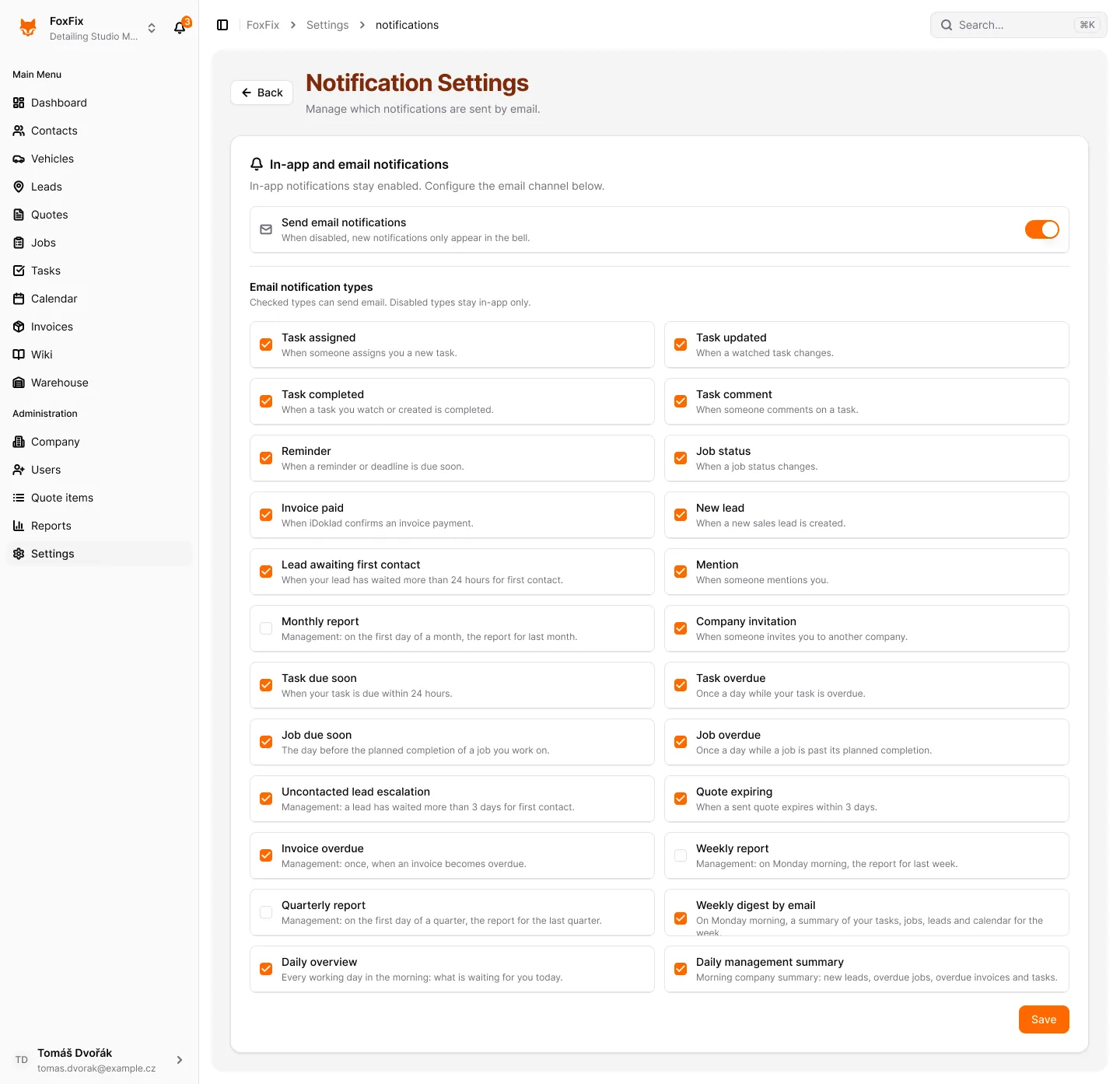
In-app notifications (the bell at the top left next to the company name) are always delivered. Here you only set which of them reach you by email as well. Open the page via Settings → Notifications.
 (opens the full-size image in a new tab)
How to set up email notifications
- The main Send email notifications switch turns all emails on or off at once. When it is off, new notifications appear only in the bell.
- Under Email notification types, tick the types you want to receive by email. Unticked types stay in the app only.
- Click Save. The message “Notification settings saved” confirms it.
Until you save anything, the default applies: emails are on and all types are ticked.
Notification types at a glance
| Area | Types |
|---|---|
| Tasks | Task assigned, Task updated, Task completed, Task comment, Reminder, Task due soon, Task overdue |
| Jobs | Job status, Job due soon, Job overdue |
| Leads and quotes | New lead, Lead awaiting first contact, Uncontacted lead escalation, Quote expiring |
| Invoices | Invoice paid, Invoice overdue |
| Reports and overviews | Daily overview, Weekly digest by email, Daily management summary, Weekly report, Monthly report, Quarterly report |
| Other | Mention, Company invitation |
Each type has a short description of when the notification is created. Types whose description starts with “Management:” relate to summaries and alerts for the company's management.
Getting too many emails?
Don't switch everything off straight away. Keep the types that need a response (for example Task assigned or New lead) and untick the summary reports. You will still see everything in the bell in the app.