
Settings
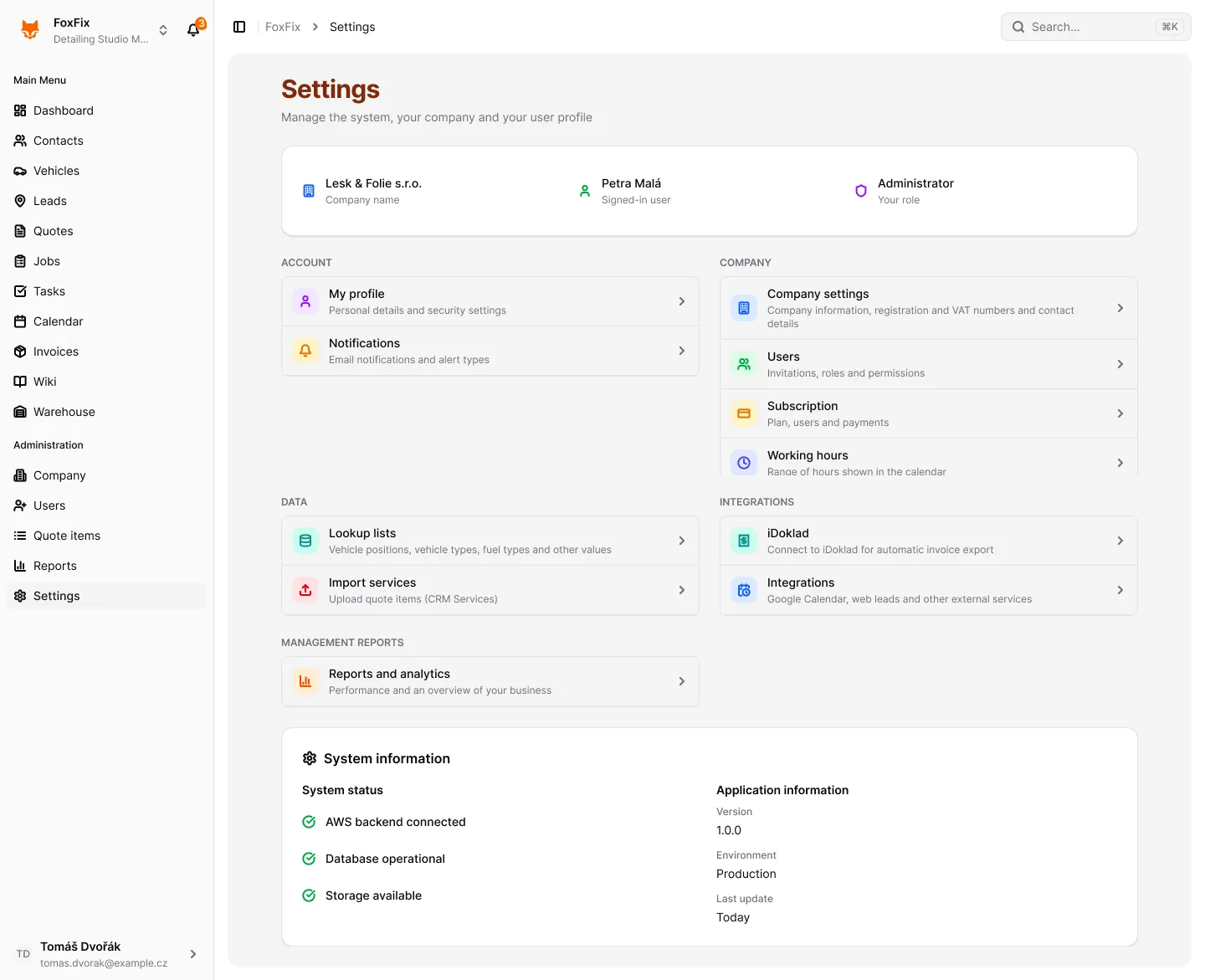
The Settings page is the hub for every setting in the app. At the top you see a quick summary – the company name, your name and your role – and below it links grouped into the sections Account, Company, Data, Integrations and Overviews. Which rows you see depends on your role.
Who can see this
Every signed-in user can open Settings except the Warehouse clerk role, which has a simplified menu with only Inventory, Tasks, Calendar and Wiki. Individual rows are shown according to role (see the table below).
 (opens the full-size image in a new tab)
How to open Settings
- Administrator and Manager: in the left-hand menu, under Administration, click Settings. The same section also has direct links to Company and Users.
- Other roles: click your name in the bottom left and choose Settings from the menu (or go straight to Profile).
What you will find on the page
| Section | Row | What it is for | Who sees it |
|---|---|---|---|
| Account | My profile | Name, phone, account information, signing out | everyone |
| Account | Notifications | Which notifications you receive by email | everyone |
| Company | Company settings | Details on documents, logo, currency, company language, modules, AI assistant | everyone (only Administrator and Manager can edit) |
| Company | Users | Invitations, roles, password resets, deleting users | Administrator, Manager |
| Company | Roles and permissions | Who may do what: 12 roles, matrix, custom roles | everyone (changed by Admin, Managing director, CFO) |
| Company | Subscription | Plan, trial period, payments | Administrator, Manager |
| Company | Locations | The company’s locations, their heads, capacity and people | Administrator, Manager |
| Company | Branches | The company’s branches, their heads and people | Administrator, Manager |
| Company | Employees | People’s cards, type of employment, wage and rate | everyone (scope by role) |
| Company | Working hours | Range of hours shown in the calendar | everyone |
| Company | Limits and rules | Approvals, tolerances, discounts, deadlines and number series | everyone (changed by Admin, Managing director, CFO) |
| Company | Document appearance | Colours, logos and details on PDFs | everyone (changed by Admin, Managing director, CFO) |
| Company | Document templates | Texts of reports and the job card | everyone (changed by Admin, Managing director, CFO, Back office) |
| Company | Units | Which units from the one list of units your company offers and in what order | assortment management (changed by Admin, Managing director, CFO) |
| Data | Lookup lists | Vehicle positions and types, fuels, rejection reasons, lead assignment, item categories | Administrator, Manager |
| Data | Quote recommendations | What to suggest with an item in a quote | Administrator, Manager |
| Data | Import services | One-off upload of a price list | Administrator |
| Integrations | iDoklad | Connecting invoicing to iDoklad | Administrator |
| Integrations | Integrations | Google Calendar, leads from web forms and the FoxFix API | everyone (web leads and API only Administrator and Manager) |
| Overviews | Reports and analytics | Link to the Reports module | everyone, if the Reports module is switched on |
A section that has no rows for you is not shown. The Roles and permissions, Locations, Branches, Employees, Limits and rules, Document appearance, Document templates and Units rows appear once your company has the November 2026 update switched on.
With this update the Company settings, Subscription, Lookup lists, Import services and iDoklad rows also follow the roles in Settings → Roles and permissions: lookup lists, iDoklad and company settings are managed by whoever may change Settings (general) for the whole company, the services import by whoever edits the Service price list for the whole company, and the subscription by whoever may manage the FoxFix subscription for the whole company – by default always CFO, Managing director and Admin.
At the very bottom is the System information card with the system status and the app version. It is for information only; there is nothing to set there.
Import services only after agreeing it with support
The Import services row is a one-off tool for the initial upload of a prepared price list into quote items. It also contains the DELETE ALL ITEMS button, which deletes all of your company's quote items, including those created by hand. Do not use the tool without agreeing it with FoxFix support first. Create your own items in the catalogue – see Quote items.
When the subscription is inactive
If the company's trial period has ended or the subscription payment failed, a notice about the inactive subscription covers every page of the app. The only page still available is Subscription, where an administrator can renew it. The company's data stays stored. For details, see Subscription.
Do you work in more than one company?
You switch between companies in the company switcher at the top left, above the menu. The Manage companies… option in the switcher opens an overview of your companies: drag them to change their order, and archive companies where you are an administrator or restore archived ones. Only a company with no data can be deleted, and only after you type its name. You cannot archive or delete the company you are currently working in – switch to another one first.