
Jobs
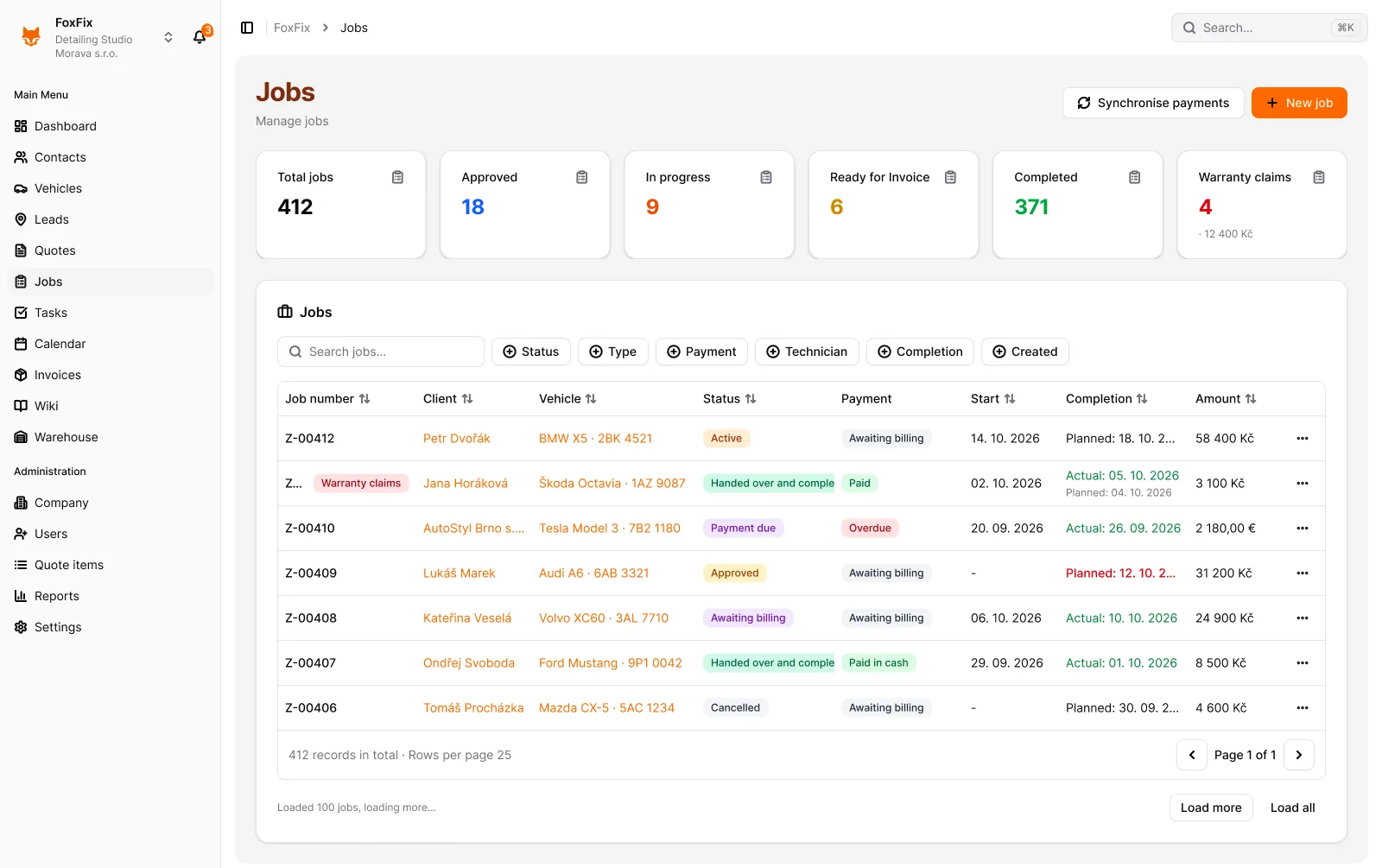
A job records the work you actually carry out for a client — from taking in the vehicle and the work in the workshop through to handover and invoicing. A job is always based on an approved quote. To see all jobs, click Jobs in the left-hand menu.
Who can see this
The Jobs module is part of every plan. If an administrator has switched it off for your company, you will see the message “Module not enabled” instead of the page. Only an Administrator and a Manager can delete jobs.
 (opens the full-size image in a new tab)
What you will find on the page
Statistics
At the top there are six tiles with job counts: Total jobs, Approved, In progress (jobs in the Active status), To invoice (Awaiting billing), Completed and Warranty claims (count and their value). A + after a number means that not all jobs have been loaded yet.
Job table
| Column | Meaning |
|---|---|
| Job number | Sequential number in the form Z-00412. Warranty claim jobs have a red Warranty claim badge. |
| Client | Click to open the contact card. |
| Vehicle | Make, model and licence plate. Click to open the vehicle card. |
| Status | Job status (see below). |
| Payment | Payment status based on the linked invoice (see below). |
| Start | Start date. |
| Completion | For a completed job, the actual date (Actual: …) with the planned date below it; otherwise Planned: …. Once overdue, the planned date turns red. |
| Amount | Value of the job according to the quote, in the quote's currency. |
| Actions | The ⋯ menu with View, Edit and Delete. |
On smaller screens some columns are hidden. Click a row to open the job detail.
Job statuses
| Status | What it means |
|---|---|
| Approved | The job was created from an approved quote and is waiting for the vehicle to be taken in and work to start. |
| Active | Work is in progress (after the Start work button). |
| Awaiting billing | The job is waiting for an invoice to be issued. |
| Awaiting payment | A status used by older jobs. Payment is now tracked in the Payment column. |
| Handed over and completed | The vehicle has been handed over to the customer and the job is closed. |
| Cancelled | The job will not go ahead. |
How a job moves between statuses is described in Job detail.
Payment status
The Payment column shows the state of the job's invoice:
- Awaiting billing — no invoice has been issued yet.
- Draft — the invoice is being prepared and has not been sent yet.
- Unpaid, Partially paid, Paid — the invoice's payment status.
- Overdue — the invoice is unpaid and past its due date.
- Paid in cash — the job was paid in cash without an invoice being issued.
- Recorded — the job was settled with an internal document (for example a warranty claim at your own cost).
- Cancelled — the invoice was cancelled.
Payment synchronisation
The Sync payments button at the top right loads the current payment status of invoices from your accounting (iDoklad). A message then shows how many invoices were updated and, if any, how many jobs were completed as a result. If there is nothing to update, you will see “No invoices to synchronise”.
Search and filters
- Search — the “Search jobs…” field.
- Status — selected job statuses.
- Type — Standard or Warranty claim.
- Payment — Cash, Invoice: paid, Invoice: unpaid, Overdue, Awaiting billing.
- Technician — jobs of specific technicians (primary and additional); Unassigned shows jobs without a technician.
- Completion and Created — a date range with quick options (Today, Last 7 days, This week…) or your own From and To dates.
Click a column header to sort. Filters and sorting are saved in the page address. At the bottom you choose the number of Rows per page and move between pages; Load more and Load all fetch older jobs.
New job
The quickest way to create a job is the Create job button directly in the approved quote's detail — see Quote detail. From the job list, do the following:
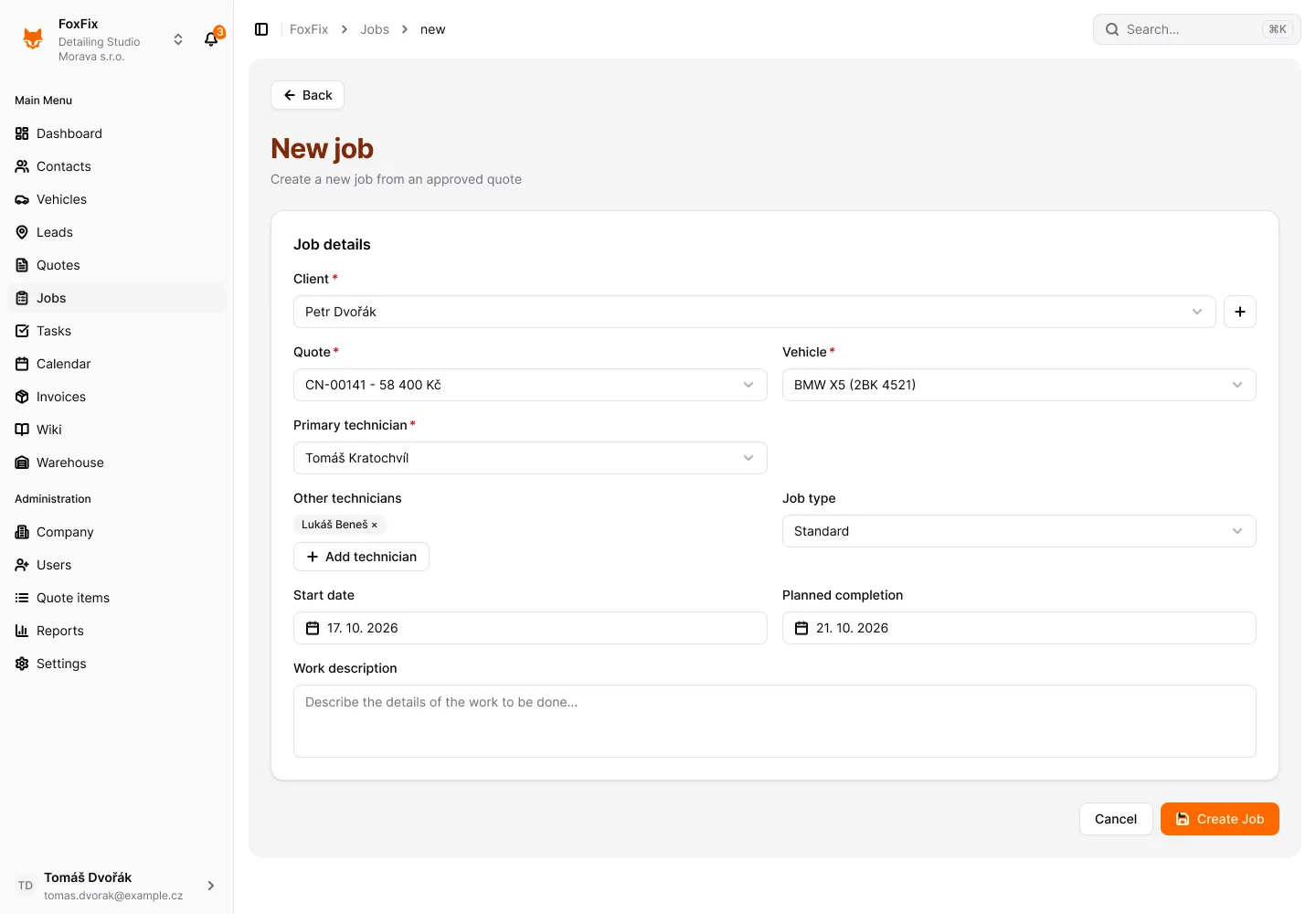
- Click New job. The New job form opens.
- Select the Client * (create a new client with the + button).
- In the Quote * field, select the client's approved quote. The list only contains approved quotes that have not been turned into a job yet.
- Select the Vehicle *. If the quote has no vehicle, you will see “The quote has no vehicle, so the job will be created without a vehicle, checklists or reports.” instead of the field.
- Check the Primary technician * (your account is pre-filled) and add Other technicians if needed (Add technician).
- Choose the Job type — Standard or Warranty claim.
- Fill in the Start date, Planned completion and Work description.
- Click Create job. The job gets a number and its detail opens.
 (opens the full-size image in a new tab)
Creating the job also reserves material from the warehouse (see the Material tab).
If the client has no approved quote, you will see “There are no approved quotes available for the selected client.” Get the quote to the Approved status first. A half-filled form is saved as a draft, and when you come back you can Restore it.
Warranty claim jobs are covered in the Warranty claims procedure.
Editing a job
- In the job detail, open More options → Edit (or, in the list, the ⋯ menu → Edit).
- In the Edit job form, change what you need:
- Status — you can set Approved, Active, Awaiting billing or Cancelled by hand. The Handed over and completed status can only be reached by handing over the vehicle (“The job can only be completed after the handover checklist has been passed.”).
- Job type, Client, Quote and Vehicle (you can also choose No specific vehicle).
- Start date and Planned completion — once work has started, the planned completion is required.
- Primary technician, Other technicians and Work description.
- Click Save changes.
Changing the status in the edit form has the same effect as the buttons in the detail:
- Switching to Active checks and reserves the material. If something is missing, only an Administrator or Manager can start the job, and they must give a reason.
- Switching to Cancelled or Awaiting billing releases material reservations that have not been issued.
If you change the quote on a job in progress, the app asks you to confirm. The job status and completed checklists are kept. A change of technician is recorded in the job history.
Deleting a job
In the detail, open More options → Delete job and confirm. The job's tasks, photos, documents and marked damage are deleted along with it, and its material reservations are released. This cannot be undone. Only an Administrator and a Manager have this option.
In the list, you will find Delete in the ⋯ menu. This deletes only the job itself and releases its material reservations; the job's tasks, photos and documents remain. To remove a job completely, delete it from the detail.
On a phone
On a phone the statistics scroll sideways, and instead of the table there are cards with the job number, client, vehicle, status, payment and amount.