
Calendar
The calendar shows everything that has a date in one place: jobs, tasks, your own events (meetings, appointments, reminders) and important deadlines — planned job completions, invoice due dates and quote expiry dates. You create events here, and you can reschedule jobs and tasks by dragging them.
Who can see this
All users of a company that has the Calendar module turned on (it is included in every plan). Only an Administrator and a Manager can see the Capacity view.
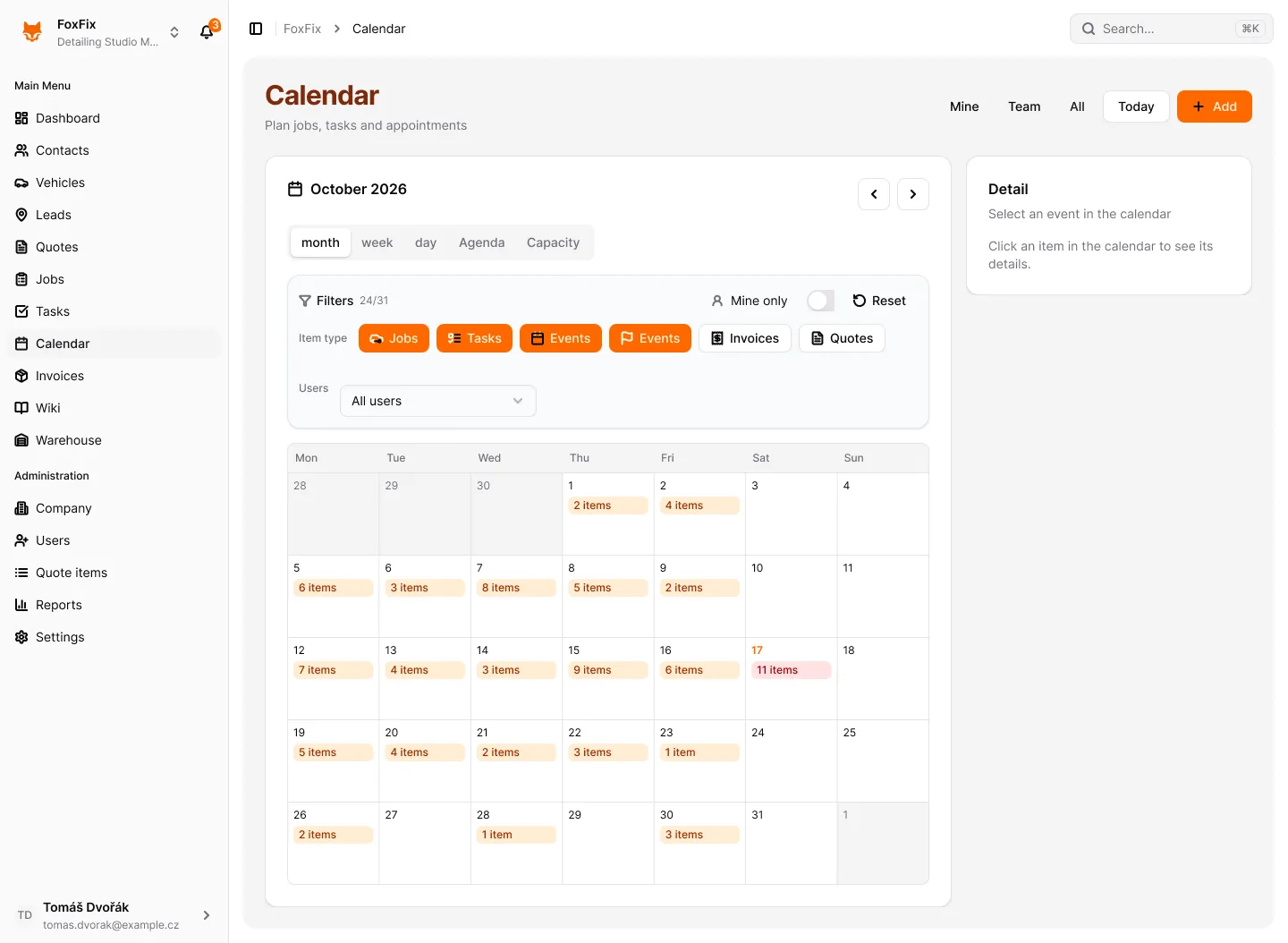 (opens the full-size image in a new tab)
What you will find on the page
The page header contains:
- the Mine / Team / All scope toggle,
- the Today button — jumps to today's date,
- the Add button — creates a new event.
Below them is the calendar card with the name of the period (e.g. “October 2026”, “Week 42, 2026”), arrows to move forwards and backwards, and the Month, Week, Day, Agenda and Capacity view switcher. On the right (below the calendar on a phone) is the Details panel showing the item you clicked.
When it opens, the calendar is set up according to your role: technicians and warehouse clerks see Day with the Mine scope, everyone else sees Agenda with the All scope.
Mine, Team and All scope
- Mine — jobs, tasks and events you are on.
- Team — items that have at least one person assigned.
- All — everything in the company.
You always see invoice due dates, in every scope — so that no money slips through the cracks.
Filters
In the Filters box (the number next to it shows how many items are visible out of how many, e.g. “24/31”):
- Item type — turn Jobs, Tasks, Events, Deadlines (planned job completions), Invoices (due dates) and Quotes (expiry dates) on and off. A type that is on has a coloured button.
- Mine only — a quick toggle for items you are on.
- Users — shows only the items of selected colleagues (“Select users…"). Useful for planning a particular technician's work.
- Reset — returns the filters to their default state.
The calendar remembers the filters in your browser for next time.
Views
Month
Each day shows the number of items (“3 items”). The more there is on a given day, the darker the square, so you can spot busy days at a glance. Today is highlighted. Click a day to open the Day view.
Week and Day
A time grid covering the company's working hours in half-hour steps, with a line for the current time. The week starts on Monday. Items are coloured blocks:
| Colour | What it means |
|---|---|
| yellow / orange / purple / green | a job in the Approved / Active / Awaiting billing / Handed over and completed status |
| grey / blue / green | a task — pending / in progress / completed |
| blue / green / red | an event — scheduled / confirmed / cancelled |
| green | a job completion deadline |
| red | an invoice due date |
| yellow | a quote expiry date |
The range of hours the grid shows is set for the whole company in Settings → Working hours.
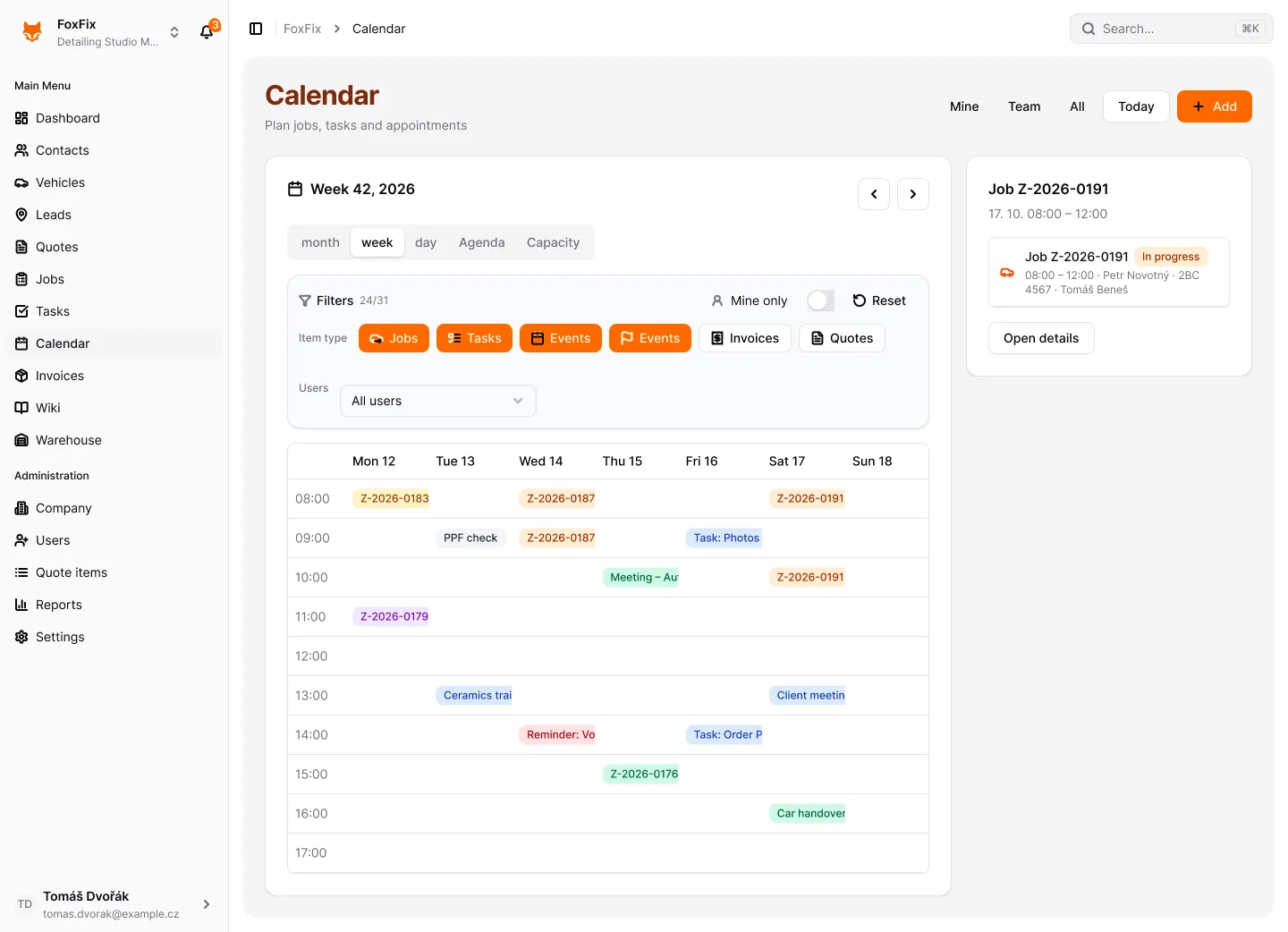 (opens the full-size image in a new tab)
Agenda
A list of items from 30 days back to 14 days ahead. At the top is a red Overdue section with things that should already be done. Below it are the days (Today, Tomorrow, then dates) with their items grouped by type — jobs, tasks, events, job deadlines, invoice due dates and quote expiry dates. For jobs you can see the time, client, vehicle and technician.
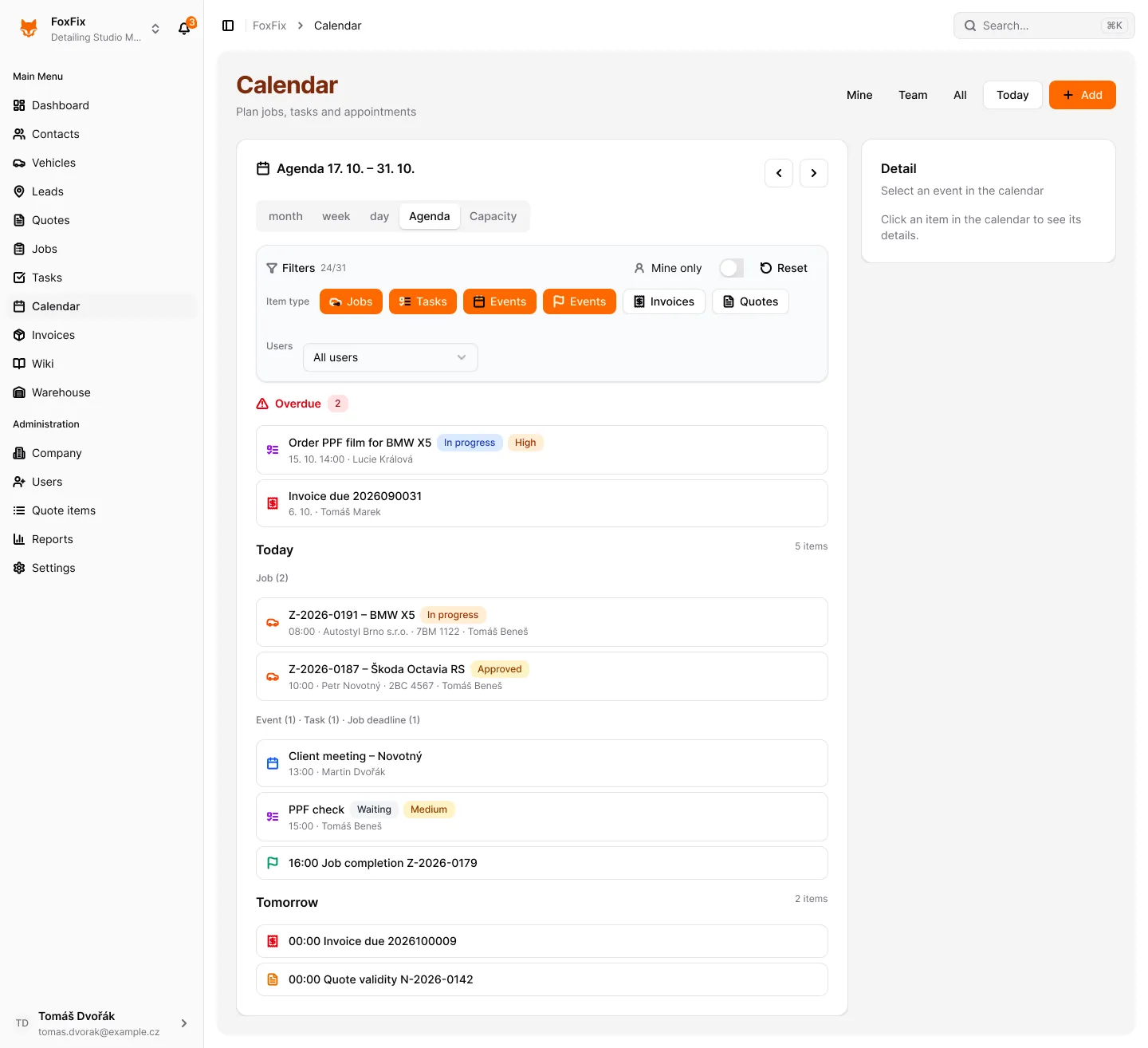 (opens the full-size image in a new tab)
Capacity
A view for planning the workshop (Administrator and Manager only). Rows are people, columns are days of the week. You can see who has how many jobs and tasks and who is free. Technicians are always in the table; other colleagues appear only when something falls to them that week. The last row, Unassigned, shows work nobody has yet. Capacity shows only jobs and tasks.
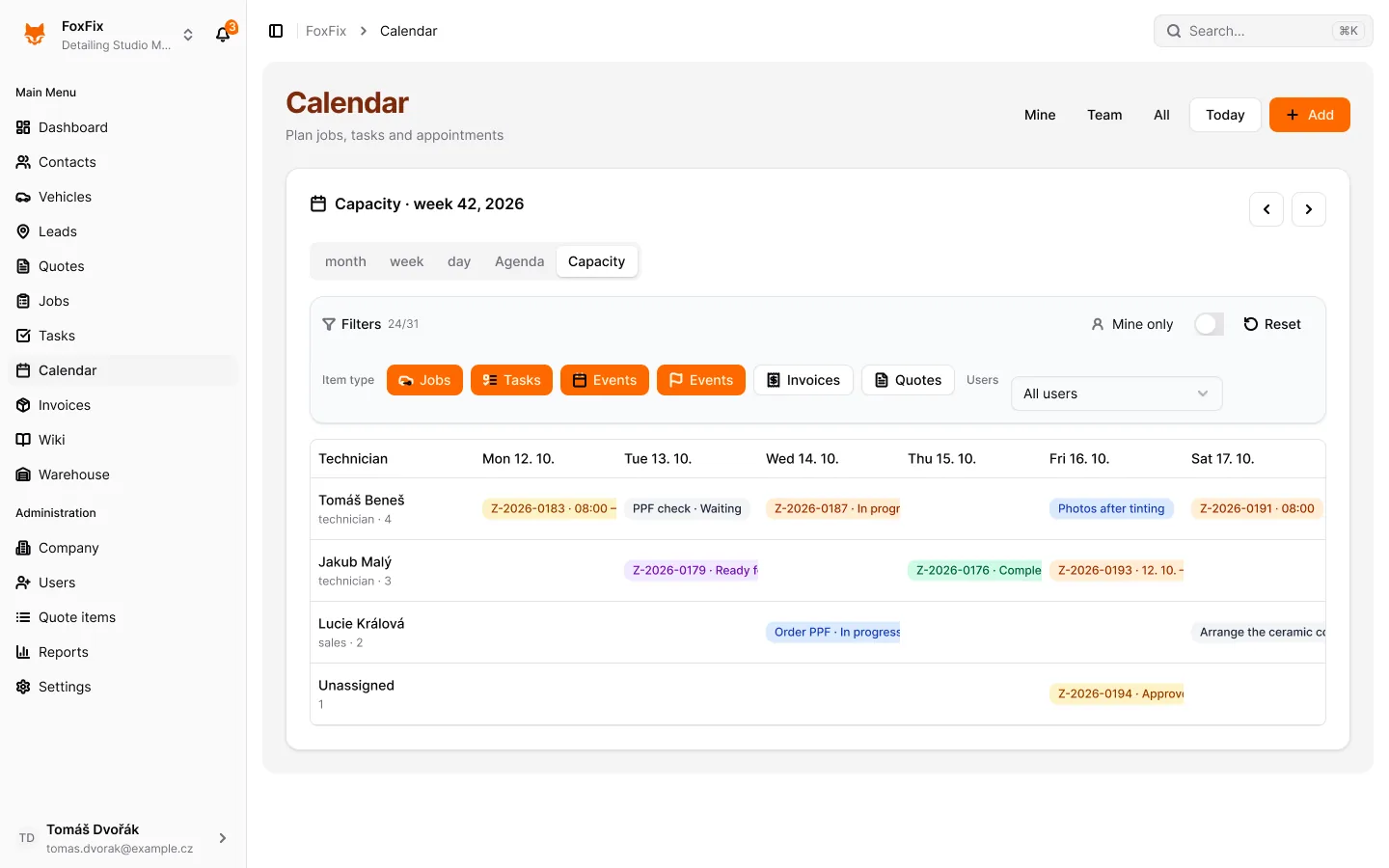 (opens the full-size image in a new tab)
How to add an event
- Click Add. In the Week or Day view you can also select a time slot in the grid with your mouse — the time is filled in for you.
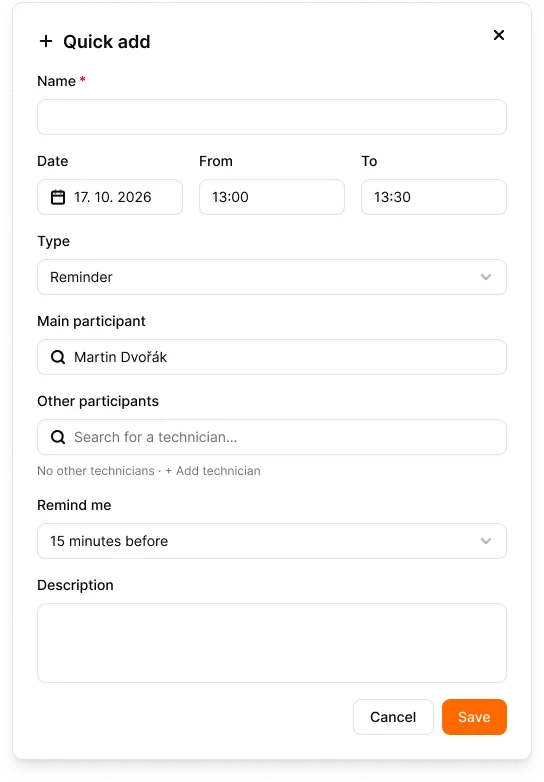
- In the Quick add window, fill in the Name (required).
- Check the Date, From and To.
- Choose the Type: Appointment, Meeting or Reminder.
- Choose the Main participant and, if needed, Other participants.
- For a reminder, choose when FoxFix should Remind me: At the reminder time, 15 minutes before, 1 hour before or 1 day before.
- Optionally add a Description and click Save. “Event created” appears.
 (opens the full-size image in a new tab)
How to edit or delete an event
- Click the event in the calendar. The Edit event window opens.
- Change the details and click Save changes.
- To delete the event, click Delete at the bottom left and confirm “Really delete this event?”.
Job, task and deadline details
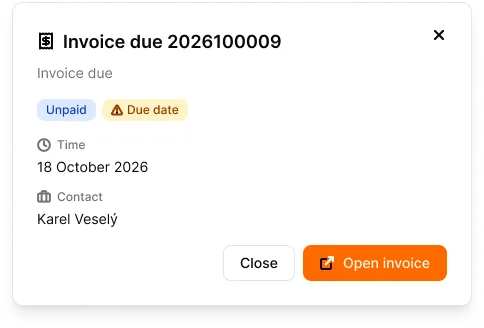
Click a job, task, job deadline, invoice due date or quote expiry date to open a quick preview: status, time, assignee, contact and vehicle. The Open job button (Open task, Open invoice, Open quote) takes you to the full detail. For a quote expiry date, the preview reminds you that the quote expires after this date.
 (opens the full-size image in a new tab)
How to reschedule by dragging
In the Week and Day views you can drag blocks with your mouse:
- drag an event to change its time, or stretch it to change its length,
- drag a task to change its due date,
- drag a job to change its start date.
Schedule conflict
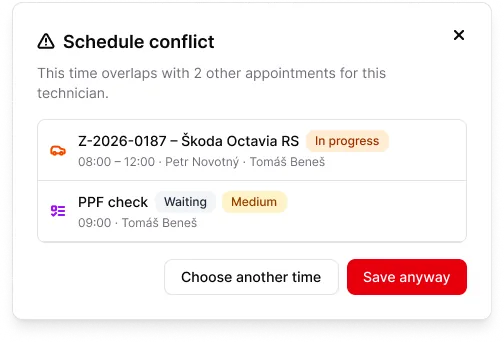
If, after the move, the item would overlap with another appointment of the same technician, FoxFix asks in the Schedule conflict window and lists the clashing items. Choose Choose another time (the move is undone) or Save anyway. Overlapping items are highlighted in the grid.
 (opens the full-size image in a new tab)
Google Calendar
If you connect Google Calendar in Settings → Integrations, FoxFix copies your events, tasks and jobs into it one way — including changes you make by dragging. Changes made in Google Calendar are not carried over into FoxFix.
Tips and common problems
- I cannot see a colleague's items. Switch the scope to Team or All and check the Users filter and the Mine only toggle.
- Due dates or quotes are missing. Turn on the Invoices or Quotes type in the filters.
- On a phone, Agenda or Day is the clearest. You will find the Details panel below the calendar.